# Navigating the Secure Frontier: Unveiling the Best SSH Client for Windows 11
In the intricate tapestry of modern computing, secure remote access stands as a foundational pillar, indispensable for developers, system administrators, and even casual users managing personal servers. At the heart of this secure connectivity lies the Secure Shell (SSH) protocol, a cryptographic network protocol that enables secure data communication between two networked computers. With Windows 11 now firmly established as a dominant desktop operating system, the demand for robust, intuitive, and feature-rich SSH clients has never been higher.
This comprehensive guide delves into the diverse landscape of SSH clients available for Windows 11, meticulously examining their capabilities, user experience, and suitability for various professional demands. We aim to transcend mere feature lists, providing a deeply nuanced analysis to empower you in selecting not just *an* SSH client, but the *best* SSH client tailored precisely to your operational workflow and security imperatives.
Understanding SSH: The Backbone of Secure Remote Access
Before dissecting the various client offerings, it’s crucial to grasp the fundamental principles that make SSH an indispensable tool. Developed in 1995 as a secure replacement for insecure protocols like Telnet and rlogin, SSH provides a secure channel over an unsecured network by utilizing strong cryptography.
What is SSH and Why is it Indispensable?
SSH operates on a client-server model, where an SSH client initiates a connection to an SSH server running on a remote machine. Once the connection is established and authenticated, all communication between the client and server is encrypted, protecting against eavesdropping, connection hijacking, and other network-level attacks.
Its applications are vast and varied:
- Secure Remote Command Execution: Executing commands on a remote server as if you were sitting directly in front of it.
- Secure File Transfer: Protocols like SCP (Secure Copy Protocol) and SFTP (SSH File Transfer Protocol) facilitate secure file transfers.
- Port Forwarding (Tunneling): Creating secure tunnels for other network services, such as accessing internal databases or web services over an insecure network.
- X11 Forwarding: Securely running graphical applications from a remote server on your local machine.
For Windows 11 users, especially those interacting with Linux servers, cloud instances, or other remote systems, a reliable SSH client is not merely a convenience; it is a critical component for productivity, security, and seamless integration into a heterogeneous computing environment. The choice of client significantly impacts efficiency, security posture, and overall user satisfaction.
Key Criteria for Evaluating an SSH Client on Windows 11
The ideal SSH client for Windows 11 is not a one-size-fits-all solution. Its “bestness” is intrinsically linked to individual user requirements. However, a set of universal criteria can guide this evaluation process, ensuring a holistic assessment of each contender.
User Interface & Experience (UI/UX)
The aesthetic appeal and intuitive nature of an SSH client’s interface are paramount, particularly for users accustomed to the polished experience of Windows 11.
- Graphical vs. Command-Line Interface (CLI): Does it offer a modern GUI, or is it primarily CLI-driven?
- Tabbed Sessions: Essential for managing multiple concurrent connections efficiently.
- Customization: Themes, fonts, color schemes, and terminal emulation options.
- Session Management: The ability to save, organize, and quickly reconnect to frequently used hosts.
Feature Set and Capabilities
Beyond basic connectivity, advanced features differentiate a good client from a great one.
- SFTP/SCP Integration: Built-in file transfer capabilities streamline workflow.
- X11 Forwarding Support: Crucial for remote graphical applications.
- Port Forwarding (Local, Remote, Dynamic): Flexibility in creating secure tunnels.
- Agent Forwarding: Securely using local SSH keys for authentication on remote servers.
- Scripting & Automation: Support for macros, command sequences, or integration with scripting languages.
- Terminal Emulation: Broad compatibility with various terminal types (xterm, vt100, etc.).
Security & Authentication
Given SSH’s core purpose, the security features of the client are non-negotiable.
- Authentication Methods: Support for password, public key (RSA, ECDSA, Ed25519), keyboard-interactive, and increasingly, FIDO2/hardware tokens.
- Encryption Algorithms: Support for modern, strong cryptographic algorithms (e.g., AES-256, ChaCha20-Poly1305).
- Key Management: Secure storage and management of SSH keys.
- Audit Trails: Logging connection details and command history.
Performance & Resource Usage
An efficient client should not unduly tax system resources, especially on machines with multiple applications running.
- Lightweight Footprint: Low CPU and RAM consumption.
- Responsiveness: Smooth terminal input and output, even over high-latency connections.
Integration with Windows 11 Ecosystem
Seamless integration can enhance the overall user experience.
- Windows Terminal Compatibility: Running within Microsoft’s modern terminal application.
- WSL (Windows Subsystem for Linux) Integration: Harmonious operation with Linux environments.
- Clipboard Integration: Easy copying and pasting.
Cost and Licensing
Clients range from completely free and open-source to enterprise-grade paid solutions.
- Free vs. Paid: Does the free tier meet your needs, or is a subscription necessary for advanced features?
- Open Source vs. Proprietary: Implications for transparency, community support, and customization.
Community Support & Updates
An active development community and regular updates ensure security patches, bug fixes, and feature enhancements.
The Contenders: A Deep Dive into the Leading SSH Clients for Windows 11
With these criteria in mind, let’s explore the prominent SSH clients vying for the title of “best” on Windows 11.
Built-in OpenSSH (via Windows Terminal/PowerShell/CMD)
Since Windows 10, Microsoft has embraced OpenSSH, integrating both an SSH client and server directly into the operating system. For Windows 11 users, this means a native, command-line driven solution is available out-of-the-box, often accessed through the sleek Windows Terminal.
- Pros:
- Native & Lightweight: No external software installation required; it’s a core Windows component.
- Familiarity for Linux Users: Uses the same `ssh` command syntax as Linux and macOS, making it instantly familiar.
- Seamless Windows Terminal Integration: Benefits from the tabbed interface, GPU-accelerated text rendering, and rich customization options of Windows Terminal.
- Strong Security: Leverages the battle-tested OpenSSH codebase, regularly updated by Microsoft.
- WSL Synergy: Works perfectly with Windows Subsystem for Linux (WSL), allowing for hybrid workflows.
- Cons:
- CLI-Only: Lacks a graphical user interface for session management, point-and-click file transfers, or advanced configuration without editing text files.
- Basic Session Management: Managing multiple complex connections requires manual command execution or `~/.ssh/config` file manipulation.
- No Integrated SFTP/SCP GUI: File transfers are done via command-line `scp` or `sftp` commands, requiring external GUI tools like WinSCP for visual management.
- Best for: Minimalists, developers comfortable with the command line, WSL users, those prioritizing native integration and lightweight operation. It’s an excellent choice for quick, secure connections without needing bells and whistles.
PuTTY: The Enduring Classic
PuTTY has been the de facto SSH client for Windows for decades. Despite its age, its reliability, small footprint, and extensive configurability ensure its continued relevance.
- Pros:
- Extremely Lightweight & Portable: A single executable, often carried on USB drives.
- Highly Configurable: Offers an exhaustive range of settings for connection, terminal emulation, proxy, and authentication.
- Rock-Solid Stability: Has proven its reliability over many years of use.
- Free & Open Source: Accessible to everyone.
- Wide Adoption: Extensive community support and documentation due to its popularity.
- Cons:
- Dated User Interface: Its UI paradigm hails from an older era of Windows design, lacking modern amenities like tabbed sessions natively.
- No Built-in SFTP/SCP GUI: Requires separate tools like WinSCP (often paired with PuTTY) for graphical file transfers.
- Basic Session Management: While it saves sessions, managing a large number of connections can become cumbersome.
- Lack of Advanced Features: No integrated X server, Unix utilities, or scriptable automation features out of the box.
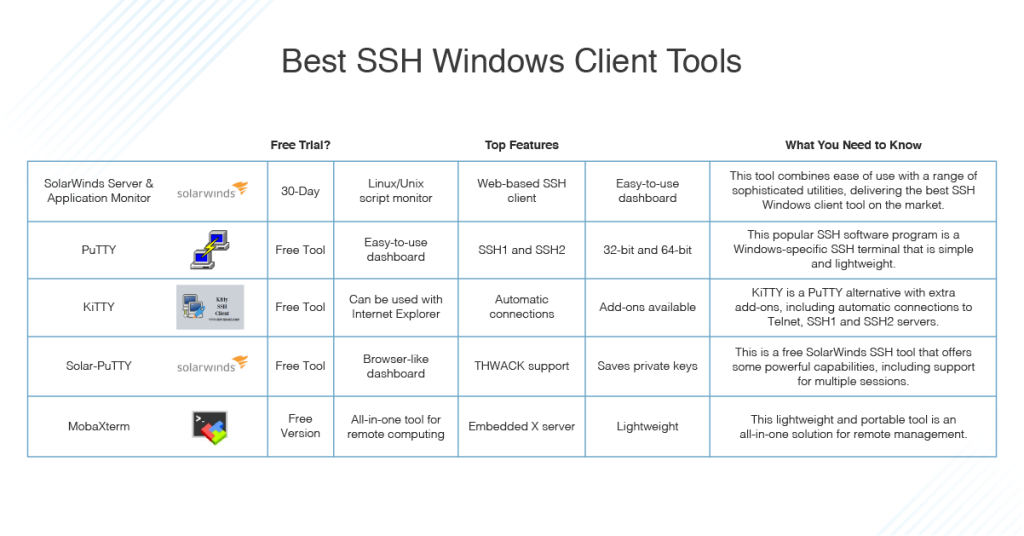
- Best for: Traditionalists, users who value stability and configurability over aesthetics, and those who need a no-frills, reliable SSH client for basic connections. Many power users still swear by PuTTY, augmenting its capabilities with external tools.
MobaXterm: The Swiss Army Knife for Remote Computing
MobaXterm positions itself as an “enhanced terminal for Windows” and lives up to the claim, offering an all-in-one suite of network tools designed primarily for system administrators, developers, and network engineers.
- Pros:
- Comprehensive Feature Set: Includes SSH, SFTP, RDP, VNC, X server, FTP, Telnet, Rlogin, and numerous network utilities (ping, nmap, etc.).
- Integrated X Server: Allows seamless execution of graphical Linux applications on your Windows desktop.
- Built-in SFTP Browser: Provides a graphical file browser that automatically appears when an SSH session is established.
- Tabbed Sessions & Intuitive Session Manager: Excellent for organizing and quickly launching multiple connections.
- Portable Edition: Can be run directly from a USB drive.
- Embedded Unix Tools: Includes essential Linux commands (bash, ls, grep, awk, sed, etc.) directly in the terminal, enhancing the Windows environment.
- Cons:
- Resource Intensive: With so many features, it can consume more system resources than leaner clients.
- Freemium Model: The free “Home Edition” has limitations (e.g., maximum number of sessions, no custom logos), requiring a paid “Professional Edition” for full functionality.
- Can Be Overwhelming: The sheer number of features might intimidate casual users.
- Best for: System administrators, network engineers, and developers who require a comprehensive toolkit for diverse remote management tasks. It significantly reduces the need for multiple disparate tools.
Termius: The Modern, Cross-Platform SSH Experience
Termius offers a sleek, modern, and cross-platform SSH client with a strong emphasis on user experience, cloud synchronization, and collaboration features.
- Pros:
- Beautiful & Intuitive UI: Modern design that feels at home on Windows 11, with excellent tab management and customization.
- Cross-Platform & Cloud Sync: Available on Windows, macOS, Linux, Android, and iOS. Cloud synchronization securely stores and syncs your hosts, snippets, and SSH keys across all devices.
- Robust Session Management: Organize hosts into groups, use tags, and leverage a powerful search function.
- SSH Key Management & Agent: Securely stores and manages SSH keys, including support for hardware keys (e.g., YubiKey).
- SFTP Integration: Seamless graphical SFTP support for file transfers.
- Snippets & Command Automation: Save and execute frequently used commands or scripts.
- Team Collaboration Features: (Paid tiers) Share hosts and snippets with team members.
- Cons:
- Subscription-Based for Full Features: While a free tier exists, the most powerful features (cloud sync, advanced key management, mobile access) are behind a subscription paywall.
- Cloud Sync Concerns: Some users may have privacy concerns about syncing sensitive SSH data to a third-party cloud service, despite strong encryption claims.
- Resource Usage: Can be somewhat more resource-intensive than PuTTY due to its modern UI and electron-based architecture.
- Best for: Developers, IT professionals, and teams who prioritize a consistent, modern, and synchronized SSH experience across multiple devices and operating systems, and are willing to pay for premium features.
Tabby Terminal (formerly Terminus): The Customizable Open-Source Powerhouse
Tabby Terminal is a highly customizable, open-source, and cross-platform terminal emulator that includes built-in SSH client capabilities. It’s built on web technologies (Electron), similar to VS Code.
- Pros:
- Highly Customizable: Extensive theming options, plugin support, and deep configuration capabilities to tailor the terminal exactly to your preferences.
- Modern & Responsive UI: Clean design with excellent tab management, split panes, and search functionality.
- Built-in SSH & SFTP: Integrated SSH client with session management and a graphical SFTP browser.
- Cross-Platform: Available on Windows, macOS, and Linux.
- Open Source: Transparency and community-driven development, allowing for modifications and custom plugins.
- Integrated Serial Port & Telnet Client: Adds versatility for hardware interaction.
- Cons:
- Resource Usage: Being Electron-based, it can be more resource-intensive compared to native clients like PuTTY or OpenSSH.
- Potential for Bugs: As an open-source project with rapid development, occasional bugs or stability issues might arise.
- Learning Curve: Its vast customization options might take some time to fully master.
- Best for: Developers, power users, and open-source enthusiasts who value deep customization, a modern interface, and integrated features within a single, powerful terminal application.
KiTTY: PuTTY’s Feature-Rich Cousin
KiTTY is a popular fork of PuTTY, aiming to add numerous useful features while retaining PuTTY’s lightweight nature and familiar interface. It’s not a complete rewrite but an enhancement.
- Pros:
- Retains PuTTY’s Strengths: Lightweight, portable, stable, and highly configurable.
- Adds Many Missing Features: Includes automatic password/command sending, portability (saving configurations to a file), automatic reconnection, session filters, icons for sessions, built-in text editor, and more.
- Runs Agent in the Background: Better handling of SSH agent.
- URL Hyperlinking: Recognizes URLs in the terminal output.
- Cons:
- Still Uses PuTTY’s Dated UI: While functional, the interface is still not modern or aesthetically pleasing compared to newer clients.
- Less Frequent Updates: Development might not be as active or as well-resourced as major commercial or corporate-backed open-source projects.
- No Integrated SFTP GUI: Still relies on external tools for graphical file transfers.
- Best for: Dedicated PuTTY users who wish for more modern conveniences and features without abandoning their familiar tool. It’s an excellent upgrade path for those who find PuTTY’s limitations frustrating but don’t want a complete paradigm shift.
Solar-PuTTY: Simplification with a Modern Touch
Developed by SolarWinds, Solar-PuTTY aims to offer a more user-friendly and feature-rich experience than the original PuTTY, while remaining free. It addresses some of PuTTY’s core UI deficiencies.
- Pros:
- Tabbed Interface: A significant improvement over PuTTY, allowing multiple sessions in one window.
- Graphical Credential Management: Securely saves passwords and private keys, making connections easier.
- Search Bar: Quick filtering of saved sessions.
- Simple & Free: Easy to use and doesn’t cost anything.
- Portable: No installation required.
- Cons:
- Fewer Customization Options: Not as deeply configurable as PuTTY or KiTTY.
- Less Feature-Rich: Lacks advanced tools found in MobaXterm or Termius (e.g., X server, extensive networking tools).
- Proprietary: Though free, it’s not open-source, meaning less transparency compared to OpenSSH or Tabby.
- Development Pace: Updates might not be as frequent as other leading tools.
- Best for: Users seeking a more modern, tabbed PuTTY experience without the complexity or resource overhead of MobaXterm or Termius. It’s a great middle-ground for casual to semi-advanced users.
Choosing Your Champion: Matching Client to User Profile
The “best” SSH client is ultimately a personal decision, contingent upon your specific use case, technical proficiency, and willingness to invest (time or money).
- For the Minimalist & Command-Line Enthusiast:
- Built-in OpenSSH: If you live in Windows Terminal or WSL, this is your native, most efficient option. Combine it with `~/.ssh/config` for session management.
- For the Traditionalist & Power User who Values Control:
- PuTTY: Unmatched stability and configurability for those who prefer granular control and don’t mind a less modern UI.
- KiTTY: A strong contender if you want PuTTY’s core but with many added conveniences.
- For the System Administrator & Network Engineer Requiring an All-in-One Solution:
- MobaXterm: If you need an integrated X server, SFTP, and a plethora of network tools, MobaXterm is the clear winner. The professional version is a worthy investment.
- For the Cross-Platform Developer & Team Player Valuing Modernity & Sync:
- Termius: Offers a premium, synchronized experience across all devices, ideal for those working in diverse environments and collaborating in teams.
- For the Customization-Driven Developer & Open-Source Advocate:
- Tabby Terminal: If you love tweaking your environment, want a modern look, and appreciate open-source flexibility, Tabby is an excellent choice.
- For the User Seeking a Simpler, Tabbed PuTTY Alternative:
- Solar-PuTTY: A solid option for those who want the ease of PuTTY but with the convenience of tabs and better credential management, without the full feature set of MobaXterm.
Maximizing Your SSH Experience on Windows 11: Tips and Best Practices
Regardless of the client you choose, adhering to certain best practices will enhance your security and productivity.
1. Embrace Public Key Authentication
Ditch passwords for SSH whenever possible. Public key authentication is vastly more secure. Generate an SSH key pair (`ssh-keygen`), upload your public key to the remote server, and use your private key (secured with a strong passphrase) on your local machine. All modern SSH clients support this method.
2. Utilize an SSH Agent
An SSH agent stores your decrypted private keys in memory for the duration of your session, so you don’t have to enter your passphrase repeatedly. Windows’ built-in OpenSSH includes `ssh-agent`, and clients like KiTTY and Termius have their own integrated agents.
3. Leverage Configuration Files (`~/.ssh/config`)
For OpenSSH users, the `~/.ssh/config` file is a powerful tool for defining custom settings for specific hosts or groups of hosts. You can set aliases, specify key files, port numbers, usernames, and even proxy commands, simplifying complex connections.
Host my_server
HostName 192.168.1.100
User myusername
Port 2222
IdentityFile ~/.ssh/id_rsa_myserver
ForwardAgent yes
4. Understand Port Forwarding and Tunnels
SSH’s port forwarding capabilities (local, remote, and dynamic) are incredibly versatile.
- Local Forwarding: Access a service on the remote server’s network from your local machine as if it were local (e.g., `ssh -L 8080:localhost:80 user@remote`).
- Dynamic Forwarding (SOCKS Proxy): Create a SOCKS proxy to route all your network traffic through the SSH tunnel, useful for bypassing firewalls or securing browsing (e.g., `ssh -D 8080 user@remote`).
5. Keep Your Client Updated
Regularly update your chosen SSH client to benefit from the latest security patches, bug fixes, and performance improvements. This is crucial for maintaining a strong security posture against evolving threats.
6. Secure Your Private Keys
Your private keys are the digital “keys” to your remote servers. Protect them vigorously.
- Always use a strong passphrase for your private keys.
- Store them in secure locations (e.g., your user profile’s `.ssh` directory on Windows, protected by file system permissions).
- Consider hardware security keys (like YubiKey) for an even higher level of protection, supported by clients like Termius and OpenSSH.
The Future of SSH Clients on Windows 11
The trajectory of SSH client development on Windows 11 points towards greater integration, enhanced security, and user-centric features.
- Deeper Windows Integration: Expect even more seamless synergy with Windows Terminal, WSL, and potentially Windows Hello for biometric authentication.
- Enhanced Security Standards: Continued adoption of modern cryptographic algorithms and robust support for hardware security tokens (FIDO2) will become standard.
- Cloud-Native Features: Cloud synchronization, team collaboration tools, and integration with cloud provider APIs will become more prevalent, catering to a cloud-first development paradigm.
- AI and Automation: Emerging trends might include AI-assisted command suggestions, intelligent log analysis, and more sophisticated scripting and automation capabilities built directly into clients.
- Refined User Experience: Expect continued refinement of GUIs, with a focus on simplicity, responsiveness, and powerful visual aids for managing complex remote environments.
Conclusion
The quest for the “best SSH client for Windows 11” reveals a rich ecosystem of tools, each possessing unique strengths tailored to different user archetypes. From the native minimalism of Built-in OpenSSH within Windows Terminal to the sprawling feature set of MobaXterm, the timeless reliability of PuTTY, the modern polish of Termius, the customizable depth of Tabby Terminal, the enhanced classic that is KiTTY, and the simplified approach of Solar-PuTTY, the choices are abundant and compelling.
Ultimately, your ideal client will resonate with your specific requirements for interface, features, security, and cost. For a developer juggling multiple projects across various cloud providers, the cloud-syncing capabilities of Termius or the comprehensive toolkit of MobaXterm might be invaluable. For a system administrator deeply ingrained in the Linux ecosystem, the native OpenSSH or a feature-enhanced PuTTY fork like KiTTY could be the preferred choice. For someone new to SSH or managing a single server, Solar-PuTTY or the built-in Windows OpenSSH offers an excellent starting point.
Take the time to explore a few contenders. Install them, test them with your typical workflows, and weigh their pros and cons against your daily needs. The right SSH client for Windows 11 won’t just facilitate remote connections; it will elevate your productivity, streamline your operations, and fortify your digital security posture, making your interaction with the secure frontier both efficient and enjoyable.