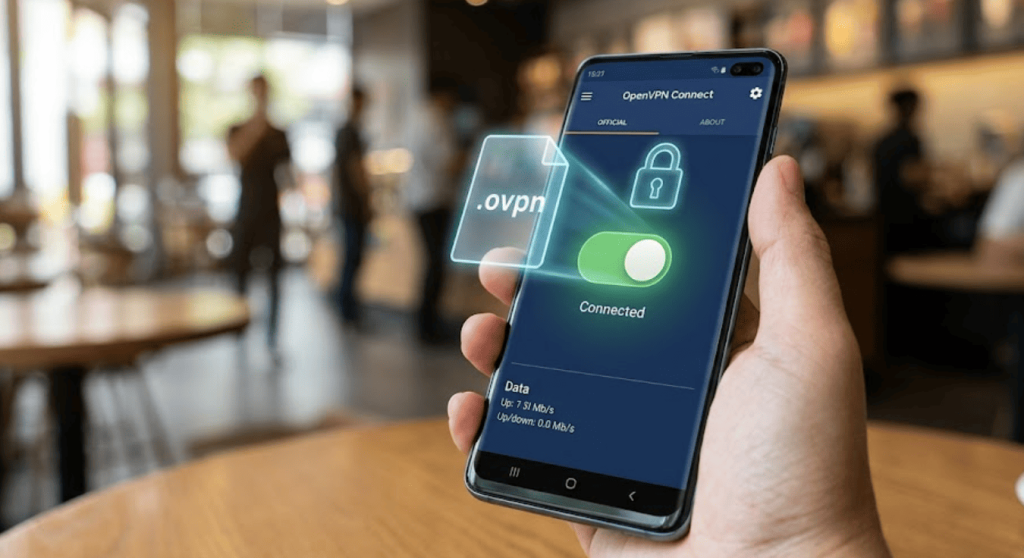
Free OpenVPN config download for Android – In an era where our smartphones act as the central hub for our personal, financial, and professional lives, mobile network security is no longer optional. Every time you connect your Android device to a public Wi-Fi network at an airport, hotel, or local café, you expose your unencrypted data to potential packet sniffers and malicious actors on the same network. Furthermore, aggressive Internet Service Providers (ISPs) continuously monitor mobile traffic, frequently throttling bandwidth for streaming services or blocking access to specific VoIP applications and websites.
The standard consumer response is to open the Google Play Store, type “free VPN,” and download the first app with a shiny logo. This is a massive security mistake. The vast majority of “free” commercial VPN applications are heavily monetized spyware. They track your browsing habits, inject advertisements into your web traffic, and in the worst cases, sell your bandwidth to third-party botnets. For the advanced user, there is a vastly superior, cleaner, and more secure method: utilizing the official, open-source OpenVPN protocol and executing a free OpenVPN config download for Android.
In this comprehensive, 1500+ word guide, we will dismantle the risks of commercial free apps, explain the underlying architecture of .ovpn configuration files, reveal the most trusted sources to obtain these files for free, and provide a masterclass on setting them up on your Android device.
What Exactly is an OpenVPN Configuration (.ovpn) File?
Before downloading anything, it is vital to understand the technology you are interacting with. OpenVPN is not a company; it is an open-source virtual private network system that implements techniques to create secure point-to-point or site-to-site connections. It is widely considered the industry gold standard for VPN protocols due to its flawless blend of speed, extreme customizability, and impenetrable military-grade encryption (typically utilizing AES-256-GCM).
To connect to an OpenVPN server, your client application requires a set of highly specific instructions. This is where the .ovpn file comes into play.
An .ovpn file is essentially a plain text document containing the architectural blueprint for your secure tunnel. If you were to open one of these files in a text editor, you would see lines of code detailing:
-
The Remote Server Address: The specific IP address or domain name of the VPN server you are trying to reach.
-
The Port Number: The digital door through which the traffic will flow (e.g., Port 1194, 443, or 80).
-
The Protocol: Whether the connection will use TCP or UDP (which we will define shortly).
-
Cryptographic Certificates and Keys: Massive blocks of alphanumeric text comprising the Certificate Authority (CA), your client certificate, and the TLS authentication keys. These are what make your connection unreadable to outside observers.
By executing a free OpenVPN config download for Android, you are bypassing commercial app interfaces and directly injecting this pure cryptographic blueprint into your device.
UDP vs. TCP: Which Configuration Should You Choose?
When you navigate to a provider to download your free .ovpn file, you will almost always be presented with a choice between two protocols: UDP (User Datagram Protocol) and TCP (Transmission Control Protocol). Choosing the wrong one can drastically affect your mobile experience.
1. The UDP Protocol (Speed and Streaming)
UDP is a connectionless protocol. When your Android device sends a data packet to the VPN server via UDP, it does not wait for a confirmation receipt that the packet arrived. It simply fires the data as fast as possible.
-
Pros: Significantly faster speeds, lower latency (ping), and less CPU overhead on your mobile device.
-
Best Used For: Mobile gaming (PUBG, Call of Duty Mobile), streaming HD video (Netflix, YouTube), and high-quality VoIP calls (WhatsApp, Telegram).
-
Cons: Because it lacks error-checking, a dropped packet is lost forever, which can occasionally cause a brief stutter in a video or a micro-lag in a game. It is also easier for strict firewalls to detect and block.
2. The TCP Protocol (Reliability and Bypassing Firewalls)
TCP is a connection-oriented protocol. Every single data packet sent requires an acknowledgment receipt from the server. If a packet is lost, TCP automatically resends it.
-
Pros: Guaranteed data delivery, extreme stability, and highly effective at bypassing strict network censorship. If you use an OpenVPN TCP config on Port 443, it perfectly mimics standard HTTPS web traffic, allowing you to slip through corporate firewalls or national censorship blocks.
-
Best Used For: Downloading large files securely, bypassing strict university or office Wi-Fi restrictions, and general web browsing in heavily censored regions.
-
Cons: Slower connection speeds due to the constant back-and-forth acknowledgment of data packets.
The Verdict: For 80% of Android users, downloading the UDP configuration is recommended for the best daily mobile experience. If your UDP connection refuses to connect, switch to the TCP file.
Top Trusted Sources for Free OpenVPN Config Downloads
The internet is littered with websites offering free VPN files, but downloading an .ovpn file from an untrusted source can be dangerous. A malicious file could theoretically route your traffic through a compromised server designed to harvest your unencrypted passwords.
To ensure absolute safety, only source your free OpenVPN config download for Android from these highly reputable platforms:
1. VPN Gate (The Academic Standard)
Website: vpngate.net VPN Gate is an academic experiment spearheaded by the Graduate School of University of Tsukuba, Japan. Its primary purpose is to study global internet censorship and provide a decentralized network to bypass it.
-
Why it is trusted: It is run by a prestigious university, not a for-profit company. The servers are hosted by volunteers worldwide.
-
What you get: Hundreds of free
.ovpnfiles, primarily located in Japan, South Korea, the US, and Europe. They offer excellent speeds and are updated constantly. They do not require a username or password; you simply import and connect.
2. ProtonVPN (The Freemium Powerhouse)
Website: protonvpn.com Based in privacy-friendly Switzerland, ProtonVPN is renowned for its security. While they have a dedicated Android app, they also allow free-tier users to download raw .ovpn files.
-
Why it is trusted: Proton has a strict, audited no-logs policy and is operated by the same team that created the highly secure ProtonMail.
-
What you get: Unlimited bandwidth on their free servers (located in the US, Japan, and the Netherlands). You must create a free Proton account to access the configuration generator in their web dashboard.
3. FastSSH / TCPVPN (Best for Daily Asian Servers)
Websites: fastssh.com / tcpvpn.com If you are located in Southeast Asia and need an ultra-low latency server (like Singapore or Indonesia) for mobile gaming, these platforms are legendary.
-
Why it is trusted: They have been serving the tunneling community for years.
-
What you get: You must create an account that lasts for 3 to 7 days. Once created, they provide a direct link to the specific
.ovpnfile tied to your generated credentials. This ensures the servers are never overcrowded.
Step-by-Step Guide: How to Import and Connect on Android
Now that you understand the theory and have selected a trusted source for your file, it is time to execute the setup. This process takes less than five minutes.
Step 1: Install the Official OpenVPN Connect Application
Do not use third-party OpenVPN clients unless you are an advanced user testing specific payload injections.
-
Open the Google Play Store on your Android device.
-
Search for OpenVPN Connect – Fast & Safe (The developer will be listed as OpenVPN).
-
Tap Install.
Step 2: Download Your .ovpn File
-
Open your mobile web browser (Chrome, Firefox, etc.).
-
Navigate to your chosen provider (e.g., VPN Gate).
-
Locate the server you want to use and tap the link for the OpenVPN Config File.
-
Choose either the UDP or TCP version. The file will automatically download to your Android device’s Downloads folder.
Step 3: Import the Profile into the App
-
Open the newly installed OpenVPN Connect app.
-
Read and accept the initial terms of service.
-
On the main dashboard, you will be prompted to import a profile. Tap the “+” (Plus) icon or select the File tab.
-
The app will ask for permission to access your device’s storage. Tap Allow.
-
Navigate through your internal storage to the Downloads folder.
-
Locate the
.ovpnfile you just downloaded (e.g.,vpngate_public_vpn_119.ovpn) and tap it. -
Tap the Import button at the top right of the screen.
Step 4: Authentication and Connection
-
Profile Name: You can rename the profile to something recognizable (e.g., “Japan – VPN Gate UDP”).
-
Credentials: If you downloaded the file from FastSSH or ProtonVPN, you must enter the Username and Password provided by the website. (Note: If you used VPN Gate, the username and password fields are usually left blank, or you can type “vpn” in both).
-
Check the box that says Save Password so you don’t have to retype it every time.
-
Tap Add in the top right corner.
-
You will now see your profile on the main dashboard. Tap the toggle switch to initiate the connection.
-
Android will display a standard security warning asking if you trust the application to monitor your network traffic. Tap OK.
Within seconds, the toggle will turn green, the app will display a real-time graph of your data transfer, and a small key icon will appear in your Android status bar. You are now browsing with a professional, secure, and entirely free VPN tunnel.
Advanced Troubleshooting: Solving Common Connection Errors
Even with perfect configuration, network anomalies occur. If your Android device fails to establish the tunnel, try these professional troubleshooting steps:
1. Error: “Authentication Failed”
-
The Cause: You inputted the wrong username or password, or the free account you created (from sites like TCPVPN) has reached its expiration date (usually after 3 or 7 days).
-
The Fix: Double-check your spelling. If it has expired, simply return to the provider, create a new account, and update the username/password in the OpenVPN Connect app by tapping the pencil edit icon next to your profile.
2. Error: “Connection Timeout” or Continuous “Connecting…” Status
-
The Cause: The specific VPN server is currently offline, overcrowded, or your mobile ISP is aggressively blocking the OpenVPN protocol on the chosen port (often Port 1194 UDP).
-
The Fix: The fastest solution is to delete that specific
.ovpnfile and download a different one from the provider. If your ISP is blocking the port, download a TCP config file instead of UDP, as TCP is significantly harder for ISPs to block.
3. Extremely Slow Speeds or Webpages Not Loading Fully
-
The Cause: This is often an MTU (Maximum Transmission Unit) mismatch. The VPN tunnel is trying to send data packets that are slightly too large for your mobile network to handle, causing them to fragment and slow down.
-
The Fix (Advanced): While the official OpenVPN Connect app handles MTU automatically in most cases, if you use a client like OpenVPN for Android (by Arne Schwabe), you can edit the configuration settings and manually set the
tun-mtuto1400or1350.
Final Thoughts
Relying on commercial “free VPN” apps on the Google Play Store is a gamble with your personal data. By mastering the process of a free OpenVPN config download for Android, you elevate your mobile security to an enterprise level. You gain the ability to choose your exact server location, dictate the specific cryptographic protocols your device uses, and guarantee that your private data remains hidden from predatory ISPs and malicious actors—all without spending a single dime.