Fortifying the Digital Frontier: A Deep Dive into Secure SSH Connection Setup
In the vast and interconnected landscape of modern computing, where servers span global data centers and remote administration is the norm, the Secure Shell (SSH) protocol stands as an indispensable cornerstone of remote access and data transfer. It is the encrypted tunnel through which countless critical operations, from software deployments to system diagnostics, are safely conducted. However, the very ubiquity and power of SSH make it a prime target for malicious actors. An inadequately secured SSH configuration represents a gaping vulnerability, potentially exposing sensitive data, enabling unauthorized system access, and compromising entire infrastructures. Therefore, understanding and meticulously implementing a secure SSH connection setup is not merely a best practice; it is an absolute imperative for any organization or individual managing digital assets.
This comprehensive guide delves into the multi-faceted layers of SSH security, transcending basic setup instructions to explore advanced hardening techniques, architectural considerations, and continuous monitoring strategies. We will navigate the critical configurations, cryptographic principles, and operational protocols that transform a standard SSH connection into a fortified digital pathway, ensuring the integrity, confidentiality, and availability of your remote systems. By the end of this exploration, readers will possess the in-depth knowledge required to architect and maintain a robustly secure SSH environment, safeguarding their digital frontiers against an ever-evolving threat landscape.
Understanding SSH: The Foundation of Remote Security
Before embarking on the journey of hardening, it is crucial to establish a foundational understanding of what SSH is and how it operates. SSH is a cryptographic network protocol for operating network services securely over an unsecured network. Its primary applications involve remote command-line login and remote command execution, but it also supports tunneling, port forwarding, and secure file transfers.
The Essence of SSH Functionality
At its core, SSH operates as a client-server model. An SSH client initiates a connection to an SSH server (daemon) running on a remote machine. Upon establishing a connection, SSH performs a series of cryptographic handshakes to verify the identity of the server and client, negotiate secure encryption algorithms, and set up an encrypted channel for subsequent communication. This encryption ensures that all data exchanged – including usernames, passwords, commands, and output – remains confidential and protected from eavesdropping and tampering.
Why Security is Paramount
The power of SSH lies in its direct access to the underlying operating system. Gaining unauthorized access via SSH is tantamount to physical access to the machine, potentially allowing an attacker to:
- Exfiltrate sensitive data: Databases, configuration files, user credentials.
- Inject malware: Backdoors, ransomware, cryptominers.
- Pivot to other systems: Use the compromised machine as a launchpad for further attacks.
- Manipulate system configurations: Disable security controls, create new user accounts.
- Launch denial-of-service attacks: Utilize the server’s resources to attack other targets.
Given these severe implications, every step in a secure SSH connection setup must be meticulously considered and implemented to mitigate risks effectively.
Phase 1: Initial Setup and Core Configuration Hardening
The journey to a secure SSH environment begins with the initial configuration of the `sshd_config` file on the server. This file is the central command post for the SSH daemon, dictating its behavior and security posture. Even seemingly minor misconfigurations here can introduce significant vulnerabilities.
Locating the `sshd_config` File
On most Linux distributions, the primary SSH daemon configuration file is located at `/etc/ssh/sshd_config`. It is paramount to back up this file before making any changes (`sudo cp /etc/ssh/sshd_config /etc/ssh/sshd_config.bak`). After modifying, changes typically require restarting the SSH service: `sudo systemctl restart sshd` (or `sudo service sshd restart` on older systems).
Disabling Root Login
One of the most fundamental and critical security measures is to prevent direct root login via SSH. The `root` user possesses ultimate privileges, and its compromise would grant an attacker complete control over the system.
PermitRootLogin no
Instead of logging in as root, users should log in with a regular, unprivileged account and then use `sudo` to escalate privileges when necessary. This practice creates an audit trail and limits the potential blast radius of a compromised account.
Transitioning to Key-Based Authentication
Password-based authentication, while seemingly straightforward, is inherently susceptible to brute-force attacks and dictionary attacks. Even strong passwords can eventually be guessed or cracked. The single most significant improvement to SSH security is the complete abandonment of password authentication in favor of public-key cryptography.
PasswordAuthentication no
This directive mandates that all SSH connections must use key pairs for authentication. We will delve deeper into setting up key-based authentication in the next phase, but establishing this configuration early prevents fallback to less secure methods.
Changing the Default SSH Port
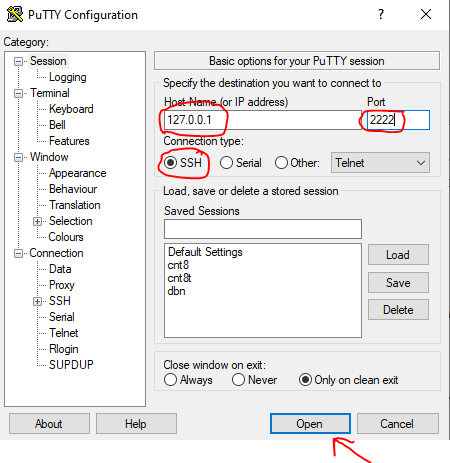
While often debated as “security by obscurity,” moving SSH from its default port (22) to a non-standard, higher-numbered port (e.g., 2222, 22222) offers a minor but often effective first line of defense. It significantly reduces the volume of automated scanning and brute-force attempts from bots that primarily target the default port.
Port 2222
Remember to update firewall rules to allow traffic on the new port and ensure client configurations reflect this change. This measure alone will not deter a determined attacker, but it can significantly reduce noise in logs and free up resources.
Phase 2: The Cornerstone of Security – Key-Based Authentication
Public-key cryptography is the bedrock of secure SSH, offering a vastly superior alternative to traditional password authentication. It relies on a pair of cryptographically linked keys: a public key and a private key.
Understanding Public-Key Cryptography for SSH
1. Key Pair Generation: A user generates a unique key pair on their local machine (client).
- Private Key: Kept strictly confidential on the user’s client machine. It acts as the digital identity.
- Public Key: Can be freely distributed. It is placed on the remote server(s) the user wishes to access.
2. Authentication Process:
- When the client attempts to connect, the server challenges the client by encrypting a random piece of data with the client’s public key (which the server possesses).
- The client decrypts this challenge using its private key and sends back the correct response.
- If the response is valid, the server authenticates the client.
This method ensures that the private key never leaves the client machine, making it extremely difficult for an attacker to compromise credentials, even if they intercept network traffic.
Generating SSH Key Pairs
On the client machine, a key pair is generated using `ssh-keygen`:
bash
ssh-keygen -t ed25519 -f ~/.ssh/my_secure_ssh_key
- `-t ed25519`: Specifies the Ed25519 algorithm, which is a modern, highly secure, and efficient elliptic-curve cryptography algorithm. RSA (with at least 4096 bits) is also acceptable, but Ed25519 is generally preferred.
- `-f ~/.ssh/my_secure_ssh_key`: Specifies the filename for the key pair. It’s good practice to use descriptive names.
- Passphrase: Crucially, always protect your private key with a strong passphrase. This encrypts the private key on your local disk, adding an essential layer of security. Even if your private key file is stolen, it remains useless without the passphrase.
This command will generate two files: `my_secure_ssh_key` (the private key) and `my_secure_ssh_key.pub` (the public key).
Copying Public Keys to the Server
The public key needs to be placed in the `~/.ssh/authorized_keys` file of the user account you wish to access on the remote server.
Method 1: Using `ssh-copy-id` (Recommended)
This utility automates the process of copying the public key and setting correct permissions:
bash
ssh-copy-id -i ~/.ssh/my_secure_ssh_key.pub user@remote_host -p 2222
- `-i`: Specifies the public key to copy.
- `user@remote_host`: The username and hostname/IP of the remote server.
- `-p 2222`: If you changed the default SSH port, specify it here.
You will be prompted for the remote user’s password (if password authentication is still enabled) or the private key passphrase.
Method 2: Manual Copy
If `ssh-copy-id` is not available or preferred, you can manually copy the public key:
1. Copy the public key content:
bash
cat ~/.ssh/my_secure_ssh_key.pub
Copy the entire output.
2. Log into the remote server (temporarily using password or an existing key):
bash
ssh user@remote_host -p 2222
3. Create the `~/.ssh` directory if it doesn’t exist and set permissions:
bash
mkdir -p ~/.ssh
chmod 700 ~/.ssh
4. Append the public key to `~/.ssh/authorized_keys`:
bash
echo “PASTE_YOUR_PUBLIC_KEY_HERE” >> ~/.ssh/authorized_keys
Replace `”PASTE_YOUR_PUBLIC_KEY_HERE”` with the content you copied earlier.
5. Set correct permissions for `authorized_keys`:
bash
chmod 600 ~/.ssh/authorized_keys
Crucial Permissions: Incorrect permissions on `~/.ssh` or `authorized_keys` will prevent key-based authentication from working and are a common stumbling block in a secure SSH connection setup.
Phase 3: Fortifying SSH with Advanced Configuration Directives
Beyond the core `PermitRootLogin` and `PasswordAuthentication` settings, the `sshd_config` file offers a plethora of directives to finely tune security, often overlooked but critically important for a truly secure SSH connection setup.
Limiting User and Group Access
Explicitly defining who can connect via SSH is a powerful security measure, adhering to the principle of least privilege.
AllowUsers username1 username2
AllowGroups admin_group dev_group
DenyUsers bad_user
DenyGroups blacklisted_group
- `AllowUsers`: Specifies which users are permitted to log in. If specified, users not listed are denied.
- `AllowGroups`: Similar to `AllowUsers`, but applies to groups.
- `DenyUsers`/`DenyGroups`: Explicitly denies access to specified users or groups.
It’s generally safer to use `AllowUsers` or `AllowGroups` to create a whitelist, rather than relying solely on `Deny*` directives.
Disabling Weak Ciphers, MACs, and KexAlgorithms
Modern cryptography continually evolves, and algorithms once considered strong can become vulnerable over time. SSH allows you to specify which cryptographic algorithms (ciphers, Message Authentication Codes – MACs, and Key Exchange Algorithms – KexAlgorithms) the server is allowed to use. Disabling weak or deprecated algorithms prevents downgrade attacks and ensures that only the strongest, most resilient cryptographic methods are employed.
Ciphers [email protected],[email protected],[email protected]
MACs [email protected],[email protected],[email protected]
KexAlgorithms [email protected],diffie-hellman-group16-sha512,diffie-hellman-group18-sha512
Consult up-to-date security guides (e.g., from OpenSSH documentation or security researchers) for the latest recommendations on robust algorithms. Regularly reviewing and updating these lists is a crucial part of ongoing secure SSH connection setup.
Enforcing Strict Host Key Checking (Client-Side)
While a server-side configuration, `StrictHostKeyChecking` is a critical client-side setting that prevents “man-in-the-middle” attacks. When you connect to an SSH server for the first time, its public host key is stored in your client’s `~/.ssh/known_hosts` file.
bash
# In ~/.ssh/config on the client machine
Host *
StrictHostKeyChecking yes
UserKnownHostsFile ~/.ssh/known_hosts /etc/ssh/ssh_known_hosts
`StrictHostKeyChecking yes` ensures that if the server’s host key changes unexpectedly, the SSH client will refuse to connect, warning you of a potential compromise. Always investigate such warnings thoroughly.
Configuring TCP Keepalives
SSH `ClientAliveInterval` and `ClientAliveCountMax` directives can help detect dead client connections or network disruptions, thereby preventing stale sessions that might be exploited.
ClientAliveInterval 300 # Server sends a null packet to the client every 300 seconds
ClientAliveCountMax 0 # Number of client alive messages which may be sent without getting any response from the client
Setting `ClientAliveCountMax` to `0` (or `1`) ensures that the server will disconnect a client almost immediately after `ClientAliveInterval` if no response is received, minimizing the window for inactive sessions to be hijacked.
Limiting Login Grace Time
The `LoginGraceTime` directive specifies how long the SSH daemon will wait for a user to successfully authenticate after a connection is initiated. Reducing this time minimizes the window for brute-force attempts on the authentication prompt.
LoginGraceTime 30
Setting it to 30 seconds is usually sufficient for legitimate users to enter a passphrase or for key authentication to complete.
Disabling Unnecessary Features
SSH offers features like X11 forwarding and agent forwarding that, while convenient, can introduce security risks if not strictly needed.
- X11 Forwarding: Allows graphical applications from the server to be displayed on the client. If not required, disable it.
X11Forwarding no
- Agent Forwarding: Allows your local SSH agent to be used on the remote server, enabling you to connect from the remote server to a third machine using your local keys. While convenient, it carries risks if the remote server is compromised. Consider carefully before enabling; usually, it’s best disabled unless specifically needed for a secure SSH connection setup that involves jumping hosts.
AllowAgentForwarding no
Phase 4: Multi-Factor Authentication (MFA) for SSH
Even with strong key-based authentication, a compromised private key or passphrase could still grant an attacker access. Multi-Factor Authentication (MFA) adds a crucial extra layer of security, requiring at least two distinct authentication factors.
Why MFA is the Gold Standard
MFA typically combines:
1. Something you know (e.g., passphrase/password).
2. Something you have (e.g., a physical token, smartphone with an authenticator app).
3. Something you are (e.g., biometric data, less common for SSH).
By requiring two distinct factors, MFA significantly elevates the bar for unauthorized access, as an attacker would need to compromise both your private key (and its passphrase) AND your second factor.
Integrating PAM for MFA with Google Authenticator
One popular and relatively easy-to-implement MFA solution for SSH on Linux systems involves integrating Pluggable Authentication Modules (PAM) with tools like `pam_google_authenticator`.
1. Install `libpam-google-authenticator`:
bash
sudo apt install libpam-google-authenticator # Debian/Ubuntu
sudo dnf install google-authenticator # CentOS/RHEL
2. Configure for each user: Each user wishing to use MFA runs `google-authenticator` and follows the prompts to set up their secret key, QR code, and emergency scratch codes. This typically involves scanning a QR code with an authenticator app (e.g., Google Authenticator, Authy).
3. Configure PAM for SSHD: Edit `/etc/pam.d/sshd` and add a line to require the `pam_google_authenticator.so` module. The exact placement and directives can vary, but a common approach is:
# Add this line at the beginning or after other auth directives
auth required pam_google_authenticator.so
For key-based authentication combined with MFA, you might need to enable `ChallengeResponseAuthentication yes` and `UsePAM yes` in `/etc/ssh/sshd_config`. Some configurations require setting `AuthenticationMethods publickey,keyboard-interactive` to explicitly combine key auth with PAM-based MFA.
After configuration, a user logging in via SSH with their key will then be prompted for their one-time password (OTP) from their authenticator app.
Hardware Tokens
For even higher security, hardware tokens like YubiKeys can be integrated with SSH. These devices generate OTPs or use challenge-response authentication, providing a physical, tamper-resistant second factor. Integration often involves specific PAM modules or FIDO2/U2F support directly within OpenSSH. This is an advanced step in a truly secure SSH connection setup for high-value targets.
Phase 5: Network-Level Security and Ancillary Measures
A secure SSH connection setup is not solely about server-side configurations. It involves a holistic approach that incorporates network-level controls and complementary security tools.
Firewall Configuration
The most fundamental network control is a firewall, which dictates what network traffic is allowed to reach your SSH daemon.
bash
# Example using UFW (Uncomplicated Firewall) on Debian/Ubuntu
sudo ufw default deny incoming
sudo ufw default allow outgoing
sudo ufw allow 2222/tcp # Allow SSH on custom port 2222
sudo ufw enable
# Example using firewalld on CentOS/RHEL
sudo firewall-cmd –permanent –add-port=2222/tcp
sudo firewall-cmd –reload
Limiting SSH Access by IP: For even greater control, configure your firewall to only allow SSH connections from known, trusted IP addresses or ranges.
bash
# UFW example: Allow SSH from a specific IP
sudo ufw allow from 192.168.1.100 to any port 2222
# UFW example: Allow SSH from an IP range
sudo ufw allow from 192.168.1.0/24 to any port 2222
This drastically reduces the attack surface, as attackers from unknown IPs cannot even reach the SSH port.
Intrusion Detection/Prevention Systems (IDS/IPS) – Fail2ban
Fail2ban is an invaluable tool for protecting SSH (and other services) from brute-force attacks. It monitors logs for repeated failed login attempts from a particular IP address and automatically bans that IP using firewall rules for a configurable duration.
1. Installation:
bash
sudo apt install fail2ban # Debian/Ubuntu
sudo dnf install fail2ban # CentOS/RHEL
2. Configuration (`/etc/fail2ban/jail.local`):
ini
[sshd]
enabled = true
port = 2222 # Your custom SSH port
filter = sshd
logpath = /var/log/auth.log
maxretry = 3 # Number of failed attempts before banning
bantime = 3600 # Ban duration in seconds (1 hour)
findtime = 600 # Time window for maxretry (10 minutes)
Create `jail.local` to override settings in `jail.conf`, preventing your changes from being overwritten during updates. Restart Fail2ban after configuration.
Fail2ban effectively mitigates the constant barrage of automated attack scripts, significantly enhancing the robustness of your secure SSH connection setup.
VPN Integration
For environments requiring the highest level of security, particularly for accessing internal networks, SSH can be routed over a Virtual Private Network (VPN). By requiring users to first connect to a trusted VPN, SSH traffic is encapsulated within another encrypted tunnel, and the SSH server itself can be configured to only accept connections from the VPN gateway’s internal IP address. This adds an extra layer of authentication and encryption before SSH even comes into play.
Port Knocking
Port knocking is an advanced security technique where an SSH port (or any other port) is initially closed on the firewall. It only opens after a specific sequence of connection attempts (knocks) to a series of closed ports. This makes the SSH port invisible to port scanners and casual attackers. While effective, it adds complexity and can be challenging to manage in dynamic environments. It’s typically reserved for very high-security, low-traffic scenarios.
Phase 6: Auditing, Monitoring, and Maintenance
Security is not a static state; it is an ongoing process. A secure SSH connection setup requires continuous vigilance, regular audits, and proactive maintenance to remain effective against evolving threats.
Regular Security Audits
Periodically review your SSH configuration and environment:
- `sshd_config` Review: Revisit your `/etc/ssh/sshd_config` file regularly to ensure it aligns with current best practices and organizational policies. New OpenSSH versions may introduce new features or deprecate old ones.
- `authorized_keys` Audits: On all SSH servers, regularly audit the `~/.ssh/authorized_keys` files for all users. Remove any keys that are no longer needed or belong to ex-employees. This is a critical step in preventing stale access.
- User Account Review: Ensure that only necessary user accounts exist on the system and that they have appropriate permissions. Remove dormant accounts.
- Open Ports Scan: Periodically scan your server from an external network to confirm that only expected ports (e.g., your custom SSH port, 2222) are open.
Log Monitoring
SSH logs provide invaluable insights into connection attempts, successes, and failures. Regular monitoring can help detect suspicious activity early.
- Location: SSH logs are typically found in `/var/log/auth.log` (Debian/Ubuntu) or `/var/log/secure` (CentOS/RHEL), or accessible via `journalctl`.
- What to Look For:
- Failed Login Attempts: An unusually high number of failed attempts could indicate a brute-force attack. Fail2ban helps automate this, but human review is still valuable.
- Unusual Login Times/Locations: Logins from unexpected geographical locations or during off-hours can signal a compromise.
- Root Login Attempts: Even with `PermitRootLogin no`, attempts to log in as root are suspicious.
- Public Key Changes: Alerts related to changes in known_hosts on client side.
- Centralized Logging: For multiple servers, consider a centralized logging solution (e.g., ELK Stack, Splunk) to aggregate and analyze SSH logs efficiently.
Software Updates
Keeping your OpenSSH server and client software up to date is paramount. Security vulnerabilities are frequently discovered and patched. Running outdated versions leaves your systems exposed to known exploits.
bash
sudo apt update && sudo apt upgrade # Debian/Ubuntu
sudo dnf update # CentOS/RHEL
Automating updates for security-critical packages, or at least having a robust patch management process, is a non-negotiable aspect of a secure SSH connection setup.
Backup of SSH Configurations
Maintain regular backups of your `/etc/ssh/sshd_config` and relevant firewall configurations. In case of misconfiguration or system failure, this allows for quick restoration of a known-good, secure state.
Advanced Considerations and Best Practices
To elevate SSH security to an even higher level, several advanced considerations and architectural best practices should be integrated.
Principle of Least Privilege
Apply the principle of least privilege rigorously.
- Dedicated SSH User: Create a specific, non-root user for SSH access to a system, rather than using general administrative accounts.
- Jailed SSH (Chroot Environment): For scenarios where users only need access to a very limited portion of the filesystem (e.g., SFTP-only users), configure a `ChrootDirectory` in `sshd_config`. This confines the user to a specific directory, preventing them from accessing other parts of the system. This is a complex but powerful isolation technique.
Dedicated Bastion Hosts (Jump Boxes)
In larger or more complex network architectures, a bastion host (or jump box) serves as a hardened, single-entry point to an internal network. All SSH traffic to internal servers is routed through this bastion host.
- Benefits:
- Only the bastion host needs to expose SSH to the public internet.
- Centralizes logging and monitoring of all SSH access.
- Can implement stringent access controls and MFA on the bastion itself.
- Internal servers can be configured to only accept SSH connections from the bastion host’s IP.
- Hardening: Bastion hosts should be stripped down, frequently patched, and configured with the most restrictive SSH security settings possible.
SSH Certificates vs. Keys for Large Deployments
While SSH key pairs are excellent for small-scale deployments, managing `authorized_keys` files across hundreds or thousands of servers can become unwieldy. OpenSSH offers support for SSH certificates, which provide a more scalable and manageable solution.
- How it Works: A Certificate Authority (CA) signs user and host keys, issuing certificates. Instead of managing individual public keys, servers only need to trust the CA’s public key.
- Benefits: Simplified key rotation, easier revocation, and more centralized access management for large infrastructures.
Using SSH for Tunneling/Proxying Safely
SSH can create secure tunnels for other network services (e.g., browsing internal web interfaces securely, accessing databases). While powerful, misconfigured tunnels can inadvertently expose internal services. Ensure that:
- Local/Remote Forwarding is only enabled when necessary (`AllowTcpForwarding no` by default).
- Careful consideration is given to the `GatewayPorts` directive, which controls whether remote hosts can connect to forwarded ports.
Immutable Servers and Automated Deployment
Integrating SSH security into an immutable infrastructure strategy or automated deployment pipelines (e.g., using Ansible, Terraform) ensures consistency and reduces human error. Configuration management tools can enforce the secure `sshd_config` across all servers, automatically manage authorized keys, and ensure compliance.
Conclusion
The digital landscape is a dynamic arena, constantly challenged by evolving cyber threats. Within this environment, a secure SSH connection setup is not merely a technical configuration task but a critical component of an overarching cybersecurity strategy. From the foundational decision to disable root login and embrace public-key authentication, through the granular control offered by advanced `sshd_config` directives, to the indispensable layers of multi-factor authentication and network-level defenses, each step plays a vital role in fortifying your remote access.
By meticulously implementing the recommendations outlined in this guide – including robust key management, prudent algorithm selection, vigilant log monitoring, and proactive software updates – organizations and individuals can significantly reduce their attack surface and protect their invaluable digital assets. Remember, security is an ongoing journey of continuous improvement, requiring regular audits, adaptability to new threats, and an unwavering commitment to best practices. By embracing this holistic approach, you can ensure that your SSH connections remain the secure, reliable pathways they were designed to be, empowering safe and efficient remote operations in an increasingly interconnected world.