In an increasingly interconnected digital landscape, the security of remote access protocols stands as a paramount concern for system administrators, developers, and IT professionals alike. OpenSSH, the ubiquitous suite of secure networking utilities, offers a robust framework for encrypted communication. While password-based authentication remains a common entry point, its inherent vulnerabilities—susceptibility to brute-force attacks, dictionary attacks, and human error in password management—underscore the urgent need for superior alternatives. This comprehensive article delves into the intricacies of OpenSSH key authentication, a cryptographic cornerstone that elevates remote access security and operational efficiency. Moving beyond mere procedural instructions, we will explore the foundational cryptographic principles, provide an exhaustive setup guide, discuss advanced strategies, and dissect critical security considerations that underpin a truly resilient infrastructure.
The Paradigm Shift: Understanding OpenSSH Key Authentication
OpenSSH key authentication represents a fundamental departure from traditional password-based methods, leveraging the power of public-key cryptography to establish secure, trust-based connections. This paradigm shift not only fortifies remote access against a multitude of cyber threats but also streamlines workflows, making it an indispensable tool in modern IT environments.
Public-Key Cryptography Demystified
At the heart of SSH key authentication lies the elegantly simple yet profoundly secure concept of public-key cryptography. This system relies on a pair of mathematically linked keys: a public key and a private key.
- Public Key: As its name suggests, this key can be freely shared. It resides on the remote server you wish to access, typically within a file named `authorized_keys` in your user’s `.ssh` directory. Its sole purpose is to encrypt data that *only* its corresponding private key can decrypt, or to verify signatures created by the private key.
- Private Key: This key is strictly confidential and must remain securely on your local machine. It serves as your digital identity, capable of decrypting data encrypted by the public key and signing messages to prove your identity. The security of your entire SSH key authentication hinges absolutely on the secrecy of your private key.
The genius of this system is that knowledge of the public key does not allow anyone to deduce the private key. This asymmetry is what makes public-key cryptography so powerful and forms the bedrock of secure digital communications.
The Core Mechanism: How SSH Key Authentication Works
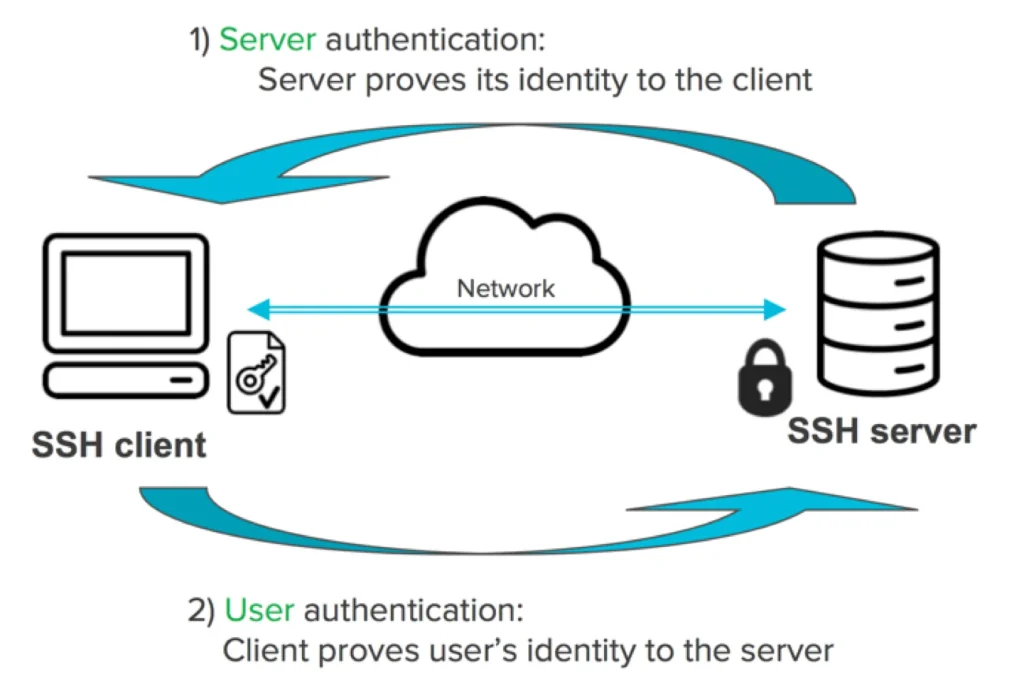
When you attempt to connect to an SSH server using key authentication, a sophisticated, multi-step handshake process unfolds:
1. Client Initiates Connection: Your SSH client initiates a connection to the SSH server.
2. Server Presents Host Key: The server presents its host key (which you should verify on first connect to prevent Man-in-the-Middle attacks).
3. Client Proposes Authentication Method: Your client indicates its preference for public-key authentication.
4. Server Requests Public Key: The server asks your client to provide a public key from its known identities.
5. Client Sends Public Key and Signature: Your client sends its public key to the server. Crucially, it then uses its *private key* to encrypt a random piece of data (or a hash of session data) that the server also knows, effectively signing a challenge from the server.
6. Server Verification: The server, having your public key stored in `authorized_keys`, uses it to decrypt the challenge. If the decryption is successful and the result matches what the server expects, it verifies that the client possesses the corresponding private key.
7. Authentication Granted: Upon successful verification, the server authenticates the client, and the secure SSH session is established.
This intricate dance ensures that even if an attacker intercepts the public key or the encrypted challenge, they cannot forge a valid signature without the private key.
Prerequisites and Preparations for a Seamless Setup
Before embarking on the configuration journey, ensuring the foundational elements are in place is crucial. A smooth setup relies on a few key prerequisites:
- An OpenSSH Client: Typically pre-installed on Linux distributions and macOS. For Windows, the native OpenSSH client is available from Windows 10 (version 1803 onwards), or through third-party tools like PuTTY or Git Bash.
- An OpenSSH Server: Installed and running on your remote target machine. On most Linux distributions, this is the `sshd` service, part of the `openssh-server` package.
- User Account on Remote Server: You must have a valid user account on the remote server with appropriate permissions to modify files within your home directory, particularly the `.ssh` subdirectory.
- Basic Command-Line Proficiency: Familiarity with navigating file systems, creating directories, and using fundamental commands like `ls`, `mkdir`, `chmod`, and text editors (e.g., `nano`, `vi`, `emacs`) is essential.
- Network Connectivity: Ensure your local machine can reach the remote server over the standard SSH port (default 22), and that any firewalls (local or network) permit this traffic.
Step-by-Step Implementation Guide: Establishing Secure SSH Connections
The core of setting up OpenSSH key authentication involves three primary phases: key generation, public key deployment, and server/client configuration. Each step requires meticulous attention to detail to ensure security and functionality.
Generating Your SSH Key Pair
The initial step is to create your public and private key pair on your local machine. The `ssh-keygen` utility is the standard tool for this task.
Choosing the Right Algorithm: RSA vs. ED25519
Historically, RSA has been the de facto standard. While still secure with sufficient key length (e.g., 4096 bits), newer algorithms like ED25519 offer compelling advantages:
- ED25519 (Edwards-curve Digital Signature Algorithm): A modern, highly efficient, and compact elliptic-curve cryptography algorithm. It offers comparable or superior security to RSA 4096-bit keys with significantly shorter key lengths (256 bits), resulting in faster key generation, verification, and smaller key files. It’s also less susceptible to certain types of cryptographic attacks.
- RSA (Rivest–Shamir–Adleman): A widely deployed public-key algorithm. When generating RSA keys, always specify a robust key length, ideally 4096 bits (`-b 4096`).
For new deployments, ED25519 is generally recommended due to its efficiency and strong security posture.
The `ssh-keygen` Command in Detail
To generate a new key pair, open your terminal and execute the `ssh-keygen` command:
bash
ssh-keygen -t ed25519 -f ~/.ssh/id_ed25519_my_server -C “my_username@my_local_machine”
Let’s break down the parameters:
- `-t ed25519`: Specifies the key type as ED25519. You could use `-t rsa -b 4096` for a strong RSA key.
- `-f ~/.ssh/id_ed25519_my_server`: Defines the filename and path for your private key. The public key will automatically be created with the same name and a `.pub` extension (e.g., `id_ed25519_my_server.pub`). It’s good practice to use descriptive names if you manage multiple keys. If omitted, `ssh-keygen` defaults to `id_rsa` or `id_ed25519` in `~/.ssh/`.
- `-C “my_username@my_local_machine”`: Adds a comment to the public key. This is purely for identification and does not affect the key’s functionality. It’s helpful for distinguishing keys, especially when viewing the `authorized_keys` file on the server.
The command will prompt you:
Generating public/private ed25519 key pair.
Enter passphrase (empty for no passphrase):
Enter same passphrase again:
Securing Your Private Key with a Passphrase
Always secure your private key with a strong passphrase. While it might seem like an extra step, it provides a critical layer of defense:
- Protection Against Theft: If your local machine is compromised or your private key file is stolen, the attacker cannot use the key without knowing the passphrase.
- Compliance: Many security policies mandate passphrase protection for private keys.
A passphrase is not a password; it can be much longer and contain spaces and special characters. Aim for something memorable but complex. If you omit the passphrase (by pressing Enter twice), your private key will be usable by anyone who gains access to it.
After generation, you’ll have two files in your `~/.ssh/` directory (or the path you specified):
- `id_ed25519_my_server` (private key)
- `id_ed25519_my_server.pub` (public key)
Crucially, ensure the permissions for your private key are set correctly: `chmod 400 ~/.ssh/id_ed25519_my_server`. Your SSH client will refuse to use a private key that is readable by others. The `~/.ssh` directory itself should be `chmod 700`.
Deploying the Public Key to Your Remote Server
Once your key pair is generated, the next step is to transfer your public key to the remote server.
The Expedient `ssh-copy-id` Utility
The `ssh-copy-id` command is the recommended and simplest method for deploying your public key. It handles creating the `.ssh` directory and `authorized_keys` file on the remote server (if they don’t exist), and sets the correct permissions.
bash
ssh-copy-id -i ~/.ssh/id_ed25519_my_server.pub user@remote_host
- `-i ~/.ssh/id_ed25519_my_server.pub`: Specifies the public key file to install. If omitted, `ssh-copy-id` will attempt to use `~/.ssh/id_rsa.pub` or other common key names.
- `user@remote_host`: Your username on the remote server and its hostname or IP address.
You will be prompted for your *password* for `user@remote_host` (or your private key’s passphrase if SSH agent is running and you are using a default key name) to authenticate the initial connection. Once authenticated, `ssh-copy-id` will append your public key to `~/.ssh/authorized_keys` on the remote server.
Manual Public Key Deployment (When `ssh-copy-id` Isn’t Available)
In scenarios where `ssh-copy-id` is not present or you prefer a manual approach, you can achieve the same result using `scp` and `ssh`.
1. Copy the public key to the remote server:
bash
scp ~/.ssh/id_ed25519_my_server.pub user@remote_host:/tmp/id_ed25519_my_server.pub
You’ll be prompted for the remote user’s password.
2. Connect to the remote server via SSH:
bash
ssh user@remote_host
Again, provide the remote user’s password.
3. On the remote server, set up the `.ssh` directory and `authorized_keys` file:
bash
mkdir -p ~/.ssh
chmod 700 ~/.ssh
cat /tmp/id_ed25519_my_server.pub >> ~/.ssh/authorized_keys
chmod 600 ~/.ssh/authorized_keys
rm /tmp/id_ed25519_my_server.pub # Clean up the temporary file
exit
These commands ensure the `.ssh` directory exists, has restricted permissions, append your public key to `authorized_keys`, restrict `authorized_keys` permissions, and remove the temporary file. The `chmod` commands are critical for security; SSH will refuse to use files with overly permissive settings.
After either `ssh-copy-id` or the manual process, attempt to connect to the remote server using your key:
bash
ssh -i ~/.ssh/id_ed25519_my_server user@remote_host
If you set a passphrase, you’ll be prompted for it. If successful, you’re in!
Configuring the SSH Server for Key Authentication (`sshd_config`)
While key authentication often works out-of-the-box, fine-tuning the SSH server configuration (`/etc/ssh/sshd_config`) is crucial for optimal security and control. Always back up `sshd_config` before making changes.
bash
sudo cp /etc/ssh/sshd_config /etc/ssh/sshd_config.bak
sudo nano /etc/ssh/sshd_config
Key Parameters for Enhanced Security
Review and modify the following directives:
- `PubkeyAuthentication yes`: Ensures public key authentication is enabled. This is usually the default.
- `AuthorizedKeysFile .ssh/authorized_keys`: Specifies the file (relative to the user’s home directory) where public keys are stored. The default is typically correct, but confirm it.
- `PermitRootLogin prohibit-password` (or `no`): Highly recommended. Disallow direct root login via password. If `prohibit-password` (OpenSSH 7.0+) or `without-password` (OpenSSH 7.4+), root can only log in with a key. Setting it to `no` disallows all direct root logins, forcing users to log in as a regular user and then `sudo` if necessary.
- `PasswordAuthentication no`: Crucial for security. Once you’ve confirmed key authentication is working flawlessly, disable password authentication entirely. This removes the attack surface for brute-force password attempts. Do not disable this until you have successfully logged in with your key!
- `ChallengeResponseAuthentication no`: Disables other forms of interactive authentication.
- `UsePAM no`: If you’re not relying on PAM (Pluggable Authentication Modules) for user authentication (e.g., LDAP, two-factor auth), disabling it can simplify the authentication stack, though PAM is often beneficial for other services.
- `AllowUsers`, `AllowGroups`, `DenyUsers`, `DenyGroups`: These directives can restrict SSH access to specific users or groups, offering granular control.
After modifying `sshd_config`, you must restart the SSH service for changes to take effect:
bash
sudo systemctl restart sshd # On systemd-based systems (most modern Linux)
# Or for older systems:
sudo service ssh restart
Always test your key authentication from a separate terminal session or before closing your current SSH session to the server. If you lock yourself out, you’ll need physical or console access to revert changes.
Configuring Your SSH Client for Seamless Access (`~/.ssh/config`)
The `~/.ssh/config` file on your local machine is a powerful tool for streamlining your SSH connections, especially when managing multiple servers or key pairs.
bash
nano ~/.ssh/config
Streamlining Connections with Aliases
You can define aliases and default connection parameters for each host.
Host my_server_alias
Hostname 192.168.1.100 # Or domain name, e.g., example.com
User remote_user
IdentityFile ~/.ssh/id_ed25519_my_server
Port 22 # Only if not default 22
ForwardAgent yes # For agent forwarding, discussed below
StrictHostKeyChecking yes # Recommended for security
UserKnownHostsFile ~/.ssh/known_hosts
Now, instead of typing `ssh -i ~/.ssh/id_ed25519_my_server [email protected]`, you can simply type:
bash
ssh my_server_alias
The client will automatically use the specified user, identity file, and other parameters.
Managing Multiple Keys and Identity Files
The `~/.ssh/config` file becomes invaluable when you have different keys for different servers. You can specify `IdentityFile` for each `Host` entry.
Host dev_server
Hostname dev.example.com
User developer_user
IdentityFile ~/.ssh/id_rsa_dev
Host prod_server
Hostname prod.example.com
User admin_user
IdentityFile ~/.ssh/id_ed25519_prod
Host *
# Global settings for all hosts not explicitly defined above
ForwardAgent no
Compression yes
The `Host *` block provides default settings for any host not explicitly defined, ensuring consistent behavior.
Advanced Strategies and Best Practices
Beyond the basic setup, several advanced techniques and best practices can further enhance the security and convenience of your OpenSSH key authentication.
SSH Agent and Agent Forwarding: Enhancing Convenience and Security
Typing your passphrase for every SSH connection can become tedious. The `ssh-agent` utility addresses this by securely storing decrypted private keys in memory.
1. Start the SSH Agent:
bash
eval “$(ssh-agent -s)”
This command starts the agent and sets the necessary environment variables (`SSH_AUTH_SOCK`, `SSH_AGENT_PID`). Many desktop environments or shell startup scripts (`.bashrc`, `.zshrc`) can be configured to start the agent automatically on login.
2. Add Your Private Key to the Agent:
bash
ssh-add ~/.ssh/id_ed25519_my_server
You’ll be prompted for your passphrase once. The key is then stored in the agent’s memory until the agent process is stopped or the system reboots.
SSH Agent Forwarding
Agent forwarding (`ForwardAgent yes` in `~/.ssh/config` or `ssh -A`) allows the SSH agent on your local machine to securely authenticate you to a *third* server through the server you initially connected to. This means your private key never leaves your local machine, even when performing operations on a remote server that require SSH access to another server (e.g., cloning a Git repository from GitHub).
- Security Note: While convenient, agent forwarding should be used judiciously. If the intermediary server is compromised, a malicious actor *could* potentially use your forwarded agent to authenticate as you to other machines *for the duration of your session*. Restrict forwarding to trusted servers.
Robust Key Management: Rotation, Revocation, and Storage
Effective key management is paramount for long-term security.
- Key Rotation: Regularly generating new key pairs and replacing old ones (e.g., annually, or after significant personnel changes) limits the exposure time of a compromised key.
- Key Revocation: If a private key is believed to be compromised, it must be immediately revoked. This involves removing its corresponding public key from all `authorized_keys` files on every server it grants access to. OpenSSH also supports an `~/.ssh/revoked_keys` file (configured via `RevokedKeys` in `sshd_config`) which can be populated with public keys that should no longer be accepted.
- Secure Storage: Your private key should reside on a machine protected by full-disk encryption, a strong password, and kept away from unencrypted cloud storage or public repositories. Consider hardware security modules (HSMs) or YubiKeys for extremely sensitive keys.
Securing Your SSH Keys: File Permissions and Beyond
Incorrect file permissions are a leading cause of SSH key authentication failures and a significant security risk.
- `~/.ssh` directory: `chmod 700 ~/.ssh` (only owner can read, write, execute).
- Private key (`id_ed25519_my_server`): `chmod 400 ~/.ssh/id_ed25519_my_server` (only owner can read).
- Public key (`id_ed25519_my_server.pub`): `chmod 644 ~/.ssh/id_ed25519_my_server.pub` (owner read/write, others read).
- `authorized_keys` file on remote server: `chmod 600 ~/.ssh/authorized_keys` (only owner can read/write).
Additionally, ensure the home directory of the user on the remote server (`~`) is not world-writable (`chmod go-w ~`).
Understanding and Mitigating Common Vulnerabilities
Even with key authentication, vigilance is required:
- Host Key Spoofing (Man-in-the-Middle): Always verify the server’s host key fingerprint on first connect. Use `StrictHostKeyChecking yes` in `~/.ssh/config` to prevent connection to servers with changed host keys.
- Private Key Compromise: A lost or stolen private key (especially one without a passphrase) grants full access. Implement robust endpoint security, multi-factor authentication for the local machine, and hardware tokens.
- Agent Hijacking: While rare, a compromised client machine or forwarded SSH agent could allow an attacker to use your agent. Limit agent forwarding and regularly audit your client’s security.
FIPS Compliance and Enterprise Considerations
For environments requiring stringent security standards (e.g., government, finance), FIPS 140-2 compliance often dictates cryptographic choices.
- FIPS Approved Algorithms: OpenSSH can be configured to use FIPS-compliant algorithms (e.g., AES-256 for symmetric encryption, SHA-2 for hashing, RSA with specific key lengths, ECDSA with specific curves). ED25519 is not FIPS-approved.
- Configuration Management: In large enterprises, tools like Ansible, Puppet, or Chef should automate SSH key deployment and `sshd_config` management to ensure consistency and compliance across hundreds or thousands of servers.
Troubleshooting Common Issues
Despite careful setup, you might encounter issues. Here are common problems and their solutions:
Permission Denied (Publickey)
This is the most frequent error, indicating the server did not accept your public key.
- Check Server Logs: On the remote server, examine `auth.log` (Debian/Ubuntu) or `secure` (RHEL/CentOS) for detailed error messages:
bash
sudo tail -f /var/log/auth.log
# Or for RHEL/CentOS
sudo tail -f /var/log/secure
Look for messages like “Authentication refused: bad ownership or modes,” “Authentication refused: bad directory permissions,” or “No such file or directory.”
- Server-Side Permissions: Verify permissions of `~/.ssh` (700) and `~/.ssh/authorized_keys` (600) on the remote server. Also, ensure the user’s home directory isn’t world-writable (`chmod go-w ~`).
- Public Key Content: Ensure your public key is correctly appended to `authorized_keys` on a *single line* without extra spaces or line breaks.
Bad Permissions on Key Files
Your local SSH client will refuse to use private key files that are too permissive.
- Local Private Key Permissions: Ensure your private key file (`~/.ssh/id_ed25519_my_server`) has `chmod 400`.
- Local `.ssh` Directory Permissions: Ensure `~/.ssh` has `chmod 700`.
Incorrect `sshd_config` Settings
Misconfigurations in `/etc/ssh/sshd_config` can prevent key authentication.
- `PubkeyAuthentication yes`: Confirm this line is uncommented and set to `yes`.
- `AuthorizedKeysFile`: Ensure this points to the correct location of your `authorized_keys` file.
- Restart `sshd`: Always restart the `sshd` service after modifying `sshd_config`.
Verbose Debugging with `ssh -v`
When all else fails, use the verbose output option (`-v`, `-vv`, `-vvv`) with your SSH client to get detailed debugging information:
bash
ssh -vvv -i ~/.ssh/id_ed25519_my_server user@remote_host
This output will show the authentication steps, which keys are being tried, and why they might be failing, providing invaluable clues.
OpenSSH key authentication stands as an indispensable pillar of modern cybersecurity, offering a robust, efficient, and significantly more secure alternative to password-based remote access. By embracing the principles of public-key cryptography and meticulously following best practices for key generation, deployment, configuration, and management, organizations and individuals can drastically reduce their attack surface and bolster their digital defenses. The initial investment in understanding and implementing this powerful authentication method pays dividends in enhanced security, streamlined operations, and peace of mind in an increasingly hostile cyber landscape. As digital threats evolve, so too must our defenses; OpenSSH key authentication is not merely a convenience but a security imperative for anyone managing remote systems.