Unlocking Secure Remote Access: A Comprehensive OpenSSH Server Installation Guide
In the intricate tapestry of modern computing, secure remote access is not merely a convenience; it is an absolute imperative. From managing cloud servers and virtual machines to orchestrating complex container deployments and administering local networks, the ability to securely connect to a remote system stands as the bedrock of efficient and safe system administration. At the heart of this capability lies SSH (Secure Shell), and its most ubiquitous implementation, OpenSSH.
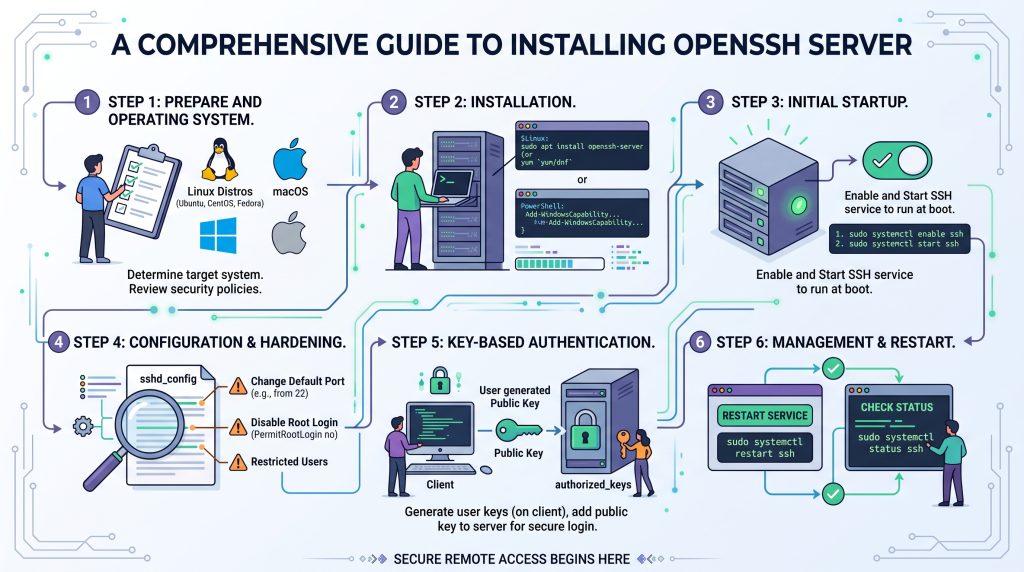
This deeply comprehensive guide aims to demystify the OpenSSH server installation process, offering a detailed, step-by-step walkthrough suitable for system administrators, developers, and tech enthusiasts alike. Beyond mere installation, we will delve into critical post-installation configurations, advanced security hardening techniques, and essential troubleshooting, ensuring your remote access infrastructure is both robust and impervious to common threats.
The Indispensable Role of SSH in Modern Computing
Born from the necessity to replace insecure protocols like Telnet and rsh, SSH emerged in the mid-1990s as a cryptographic network protocol designed for secure data communication, remote command-line execution, and various other secure network services between two networked computers. Its primary purpose is to provide a secure channel over an unsecured network, ensuring confidentiality, integrity, and authenticity of data.
OpenSSH, an open-source implementation of the SSH protocol suite, has become the de-facto standard for secure remote access on Unix-like systems. It’s part of nearly every Linux distribution and is widely adopted across servers globally. Its prevalence is a testament to its reliability, security, and the comprehensive suite of features it offers.
Key benefits of OpenSSH include:
- Robust Encryption: All communications between the client and server are encrypted, protecting against eavesdropping and man-in-the-middle attacks.
- Strong Authentication: Supports various authentication methods, including password-based and the far more secure public-key (key-based) authentication, which prevents brute-force attacks effectively.
- Versatility: Beyond just remote shell access, OpenSSH facilitates secure file transfers (SCP, SFTP), port forwarding (tunneling), and X11 forwarding for graphical applications.
- Open Source and Audited: Its open-source nature means its code is continuously reviewed by a global community, enhancing its security posture and transparency.
Understanding the foundational principles of OpenSSH is the first step towards building a secure and manageable remote computing environment.
Prerequisites and Foundational Knowledge
Before embarking on the installation journey, it’s crucial to ensure your environment meets the necessary prerequisites and that you possess a fundamental understanding of SSH’s operational mechanics. This preparatory phase minimizes potential roadblocks and lays a solid groundwork for a successful setup.
System Requirements and User Privileges
While OpenSSH is remarkably lightweight, a few basic requirements are universal across all installations:
- Supported Operating System: This guide primarily focuses on Linux distributions (Debian, Ubuntu, CentOS, RHEL, Fedora). OpenSSH is native to these environments.
- Network Connectivity: The server must have network access and be reachable from the client machine. This typically means an IP address (static or dynamic) and potentially a domain name.
- Sufficient Disk Space: OpenSSH itself requires minimal space, but the operating system and logs will consume more.
- `sudo` or Root Access: You will need administrative privileges (either by logging in as `root` or using the `sudo` command) to install packages, configure system services, and modify critical configuration files.
Understanding Core SSH Concepts
A brief grasp of these concepts will make the subsequent steps more intuitive:
- Client-Server Architecture: SSH operates on a client-server model. The SSH server (daemon, `sshd`) runs on the remote machine, listening for connection requests. The SSH client runs on your local machine, initiating the connection.
- Encryption (Symmetric vs. Asymmetric): SSH employs a hybrid encryption system. Initially, asymmetric cryptography (public-key/private-key pairs) is used to establish a secure, shared symmetric key. All subsequent session data is then encrypted using this faster symmetric key.
- Authentication Methods:
- Password Authentication: The user provides a username and password. While common, it’s susceptible to brute-force attacks if passwords are weak.
- Public-Key (Key-Based) Authentication: This is the highly recommended and most secure method. It involves generating a pair of cryptographic keys: a private key (kept secret on the client) and a public key (stored on the server). When connecting, the server challenges the client to prove ownership of the private key corresponding to the public key stored on the server.
- SSH Daemon (`sshd`): This is the server-side component of OpenSSH. It runs as a background process, listening for incoming SSH connection requests, authenticating clients, and managing secure sessions. Its primary configuration file is `sshd_config`.
With these foundational elements understood, we are now ready to proceed with the installation process itself.
Step-by-Step OpenSSH Server Installation Across Linux Distributions
The installation of the OpenSSH server (`openssh-server` package) is straightforward across most Linux distributions, primarily differing in the package manager used.
Installation on Debian/Ubuntu-based Systems
Debian and Ubuntu, along with their derivatives, utilize the `APT` (Advanced Package Tool) package manager.
1. Update Package Lists:
It’s always good practice to refresh your local package index to ensure you’re installing the latest available version.
bash
sudo apt update
2. Install OpenSSH Server:
Now, install the `openssh-server` package.
bash
sudo apt install openssh-server -y
The `-y` flag automatically confirms the installation, preventing interactive prompts.
3. Verify Service Status:
After installation, the `sshd` service should start automatically. You can verify its status using `systemctl`.
bash
sudo systemctl status ssh
You should see output indicating `Active: active (running)`. If it’s not running, you can start it with `sudo systemctl start ssh`. To ensure it starts on boot, use `sudo systemctl enable ssh`.
Installation on RHEL/CentOS/Fedora-based Systems
Red Hat Enterprise Linux (RHEL), CentOS, and Fedora distributions primarily use `YUM` (Yellowdog Updater, Modified) or `DNF` (Dandified YUM) as their package managers. Fedora and newer RHEL/CentOS versions default to `DNF`.
1. Update Package Lists:
For RHEL/CentOS 7 and older, use `yum`:
bash
sudo yum update
For RHEL/CentOS 8+, Fedora, use `dnf`:
bash
sudo dnf update
2. Install OpenSSH Server:
The package name is also `openssh-server` here.
For RHEL/CentOS 7 and older:
bash
sudo yum install openssh-server -y
For RHEL/CentOS 8+, Fedora:
bash
sudo dnf install openssh-server -y
3. Verify Service Status:
Similar to Debian/Ubuntu, verify the `sshd` service status.
bash
sudo systemctl status sshd
The output should show `Active: active (running)`. If not, start it: `sudo systemctl start sshd` and enable it for boot: `sudo systemctl enable sshd`.
Initial Firewall Configuration
Regardless of your Linux distribution, a firewall is a critical component of server security. You need to ensure that the port OpenSSH listens on (default is 22) is open to allow incoming connections.
- For Ubuntu/Debian with `ufw` (Uncomplicated Firewall):
`ufw` is often the default firewall management tool.
bash
sudo ufw allow ssh
sudo ufw enable
sudo ufw status verbose
The `ufw allow ssh` command typically opens port 22. If you later change the SSH port, you’ll need to update this rule.
- For CentOS/RHEL/Fedora with `firewalld`:
`firewalld` is the default on these systems.
bash
sudo firewall-cmd –permanent –add-service=ssh
sudo firewall-cmd –reload
sudo firewall-cmd –list-all
This adds the SSH service rule to the firewall, allowing traffic on port 22. If you change the SSH port, you’ll need to add a custom port rule (`–add-port=YOUR_PORT/tcp`) and remove the SSH service rule.
Once the firewall is configured, you should be able to make your first SSH connection from a client machine using the default settings (username and password of a user on the server):
bash
ssh username@your_server_ip_address
You’ll be prompted for the user’s password. While this gets you connected, it’s just the beginning. The real work of securing your server starts now.
Essential Post-Installation Configuration and Hardening
Installing OpenSSH is only the first step. To truly protect your server, you must implement a series of crucial configuration changes and security hardening measures. These steps are vital to mitigate common attack vectors and ensure the integrity of your remote access.
Navigating the `sshd_config` File
The primary configuration file for the OpenSSH server is located at `/etc/ssh/sshd_config`. This plain-text file dictates how the SSH daemon behaves, including which port it listens on, which authentication methods are allowed, and various other security parameters.
- Always make a backup before making changes:
bash
sudo cp /etc/ssh/sshd_config /etc/ssh/sshd_config.bak
- Syntax: Each configuration directive typically consists of a keyword followed by a value. Lines starting with `#` are comments.
- Applying Changes: After modifying `sshd_config`, you *must* restart the SSH service for the changes to take effect:
bash
sudo systemctl restart sshd
Changing the Default SSH Port
Running SSH on the default port 22 is a common practice, but it also makes your server a prime target for automated scanning and brute-force attacks. While changing the port doesn’t offer bulletproof security, it significantly reduces the noise in your logs and deters casual attackers.
1. Edit `sshd_config`:
Open the file with your preferred text editor (e.g., `nano`, `vi`):
bash
sudo nano /etc/ssh/sshd_config
2. Locate and modify the `Port` directive:
Find the line that says `#Port 22` (or `Port 22`). Uncomment it if commented out and change `22` to a non-standard port number, ideally above 1024 (e.g., `2222`, `49152` – just avoid common ports used by other services).
Port 2222
3. Update Firewall Rules:
Remember to update your firewall to allow traffic on the new port.
- For `ufw`:
bash
sudo ufw allow 2222/tcp
sudo ufw delete allow ssh # Remove old rule
sudo ufw reload
- For `firewalld`:
bash
sudo firewall-cmd –permanent –add-port=2222/tcp
sudo firewall-cmd –permanent –remove-service=ssh # Remove old rule
sudo firewall-cmd –reload
4. Restart SSH service:
bash
sudo systemctl restart sshd
5. Test the new connection:
From your client, specify the new port:
bash
ssh -p 2222 username@your_server_ip_address
*Crucial:* Do not close your current administrative session until you’ve successfully logged in using the new port. This ensures you don’t lock yourself out.
Disabling Root Login for Enhanced Security
Directly logging in as the `root` user via SSH is a major security risk. The `root` user has ultimate privileges, and if compromised, an attacker gains complete control of your system. It’s much safer to log in as a regular user and then elevate privileges using `sudo` when necessary.
1. Edit `sshd_config`:
bash
sudo nano /etc/ssh/sshd_config
2. Change `PermitRootLogin`:
Find the line `PermitRootLogin yes` (or `PermitRootLogin prohibit-password` on some newer systems) and change it to:
PermitRootLogin no
3. Restart SSH service:
bash
sudo systemctl restart sshd
Attempting to log in as `root` from now on will result in a “Permission denied” error.
Implementing Key-Based Authentication (The Gold Standard)
Key-based authentication is vastly superior to password-based authentication because it relies on cryptographic key pairs, making it impervious to brute-force password guessing.
Generating SSH Key Pairs (Client Side)
This process is performed on your local client machine, not the server.
1. Generate the key pair:
bash
ssh-keygen -t rsa -b 4096
- `-t rsa`: Specifies the RSA algorithm. (You might also use `ed25519` for more modern systems, which is generally faster and equally secure).
- `-b 4096`: Specifies a 4096-bit key length, providing strong security.
You’ll be prompted for:
- File to save the key: Press Enter to accept the default (`~/.ssh/id_rsa`).
- Passphrase: *Strongly recommended.* This encrypts your private key, providing an additional layer of security should your private key ever fall into the wrong hands. Choose a strong, memorable passphrase.
This command generates two files in your `~/.ssh` directory:
- `id_rsa`: Your private key. Keep this file absolutely secret and secure. Never share it.
- `id_rsa.pub`: Your public key. This is the key you will copy to your servers.
Copying the Public Key to the Server
There are two primary methods to transfer your public key to the server.
1. Using `ssh-copy-id` (Recommended and Easiest):
This utility automates the process of appending your public key to the server’s `~/.ssh/authorized_keys` file.
bash
ssh-copy-id -p YOUR_SSH_PORT username@your_server_ip_address
Replace `YOUR_SSH_PORT` with the port you configured (if not 22). You will be prompted for the user’s password on the server for this initial authentication.
After successful execution, you should be able to log in without a password (only needing your private key’s passphrase if you set one).
2. Manual Method:
If `ssh-copy-id` is not available or you prefer to do it manually:
- Create `~/.ssh` directory on the server (if it doesn’t exist):
bash
ssh -p YOUR_SSH_PORT username@your_server_ip_address “mkdir -p ~/.ssh”
- Set correct permissions for the directory:
bash
ssh -p YOUR_SSH_PORT username@your_server_ip_address “chmod 700 ~/.ssh”
- Copy the public key using `scp`:
bash
scp -P YOUR_SSH_PORT ~/.ssh/id_rsa.pub username@your_server_ip_address:/tmp/id_rsa.pub
- Append the public key to `authorized_keys` on the server:
bash
ssh -p YOUR_SSH_PORT username@your_server_ip_address “cat /tmp/id_rsa.pub >> ~/.ssh/authorized_keys”
- Set correct permissions for `authorized_keys`:
bash
ssh -p YOUR_SSH_PORT username@your_server_ip_address “chmod 600 ~/.ssh/authorized_keys”
- Remove the temporary public key file:
bash
ssh -p YOUR_SSH_PORT username@your_server_ip_address “rm /tmp/id_rsa.pub”
Disabling Password Authentication on the Server
Once you have successfully tested key-based authentication, it is *critical* to disable password authentication to prevent brute-force attacks.
1. Edit `sshd_config`:
bash
sudo nano /etc/ssh/sshd_config
2. Modify these directives:
PasswordAuthentication no
ChallengeResponseAuthentication no
UsePAM no # Be careful with this one, can break other auth if not understood.
# Only set to ‘no’ if you are certain you don’t rely on PAM for other services.
# For most basic key-based setups, ‘PasswordAuthentication no’ is sufficient.
*The `UsePAM no` directive should be used with caution, as it can affect other authentication modules that rely on PAM. For most key-based setups, disabling `PasswordAuthentication` and `ChallengeResponseAuthentication` is sufficient to prevent password logins.*
3. Restart SSH service:
bash
sudo systemctl restart sshd
*Again, ensure you have successfully logged in with your key *before* restarting the service, or you risk locking yourself out.*
Limiting User Access
For environments with multiple users, you might want to restrict which users or groups can access the SSH server.
1. Edit `sshd_config`:
bash
sudo nano /etc/ssh/sshd_config
2. Use `AllowUsers` or `AllowGroups`:
- `AllowUsers user1 user2`: Only `user1` and `user2` can log in via SSH.
- `AllowGroups sshusers`: Only users belonging to the `sshusers` group can log in. You would need to create this group and add users to it.
AllowUsers your_username_here
This is highly recommended for single-user servers to ensure only your specific user can log in.
3. Restart SSH service:
bash
sudo systemctl restart sshd
Advanced SSH Server Configurations and Best Practices
Beyond the essential hardening steps, OpenSSH offers a wealth of configuration options to further tailor security, optimize performance, and enhance the user experience. Implementing these advanced settings contributes to a more robust and resilient remote access infrastructure.
Fine-Tuning Server Security with `sshd_config` Directives
Let’s explore some more directives within `/etc/ssh/sshd_config`:
- `Protocol 2` (Standard):
Ensure only SSH Protocol 2 is used, as Protocol 1 is insecure and deprecated. This is typically the default now.
Protocol 2
- `PermitEmptyPasswords no`:
Prevents users with empty passwords from logging in, even if password authentication is otherwise enabled (though we’ve disabled it).
PermitEmptyPasswords no
- `MaxAuthTries`:
Limits the number of authentication attempts per connection. Lowering this can help against brute-force attacks (though key-based authentication already largely solves this).
MaxAuthTries 3
- `LoginGraceTime`:
Sets the time (in seconds) that the server waits for a successful login. After this period, if the user hasn’t authenticated, the connection is closed.
LoginGraceTime 60
- `X11Forwarding no` (if not needed):
If you don’t use graphical applications over SSH, disable X11 forwarding to reduce the attack surface.
X11Forwarding no
- `PrintLastLog yes`:
Displays the last login time and source for the user upon successful login, useful for detecting suspicious activity.
PrintLastLog yes
- `ClientAliveInterval` and `ClientAliveCountMax`:
These directives help prevent “dead” sessions from staying open indefinitely.
- `ClientAliveInterval 300`: The server sends a null packet to the client if no data has been received for 300 seconds (5 minutes).
- `ClientAliveCountMax 2`: If the client fails to respond to `ClientAliveInterval` messages `ClientAliveCountMax` times, the server disconnects the client.
This means after 2 * 5 = 10 minutes of no response, the client will be disconnected.
ClientAliveInterval 300
ClientAliveCountMax 2
Remember to `sudo systemctl restart sshd` after making any changes.
Implementing Fail2ban for Brute-Force Protection
Fail2ban is an intrusion prevention framework that scans log files (e.g., `/var/log/auth.log`, `/var/log/secure`) for specific patterns indicating malicious activity, such as repeated failed login attempts. Upon detecting such patterns, it temporarily or permanently bans the offending IP address using the system’s firewall. Even with key-based authentication, Fail2ban is valuable for catching scanners or attempts against other services.
1. Installation:
- Debian/Ubuntu:
bash
sudo apt install fail2ban -y
- CentOS/RHEL/Fedora:
bash
sudo dnf install fail2ban -y
sudo systemctl enable fail2ban
sudo systemctl start fail2ban
2. Basic Configuration:
Fail2ban’s configuration files are typically in `/etc/fail2ban/`. The main configuration is `jail.conf`, but it’s best practice to create a `jail.local` file to override default settings, preventing your changes from being overwritten during updates.
bash
sudo cp /etc/fail2ban/jail.conf /etc/fail2ban/jail.local
sudo nano /etc/fail2ban/jail.local
Inside `jail.local`, you can configure the `[sshd]` section.
- `enabled = true`: Ensure the SSH jail is active.
- `port = ssh,2222`: If you changed your SSH port, list all ports SSH is listening on.
- `maxretry = 3`: How many failed attempts before banning.
- `bantime = 1h`: How long to ban (e.g., `10m` for 10 minutes, `1h` for 1 hour, `-1` for permanent).
ini
[sshd]
enabled = true
port = ssh,2222 # Adjust if your SSH port is different
logpath = %(sshd_log)s
maxretry = 3
bantime = 1h
3. Restart Fail2ban:
bash
sudo systemctl restart fail2ban
4. Monitor Status:
Check the status of the `sshd` jail:
bash
sudo fail2ban-client status sshd
You should see a list of currently banned IP addresses, if any.
SSH Agent Forwarding
SSH agent forwarding allows you to use your local SSH private key (which is loaded into your SSH agent) for authenticating to other servers *from* the server you’ve just connected to, without transferring your private key to that intermediate server. This is immensely useful in multi-hop scenarios.
- How it works: When you connect with agent forwarding, the remote server gets access to your local SSH agent, essentially acting as a proxy. Your private key never leaves your local machine.
- Usage: When connecting from your client, use the `-A` flag:
bash
ssh -A -p YOUR_SSH_PORT username@your_server_ip_address
- Security Considerations: While convenient, be cautious when using agent forwarding to connect to untrusted servers, as a malicious root user on that server could potentially hijack your forwarded agent for the duration of the connection.
Using `Match` Blocks for Granular Control
`Match` blocks in `sshd_config` allow you to apply specific configuration directives conditionally, based on criteria like user, group, host, or address. This provides powerful fine-grained control.
- Example: Restricting Shell Access for Specific Users:
Imagine you have a user `gituser` that only needs to push/pull Git repositories and should not have interactive shell access.
Match User gituser
ForceCommand /usr/bin/git-shell
AllowAgentForwarding no
PermitTunnel no
X11Forwarding no
This configuration forces `gituser` to use `/usr/bin/git-shell` (which is typically restricted to Git operations) and disables other features.
- Example: Different Authentication for Specific Hosts:
You might want password authentication enabled only for connections originating from a specific internal IP address (if you absolutely cannot use keys internally) while keeping it disabled for all other external IPs.
# Global setting: No password authentication
PasswordAuthentication no
Match Address 192.168.1.100
PasswordAuthentication yes
# Other specific settings for this IP
This demonstrates the power of `Match` blocks to create exceptions to global rules.
Remember to place `Match` blocks at the very end of your `sshd_config` file, as directives within a `Match` block override global settings.
Client-Side Interaction and Common SSH Commands
With your OpenSSH server securely installed and configured, it’s time to explore the essential client-side commands for connection, file transfer, and general interaction.
Connecting to Your OpenSSH Server
The basic command to connect to an SSH server is straightforward:
bash
ssh [options] user@host
- `user`: The username on the remote server you wish to log in as.
- `host`: The IP address or domain name of your remote server.
Common options:
- Specifying a non-default port: Use the `-p` flag if you changed your SSH port.
bash
ssh -p 2222 your_username@your_server_ip
- Specifying a private key: If your private key isn’t the default (`~/.ssh/id_rsa`), or you have multiple keys, use the `-i` flag.
bash
ssh -i ~/.ssh/my_custom_key -p 2222 your_username@your_server_ip
- Verbose output: Use `-v` (or `-vv`, `-vvv`) for detailed debugging information during connection attempts.
bash
ssh -vvv -p 2222 your_username@your_server_ip
- Agent forwarding: Use `-A` for SSH agent forwarding (discussed above).
bash
ssh -A -p 2222 your_username@your_server_ip
Secure File Transfer (SCP and SFTP)
OpenSSH provides two secure utilities for transferring files between your local machine and the remote server.
`scp` (Secure Copy Protocol)
`scp` is a command-line utility for copying files and directories securely between hosts. Its syntax is similar to the `cp` command.
- Copy a file from local to remote:
bash
scp -P 2222 /path/to/local/file.txt your_username@your_server_ip:/path/to/remote/directory/
- Copy a file from remote to local:
bash
scp -P 2222 your_username@your_server_ip:/path/to/remote/file.txt /path/to/local/directory/
- Copy a directory recursively: Use the `-r` flag.
bash
scp -r -P 2222 /path/to/local/directory your_username@your_server_ip:/path/to/remote/parent_directory/
`sftp` (SSH File Transfer Protocol)
`sftp` provides an interactive file transfer program, offering a more FTP-like experience over an SSH connection.
1. Connect to the SFTP server:
bash
sftp -P 2222 your_username@your_server_ip
You will be dropped into an `sftp>` prompt.
2. Common `sftp` commands:
- `ls`: List remote files.
- `lls`: List local files.
- `cd remote_directory`: Change remote directory.
- `lcd local_directory`: Change local directory.
- `get remote_file`: Download `remote_file` to the local current directory.
- `put local_file`: Upload `local_file` to the remote current directory.
- `exit` or `bye`: Disconnect from the SFTP session.
These commands form the foundation of interacting with your OpenSSH server, enabling not just remote command execution but also secure management of your server’s file system.
Troubleshooting Common OpenSSH Server Issues
Even with careful installation and configuration, issues can arise. Knowing how to diagnose and resolve common OpenSSH server problems is a crucial skill for any administrator.
Connection Refused
This is one of the most frequent errors and usually indicates the server isn’t accepting connections on the specified port.
- Check Firewall: Is the SSH port open on the server’s firewall?
- `ufw`: `sudo ufw status`
- `firewalld`: `sudo firewall-cmd –list-all`
- Ensure the correct port (e.g., 22 or your custom port) is explicitly allowed.
- SSH Service Status: Is the `sshd` service running on the server?
- `sudo systemctl status sshd`
- If not running, try `sudo systemctl start sshd`. If it fails to start, check `journalctl -u sshd`.
- Port Listening: Is `sshd` listening on the expected port?
- `sudo ss -tulpn | grep sshd` or `sudo netstat -tulpn | grep sshd` (if `ss` is unavailable).
- Verify the `Local Address` shows `0.0.0.0:22` (or your custom port) or `:::22` for IPv6.
- `sshd_config` Errors: Check the SSH daemon’s configuration for syntax errors.
- `sudo sshd -t` will test the configuration file and report any errors without restarting the service.
Permission Denied (Publickey)
This error indicates that key-based authentication failed.
- Client-side Key Permissions: Your private key file (`id_rsa`) must have very strict permissions (`600`).
- `chmod 600 ~/.ssh/id_rsa`
- Server-side Permissions: The `~/.ssh` directory on the server must have `700` permissions, and `~/.ssh/authorized_keys` must have `600` permissions.
- `chmod 700 ~/.ssh`
- `chmod 600 ~/.ssh/authorized_keys`
- Ensure the `~/.ssh` directory and `authorized_keys` file are owned by the user attempting to log in.
- Contents of `authorized_keys`: Is your public key correctly pasted into `~/.ssh/authorized_keys` on the server, with no extra line breaks or characters? Each public key should be on a single line.
- `sshd_config` Settings:
- `PubkeyAuthentication yes` (should be default).
- `AuthorizedKeysFile .ssh/authorized_keys` (should be default).
- Ensure `PasswordAuthentication no` is only set *after* you’ve confirmed key-based login works.
- SELinux (on CentOS/RHEL/Fedora): SELinux can sometimes block SSH access if file contexts are incorrect.
- Check `sudo ausearch -c sshd | grep AVC` for SELinux denials.
- You might need to restore default contexts: `sudo restorecon -Rv ~/.ssh`.
Authentication Errors (Password)
If you’re still relying on password authentication and encountering issues:
- Incorrect Username/Password: Double-check your credentials.
- `PermitRootLogin no`: If you’re trying to log in as `root`, ensure this isn’t set to `no` (or, preferably, log in as a regular user).
- `PasswordAuthentication no`: If this is set in `sshd_config`, password logins are disabled.
- PAM Issues: If `UsePAM yes` is set (default on most systems), PAM (Pluggable Authentication Modules) handles password authentication. Issues here can be complex.
- Check `/etc/pam.d/sshd` for any misconfigurations.
- `sudo journalctl -u sshd` will often show PAM-related errors.
Debugging `sshd`
When standard troubleshooting isn’t enough, running `sshd` in debug mode can provide invaluable insights.
1. Stop the running `sshd` service:
bash
sudo systemctl stop sshd
2. Start `sshd` in debug mode:
bash
sudo /usr/sbin/sshd -D -p YOUR_SSH_PORT -d -e
- `-D`: Do not detach from the console.
- `-p YOUR_SSH_PORT`: Specify the port (important if not 22).
- `-d`: Debug mode.
- `-e`: Prints to stderr (console).
In a separate terminal, try connecting from your client. The debug output in the server terminal will show every step of the connection and authentication process, highlighting exactly where it fails.
3. Remember to restart the service normally afterward:
bash
sudo systemctl start sshd
Examining Server Logs
Server logs are a treasure trove of information.
- Debian/Ubuntu:
bash
sudo tail -f /var/log/auth.log
- CentOS/RHEL/Fedora:
bash
sudo tail -f /var/log/secure
These logs record all authentication attempts, successful logins, failed attempts, and service-related messages from SSH and other authentication services. Monitoring them (especially during troubleshooting) can quickly pinpoint the cause of a problem.
By systematically going through these troubleshooting steps, you can effectively diagnose and resolve most OpenSSH server issues, ensuring continuous and secure remote access.
Maintaining and Updating Your OpenSSH Server
The journey doesn’t end with a perfectly configured OpenSSH server. Ongoing maintenance and timely updates are crucial for long-term security and stability. Neglecting these aspects can leave your server vulnerable to newly discovered exploits.
Regular Package Updates
Software, especially security-critical components like OpenSSH, is under constant review. Vulnerabilities are discovered and patched regularly.
- Importance of Security Patches: Attackers actively scan for systems running older, vulnerable versions of software. Applying updates promptly ensures you benefit from the latest security fixes.
- Update Commands:
- Debian/Ubuntu:
bash
sudo apt update
sudo apt upgrade
- CentOS/RHEL/Fedora:
bash
sudo dnf update # or sudo yum update
It is recommended to run these commands regularly (e.g., weekly or monthly, depending on your environment and risk tolerance). After a major OpenSSH update, the `sshd` service might restart automatically, or you might need to manually restart it.
Configuration Backups
Before making any significant changes to your `sshd_config` file, always create a backup. This allows you to quickly revert to a known working configuration if a new change causes issues or locks you out.
bash
sudo cp /etc/ssh/sshd_config /etc/ssh/sshd_config.$(date +%Y%m%d_%H%M%S).bak
This command creates a timestamped backup, making it easy to track changes over time.
Monitoring Logs
Proactive log monitoring is an essential security practice.
- Regularly review `auth.log` or `secure` for:
- Failed login attempts (especially if not handled by Fail2ban).
- Login attempts from unusual IP addresses.
- Any messages indicating service failures or unusual activity.
- Consider setting up centralized logging (e.g., using a SIEM solution or ELK stack) for larger environments to aggregate and analyze logs more effectively.
Reviewing `sshd_config` Periodically
Over time, security best practices evolve, and your server’s role might change. Periodically review your `sshd_config` file to ensure it still aligns with your security policies and the latest recommendations. Remove any deprecated directives and implement new hardening measures as they emerge.
By adhering to these maintenance and update routines, you ensure that your OpenSSH server remains a secure and reliable gateway to your remote systems.
The OpenSSH server is more than just a tool for remote access; it is a fundamental pillar of modern cybersecurity, enabling secure and efficient management of networked systems across the globe. From the moment of installation through meticulous configuration and continuous maintenance, every step outlined in this guide contributes to building an impenetrable fortress around your valuable server infrastructure.
We have traversed the landscape from initial prerequisites and installation across diverse Linux distributions, through critical post-installation hardening like changing default ports, disabling root login, and implementing the gold standard of key-based authentication. We further explored advanced configurations such as Fail2ban integration, granular control with `Match` blocks, and essential client-side interactions. Finally, we equipped you with the knowledge to troubleshoot common issues and maintain your OpenSSH server against evolving threats.
Embracing these best practices transforms a basic OpenSSH installation into a robust, secure, and reliable remote access solution. Remember that security is not a one-time setup but an ongoing process. Continuous learning, vigilant monitoring, and timely updates are your allies in safeguarding your digital assets. With OpenSSH, you wield a powerful instrument for secure remote system management, ensuring peace of mind in an increasingly interconnected world.