In the intricate world of Linux system administration and development, the ability to securely connect to remote machines is not merely a convenience but a fundamental necessity. For burgeoning Linux users, the Secure Shell (SSH) command stands as the gateway to this powerful capability, offering a robust, encrypted channel for network services over an unsecured network. This comprehensive guide aims to demystify SSH, transforming it from an intimidating acronym into an indispensable tool in your command-line arsenal, laying a bedrock for advanced system interaction and management.
Understanding the ‘Why’: What is SSH and Why Linux Beginners Need It?
At its core, SSH, or Secure Shell, is a cryptographic network protocol that enables secure data communication between two networked computers. Envision it as a highly fortified, private tunnel through the vast, often hostile, landscape of the internet. Without SSH, communicating with a remote server would be akin to shouting secrets across a public square; anyone could listen in. With SSH, your whispers become confidential exchanges, protected by layers of encryption and authentication.
The Genesis of Secure Communication
Before SSH, protocols like Telnet and rlogin offered remote access, but critically, they transmitted data, including passwords, in plain text. This inherent vulnerability made them obsolete for any serious system administration, paving the way for the development of SSH in the mid-1990s. Its primary objective was to replace these insecure protocols with a secure alternative, ensuring confidentiality, integrity, and authentication.
Core Principles: Encryption, Authentication, Integrity
SSH operates on three foundational principles that make it so powerful:
1. Encryption: All data exchanged between the client (your local machine) and the server (the remote machine) is encrypted. This means that even if an unauthorized party intercepts the communication, they will only see scrambled, unintelligible data. SSH typically uses strong algorithms like AES for symmetric encryption and RSA or ECDSA for asymmetric encryption.
2. Authentication: SSH rigorously verifies the identity of both the client and the server. This prevents imposters from gaining access or malicious servers from tricking clients. Server authentication typically occurs first, ensuring you’re connecting to the legitimate server. Client authentication then verifies your identity to the server.
3. Integrity: SSH ensures that the data transmitted remains unaltered during transit. Any tampering, accidental or malicious, is detected, and the connection can be terminated, safeguarding against data corruption.
SSH in the Linux Ecosystem: Beyond the Desktop
For Linux beginners, SSH is not just about logging into a distant server. It’s about:
- Remote Server Management: The ability to administer cloud instances (AWS, Google Cloud, Azure, DigitalOcean), home servers, or virtual machines from anywhere in the world.
- Secure File Transfer: Moving files between local and remote systems securely using tools built atop SSH, like `scp` and `sftp`.
- Tunneling and Port Forwarding: Creating secure tunnels for other insecure network services or bypassing firewalls.
- Executing Remote Commands: Running specific commands on a distant machine without a full interactive session.
- Version Control Systems: Many `git` operations, especially with private repositories, leverage SSH for secure authentication.
Mastering the `ssh` command is a rite of passage for any aspiring Linux user, unlocking a world of remote possibilities and secure interactions.
The Foundational ‘How’: Basic SSH Command Syntax
The beauty of the `ssh` command lies in its straightforward primary syntax, which forms the basis for all its more advanced applications.
Deconstructing the SSH Command: `ssh [options] [user@]hostname [command]`
Let’s break down the fundamental structure:
- `ssh`: This is the command itself, invoking the Secure Shell client program.
- `[options]`: These are optional flags that modify the behavior of the `ssh` client. We’ll delve into common and useful options later.
- `[user@]hostname`: This is the critical part that specifies *who* you want to connect as and *where* you want to connect to.
- `user`: The username on the *remote* server you wish to log in as. If you omit this, SSH will attempt to log in using your current local username.
- `@`: A literal “at” symbol, separating the username from the hostname.
- `hostname`: This can be either the IP address (e.g., `192.168.1.100`) or the domain name (e.g., `myremoteserver.com`) of the remote machine.
- `[command]`: Another optional part. If specified, SSH will execute this command on the remote server and then exit, rather than opening an interactive shell session.
Connecting to Your First Remote Server: A Step-by-Step Guide
Let’s assume you have a remote Linux server with the IP address `203.0.113.45` and a user account named `demouser`.
1. Open your local Linux terminal.
2. Type the basic SSH command:
bash
ssh [email protected]
If your local username is also `demouser`, you could simply type:
bash
ssh 203.0.113.45
Using IP Addresses vs. Hostnames
- IP Addresses: Directly identify the remote machine on the network. They are numeric (IPv4: `192.168.1.1`, IPv6: `2001:0db8::1`). Reliable but less memorable.
- Hostnames/Domain Names: Human-readable names that map to IP addresses (e.g., `example.com`). These are resolved by a DNS (Domain Name System) server. More convenient, but rely on DNS resolution.
It’s common to use IP addresses for initial setup or internal networks and hostnames for publicly accessible servers once DNS records are configured.
The Initial Handshake: Host Key Verification
The *very first time* you connect to a new remote server, SSH will present you with a message similar to this:
The authenticity of host ‘203.0.113.45 (203.0.113.45)’ can’t be established.
ECDSA key fingerprint is SHA256:abcd…xyz.
Are you sure you want to continue connecting (yes/no/[fingerprint])?
This is SSH’s way of performing server authentication. The “fingerprint” is a unique identifier for the remote server’s public key. You should ideally verify this fingerprint against an out-of-band source (e.g., your server provider’s documentation or a trusted colleague) to ensure you’re connecting to the legitimate server and not a malicious imposter (a “Man-in-the-Middle” attack).
- If you’re confident in the server’s identity (which for beginners often means trusting your cloud provider), type `yes` and press Enter.
- The server’s public key will then be added to your `~/.ssh/known_hosts` file on your local machine. Subsequent connections to the same server will skip this prompt unless the server’s key changes (which might indicate a security issue or a server rebuild).
After confirming, SSH will prompt you for the password of `demouser` on the remote machine. Type it carefully (characters will not appear as you type for security reasons) and press Enter. If successful, you’ll be presented with the remote server’s command prompt, ready to execute commands.
The Power of `exit`: Disconnecting Gracefully
Once you’ve finished your work on the remote server, it’s good practice to close the SSH session cleanly. Simply type `exit` at the remote server’s prompt:
bash
demouser@myserver:~ $ exit
Pressing Enter will close the session and return you to your local machine’s terminal prompt. Alternatively, pressing `Ctrl + D` will also achieve the same result.
Securing Your Connection: SSH Authentication Methods
While password authentication is simple for beginners, it carries inherent risks. The industry standard, and highly recommended method for all users, is public key authentication.
Password Authentication: Simplicity and Its Pitfalls
As demonstrated, password authentication involves providing a username and password to log in. While convenient, it has several drawbacks:
- Vulnerability to Brute-Force Attacks: Attackers can repeatedly guess passwords until they succeed.
- Weak Passwords: Users often choose simple, easily guessable passwords.
- No Multi-Factor: Relies solely on “something you know.”
- Automation Challenges: Difficult to automate scripts without embedding passwords, which is a security risk.
For these reasons, particularly for internet-facing servers, public key authentication is vastly preferred.
Public Key Authentication: The Gold Standard for Security and Convenience
Public key authentication uses a pair of cryptographic keys: a public key and a private key.
- Private Key: Kept secret on your local machine. Think of it as your unique, highly secure digital passport that *only you possess*.
- Public Key: Stored on the remote server. This is like a public lock that can only be opened by your specific digital passport.
When you attempt to connect, the server challenges your client, which then uses your private key to prove your identity without ever sending the private key itself over the network. It’s a highly secure “handshake.”
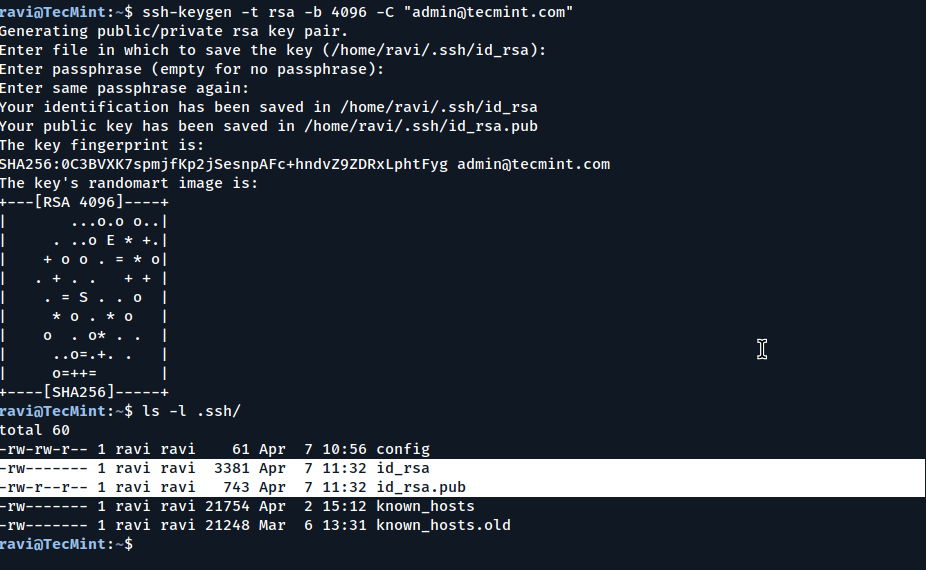
Generating SSH Key Pairs with `ssh-keygen`
The `ssh-keygen` utility is used to create these key pairs.
1. Open your local terminal.
2. Run the command:
bash
ssh-keygen -t rsa -b 4096
- `-t rsa`: Specifies the key type as RSA (a common and secure algorithm).
- `-b 4096`: Specifies the number of bits in the key, enhancing security (4096 is a strong recommendation; 2048 is a common minimum).
3. Follow the prompts:
Generating public/private rsa key pair.
Enter file in which to save the key (/home/youruser/.ssh/id_rsa):
- File location: Press Enter to accept the default location (`~/.ssh/id_rsa`). This is the standard path.
Enter passphrase (empty for no passphrase):
Enter same passphrase again:
- Passphrase: This is crucial. A strong passphrase adds an extra layer of security, encrypting your private key on your local machine. If someone gains access to your local machine, they still won’t be able to use your private key without this passphrase. It’s highly recommended to use a strong passphrase. You will be prompted for this passphrase each time you use the private key (though `ssh-agent` can help manage this, as discussed later). You can leave it empty for convenience (not recommended for critical servers) by just pressing Enter twice.
Upon successful generation, you’ll see output like:
Your identification has been saved in /home/youruser/.ssh/id_rsa
Your public key has been saved in /home/youruser/.ssh/id_rsa.pub
The key fingerprint is:
SHA256:your_fingerprint youruser@yourlocalmachine
Understanding `id_rsa`, `id_rsa.pub`, and `authorized_keys`
After `ssh-keygen`, your `~/.ssh/` directory will contain two new files (by default):
- `id_rsa`: Your private key. Never share this file with anyone. Its permissions should be `600` (read/write only for the owner).
- `id_rsa.pub`: Your public key. This is the key you will share with remote servers. Its permissions should be `644` (read for everyone, write for owner).
On the remote server, the `authorized_keys` file (located at `~/.ssh/authorized_keys` for each user) is where public keys are stored. Each line in this file represents a public key that is authorized to log in as that user without a password (if no passphrase is set) or by providing the passphrase for the private key.
Deploying Your Public Key with `ssh-copy-id`
The easiest and recommended way to install your public key on a remote server is using the `ssh-copy-id` command.
Assuming your public key is `~/.ssh/id_rsa.pub` and you want to add it to `[email protected]`:
bash
ssh-copy-id [email protected]
- It will first prompt for the password of `demouser` on the remote server.
- Upon successful authentication, it will copy the contents of `~/.ssh/id_rsa.pub` to `~/.ssh/authorized_keys` on the remote server and set the correct permissions.
After this, you can connect using:
bash
ssh [email protected]
You will now be prompted for your *private key’s passphrase* (if you set one), not the remote user’s password. If you didn’t set a passphrase, you’ll log in directly.
Manual Key Deployment
If `ssh-copy-id` isn’t available or you prefer to do it manually:
1. Copy your public key to the remote server:
bash
scp ~/.ssh/id_rsa.pub [email protected]:/tmp/id_rsa.pub
You’ll be prompted for the `demouser`’s password.
2. Log in to the remote server using password authentication:
bash
ssh [email protected]
3. On the remote server, create the `.ssh` directory if it doesn’t exist and set permissions:
bash
mkdir -p ~/.ssh
chmod 700 ~/.ssh
4. Append the public key to `authorized_keys`:
bash
cat /tmp/id_rsa.pub >> ~/.ssh/authorized_keys
5. Set the correct permissions for `authorized_keys`:
bash
chmod 600 ~/.ssh/authorized_keys
6. Remove the temporary public key file:
bash
rm /tmp/id_rsa.pub
7. Exit the remote session. Now try connecting again, and you should be prompted for your passphrase or log in directly.
Mastering SSH Options: Enhancing Your Workflow
The `ssh` command boasts a plethora of options (flags) that significantly enhance its utility and allow for highly customized connections.
Specifying a Different Port (`-p`)
By default, SSH uses port 22. However, for security or specific network configurations, servers might be configured to listen on a different port (e.g., 2222).
bash
ssh -p 2222 [email protected]
Using an Identity File (`-i`)
If you have multiple SSH key pairs or saved your private key with a non-default name (e.g., `~/.ssh/my_web_server_key`), you can specify which private key to use.
bash
ssh -i ~/.ssh/my_web_server_key [email protected]
Verbose Output for Debugging (`-v`, `-vv`, `-vvv`)
When troubleshooting connection issues, verbose output can be invaluable, showing the connection process step-by-step.
bash
ssh -v [email protected] # Level 1 verbose
ssh -vv [email protected] # Level 2 verbose
ssh -vvv [email protected] # Level 3 verbose (most detailed)
Disabling TTY Allocation (`-T`)
When you don’t need an interactive shell (e.g., running a single command remotely), `-T` can prevent pseudo-terminal allocation, which can sometimes resolve issues or speed up execution.
bash
ssh -T [email protected] “ls -l /var/log”
Running Remote Commands Directly
As briefly mentioned, you can execute a command on the remote server and immediately terminate the connection without an interactive shell.
bash
ssh [email protected] “sudo apt update && sudo apt upgrade -y”
The output of the remote command will be displayed on your local terminal.
X11 Forwarding (`-X`, `-Y`): GUI Applications Over SSH
SSH can securely forward X Window System sessions, allowing you to run graphical applications from the remote server and display their interface on your local desktop. This requires an X server running on your local machine (e.g., XQuartz on macOS, any standard Linux desktop environment).
- `-X`: Basic X11 forwarding.
- `-Y`: Trusted X11 forwarding (less secure, but sometimes necessary for problematic applications).
bash
ssh -X [email protected]
Once connected, you can run a GUI application:
bash
xeyes & # A simple graphical utility, runs in background
The `xeyes` window should appear on your local desktop.
Compression (`-C`): Improving Performance on Slow Connections
The `-C` option enables compression for all data transmitted. This can significantly improve performance over slow network connections but might add overhead on fast ones.
bash
ssh -C [email protected]
Streamlining SSH: The `~/.ssh/config` File
Managing multiple SSH connections with various usernames, ports, and identity files can quickly become cumbersome. The `~/.ssh/config` file is a powerful, yet often underutilized, feature that allows you to define custom settings for specific hosts, simplifying your workflow immensely.
Why a Configuration File is Essential
- Aliases: Create short, memorable aliases for long `user@hostname` combinations.
- Default Settings: Pre-configure common options like port, identity file, and even compression for specific hosts.
- Reduced Typing: Say goodbye to typing long commands repeatedly.
- Organization: Keep all your connection parameters neatly organized in one place.
Basic Structure and Syntax
The `~/.ssh/config` file uses a simple, intuitive syntax. Each host entry begins with `Host` followed by an alias or pattern, and subsequent lines specify parameters for that host.
Host
Hostname
User
Port
IdentityFile # Any other SSH option can be specified here
Remember to set the correct permissions for the config file: `chmod 600 ~/.ssh/config`.
Practical Examples: Aliases, Custom Ports, Identity Files
Let’s create an example `~/.ssh/config` file:
# Default settings for all hosts (optional, placed at the top)
Host *
ForwardAgent yes # Commonly used to forward SSH agent
# Entry for a personal web server
Host webserver
Hostname example.com
User webadmin
Port 2222
IdentityFile ~/.ssh/id_rsa_webserver
ServerAliveInterval 60 # Keep connection alive
# Entry for a development VM on local network
Host devvm
Hostname 192.168.1.150
User developer
IdentitiesOnly yes # Only use specified IdentityFile
# Entry for a public cloud instance
Host cloudinstance
Hostname 54.123.45.67
User ubuntu
IdentityFile ~/.ssh/aws_key.pem
ProxyCommand ssh -W %h:%p bastion_host # Example of advanced proxying
With this configuration, you can now connect to your servers with simple commands:
- To connect to `webserver`: `ssh webserver`
- To connect to `devvm`: `ssh devvm`
- To connect to `cloudinstance`: `ssh cloudinstance`
SSH will automatically pick up the `Hostname`, `User`, `Port`, and `IdentityFile` specified in your config file, drastically simplifying your daily interactions.
Beyond the Command Line: Related SSH Tools
SSH is not just a single command; it’s a suite of tools built on the Secure Shell protocol, extending its capabilities beyond simple remote login.
Secure Copy Protocol (SCP): Simple File Transfers
`scp` (Secure Copy Protocol) is a command-line utility that allows you to securely copy files and directories between local and remote hosts, or even between two remote hosts. It uses SSH for data transfer and authentication, ensuring files are encrypted during transit.
The basic syntax for `scp` is similar to `cp`: `scp [options]`.
Copying Files to a Remote Server
To copy a local file (`/home/localuser/document.txt`) to a remote server (`[email protected]`) into the user’s home directory:
bash
scp /home/localuser/document.txt [email protected]:~
Or to a specific directory:
bash
scp /home/localuser/document.txt [email protected]:/var/www/html/
Copying Files from a Remote Server
To copy a file (`/var/log/syslog`) from the remote server (`[email protected]`) to your local machine (`/home/localuser/logs/`):
bash
scp [email protected]:/var/log/syslog /home/localuser/logs/
Recursive Copying with Directories
To copy an entire directory (e.g., `myproject_folder`) and its contents:
bash
scp -r /home/localuser/myproject_folder [email protected]:~
The `-r` option stands for “recursive.”
Like `ssh`, `scp` also supports the `-P` option for specifying a non-default port (note it’s uppercase `P` for `scp`, lowercase `p` for `ssh`):
bash
scp -P 2222 local_file.txt [email protected]:~
SSH File Transfer Protocol (SFTP): Interactive File Management
`sftp` provides a more interactive, FTP-like interface for managing files over an SSH connection. It’s useful for browsing remote directories, creating folders, and moving files with greater flexibility than `scp`.
To start an SFTP session:
bash
sftp [email protected]
You’ll be prompted for a password or passphrase. Once connected, you’ll see an `sftp>` prompt.
Basic SFTP Commands
- `ls`: List remote directory contents.
- `lls`: List local directory contents.
- `pwd`: Print remote working directory.
- `lpwd`: Print local working directory.
- `cd `: Change remote directory.
- `lcd `: Change local directory.
- `get `: Download a file from the remote server.
- `put `: Upload a file to the remote server.
- `mget `: Download multiple files.
- `mput `: Upload multiple files.
- `mkdir `: Create a directory on the remote server.
- `rm `: Delete a file on the remote server.
- `exit` or `bye`: Exit the SFTP session.
SFTP is particularly handy when you need to perform multiple file operations or aren’t sure of the exact file paths.
The SSH Agent (`ssh-agent` and `ssh-add`): Managing Passphrases
If you use a passphrase for your private keys (which you should!), you’ll be prompted to enter it every time you use the key (e.g., `ssh`, `scp`, `sftp`). The `ssh-agent` is a program that runs in the background, holding your decrypted private keys in memory. `ssh-add` adds your keys to the agent.
1. Start the `ssh-agent` (if not already running):
bash
eval “$(ssh-agent -s)”
This command starts the agent and sets the necessary environment variables.
2. Add your private key(s) to the agent:
bash
ssh-add ~/.ssh/id_rsa
You will be prompted for your private key’s passphrase *once*. The key will then be stored in the agent until you log out or the agent is explicitly killed.
3. Check which keys are loaded:
bash
ssh-add -l
Now, any SSH client commands will automatically use the key from `ssh-agent` without requiring you to re-enter your passphrase, significantly improving convenience while maintaining security.
Advanced Security Practices for Beginners
While SSH inherently provides strong security, implementing some additional best practices is crucial, especially for internet-facing servers.
Disabling Root Login
The `root` user has ultimate power on a Linux system. Allowing direct SSH login as `root` is a security risk because:
1. Attackers know the username `root`.
2. A successful brute-force attack on `root` grants full control.
Instead:
1. Create a standard user account (e.g., `demouser`).
2. Log in as the standard user.
3. Use `sudo` (Super User Do) to execute commands that require root privileges.
To disable root login, edit `/etc/ssh/sshd_config` on the remote server:
bash
sudo nano /etc/ssh/sshd_config
Find the line `PermitRootLogin yes` (or `prohibit-password`) and change it to:
PermitRootLogin no
Save the file and restart the SSH service:
bash
sudo systemctl restart sshd
Changing the Default SSH Port
By default, SSH listens on port 22. Attackers often scan this port for vulnerabilities. Changing it to a non-standard port (e.g., 2222, 22222) acts as a basic obfuscation layer, reducing automated attacks (though it’s not a security panacea).
On the remote server, edit `/etc/ssh/sshd_config`:
bash
sudo nano /etc/ssh/sshd_config
Find the line `#Port 22` and change it to (uncomment if it’s commented out):
Port 2222
Save and restart the SSH service:
bash
sudo systemctl restart sshd
Remember to update your firewall rules to allow traffic on the new port and specify the `-p` option or configure your `~/.ssh/config` file for future connections.
Implementing Strong Passwords and Passphrases
Even with public key authentication, strong passphrases for your private keys are essential. For any remaining password-based systems, choose complex, unique passwords that are long and include a mix of uppercase and lowercase letters, numbers, and symbols. Password managers are highly recommended.
Keeping Software Updated
Regularly update your operating system and all installed software on both your local and remote machines. Security patches frequently address vulnerabilities in SSH or underlying libraries that could be exploited.
bash
sudo apt update && sudo apt upgrade -y # For Debian/Ubuntu
sudo dnf update -y # For Fedora/CentOS/RHEL
Introducing `fail2ban` (Brief Mention)
For more robust brute-force protection, `fail2ban` is an excellent tool. It monitors log files for malicious activity (like repeated failed SSH login attempts) and automatically blocks the offending IP addresses using firewall rules. While installation and configuration are beyond a beginner’s scope, be aware of its existence as you advance.
Troubleshooting Common SSH Issues
As a beginner, you’re bound to encounter connection issues. Here are some common problems and their solutions:
“Connection Refused”
This is often the most frustrating error. It typically means:
- SSH server is not running: On the remote server, SSH daemon (`sshd`) might not be active. Start it: `sudo systemctl start sshd`.
- Firewall blocking the connection: The remote server’s firewall (e.g., `ufw`, `firewalld`) or network security groups (cloud providers) are blocking port 22 (or your custom port). You need to open the relevant port.
- Incorrect port: You’re trying to connect to port 22, but the server is listening on a different port. Use `ssh -p `.
“Permission Denied (publickey, password)”
This means the authentication failed.
- Incorrect username/password: Double-check your credentials.
- Incorrect private key: If using public key auth, ensure you’re using the correct private key (`-i` option) and that its permissions are `600`.
- Missing public key on server: Your public key might not be in the `~/.ssh/authorized_keys` file on the remote server, or its permissions are incorrect (should be `600` for the file, `700` for `~/.ssh`).
- `sshd_config` restrictions: The `sshd_config` file on the server might have `PermitRootLogin no`, `PasswordAuthentication no`, or other restrictions.
- Verbose debugging: Use `ssh -v` to get more detailed insights into why the authentication failed.
“Host key verification failed”
This happens when the remote server’s public key (fingerprint) has changed since your last connection, or if it doesn’t match the one stored in your `~/.ssh/known_hosts` file.
- Legitimate change: The server might have been reinstalled, or its IP address might have been reassigned to a new server. In this case, you need to remove the old entry from `~/.ssh/known_hosts`. The error message usually tells you which line number to remove: `ssh-keygen -R ` is a safe way to do this.
- Man-in-the-Middle attack: Less common for beginners, but a possibility. Always verify new fingerprints.
Firewall Blockages (Local or Remote)
Ensure that firewalls on *both* your local machine and the remote server are configured to allow SSH traffic. For cloud instances, this often means checking security groups or network access control lists.
Conclusion: Empowering Your Linux Journey
The `ssh` command is far more than just a means to log into a remote machine; it’s the secure backbone for much of modern Linux administration, cloud computing, and developer workflows. For Linux beginners, mastering SSH unlocks a realm of possibilities, from managing your first cloud server to securely transferring files and running remote applications.
By understanding its core principles—encryption, authentication, and integrity—and becoming proficient with its basic syntax, authentication methods, configuration options, and related tools like `scp` and `sftp`, you gain a powerful capability that will serve you throughout your entire Linux journey. Embrace the secure shell, configure your key pairs, leverage the `~/.ssh/config` file, and you’ll find yourself navigating the interconnected world of Linux servers with confidence and expertise. The path to becoming a proficient Linux user is paved with commands like `ssh`, and now, you have a comprehensive map to navigate it.