Safeguarding Your Digital Footprint: A Comprehensive Guide on How to Check for DNS Leaks When Using a VPN
In an era where digital privacy is increasingly under scrutiny, the Virtual Private Network (VPN) has emerged as a cornerstone technology for individuals and businesses alike seeking to bolster their online security and anonymity. A VPN creates an encrypted tunnel, routing your internet traffic through a secure server operated by the VPN provider, thereby masking your real IP address and encrypting your data from prying eyes. This robust shield is often assumed to be impenetrable, offering a blanket of protection against surveillance, geo-restrictions, and data interception. However, even the most advanced VPNs can sometimes harbor a silent vulnerability that undermines their core purpose: the DNS leak.
Understanding how to check for DNS leaks when using a VPN is not merely a technical exercise; it’s a critical component of maintaining your online anonymity and ensuring your digital footprint remains precisely where you intend it to be – hidden. A DNS leak can inadvertently expose your browsing activities to your Internet Service Provider (ISP) or other third parties, effectively undoing the very privacy benefits a VPN promises. This comprehensive guide will delve into the intricacies of DNS leaks, explain their profound implications, and provide you with an articulate, step-by-step methodology to detect and mitigate them, ensuring your online experience remains truly private and secure.
Understanding the Fundamentals: DNS, VPNs, and the Threat of Leaks
To fully grasp the significance of a DNS leak, it’s essential to first understand the foundational components at play: the Domain Name System (DNS) and the operational mechanics of a VPN.
What is DNS and Why is it Important?
The Domain Name System (DNS) is often referred to as the “phonebook of the internet.” When you type a website address like “www.example.com” into your browser, your computer doesn’t inherently understand this human-readable name. Instead, it needs a numerical IP address (e.g., 192.0.2.1) to locate the server hosting that website. This is where DNS comes in.
Your operating system sends a DNS query to a DNS server, typically operated by your ISP. This server then translates the domain name into its corresponding IP address, allowing your browser to connect to the correct web server. Without DNS, navigating the internet would be a far more cumbersome process, requiring you to memorize countless IP addresses. While indispensable, this process reveals your browsing intentions to your ISP, as every query passes through their servers. This forms a significant part of your digital footprint, allowing them to log your online activities.
How a VPN Should Work
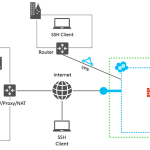
A Virtual Private Network (VPN) is designed to circumvent this direct line of communication with your ISP’s DNS servers. When you connect to a VPN, your device establishes an encrypted tunnel to a VPN server. All your internet traffic, including DNS requests, is supposed to travel through this secure tunnel.
Here’s the ideal workflow:
- You type a website address into your browser.
- Your device sends a DNS query, but instead of going directly to your ISP, it’s encrypted and routed through the VPN tunnel to the VPN server.
- The VPN server then sends the DNS query to its own designated, often private and secure, DNS servers.
- The VPN’s DNS server resolves the domain name to an IP address.
- The VPN server sends the resolved IP address back to your device through the encrypted tunnel.
- Your device then connects to the website using the VPN server’s IP address, effectively masking your real IP and ensuring your ISP has no visibility into your DNS requests.
This seamless process is what provides online anonymity and protects your internet security.
The Anatomy of a DNS Leak
A DNS leak occurs when your device, despite being connected to a VPN, sends DNS queries outside the encrypted tunnel, directly to your ISP’s DNS servers or other third-party servers not controlled by your VPN provider. Essentially, while your regular web traffic might be encrypted and routed through the VPN, your requests for website IP addresses bypass this protection.
The consequences of a DNS leak are severe for privacy-conscious users:
- Exposure to ISP: Your ISP can see every website you visit, even though your IP address appears to be from the VPN server. This defeats the purpose of using a VPN for privacy.
- De-anonymization: Your real geographical location and identity can be inferred through your ISP’s DNS servers, compromising your digital privacy.
- Circumvention of Geo-restrictions: If your DNS requests are leaking, websites might still detect your true location, preventing access to geo-restricted content.
- Targeted Advertising and Surveillance: Your browsing habits can be logged and used for targeted advertising or, in more severe cases, government surveillance.
In essence, a DNS leak creates a gaping hole in your VPN’s security, turning what should be a robust shield into a sieve.
Why Do DNS Leaks Occur? Common Causes
DNS leaks are not always due to malicious intent; they often stem from technical complexities and misconfigurations within operating systems, VPN clients, or network settings. Understanding these causes is the first step towards effective prevention.
Some of the most common reasons for DNS leaks include:
- Operating System Defaults: Many operating systems (Windows, macOS, Linux) are configured to use DNS servers provided by the local network (usually your ISP) by default. Sometimes, even with a VPN active, the OS might revert to these default settings or attempt to use them in parallel.
- IPv6 Fallback Issues: While most VPNs primarily handle IPv4 traffic, many systems now use IPv6. If your VPN client doesn’t fully support or properly tunnel IPv6 traffic, your device might send IPv6 DNS requests directly to your ISP, leading to an IPv6 DNS leak.
- WebRTC Leaks: WebRTC (Web Real-Time Communication) is a technology built into modern browsers that enables real-time communication (like video calls) without plugins. While useful, it can sometimes expose your real IP address, even when using a VPN, through STUN (Session Traversal Utilities for NAT) requests. This is a browser-specific leak, distinct from a traditional DNS leak but equally detrimental to privacy.
- Manual DNS Settings: If you’ve manually configured specific DNS servers on your device (e.g., Google DNS, Cloudflare DNS) and your VPN client doesn’t override these settings correctly, your queries might bypass the VPN.
- VPN Software Bugs or Misconfiguration: Less reputable or poorly coded VPN clients might have vulnerabilities or not properly implement DNS routing, leading to leaks. Sometimes, specific features like “split tunneling” can also be misconfigured, allowing DNS traffic to escape.
- Network Changes: Disconnecting and reconnecting to Wi-Fi networks, or switching between different network types, can sometimes cause temporary DNS routing issues that result in leaks.
These underlying issues highlight the need for vigilance and proactive checking, even with a seemingly reliable VPN connection.
The Critical Need to Check for DNS Leaks
The importance of regularly checking for DNS leaks cannot be overstated. In a world where online surveillance is a growing concern, and data protection regulations are becoming stricter, ensuring your VPN is functioning optimally is paramount. A DNS leak can compromise your identity, reveal your browsing habits to unwanted parties, and negate the very reason you invested in a VPN for internet privacy.
For journalists, activists, researchers, or anyone living under oppressive regimes, a DNS leak can have far more severe consequences than just targeted ads; it could mean exposing their personal safety or compromising sensitive information. Even for the average user, the principle of digital autonomy dictates that you should have control over who sees your online activities. Regular checks are a simple yet powerful way to assert this control and ensure your secure connection is truly secure.
Step-by-Step Guide: How to Check for DNS Leaks
Checking for DNS leaks is a straightforward process that requires a few simple steps and readily available online tools. This section will guide you through the process, ensuring you can confidently verify your VPN’s integrity.
Preparation: What You Need Before Testing
Before you initiate any leak tests, it’s crucial to establish a baseline.
- Disable Your VPN: Temporarily disconnect from your VPN.
- Note Your Real IP Address: Visit a site like whatismyipaddress.com. This will show your public IP address and often your ISP’s name. Jot this down.
- Identify Your ISP’s DNS Servers: While disconnected from the VPN, you can usually find your current DNS servers.
- Windows: Open Command Prompt (
cmd), typeipconfig /all, and look for “DNS Servers” under your active network adapter. - macOS: Go to System Settings > Network, select your active connection, click “Details,” then “DNS.”
- Linux: Open a terminal and type
cat /etc/resolv.conf.
Note these down as well. These are the servers your device would normally use without a VPN.
- Windows: Open Command Prompt (
- Connect to Your VPN: Now, connect to your VPN server of choice. Ensure it’s active and showing a connected status.
With these baselines established, you’re ready to perform the actual leak tests.
Method 1: Using Dedicated DNS Leak Test Websites
Several websites specialize in detecting DNS leaks. These are the easiest and most common methods.
Using DNSLeakTest.com
This is one of the most popular and reliable tools.
- Navigate to the Website: Open your web browser and go to DNSLeakTest.com.
- Run the Standard Test: The website will automatically detect your apparent IP address (which should be your VPN’s IP) and display the DNS servers it detects. Click “Standard Test.”
- Interpret Results (Standard Test):
- Ideal Scenario: You should see only the IP addresses of the DNS servers operated by your VPN provider. These should ideally be geographically located near your chosen VPN server, or at least not reveal your true location. The “ISP” column should also reflect your VPN provider’s name or a generic hosting provider, not your actual ISP.
- DNS Leak Detected: If you see the IP address of your actual ISP’s DNS server, or any other DNS server that is not associated with your VPN provider (especially if it’s geographically close to your real location), you have a DNS leak.
- Run the Extended Test (Recommended): For a more thorough check, click “Extended Test.” This sends more DNS queries to various servers globally, providing a broader picture.
- Interpret Results (Extended Test): The extended test provides a more comprehensive list of DNS servers your system is attempting to use. Again, the goal is to see only DNS servers belonging to your VPN provider. Any appearance of your actual ISP’s DNS servers or other unknown servers indicates a leak.
Using IPLeak.net
IPLeak.net is another excellent tool that provides a wealth of information, including DNS leak tests, IP address detection, and sometimes WebRTC leak detection.
- Navigate to the Website: Go to ipleak.net.
- Automatic Scan: The site automatically performs various checks, including your IP address and DNS servers.
- Interpret Results: Look for the “DNS Addresses” section. Similar to DNSLeakTest.com, you should only see DNS servers associated with your VPN provider. If your real ISP’s DNS servers appear, it’s a leak. This site also often shows your detected country and city, which should match your VPN server’s location.
Using BrowserLeaks.com
BrowserLeaks.com offers a suite of tests, including specific ones for DNS and WebRTC leaks.
- Navigate to the Website: Visit browserleaks.com/dns for DNS tests or browserleaks.com/webrtc for WebRTC tests.
- Run Tests: The DNS test page will automatically display detected DNS servers. For WebRTC, the page will attempt to reveal your local and public IP addresses.
- Interpret Results: For DNS, ensure only VPN-associated DNS servers are listed. For WebRTC, ensure your real public IP address is not displayed. If it is, you have a WebRTC leak.
Method 2: Manual Verification (Advanced Users)
For those who prefer a more hands-on approach or want to understand the underlying system behavior, manual verification through your operating system’s command line can be insightful. This method helps confirm which DNS servers your system is *configured* to use, although it might not always catch all types of leaks (like WebRTC).
Windows Users:
- Open Command Prompt: Press
Win + R, typecmd, and press Enter. - Run IP Configuration: Type
ipconfig /alland press Enter. - Analyze Output: Scroll through the output and find the “DNS Servers” entry under your active network adapter (e.g., “Ethernet adapter” or “Wireless LAN adapter”).
- Interpret: The IP addresses listed here should belong to your VPN provider. If you see your ISP’s DNS servers (which you noted down in the preparation step) or other unexpected IP addresses, it indicates a potential leak.
macOS/Linux Users:
- Open Terminal: Find “Terminal” in your applications or utilities.
- Check DNS Configuration:
- Linux: Type
cat /etc/resolv.confand press Enter. This file often lists the DNS servers your system is using. - macOS: Type
scutil --dnsand press Enter. This command provides a more detailed breakdown of DNS resolution.
- Linux: Type
- Analyze Output: Look for the “nameserver” entries in Linux or the “nameserver[x]” entries in macOS.
- Interpret: These should be the IP addresses of your VPN provider’s DNS servers. If your ISP’s DNS servers or other unassociated servers appear, a leak is present.
Method 3: Checking for WebRTC Leaks
While often conflated with DNS leaks, WebRTC leaks are distinct browser-based vulnerabilities. They can expose your real IP address even if your DNS queries are correctly routed through the VPN.
How to Check:
- Use a dedicated WebRTC leak test site like browserleaks.com/webrtc or ipleak.net.
- These sites will attempt to detect your public and local IP addresses via WebRTC.
- Interpret: If your real public IP address (the one you noted before connecting to the VPN) appears in the “WebRTC Public IP Address” section, you have a WebRTC leak.
Interpreting Your Test Results: What Do They Mean?
After running these tests, you’ll fall into one of three primary categories:
- Ideal Scenario: No Leaks Detected
If all tests show only the DNS servers associated with your VPN provider, and your real IP address is not revealed in WebRTC tests, then your VPN is performing as expected. Your online privacy is intact concerning DNS and WebRTC leaks. The “ISP” column on leak test sites should reflect your VPN provider or a data center, not your actual ISP. - DNS Leak Detected
If any of the tests reveal your actual ISP’s DNS servers, or any other DNS servers not belonging to your VPN provider (especially those geographically close to you), you have a DNS leak. This means your browsing activity could be visible to your ISP. - WebRTC Leak Detected
If a WebRTC leak test shows your real public IP address, even if your DNS tests are clean, your browser is leaking your IP through WebRTC. This is a significant privacy concern, as your real IP address is exposed.
Preventing and Fixing DNS Leaks
Detecting a DNS leak is only half the battle; the next crucial step is to prevent and fix them. Here’s a comprehensive approach to securing your VPN connection.
Choose a Reputable VPN Provider
The foundation of strong VPN security lies in your choice of provider.
- No-Logs Policy: Ensure your VPN has a strict, audited no-logs policy, meaning they don’t record your online activities.
- Built-in Leak Protection: Many premium VPNs include features like “DNS leak protection” or “IPv6 leak protection” directly within their client software.
- Dedicated DNS Servers: Reputable VPNs operate their own private, encrypted DNS servers to handle your queries, preventing reliance on third-party or ISP DNS.
- Transparency: Look for providers with a strong track record and transparent security practices.
Enable VPN’s Built-in Leak Protection
Most quality VPN clients offer settings to prevent DNS and IPv6 leaks.
- Check VPN Client Settings: Dive into your VPN application’s settings. Look for options like “DNS Leak Protection,” “IPv6 Leak Protection,” “WebRTC Protection,” or “Use VPN’s DNS Servers.” Ensure these are enabled.
- Kill Switch: Activate the kill switch feature. An internet kill switch automatically disconnects your device from the internet if the VPN connection drops, preventing any unprotected data (including DNS queries) from leaking.
Disable IPv6 (Temporarily or Permanently)
If your VPN doesn’t fully support IPv6 tunneling, disabling IPv6 on your device can prevent IPv6 DNS leaks.
- Windows:
- Go to Control Panel > Network and Internet > Network and Sharing Center.
- Click “Change adapter settings.”
- Right-click your active network adapter (Wi-Fi or Ethernet) and select “Properties.”
- Uncheck “Internet Protocol Version 6 (TCP/IPv6).”
- Click “OK.”
- macOS:
- Go to System Settings > Network.
- Select your active connection, click “Details.”
- Go to the “TCP/IP” tab.
- Set “Configure IPv6” to “Link-local only” or “Off” (if available).
- Click “OK.”
- Linux:This varies by distribution, but often involves editing network configuration files or using commands like `sudo sysctl -w net.ipv6.conf.all.disable_ipv6=1`.
While effective, disabling IPv6 might affect connectivity to IPv6-only websites, though these are still rare.
Manually Configure DNS to VPN’s Servers (Advanced)
In some cases, especially on routers or specific devices, you might need to manually set DNS servers.
- Obtain VPN DNS Servers: Your VPN provider usually lists their DNS server IP addresses in their documentation.
- Configure Manually: After connecting to your VPN, manually set your device’s DNS servers to those provided by your VPN. This can be done in your network adapter settings (as shown in the manual verification step) or directly on your router.Caution: Only do this if you are confident in your network configuration skills. Incorrect settings can lead to connectivity issues. Ensure these are the VPN’s DNS servers, not public ones like Google or Cloudflare, as using public DNS *before* the VPN tunnel is established could still lead to leaks.
Use a VPN with a Kill Switch
A kill switch is a non-negotiable feature for serious privacy users. It ensures that if your VPN connection unexpectedly drops, your internet access is immediately cut, preventing any data (including DNS queries) from being sent over an unprotected connection. This is a crucial layer of data leak prevention.
Browser-Specific Measures for WebRTC
To combat WebRTC leaks:
- Browser Extensions: Install browser extensions designed to block WebRTC leaks, such as “WebRTC Leak Shield” or “uBlock Origin” (which has WebRTC blocking capabilities) for Chrome and Firefox.
- Disable WebRTC (if possible): Some browsers (e.g., Firefox via `about:config` by setting `media.peerconnection.enabled` to `false`) allow you to disable WebRTC entirely. This might impact functionality of web-based video/audio calls.
Regularly Update VPN Software and OS
Software vulnerabilities can be exploited to cause leaks.
- Keep Software Updated: Always ensure your VPN client, operating system, and web browsers are updated to their latest versions. Developers frequently release patches for security flaws, including those that could lead to DNS or WebRTC leaks.
- Firmware Updates: If you’re using a VPN on a router, ensure its firmware is also up to date.
Beyond DNS Leaks: Other VPN Security Considerations
While DNS leaks are a primary concern, a holistic approach to VPN security involves considering other potential vulnerabilities:
- IP Leaks (Non-DNS): Ensure your VPN truly masks your IP address under all circumstances, not just DNS. Tools like whatismyipaddress.com can confirm your displayed IP matches your VPN server’s location.
- VPN Protocol Strength: Understand the VPN protocols offered (OpenVPN, WireGuard, IKEv2/IPsec). Choose strong, modern protocols over older, less secure ones (like PPTP).
- Split Tunneling Risks: While useful for routing specific traffic outside the VPN, ensure split tunneling is configured correctly to avoid accidentally exposing sensitive applications or DNS queries.
- Trust in Provider: Ultimately, your VPN’s effectiveness hinges on the trustworthiness of your provider. Research their history, audits, and privacy policy thoroughly.
Conclusion
In the complex landscape of digital privacy, vigilance is your most potent tool. Understanding how to check for DNS leaks when using a VPN is not just a technical skill; it’s a fundamental aspect of safeguarding your online anonymity and ensuring your digital security. A VPN is a powerful privacy tool, but its effectiveness can be severely undermined by a silent DNS leak.
By regularly performing the checks outlined in this guide and implementing the recommended preventative measures, you empower yourself to maintain a truly private and secure online presence. Choose a reputable VPN, configure it meticulously, and consistently verify its integrity. Only then can you fully enjoy the peace of mind that comes with a robust and leak-free encrypted connection, confidently navigating the internet without leaving an unintended trail for your ISP or other entities to follow. Your digital freedom depends on your proactive engagement with these critical security practices.
Frequently Asked Questions (Q&A)
Q1: What exactly is a DNS leak?
A DNS leak occurs when your device, despite being connected to a Virtual Private Network (VPN), sends Domain Name System (DNS) queries outside the encrypted VPN tunnel, typically directly to your Internet Service Provider’s (ISP) DNS servers or other third-party servers. This bypasses the VPN’s protection, allowing your ISP to see which websites you are trying to access, thereby compromising your online privacy and anonymity.
Q2: Can a VPN really prevent all DNS leaks?
A well-configured, reputable VPN should effectively prevent most common DNS leaks. Premium VPN providers often include built-in DNS leak protection, dedicated private DNS servers, and features like a kill switch to ensure all traffic, including DNS queries, remains within the encrypted tunnel. However, no technology is entirely foolproof, and certain rare scenarios (like specific IPv6 misconfigurations or WebRTC vulnerabilities) can still lead to leaks, which is why regular checks are crucial.
Q3: How often should I check for DNS leaks?
It’s advisable to check for DNS leaks periodically, especially after:
- Setting up a new VPN or installing a new VPN client.
- Updating your VPN software or operating system.
- Changing your network settings or connecting to a new Wi-Fi network.
- Experiencing any connectivity issues with your VPN.
- At least once a month for general peace of mind.
These checks are quick and can save you from potential privacy breaches.
Q4: Does disabling IPv6 affect my internet speed or functionality?
Disabling IPv6 primarily affects your ability to connect to websites or services that are exclusively IPv6-only. While the internet is transitioning to IPv6, the vast majority of websites and services still fully support IPv4. For most users, disabling IPv6 will have no noticeable impact on internet speed or functionality. However, in rare cases where your ISP heavily relies on IPv6, you might experience minor connectivity issues with specific resources. It’s a measure often recommended to prevent IPv6 DNS leaks if your VPN doesn’t handle IPv6 traffic properly.
Q5: Are free VPNs more prone to DNS leaks?
Generally, yes. Free VPNs often lack the robust infrastructure, advanced security features, and dedicated resources that premium, paid VPNs offer. Many free VPNs may not have their own