Demystifying Remote Access: A Comprehensive SSH Tutorial for Beginners, Step by Step
In an increasingly interconnected digital landscape, the ability to securely manage remote servers and execute commands across networks is not just a convenience—it’s a fundamental skill. At the heart of this capability lies SSH, or Secure Shell, a cryptographic network protocol that enables secure data communication between two networked devices. For the uninitiated, the prospect of interacting with a server purely through a command-line interface can appear daunting. However, mastering SSH is a gateway to unparalleled control, flexibility, and security in managing everything from personal websites to complex cloud infrastructures.
This deeply comprehensive guide is meticulously crafted for the absolute beginner. We will embark on a step-by-step journey, demystifying SSH from its core principles to practical application. Our objective is to equip you with the foundational knowledge and hands-on instructions necessary to confidently establish secure connections, manage remote systems, and understand the best practices that underpin secure remote administration. By the end of this tutorial, you will not only be proficient in using SSH but will also possess a deeper appreciation for its role in modern computing.
What Exactly is SSH? Unpacking the Secure Shell Protocol
At its essence, SSH is a network protocol that allows data to be exchanged using a secure channel between two networked devices. It provides a robust, encrypted connection, meaning that all communications—commands, output, and file transfers—are shielded from eavesdropping, hijacking, and other network attacks. Developed as a secure replacement for older, less secure protocols like Telnet (which sent data in plain text), SSH has become the de facto standard for remote server administration.
The Core Components of SSH
SSH operates on a client-server model.
- SSH Client: This is the software you use on your local machine (your computer) to initiate a connection to a remote server. Popular clients include OpenSSH (built into Linux, macOS, and increasingly Windows) and PuTTY for Windows.
- SSH Server (or Daemon): This is the software running on the remote machine (the server you want to connect to) that listens for incoming SSH connections, authenticates users, and manages the secure communication channel. The most common server implementation is OpenSSH Server.
When you connect via SSH, a secure tunnel is established. This tunnel encrypts all traffic, ensuring that your sensitive information—such as usernames, passwords, and commands—remains confidential and unalterable during transmission.
Why is SSH Indispensable for Modern Computing?
The widespread adoption of SSH is not without reason. Its capabilities extend far beyond simple remote login, making it an indispensable tool for developers, system administrators, and anyone managing online resources.
- Security: This is SSH’s primary advantage. By encrypting all data, it protects against man-in-the-middle attacks, IP spoofing, and other forms of network reconnaissance, ensuring the integrity and confidentiality of your interactions.
- Remote Command Execution: Execute commands on a remote server as if you were sitting directly in front of it. This allows for seamless administration, software installation, system configuration, and diagnostics.
- File Transfers: SSH can securely transfer files between local and remote machines using associated protocols like SCP (Secure Copy Protocol) and SFTP (SSH File Transfer Protocol), offering a secure alternative to FTP.
- Port Forwarding (Tunneling): Create secure tunnels for other network services (like VNC or database connections) that might otherwise be insecure. This allows you to securely access services running on your remote server from your local machine.
- Automation: SSH can be used in scripts to automate routine tasks, such as backups, deployments, and system updates, greatly enhancing operational efficiency.
- Version Control Integration: Tools like Git often use SSH for secure communication with remote repositories, facilitating collaborative development.
Prerequisites for Your First SSH Connection
Before we dive into the practical steps, ensure you have the following ready:
1. Your Local Machine (Client): A computer running Windows, macOS, or Linux.
2. A Remote Server: Access to a server with SSH enabled. This could be a web hosting account, a VPS (Virtual Private Server), a cloud instance (AWS, Google Cloud, Azure, DigitalOcean), or even another computer on your local network. You will need:
- Server’s IP Address or Hostname: e.g., `192.168.1.100` or `yourdomain.com`.
- A Username: An account on the remote server, e.g., `root`, `admin`, or a custom username.
- Authentication Method: Either a password for the specified username or an SSH private key file.
Connecting via SSH: The Core Process – Step-by-Step
The fundamental command structure for SSH is straightforward: `ssh [username]@[hostname_or_IP_address]`. Let’s break down how to execute this based on your operating system and preferred authentication method.
Understanding the SSH Command Structure
- `ssh`: This invokes the SSH client application.
- `[username]`: This is the username you use to log in to the remote server. Common usernames include `root` (the superuser with full administrative privileges) or a standard user account provided by your hosting provider.
- `@`: This is a separator.
- `[hostname_or_IP_address]`: This is the network address of your remote server. It can be an IP address (e.g., `192.0.2.1`) or a hostname (e.g., `example.com` or `yourserver.digitalocean.com`).
Example: `ssh [email protected]` or `ssh [email protected]`
Step 1: Identify Your Client Operating System and Prepare
Your approach will differ slightly depending on whether you’re using Windows, macOS, or Linux.
For Windows Users
Historically, Windows users relied on third-party software like PuTTY. However, modern versions of Windows 10 and 11 now include a built-in OpenSSH client, making the process much simpler.
Using the Built-in OpenSSH Client (Recommended for Windows 10/11)
1. Check for SSH Client: Open PowerShell (search for “PowerShell” in the Start menu) or Command Prompt (CMD). Type `ssh` and press Enter.
- If you see a list of SSH command options, the client is installed and ready.
- If you get an error like “`ssh` is not recognized,” you might need to install it.
- Installation: Go to `Settings > Apps > Apps & features > Optional features`. Click “Add a feature,” search for “OpenSSH Client,” and install it. Restart PowerShell/CMD and try `ssh` again.
2. Open PowerShell or Command Prompt: This will be your terminal window.
Using PuTTY (Traditional Method for Windows, still widely used)
If you’re on an older Windows version or prefer PuTTY, here’s how to get started:
1. Download PuTTY: Visit the official PuTTY website: `www.putty.org`. Download the appropriate MSI installer for your system (usually 64-bit).
2. Install PuTTY: Run the installer and follow the on-screen prompts. It’s generally straightforward, accepting default options.
3. Launch PuTTY: After installation, you can find PuTTY in your Start menu. Open it.
- You’ll see a configuration window.
For macOS and Linux Users
macOS and most Linux distributions (Ubuntu, Fedora, Debian, etc.) come with OpenSSH client pre-installed.
1. Open Terminal:
- macOS: Go to `Applications > Utilities > Terminal` or search for “Terminal” using Spotlight (Cmd + Space).
- Linux: Look for “Terminal,” “Konsole,” “GNOME Terminal,” or similar in your applications menu. You can often use a keyboard shortcut like `Ctrl+Alt+T`.
2. Verify SSH Client: In the terminal, type `ssh` and press Enter. You should see a list of SSH command options, confirming the client is ready.
Step 2: Obtain Server Credentials
You’ll need three pieces of information from your server provider:
- Username: The account name on the remote server.
- Hostname or IP Address: The server’s network location.
- Authentication Method:
- Password: A passphrase associated with the username.
- SSH Private Key: A file that pairs with a public key stored on the server (more secure).
Step 3: Executing the SSH Command/Connection
Now, let’s establish that connection using your chosen authentication method.
Connecting with Password Authentication
This is the most common and simplest method for beginners, though SSH keys offer superior security.
For macOS, Linux, and Windows (PowerShell/CMD) Users
1. Open your Terminal/PowerShell.
2. Type the SSH command:
bash
ssh [your_username]@[your_server_IP_or_hostname]
Example: `ssh [email protected]`
3. First Connection Warning: The first time you connect to a new server, you’ll see a message about the host’s authenticity. This is a security feature to prevent “man-in-the-middle” attacks.
The authenticity of host ‘192.168.1.100 (192.168.1.100)’ can’t be established.
ECDSA key fingerprint is SHA256:abcd…
Are you sure you want to continue connecting (yes/no/[fingerprint])?
Type `yes` and press Enter. The server’s public key fingerprint will be saved to your `~/.ssh/known_hosts` file, so you won’t be prompted again unless the server’s key changes.
4. Enter Password: You will then be prompted for the password for the specified username. Type your password and press Enter. Note: For security reasons, the password will not be displayed as you type (no asterisks or dots).
5. Successful Connection: If the password is correct, you’ll be logged into the remote server. Your terminal prompt will change, typically showing the username and hostname of the server (e.g., `user123@yourserver:~$` or `root@example:~#`). You are now interacting directly with the remote machine!
For Windows Users (PuTTY)
1. Open PuTTY.
2. Enter Connection Details:
- Host Name (or IP address): Enter your server’s IP address or hostname (e.g., `192.168.1.100` or `example.com`).
- Port: The default SSH port is `22`. Only change this if your server administrator specified a different port.
- Connection type: Ensure `SSH` is selected.
3. Save Session (Optional but Recommended): In the “Saved Sessions” box, type a name for this connection (e.g., `MyServer`) and click `Save`. This way, you can quickly load these settings next time.
4. Open Connection: Click the `Open` button.
5. Security Alert: The first time you connect, PuTTY will display a “PuTTY Security Alert” asking if you trust the host. This is equivalent to the host key fingerprint prompt in other clients. Click `Accept` to proceed and save the host key.
6. Login Prompt: A terminal window will open, and you’ll be prompted with `login as:`. Enter your username and press Enter.
7. Password Prompt: You’ll then be asked for your password. Type it and press Enter. Again, nothing will be displayed as you type.
8. Successful Connection: If authentication is successful, you’ll see the server’s command-line interface.
Connecting with SSH Keys (More Secure & Recommended)
SSH keys provide a more secure alternative to passwords. Instead of typing a password, you authenticate using a pair of cryptographic keys: a public key (stored on the server) and a private key (stored securely on your local machine).
Understanding SSH Keys: Public vs. Private
- Public Key: This key can be shared freely. It’s uploaded to the remote server and acts like a digital lock.
- Private Key: This key must be kept absolutely secret on your local machine. It’s like the unique digital key that fits the lock.
When you try to connect, your client sends a request to the server, and the server challenges your client. If your private key can successfully decrypt the challenge that the server encrypted with your public key, access is granted without a password. A passphrase can be added to your private key for an extra layer of security.
Step A: Generating SSH Keys (Client Side)
1. Open Terminal/PowerShell.
2. Run `ssh-keygen`:
bash
ssh-keygen -t rsa -b 4096
- `-t rsa`: Specifies the key type (RSA is common and secure).
- `-b 4096`: Specifies the number of bits in the key, making it stronger (4096 is recommended).
3. Location to Save Key: You’ll be asked where to save the key. The default is `~/.ssh/id_rsa` (for Linux/macOS) or `C:UsersYOUR_USERNAME.sshid_rsa` (for Windows PowerShell). It’s generally best to accept the default by pressing Enter.
4. Enter Passphrase (Highly Recommended):
Enter passphrase (empty for no passphrase):
Enter same passphrase again:
Type a strong passphrase. This encrypts your private key on your local machine, adding an extra layer of security. Even if someone steals your private key, they can’t use it without the passphrase.
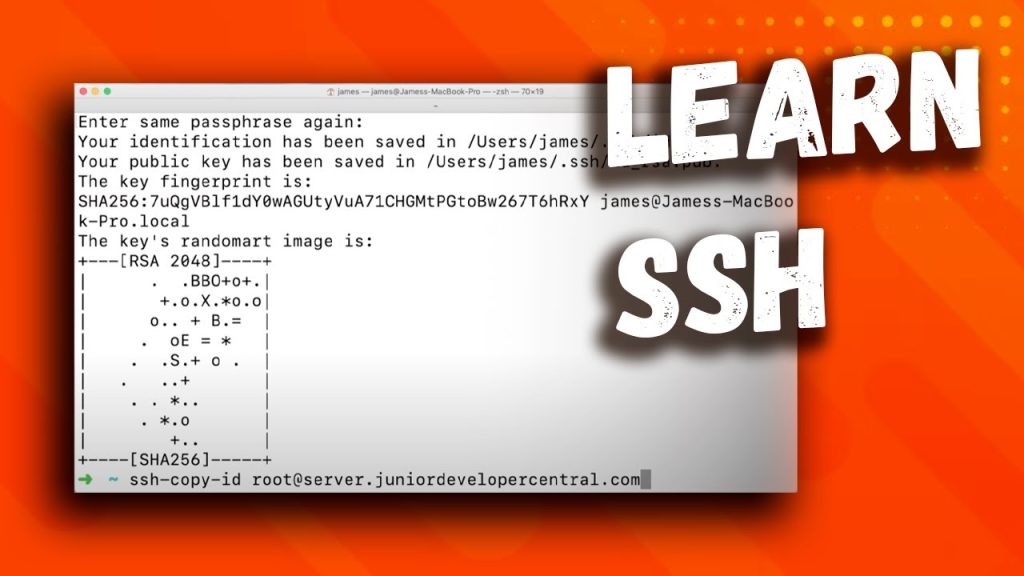
5. Key Generation Complete: You’ll see output confirming the keys have been generated, including the key fingerprint. You now have two files:
- `id_rsa` (your private key)
- `id_rsa.pub` (your public key)
Step B: Uploading Your Public Key to the Server
Your server needs a copy of your public key. This is usually placed in a file named `authorized_keys` within the `~/.ssh/` directory of the user you want to log in as on the remote server.
Method 1: Using `ssh-copy-id` (Easiest, Linux/macOS/PowerShell)
If your local machine has `ssh-copy-id` (often included in OpenSSH installations), this is the simplest method.
bash
ssh-copy-id [your_username]@[your_server_IP_or_hostname]
Example: `ssh-copy-id [email protected]`
You’ll be prompted for the *password* of the remote user (the one you’re trying to set up SSH keys for). After successful authentication, `ssh-copy-id` will add your public key to the server’s `authorized_keys` file.
Method 2: Manual Upload (All OS, more steps)
1. Copy Public Key Content:
- Linux/macOS: `cat ~/.ssh/id_rsa.pub` to display the key. Copy the *entire* output.
- Windows PowerShell: `Get-Content “$env:USERPROFILE.sshid_rsa.pub”` to display. Copy the *entire* output.
- Windows PuTTYgen: If you generated keys with PuTTYgen, open the `.pub` file in a text editor or copy the text from the PuTTYgen window directly.
2. Connect to Server with Password (Temporarily): Use the password method you learned earlier to log into your server.
3. Create `.ssh` Directory (if it doesn’t exist):
bash
mkdir -p ~/.ssh
chmod 700 ~/.ssh
This creates the directory and sets appropriate permissions (only owner can read/write/execute).
4. Create/Edit `authorized_keys` File:
bash
nano ~/.ssh/authorized_keys
This opens the `authorized_keys` file in the `nano` text editor.
5. Paste Public Key: Paste the public key content you copied in Step 1 into this file. Each public key should be on a new line.
6. Save and Exit Nano: Press `Ctrl+X`, then `Y` to confirm saving, then Enter.
7. Set Permissions for `authorized_keys`:
bash
chmod 600 ~/.ssh/authorized_keys
This ensures only the owner can read and write to this sensitive file.
8. Exit Server: Type `exit` and press Enter.
Step C: Connecting with SSH Keys
Now that your public key is on the server, you can connect using your private key.
For macOS, Linux, and Windows (PowerShell/CMD) Users
1. Open Terminal/PowerShell.
2. Type the SSH command:
bash
ssh [your_username]@[your_server_IP_or_hostname]
(The command is the same as with passwords, as your client automatically looks for keys in `~/.ssh/`)
3. Enter Passphrase (if set): If you set a passphrase for your private key, you’ll be prompted to enter it.
Enter passphrase for key ‘/home/user123/.ssh/id_rsa’:
Type the passphrase and press Enter.
4. Successful Connection: You should now be logged into the server.
For Windows Users (PuTTY)
1. Open PuTTY.
2. Load your Saved Session: Select your saved session (e.g., `MyServer`) and click `Load`.
3. Configure Private Key:
- In the PuTTY configuration window, navigate the left-hand menu: `Connection > SSH > Auth`.
- Click the `Browse…` button next to “Private key file for authentication.”
- Locate your private key file (`id_rsa` or the `.ppk` file if you converted it with PuTTYgen). Select it and click `Open`.
4. Go back to `Session` category and click `Save` to update your session.
5. Open Connection: Click `Open`.
6. Enter Passphrase (if set): A new window will open, prompting for your private key’s passphrase. Enter it and press Enter.
7. Successful Connection: You should be logged into your server.
Common SSH Operations & Commands (Once Connected)
Once connected to your remote server via SSH, you’re interacting with its command-line interface (CLI). Here are some fundamental commands you’ll frequently use:
- `ls`: Lists the contents of the current directory.
- `ls -l`: Lists with more details (permissions, owner, size, date).
- `ls -a`: Lists all files, including hidden ones (starting with `.` ).
- `cd [directory_name]`: Changes the current directory.
- `cd ..`: Moves up one directory level.
- `cd ~`: Returns to your home directory.
- `cd /var/www`: Changes to the `/var/www` directory.
- `pwd`: Prints the working directory (shows your current location in the file system).
- `mkdir [directory_name]`: Creates a new directory.
- `mkdir new_folder`
- `rmdir [directory_name]`: Removes an empty directory.
- `rm [file_name]`: Removes (deletes) a file.
- `rm -r [directory_name]`: Recursively removes a directory and its contents (use with extreme caution!).
- `rm -f [file_name]`: Forces deletion without prompt.
- `rm -rf [directory_name]`: Force recursive deletion (extremely dangerous, can wipe your server!).
- `cp [source] [destination]`: Copies files or directories.
- `cp file.txt /tmp/file.txt`: Copies `file.txt` to `/tmp`.
- `cp -r folder /backup/folder`: Copies `folder` and its contents to `/backup`.
- `mv [source] [destination]`: Moves or renames files or directories.
- `mv oldname.txt newname.txt`: Renames `oldname.txt` to `newname.txt`.
- `mv file.txt /tmp/file.txt`: Moves `file.txt` to `/tmp`.
- `cat [file_name]`: Displays the entire content of a file to the screen.
- `less [file_name]` / `more [file_name]`: Displays file content one screen at a time (useful for large files). Press `q` to quit.
- `nano [file_name]` / `vi [file_name]`: Text editors for modifying files directly on the server. `nano` is more beginner-friendly.
- In `nano`: `Ctrl+O` to save, `Ctrl+X` to exit.
- `grep [pattern] [file_name]`: Searches for patterns within files.
- `grep “error” /var/log/syslog`: Finds lines containing “error” in the system log.
- `sudo [command]`: Executes a command with superuser privileges (if your user has `sudo` access). This is essential for administrative tasks like installing software.
- `sudo apt update` (Debian/Ubuntu) or `sudo yum update` (RedHat/CentOS)
- `exit`: Logs you out of the SSH session and returns you to your local machine’s terminal prompt.
SSH Security Best Practices for Beginners
While SSH is inherently secure, maintaining a robust security posture requires adherence to best practices:
- Always Use Strong Passphrases/Passwords: If you use password authentication, make them long, complex, and unique. For SSH keys, *always* set a strong passphrase for your private key.
- Prefer SSH Keys Over Passwords: SSH keys are significantly more secure. They are longer, more complex, and less susceptible to brute-force attacks. Once comfortable, consider disabling password authentication on your server entirely.
- Disable Root Login: The `root` user has ultimate power. Disabling direct `root` login via SSH forces attackers to guess both a username and a password for a less privileged account, then further compromise the system to gain root access. Instead, log in with a regular user account and use `sudo` for administrative tasks.
- Change the Default SSH Port: The default SSH port is 22. Changing it to a non-standard port (e.g., 2222, 22222) acts as a basic obfuscation, reducing the amount of automated scanning and brute-force attempts on the default port. *Remember to specify the new port with the `-p` flag in your SSH command (e.g., `ssh -p 2222 user@host`).*
- Keep Your System Updated: Regularly update both your local SSH client and the SSH server software on your remote machine to patch any known vulnerabilities.
- Use a Firewall: Configure your server’s firewall (e.g., `ufw` on Ubuntu or `firewalld` on CentOS) to only allow SSH connections from specific IP addresses (if possible) or at least to only allow traffic on the SSH port.
- Protect Your Private Key: Your private key is like the key to your server. Store it securely on your local machine, ideally encrypted with a strong passphrase. Never share it, upload it to untrusted services, or store it unencrypted in cloud storage.
- Implement Two-Factor Authentication (2FA): For even greater security, consider adding 2FA to your SSH login process, often through modules like Google Authenticator.
Troubleshooting Common SSH Issues
Even with careful steps, you might encounter issues. Here are some common problems and their solutions:
- “Connection Refused”:
- Possible Causes: SSH server not running on the remote host, firewall blocking the connection (either on the server or your local network), incorrect port.
- Solutions: Ensure the server is online and the SSH service is active. Check server firewall rules (e.g., `sudo ufw status`). Verify you’re using the correct port (`ssh -p [port] user@host`).
- “Permission Denied (publickey, password)”:
- Possible Causes: Incorrect username, incorrect password, incorrect private key, public key not on server, incorrect file permissions for `.ssh` directory or `authorized_keys` file on the server.
- Solutions: Double-check username/password. Ensure your public key is correctly installed on the server. For key-based authentication, verify your private key (`id_rsa`) is readable only by your user (`chmod 600 ~/.ssh/id_rsa`). On the server, ensure `~/.ssh` has `700` permissions and `~/.ssh/authorized_keys` has `600` permissions.
- “Host Key Verification Failed”:
- Possible Causes: The server’s host key has changed (legitimately, e.g., after a server reinstallation) or you’re a victim of a man-in-the-middle attack.
- Solutions: If you’re certain it’s a legitimate change, remove the old key from your `~/.ssh/known_hosts` file. The error message usually tells you which line to remove. For example: `ssh-keygen -R [hostname_or_IP_address]`.
- Typo in Command: The most common and easily fixable issue. Double-check your `username`, `IP address`, and any flags (`-p` for port, `-i` for private key).
- Network Issues: Ensure your local machine has an active internet connection and that the remote server is reachable (`ping [IP_address]` can help test basic network connectivity, though it doesn’t guarantee SSH access).
Advanced SSH Concepts (For Your Future Learning)
As you grow more comfortable with the basics, you’ll discover SSH’s deeper capabilities:
- SSH Agent: A program that holds your private keys in memory, allowing you to use them without re-entering the passphrase each time you connect to a new server in the same session.
- SSH Tunnelling / Port Forwarding: Create encrypted tunnels to securely access network services that aren’t directly exposed to the internet.
- SCP (Secure Copy Protocol) and SFTP (SSH File Transfer Protocol): Secure methods for transferring files between your local and remote systems using SSH.
- SSH Config File (`~/.ssh/config`): Define shortcuts and custom settings for your SSH connections, simplifying complex commands (e.g., `Host myserver` followed by `Hostname 192.168.1.100`, `User john`, `Port 2222`, `IdentityFile ~/.ssh/id_rsa_myserver`).
Conclusion
Congratulations! You’ve navigated a comprehensive journey through the world of SSH. From understanding its fundamental purpose and security mechanisms to executing your first secure remote connection using both password and SSH key authentication, you’ve acquired an invaluable skill set. You now possess the knowledge to confidently interact with remote servers, perform essential administrative tasks, and implement crucial security best practices.
Remember, the key to mastery is consistent practice. Connect to your server, explore the file system, create and modify files, and experiment with the commands we’ve discussed. Embrace the command line, and you’ll unlock a new level of control and efficiency in your digital endeavors. SSH is more than just a tool; it’s a foundation for secure, flexible, and powerful remote management, and your journey has just begun.