Mastering SSH on Windows 11: Your Definitive Guide to Secure Remote Access
In an increasingly interconnected digital landscape, the ability to securely manage remote systems is not merely a convenience but a fundamental necessity. For users navigating the latest iteration of Microsoft’s operating system, Windows 11, the Secure Shell (SSH) protocol stands as the undisputed champion for encrypted communication between a client and a server. Whether you’re a developer deploying code, a system administrator managing servers, or simply an enthusiast exploring the vast possibilities of remote computing, understanding and effectively utilizing SSH on Windows 11 is an indispensable skill.
This deeply comprehensive guide will demystify SSH, from its foundational principles to advanced techniques, specifically tailored for the Windows 11 environment. We’ll explore how to leverage Windows 11’s built-in OpenSSH client, delve into the classic PuTTY alternative, and arm you with the knowledge to troubleshoot common issues, ensuring your remote connections are both robust and impregnable. Prepare to elevate your command over secure remote access, transforming your Windows 11 machine into a powerful nexus for digital administration and development.
Understanding SSH: The Secure Shell Protocol
At its core, SSH is a cryptographic network protocol that enables secure data communication between two networked devices. It provides a secure channel over an unsecured network by using strong encryption to protect the connection against eavesdropping, hijacking, and other attacks.
What is SSH and How Does It Work?
SSH operates on a client-server model. An SSH client initiates a connection to an SSH server (also known as an SSH daemon), which listens for incoming connection requests on a specified port, typically port 22. Once a connection is established, SSH employs a sophisticated blend of encryption techniques to secure the communication:
1. Symmetric Encryption: Used for encrypting the data transmitted during the session. Both the client and server use the same secret key, established during the initial handshake, to encrypt and decrypt the session data. This is fast and efficient for bulk data transfer.
2. Asymmetric Encryption (Public-Key Cryptography): Primarily used during the initial connection setup to securely exchange the symmetric key. The server has a public key and a private key. The client uses the server’s public key to encrypt information (like the symmetric key), which can only be decrypted by the server’s corresponding private key.
3. Hashing: Used to ensure data integrity, guaranteeing that the data hasn’t been tampered with during transit.
Beyond encryption, SSH also provides robust authentication mechanisms to verify the identity of both the client and the server. This prevents unauthorized access and ensures you’re connecting to the legitimate server. The two primary authentication methods are:
- Password Authentication: The simplest method, where the client provides a username and password to the server. While common, it’s generally less secure due to the risk of brute-force attacks and password compromise.
- Key-Based Authentication: The more secure and highly recommended method. It involves a pair of cryptographically linked keys: a public key and a private key. The public key resides on the server, while the private key remains securely on the client machine. When a connection is initiated, the server challenges the client to prove ownership of the private key, without ever exposing the private key itself.
Key Benefits of Using SSH
The advantages of integrating SSH into your workflow on Windows 11 are manifold, extending far beyond simple remote access:
- Unparalleled Security: SSH encrypts all traffic, including passwords, commands, and output, safeguarding sensitive information from interception. Its strong authentication prevents unauthorized users from gaining access.
- Remote Command Execution: Execute commands, scripts, and manage services on a remote server as if you were sitting directly in front of it. This is invaluable for server administration, automation, and development workflows.
- Secure File Transfer (SFTP & SCP): SSH inherently supports secure file transfer protocols. SFTP (SSH File Transfer Protocol) and SCP (Secure Copy Protocol) allow you to securely upload, download, and manage files between your Windows 11 machine and a remote server, ensuring data confidentiality and integrity.
- Port Forwarding (SSH Tunneling): This advanced feature allows you to create secure tunnels for other network services that might otherwise be insecure. You can tunnel insecure protocols through an SSH connection, effectively encrypting their traffic and bypassing firewalls. This is critical for accessing internal network resources securely.
- Versatility for IT Professionals, Developers, and System Administrators: From managing cloud instances (AWS, Azure, Google Cloud) and virtual machines to accessing internal development servers or personal NAS devices, SSH is the go-to tool for a vast array of technical tasks.
Prerequisites for SSH on Windows 11
Before you can embark on your journey into secure remote access, ensuring your Windows 11 system and network environment are properly configured is crucial. A few foundational elements must be in place to guarantee a smooth and successful SSH experience.
Essential Software Components
Windows 11, unlike its predecessors, comes with a powerful native SSH client built right into the operating system. This significantly streamlines the process, removing the need for third-party installations in most cases.
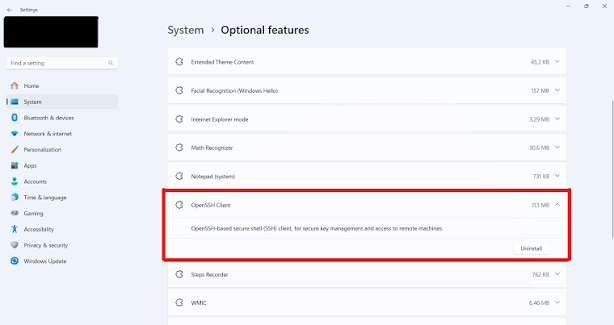
- Built-in OpenSSH Client: Starting with Windows 10 (and carried forward into Windows 11), Microsoft included an OpenSSH client and server as optional features. For connecting to remote servers, you primarily need the client. This client can be accessed directly from PowerShell or Command Prompt.
- (Optional) PuTTY: While the native OpenSSH client is now the recommended approach, PuTTY remains a venerable and popular third-party SSH client for Windows. Many users, especially those accustomed to its graphical interface and session management features, still prefer it. We will cover its usage as an alternative.
- (Optional) Windows Terminal: While not strictly an SSH client itself, Windows Terminal is Microsoft’s modern, highly customizable, and tabbed command-line interface. It’s an excellent environment for running the built-in OpenSSH client, offering a superior user experience compared to the older Command Prompt or PowerShell consoles.
Network Considerations
Successful SSH connections depend heavily on network accessibility and appropriate firewall configurations.
- Firewall Rules:
- Local (Windows 11) Firewall: Your Windows 11 firewall must allow outbound connections on port 22 (or whatever custom port the remote SSH server is listening on). Generally, the default rules permit this for the SSH client, but it’s worth checking if you encounter “connection timed out” errors.
- Remote Server Firewall: Critically, the remote server’s firewall must be configured to allow inbound connections on port 22 (or its custom SSH port) from your Windows 11 machine’s IP address or IP range. If the server’s firewall blocks SSH traffic, your connection will fail with a “connection refused” or “connection timed out” error.
- Internet/Network Connection: A stable and active internet connection is obvious for connecting to remote servers outside your local network. For local network servers, ensure network connectivity is established.
- Remote Server Accessibility (IP Address/Hostname): You’ll need the IP address or hostname of the remote server you wish to connect to, along with the correct username for logging in to that server.
User Permissions and Access Rights
Understanding user accounts on both your local Windows 11 machine and the remote server is vital.
- Remote Server User: You will need a valid username and, initially, a password (or pre-configured SSH key) for an account on the remote server. This account typically has specific permissions and access rights on that server.
- Local User Context: While SSH key files on your Windows 11 machine should have appropriate permissions (read-only for your user, not accessible by others), this is generally less of a concern for client-side operations than it is for server-side key management.
With these prerequisites in place, your Windows 11 machine is ready to initiate secure SSH connections.
Method 1: Using the Built-in OpenSSH Client (Recommended)
Windows 11’s integrated OpenSSH client offers a seamless, native experience for secure remote connections. This is the recommended approach for most users due to its deep integration and lack of external dependencies.
Verifying OpenSSH Client Installation
First, let’s confirm that the OpenSSH client is installed and active on your Windows 11 system.
1. Open PowerShell or Command Prompt:
- Press `Win + X` and select “Windows Terminal (Admin)” or “PowerShell (Admin)”. You can also search for “cmd” or “PowerShell” in the Start Menu.
2. Check SSH Client Version:
- Type `ssh -V` and press Enter.
- If the client is installed, you’ll see output like `OpenSSH_for_Windows_8.6p1, LibreSSL 3.4.3` (versions may vary).
- If you get an error like `’ssh’ is not recognized as an internal or external command`, it means the client is not installed or not in your system’s PATH.
3. Install OpenSSH Client (if missing):
- Go to Settings > Apps > Optional features.
- Click on “View features” (for “Add an optional feature”).
- Search for “OpenSSH Client”.
- Select it and click “Install”.
- Alternatively, using PowerShell (as Administrator):
powershell
Add-WindowsCapability -Online -Name OpenSSH.Client~~~~0.0.1.0
- After installation, close and reopen your PowerShell/Command Prompt window, then re-check with `ssh -V`.
Basic SSH Connection
Once the OpenSSH client is verified, connecting to a remote server is straightforward.
1. Open Windows Terminal (PowerShell or Command Prompt):
2. Use the SSH command: The basic syntax is `ssh [username]@[hostname_or_IP_address]`.
- Replace `[username]` with your login username on the remote server.
- Replace `[hostname_or_IP_address]` with the server’s domain name (e.g., `example.com`) or its IP address (e.g., `192.168.1.100`).
- Example: `ssh [email protected]` or `ssh [email protected]`
3. First Connection – Host Key Verification:
- The first time you connect to a new server, SSH will prompt you to verify the server’s host key fingerprint. This is a security measure to ensure you’re connecting to the intended server and not an imposter.
- You’ll see a message like:
The authenticity of host ‘yourserver.com (123.45.67.89)’ can’t be established.
ED25519 key fingerprint is SHA256:abcd…
Are you sure you want to continue connecting (yes/no/[fingerprint])?
- Type `yes` and press Enter. The server’s public key will be added to your `~/.ssh/known_hosts` file, and you won’t be prompted again unless the server’s key changes (which could indicate a security risk).
4. Password Authentication:
- After verifying the host key, you’ll be prompted for the password of the remote user: `[username]@yourserver.com’s password:`
- Type your password (it won’t echo characters for security) and press Enter.
5. Successful Connection: If the password is correct, you’ll be granted access to the remote server’s command line.
Common Issues and Troubleshooting for Basic Connections:
- “Connection Refused”:
- The SSH server service might not be running on the remote machine.
- The remote server’s firewall might be blocking the connection.
- You might be trying to connect to the wrong port (default is 22). If the server uses a different port, specify it with the `-p` flag: `ssh -p 2222 [email protected]`.
- “Connection Timed Out”:
- Network connectivity issues between your Windows 11 machine and the server.
- Incorrect IP address or hostname.
- A firewall (either on your local machine, the network path, or the remote server) might be silently dropping packets.
- “Permission Denied”:
- Incorrect username or password.
- The user account might not have SSH access enabled on the server.
Enhancing Security with SSH Key-Based Authentication
SSH key-based authentication is vastly superior to password authentication in terms of security and convenience. It eliminates the need to remember complex passwords and provides a much stronger defense against brute-force attacks.
Why Use Keys?
- Stronger Security: Cryptographic keys are much harder to guess or brute-force than even the strongest passwords.
- Automation: Allows for scripting and automated connections without manual password entry.
- Convenience: Once set up, you can connect to servers without typing a password, unless you’ve protected your private key with a passphrase.
Generating SSH Key Pairs (`ssh-keygen`)
You’ll generate a public-private key pair on your Windows 11 machine.
1. Open Windows Terminal (PowerShell or Command Prompt):
2. Generate the Key Pair:
- Type `ssh-keygen` and press Enter.
- Choose Key Type: Modern, secure key types like `Ed25519` are recommended over `RSA` if supported by your server. To specify, use `ssh-keygen -t ed25519 -f ~/.ssh/id_ed25519`. If you omit `-t ed25519`, `RSA` is often the default, or SSH might choose the strongest default available.
- File Path: You’ll be prompted to “Enter file in which to save the key”. The default location (`C:UsersYourUsername.sshid_rsa` or `id_ed25519`) is usually fine. Just press Enter to accept.
- Passphrase: You’ll be asked to “Enter passphrase (empty for no passphrase)”.
- Highly Recommended: Enter a strong passphrase. This encrypts your private key on your local disk, adding another layer of security. If your private key is ever compromised, the attacker still needs the passphrase to use it.
- If you choose to leave it empty (no passphrase), your private key will be usable without any additional password. This is convenient but less secure.
- Repeat the passphrase when prompted.
3. Output: The `ssh-keygen` command will create two files in the `C:UsersYourUsername.ssh` directory:
- `id_ed25519` (or `id_rsa`): Your private key. Keep this file absolutely secret and secure on your Windows 11 machine.
- `id_ed25519.pub` (or `id_rsa.pub`): Your public key. This is the key you will copy to remote servers.
Copying Public Key to Remote Server
The next step is to place your public key on the remote server you wish to access. The `ssh-copy-id` utility is the easiest way to do this if available.
Method A: Using `ssh-copy-id` (Recommended)
Windows 11’s OpenSSH client includes `ssh-copy-id`, which automates placing your public key into the remote user’s `~/.ssh/authorized_keys` file with correct permissions.
1. Open Windows Terminal:
2. Execute `ssh-copy-id`:
bash
ssh-copy-id -i C:UsersYourUsername.sshid_ed25519.pub [email protected]
- Replace `C:UsersYourUsername.sshid_ed25519.pub` with the actual path to your public key file.
- Replace `[email protected]` with the remote username and server address.
3. Authenticate: You’ll be prompted for the remote user’s password (the one you used for basic password authentication).
4. Verification: `ssh-copy-id` will then log in, append your public key to `~/.ssh/authorized_keys`, and inform you of success.
Method B: Manual Copy (If `ssh-copy-id` isn’t suitable or fails)
1. Copy Public Key Content:
- Open your public key file (`id_ed25519.pub` or `id_rsa.pub`) using Notepad or a text editor.
- Copy the entire content, which starts with `ssh-ed25519` or `ssh-rsa` and ends with your username/hostname.
2. SSH into the Remote Server (using password authentication):
bash
ssh [email protected]
3. Create `.ssh` Directory (if it doesn’t exist) and Set Permissions:
bash
mkdir -p ~/.ssh
chmod 700 ~/.ssh
4. Append Public Key to `authorized_keys`:
bash
echo “PASTE_YOUR_PUBLIC_KEY_HERE” >> ~/.ssh/authorized_keys
- Replace `”PASTE_YOUR_PUBLIC_KEY_HERE”` with the actual content you copied in step 1. Make sure it’s enclosed in double quotes.
- Important: Using `>>` (append) is crucial. Using `>` (overwrite) would erase existing keys.
5. Set Permissions for `authorized_keys`:
bash
chmod 600 ~/.ssh/authorized_keys
6. Exit the remote server: `exit`
Logging in with SSH Key-Based Authentication
Now, when you try to connect, SSH will automatically attempt to use your private key.
1. Open Windows Terminal:
2. Connect:
bash
ssh [email protected]
3. Passphrase Prompt: If you protected your private key with a passphrase, you’ll be prompted to “Enter passphrase for key ‘C:UsersYourUsername.sshid_ed25519’:”. Enter your passphrase.
4. Direct Login: If no passphrase was set, or after entering it, you should be logged in directly without a password.
SSH Agent for Managing Keys
The SSH agent is a program that holds your private keys in memory and manages authentication on your behalf. This is especially useful if you use a passphrase for your private key, as it prevents you from having to type the passphrase repeatedly during a session.
- On Windows 11, the OpenSSH Agent service (`ssh-agent`) can be enabled and started.
1. Open PowerShell as Administrator.
2. Set the service to start automatically:
powershell
Set-Service -Name ssh-agent -StartupType Automatic
3. Start the service:
powershell
Start-Service -Name ssh-agent
4. Add your key to the agent:
powershell
ssh-add C:UsersYourUsername.sshid_ed25519
You’ll be prompted for your passphrase if your key has one. Once added, the agent will handle authentications for that key until it’s removed or the agent is stopped.
Method 2: Utilizing PuTTY (A Classic Alternative)
While the built-in OpenSSH client is the modern standard, PuTTY remains a popular choice for many Windows users, particularly those who prefer a graphical interface for session management and key generation.
Downloading and Installing PuTTY
1. Download PuTTY: Go to the official PuTTY download page: `https://www.putty.org/`
2. Choose the Installer: Download the appropriate MSI Installer package (e.g., `64-bit x86` for most modern Windows 11 systems).
3. Run the Installer: Follow the on-screen prompts. The installation is straightforward.
4. Components: The installer typically includes PuTTY (the SSH client), PuTTYgen (for key generation), PSCP (SCP client), PSFTP (SFTP client), and Pageant (SSH agent).
Connecting with PuTTY
1. Launch PuTTY: You can find it in your Start Menu.
2. Configuration Window:
- Host Name (or IP address): Enter the hostname or IP address of your remote server.
- Port: Ensure it’s set to `22` (or the custom port if your server uses one).
- Connection type: Select `SSH`.
- Saved Sessions: In the “Saved Sessions” box, type a name for your session (e.g., `MyServer`) and click “Save”. This allows you to quickly load connection details later.
3. Open Connection: Click the “Open” button.
4. Security Alert (First Connection): Similar to the OpenSSH client, you’ll see a security alert about the server’s host key. Click “Accept” to proceed and cache the key.
5. Login Prompt: A terminal window will open, prompting you for your username: `login as:`
- Enter your remote username and press Enter.
6. Password Prompt: Enter your password when prompted.
7. Successful Connection: You’ll gain access to the remote server’s command line.
Generating and Using SSH Keys with PuTTYgen
PuTTY uses its own key format (`.ppk`) which is not directly compatible with OpenSSH’s standard `.pem` or raw key files.
Generating a New Key Pair
1. Launch PuTTYgen: Find “PuTTYgen” in your Start Menu.
2. Parameters:
- Type of key to generate: Select `RSA` or `EdDSA` (for Ed25519). `EdDSA` is generally preferred for modern security.
- Number of bits in a generated key: For RSA, use `2048` or `4096` bits.
3. Generate: Click the “Generate” button. Move your mouse randomly over the blank area to generate randomness needed for key creation.
4. Key Passphrase:
- Key passphrase: Enter a strong passphrase here. This encrypts your private key.
- Confirm passphrase: Re-enter the passphrase.
5. Save Keys:
- Save public key: Click “Save public key” and save it as `mykey.pub` (or similar) to a secure location. This is the key you’ll upload to the server.
- Save private key: Click “Save private key” and save it as `mykey.ppk`. PuTTYgen will warn you about saving without a passphrase; confirm if you intend to do so (though not recommended). This `.ppk` file is your private key for PuTTY.
Converting OpenSSH Keys to PuTTY Format
If you’ve already generated an OpenSSH key pair (`id_rsa` or `id_ed25519`), you can import it into PuTTYgen to create a `.ppk` file.
1. Launch PuTTYgen.
2. Load: Click the “Load” button.
3. Select Key Type: Change the file type filter to “All Files (*.*)” to see your OpenSSH private key (e.g., `id_rsa` or `id_ed25519`).
4. Open: Select your OpenSSH private key and click “Open”. Enter its passphrase if prompted.
5. Save Private Key: Once loaded, click “Save private key” and save it as a `.ppk` file.
Configuring PuTTY to Use Private Keys
1. Launch PuTTY.
2. Load your Session: In the “Saved Sessions” list, select the session you saved earlier (e.g., `MyServer`) and click “Load”.
3. Navigate to SSH > Auth: In the left-hand category tree, expand “Connection”, then “SSH”, and click on “Auth”.
4. Browse for Private Key: Click the “Browse…” button next to “Private key file for authentication:”
5. Select `.ppk` file: Navigate to where you saved your `.ppk` private key file (e.g., `mykey.ppk`) and select it.
6. Return to Session: Go back to the “Session” category on the left.
7. Save Session: Click “Save” again to update your saved session with the private key path.
8. Connect: Click “Open”.
9. Login: You’ll be prompted for the username. If your private key has a passphrase, you’ll be prompted for it. If not, you should log in directly.
Advanced SSH Techniques and Best Practices
Beyond basic connectivity, SSH offers a powerful suite of features for complex remote management and enhanced security.
Secure File Transfer: SFTP and SCP
SSH bundles two highly secure protocols for transferring files:
- SCP (Secure Copy Protocol): A command-line utility for simple, fast file transfers. It’s built on SSH and allows you to copy files between your local host and a remote host, or between two remote hosts.
- Copy local file to remote: `scp C:pathtolocalfile.txt [email protected]:/remote/path/`
- Copy remote file to local: `scp [email protected]:/remote/path/remote_file.txt C:pathtolocal`
- Recursive copy (directories): `scp -r C:pathtolocal_folder [email protected]:/remote/path/`
- SFTP (SSH File Transfer Protocol): A more feature-rich interactive protocol for file management, akin to FTP but secured by SSH.
- You can start an SFTP session from PowerShell/CMD: `sftp [email protected]`
- This will open an interactive prompt where you can use commands like `ls`, `cd`, `get`, `put`, `rm`, `mkdir`.
- (GUI Alternative) WinSCP: For users who prefer a graphical interface for SFTP and SCP, WinSCP is an excellent free and open-source client for Windows. It provides a dual-pane file manager interface, drag-and-drop functionality, and integrates well with PuTTY.
SSH Configuration File (`~/.ssh/config`)
The SSH configuration file, located at `C:UsersYourUsername.sshconfig` on Windows 11 (you might need to create it), is an incredibly powerful tool for streamlining your SSH workflow. It allows you to define aliases, specific settings, and default options for different hosts.
Example `config` file:
Host mywebserver
HostName yourdomain.com
User webadmin
Port 2222
IdentityFile C:UsersYourUsername.sshid_ed25519
ForwardAgent yes
Host devbox
HostName 192.168.1.50
User developer
IdentityFile C:UsersYourUsername.sshdev_key
StrictHostKeyChecking no # Use with caution, only for known transient hosts
ProxyJump bastion-host # Connect via a jump host
- `Host mywebserver`: Defines an alias. You can now connect with `ssh mywebserver`.
- `HostName`: The actual hostname or IP address.
- `User`: The username for that host.
- `Port`: The specific port number for that host.
- `IdentityFile`: Specifies the private key file to use for this host.
- `ForwardAgent yes`: Enables SSH agent forwarding, allowing your local SSH agent to handle authentication on the remote server when you connect from there to another server.
- `ProxyJump`: Allows you to connect to a target host by first connecting to an intermediate “jump host”.
Port Forwarding (SSH Tunneling)
SSH port forwarding, also known as SSH tunneling, allows you to create secure connections for services that are normally insecure or firewalled.
- Local Port Forwarding (`-L`): Tunnels a port from the remote server to your local machine. You can access a service on the remote server (or a machine reachable *from* the remote server) through a local port on your Windows 11 machine.
- Syntax: `ssh -L [local_port]:[remote_host]:[remote_port] [user]@[ssh_server]`
- Use Case: Access a database (e.g., MySQL on port 3306) running on `remote_host` (which could be `localhost` from the SSH server’s perspective) from your local browser or client on `local_port`.
- Example: `ssh -L 8888:localhost:3306 [email protected]`
- Now, if you open `http://localhost:8888` on your Windows 11 machine, you’ll be securely connected to `yourserver.com`’s MySQL server on port 3306.
- Remote Port Forwarding (`-R`): Tunnels a port from your local machine to the remote server. This allows remote users to access a service running on your local Windows 11 machine through a port on the remote server.
- Syntax: `ssh -R [remote_port]:[local_host]:[local_port] [user]@[ssh_server]`
- Use Case: Share a web server running locally on your Windows 11 machine (e.g., on port 8080) with someone who can access `yourserver.com` (e.g., on port 80).
- Example: `ssh -R 80:localhost:8080 [email protected]`
- Anyone accessing `http://yourserver.com:80` (or just `yourserver.com` if server is configured for port 80) would now be accessing your local web server running on port 8080.
- Dynamic Port Forwarding (`-D`): Creates a SOCKS proxy on your local machine. All traffic routed through this SOCKS proxy will be securely tunneled through the SSH server.
- Syntax: `ssh -D [local_port] [user]@[ssh_server]`
- Example: `ssh -D 8080 [email protected]`
- You would then configure your browser or applications to use `localhost:8080` as a SOCKS5 proxy. This is useful for anonymizing browsing or accessing resources as if you were on the remote server’s network.
Hardening SSH Security
Implementing these best practices will significantly enhance the security of your SSH connections.
- Always Use Key-Based Authentication: Disable password authentication on your SSH servers if possible.
- Use Strong Passphrases for Private Keys: A strong passphrase adds a critical layer of protection if your private key is ever stolen.
- Change Default SSH Port (on server): Moving the SSH daemon from port 22 to a non-standard, higher port (e.g., 2222 or 22222) reduces automated scanning and brute-force attempts. This is a server-side configuration.
- Keep Software Updated: Regularly update your Windows 11 operating system and any SSH client software (like PuTTY) to patch vulnerabilities.
- Restrict User Access (on server): Configure your SSH server to only allow specific users to log in via SSH.
- Limit Login Attempts (on server): Implement tools like `fail2ban` on your server to automatically block IP addresses after multiple failed login attempts.
- Use SSH Agent: For convenience and security, use the SSH agent to manage your private keys and avoid repeatedly typing passphrases.
Troubleshooting Common SSH Issues on Windows 11
Even with careful setup, you might encounter issues. Here are common problems and their solutions.
“Connection Refused”
This error indicates that the remote server explicitly denied your connection request.
- Possible Causes:
- SSH Server Not Running: The SSH service (`sshd`) might not be running on the remote server.
- Firewall Blocking (Server-side): The remote server’s firewall (e.g., `ufw`, `firewalld`, AWS Security Groups) is blocking inbound connections on the SSH port.
- Incorrect Port: You’re trying to connect to the wrong port. The server might be configured to listen on a non-standard port.
- Solutions:
- Verify SSH Service: Log into the remote server (if possible, perhaps via console access) and ensure the SSH service is active (`sudo systemctl status ssh`).
- Check Server Firewall: Review the server’s firewall rules to ensure your IP address is allowed to connect to the SSH port.
- Specify Port: If the server uses a non-standard port, use `ssh -p [port_number] [email protected]`.
“Connection Timed Out”
This signifies that your SSH client could not reach the remote server within a reasonable timeframe.
- Possible Causes:
- Network Connectivity Issues: Your Windows 11 machine has no network connection, or there’s a problem along the route to the server.
- Incorrect IP/Hostname: The IP address or hostname you entered is incorrect or unresolvable.
- Firewall Blocking (Anywhere): A firewall (local Windows, network router, remote server) is silently dropping SSH packets without sending a refusal.
- Solutions:
- Check Network: Verify your internet connection.
- Ping Server: Try pinging the server’s IP address: `ping [server_IP]`. If it fails, there’s a network issue.
- Verify IP/Hostname: Double-check the server’s IP address or hostname.
- Check Local Firewall: Ensure your Windows 11 firewall isn’t blocking outbound SSH connections (though unlikely by default).
- Traceroute: Use `tracert [server_IP]` to see where the connection drops along the network path.
“Permission Denied (publickey, password)”
This means the server received your connection request but refused to authenticate you.
- Possible Causes:
- Incorrect Password: You entered the wrong password for password authentication.
- Incorrect Username: The username provided does not exist on the remote server.
- SSH Key Not Configured: If using key-based authentication, your public key isn’t correctly installed on the server (in `~/.ssh/authorized_keys`).
- Incorrect Permissions on Server: The `~/.ssh` directory or `authorized_keys` file on the remote server has incorrect permissions (they should typically be `700` for `.ssh` and `600` for `authorized_keys`).
- Wrong Private Key Used: Your client is trying to use a private key that isn’t paired with a public key on the server.
- Solutions:
- Double-Check Credentials: Re-enter your username and password carefully.
- Verify Public Key Installation: Ensure your public key is copied correctly to `~/.ssh/authorized_keys` on the remote server and that it’s on a single line.
- Check Server-Side Permissions: If you have console access, verify the permissions:
bash
ls -ld ~/.ssh
ls -l ~/.ssh/authorized_keys
If incorrect, use `chmod 700 ~/.ssh` and `chmod 600 ~/.ssh/authorized_keys`.
- Specify Identity File: If you have multiple keys, try explicitly telling SSH which private key to use: `ssh -i C:UsersYourUsername.sshmy_specific_key [email protected]`.
“Host key verification failed”
This warning indicates that the server’s identity has changed or is inconsistent with what your client previously recorded.
- Possible Causes:
- Server Reinstallation: The remote server was reinstalled, and a new host key was generated.
- Server IP Change: A different server now occupies the old IP address.
- Man-in-the-Middle Attack: A malicious actor is impersonating the server.
- Solutions:
- Verify Authenticity: If you know the server was legitimately reinstalled or changed, you can safely update the host key. If not, investigate before proceeding.
- Remove Old Host Key: The error message will usually tell you which line in `C:UsersYourUsername.sshknown_hosts` to remove. You can open `known_hosts` in Notepad, delete the specified line, save, and close.
- Alternatively, use `ssh-keygen -R [hostname_or_IP_address]` to remove the entry.
- Upon your next connection, you will be prompted to verify the new host key fingerprint again.
Conclusion
Mastering SSH on Windows 11 empowers you with unparalleled control and security over your remote computing endeavors. By understanding its underlying principles, leveraging the built-in OpenSSH client, and adopting advanced techniques like key-based authentication, configuration files, and port forwarding, you transform your Windows 11 machine into a formidable tool for developers, system administrators, and anyone requiring secure access to remote systems.
From the foundational steps of establishing a basic connection to troubleshooting intricate network and authentication issues, this guide has equipped you with the knowledge to navigate the complexities of SSH confidently. Remember to always prioritize security by using strong passphrases, key-based authentication, and staying vigilant about server identities. The journey into secure remote access is continuous, but with these insights, your Windows 11 experience is now fortified for any challenge the digital world presents.