In an increasingly interconnected digital landscape, the ability to securely manage and interact with remote servers is not merely a convenience but a fundamental requirement. At the heart of this capability lies the Secure Shell Protocol, universally known as SSH. This robust cryptographic network protocol provides a secure channel over an unsecured network, allowing for remote command-line execution, file transfers, and much more. For developers, system administrators, and even advanced users, mastering SSH is akin to holding the master key to the digital infrastructure that powers our modern world.
This comprehensive guide delves into the intricate mechanisms of SSH, demystifying the process of connecting to a remote server. From understanding its foundational principles to executing advanced configurations and troubleshooting common pitfalls, we aim to equip you with the expertise to navigate the remote server environment with confidence and unparalleled security.
Understanding the Foundation: What is SSH?
The Secure Shell Protocol, or SSH, is a cryptographic network protocol for operating network services securely over an unsecured network. Its most prominent applications are remote command-line login and remote command execution, but it also supports secure file transfers and TCP port forwarding. Designed as a secure replacement for earlier, less secure protocols like Telnet and rsh, SSH ensures that all communication between the client and server is encrypted, protecting against eavesdropping, connection hijacking, and other network-level attacks.
The Secure Shell Protocol Defined
At its core, SSH operates on a client-server model. An SSH client initiates a connection to an SSH server, which typically runs as a daemon process (e.g., `sshd` on Unix-like systems). Upon connection, the client and server establish a secure, encrypted tunnel. This tunnel leverages robust cryptographic algorithms to achieve three critical security objectives:
1. Confidentiality: All data exchanged between the client and server is encrypted, making it unreadable to unauthorized parties who might intercept the network traffic.
2. Integrity: SSH ensures that data transmitted between the client and server has not been tampered with during transit. Any alteration would be detected, and the connection would be terminated.
3. Authentication: Both the client and the server verify each other’s identity. The server authenticates the client to ensure only authorized users gain access, and the client authenticates the server to prevent “man-in-the-middle” attacks where a malicious entity might impersonate the legitimate server.
This triple-layered security makes SSH the de facto standard for remote administration, cloud management, and secure data exchange across disparate computing environments.
Key Benefits of SSH
The pervasive adoption of SSH is a testament to its multifaceted advantages:
- Unparalleled Security: By encrypting all data, including usernames, passwords, and commands, SSH renders network sniffing futile. Its strong authentication mechanisms further bolster security against unauthorized access.
- Versatility Beyond the Terminal: While primarily known for remote shell access, SSH’s capabilities extend to secure file transfer (SCP, SFTP), creation of secure tunnels (port forwarding), and even acting as a secure proxy for other network services.
- Ubiquity and Standardization: SSH is an integral component of virtually every Unix-like operating system (Linux, macOS, BSD) and is widely available on Windows. This standardization simplifies cross-platform remote management.
- Automation: With SSH key-based authentication, scripts and automated systems can securely log in and execute commands on remote servers without manual intervention, streamlining deployment and management tasks.
SSH vs. Older Protocols (Telnet, FTP)
To fully appreciate SSH, it’s essential to understand the vulnerabilities it addresses compared to its predecessors.
- Telnet: A precursor to SSH for remote login, Telnet transmits all data, including login credentials, in plain text. This means anyone with a network sniffer can easily intercept sensitive information, making it extremely insecure for public networks.
- FTP (File Transfer Protocol): Similarly, standard FTP transmits both control commands and data in plain text, exposing usernames, passwords, and file contents. While SFTP (SSH File Transfer Protocol) and FTPS (FTP over SSL/TLS) exist as secure alternatives, plain FTP remains a significant security risk.
SSH fundamentally changed the paradigm by embedding encryption and strong authentication from the ground up, making these older protocols largely obsolete for any sensitive operations.
Prerequisites for SSH Connectivity
Before you can establish a secure SSH connection, certain conditions must be met on both your local machine (the client) and the remote server. Ensuring these prerequisites are in place will prevent common connection errors.
What You Need on Your Local Machine (Client)
Your local machine, the SSH client, is where you initiate the connection.
- An SSH Client:
- Linux/macOS: OpenSSH client is pre-installed. You’ll use the `ssh` command in your terminal.
- Windows:
- Windows 10/11: OpenSSH client can be enabled as an optional feature via `Settings > Apps > Optional features`. Once enabled, you can use the `ssh` command in PowerShell or Command Prompt.
- Older Windows versions or for a GUI experience: PuTTY is a popular, free SSH and Telnet client. Alternatively, using Windows Subsystem for Linux (WSL) provides a Linux environment with a pre-installed OpenSSH client.
- Git Bash: If you have Git for Windows installed, Git Bash provides a Unix-like terminal environment that includes the OpenSSH client.
- Internet Connection: Your local machine needs network access to reach the remote server.
- Basic Terminal/Command-Line Familiarity: While not strictly a ‘need’ for simple connections, comfort with the command line will significantly enhance your SSH experience.
What You Need on the Remote Server
The remote server, the SSH server, must be configured to accept incoming SSH connections.
- SSH Server Software: Typically OpenSSH server (often called `sshd`) for Linux/Unix systems. It must be installed and running.
- Running SSH Service: The `sshd` daemon must be active and listening for connections. On most Linux distributions, you can check its status with `sudo systemctl status sshd` and start it with `sudo systemctl start sshd`.
- Network Connectivity and Firewall Rules:
- The server must be accessible from your network.
- Crucially, the server’s firewall (e.g., `ufw`, `firewalld`, AWS Security Groups, Azure Network Security Groups) must allow incoming connections on the SSH port. The default SSH port is `22`, but it’s often changed for security reasons.
- User Account and Credentials:
- You need a valid username on the remote server. Common default usernames include `root`, `admin`, `ubuntu`, `ec2-user`, etc.
- You need authentication credentials: either a password for that user or an SSH key pair (highly recommended).
- Server’s IP Address or Hostname: You need the network address of the remote server. This can be an IPv4 address (e.g., `192.168.1.100`), an IPv6 address, or a domain name (e.g., `yourserver.example.com`).
The Core Process: SSHing In with Password Authentication
Once you have established that both client and server meet the necessary prerequisites, the simplest way to initiate an SSH connection is often through password authentication. While not as secure as key-based authentication, it’s commonly used for initial setup or in environments where keys are not yet configured.
Basic SSH Command Syntax
The fundamental command to connect via SSH from a Unix-like terminal (Linux, macOS, Windows PowerShell/CMD with OpenSSH client) is:
bash
ssh [username]@[remote_host]
- `[username]`: The username you will log in with on the remote server.
- `[remote_host]`: The IP address or hostname of the remote server.
If the SSH server is configured to listen on a non-standard port (i.e., not port 22), you’ll need to specify it using the `-p` flag:
bash
ssh -p [port_number] [username]@[remote_host]
Step-by-Step Guide for Linux/macOS
1. Open Terminal: Launch your terminal application (e.g., GNOME Terminal, Konsole, iTerm2, Terminal.app).
2. Execute the SSH Command: Type the command, replacing `your_username` and `your_server_ip` with your actual credentials:
bash
ssh your_username@your_server_ip
(e.g., `ssh [email protected]` or `ssh [email protected]`)
3. First Connection Warning: If this is your first time connecting to this specific server, SSH will prompt you with a message similar to:
The authenticity of host ‘your_server_ip (your_server_ip)’ can’t be established.
ECDSA key fingerprint is SHA256:.
Are you sure you want to continue connecting (yes/no)?
This is SSH’s way of verifying the server’s identity. You should type `yes` and press Enter. The server’s public key fingerprint will be added to your `~/.ssh/known_hosts` file, so you won’t see this warning again unless the server’s key changes.
Important: If you see this warning for a server you’ve connected to before, it could indicate a potential “man-in-the-middle” attack or a legitimate server reinstallation. Investigate before proceeding.
4. Enter Password: After confirming, you’ll be prompted to enter the password for `your_username` on the remote server:
your_username@your_server_ip’s password:
Type your password and press Enter. Note that no characters will appear on the screen as you type, which is a standard security feature.
5. Successful Connection: If the password is correct, you will be logged into the remote server. Your terminal prompt will change to reflect the remote server’s hostname and your user, indicating a successful connection. You can now execute commands on the remote server.
Step-by-Step Guide for Windows (using PuTTY)
PuTTY remains a popular choice for Windows users due to its graphical interface.
1. Download and Launch PuTTY: If you don’t have it, download PuTTY from its official website. Launch the `putty.exe` executable.
2. Configure Session:
- In the “Host Name (or IP address)” field, enter the remote server’s IP address or hostname.
- Ensure the “Port” field is set to `22` (or your custom SSH port).
- Ensure “Connection type” is set to “SSH”.
3. Save Session (Optional): To avoid re-entering details for future connections, type a name in the “Saved Sessions” field (e.g., `MyRemoteServer`) and click “Save”.
4. Open Connection: Click the “Open” button.
5. Security Alert (First Connection): If it’s your first time connecting to this server, PuTTY will show a “PuTTY Security Alert” dialog about the server’s host key. Click “Accept” to trust the key and proceed. For security, verify the fingerprint if possible.
6. Enter Username and Password: A terminal window will open, prompting for your username:
login as:
Enter your username and press Enter. Then, it will ask for your password:
your_username@your_server_ip’s password:
Enter your password and press Enter. Again, no characters will display.
7. Successful Connection: Upon successful authentication, you’ll be presented with the remote server’s command prompt.
Step-by-Step Guide for Windows (using OpenSSH client via PowerShell/CMD)
For Windows 10/11 users with the OpenSSH client enabled, the process mirrors that of Linux/macOS.
1. Open PowerShell or Command Prompt: Search for “PowerShell” or “CMD” in the Start menu and open it.
2. Execute the SSH Command: Use the same syntax as for Linux/macOS:
bash
ssh your_username@your_server_ip
3. First Connection Warning: Similar to Linux/macOS, confirm the host key by typing `yes` and pressing Enter.
4. Enter Password: Provide your password when prompted.
5. Successful Connection: Your prompt will change, indicating you are logged into the remote server.
Enhancing Security and Convenience: SSH Key-Based Authentication
While password authentication is straightforward, it is inherently vulnerable to brute-force attacks and often less convenient for frequent access. SSH key-based authentication offers a significantly more secure and efficient alternative, leveraging asymmetric cryptography.
Why Use SSH Keys?
- Stronger Security: SSH keys are typically 2048-bit or 4096-bit long, making them virtually impossible to guess or crack through brute force. This far exceeds the complexity of even the strongest human-generated passwords.
- Automated Login: Once set up, you can log in to your remote server without entering a password, speeding up workflows and enabling automation.
- Eliminates Brute-Force Password Attacks: If password authentication is disabled on the server, attackers cannot attempt to guess your password, significantly reducing the attack surface.
- Granular Control: You can have different keys for different servers or different clients, providing more fine-grained control over access.
Understanding Public and Private Keys
SSH key-based authentication relies on a pair of cryptographically linked keys:
- Private Key: This key is kept strictly secret and resides on your local machine (the client). It is never shared with anyone or any server. For added security, it should ideally be protected by a strong passphrase.
- Public Key: This key can be freely shared. You place a copy of your public key on any remote server you wish to access.
When you attempt to connect, the server uses your public key to encrypt a challenge. Your client then uses your private key to decrypt this challenge, proving your identity without ever exposing your private key.
Generating SSH Key Pairs
You can generate an SSH key pair on your local machine using the `ssh-keygen` utility.
1. Open Terminal (Linux/macOS/Windows PowerShell/Git Bash):
2. Execute `ssh-keygen`:
bash
ssh-keygen -t rsa -b 4096
- `-t rsa`: Specifies the key type (RSA is common and widely supported). Other types like `ed25519` offer excellent security and performance.
- `-b 4096`: Specifies the number of bits in the key. 4096 bits is recommended for strong security.
3. Choose File Location: The utility will prompt you to save the key:
Enter file in which to save the key (~/.ssh/id_rsa):
Press Enter to accept the default location (`~/.ssh/id_rsa` for the private key, and `~/.ssh/id_rsa.pub` for the public key). Or, specify a custom path if you manage multiple keys.
4. Enter Passphrase:
Enter passphrase (empty for no passphrase):
Enter same passphrase again:
It is highly recommended to set a strong passphrase. This encrypts your private key on your local disk, meaning that even if someone gains access to your local machine, they cannot use your private key without knowing the passphrase. You will be prompted for this passphrase each time you use the key (unless you use an SSH agent, discussed later). You can leave it empty for convenience, but it’s a security trade-off.
5. Key Generation: The utility will then generate the key pair and display a confirmation message. You can view your public key with `cat ~/.ssh/id_rsa.pub`.
Copying Your Public Key to the Remote Server
After generating your key pair, you need to place your public key on the remote server in a file named `~/.ssh/authorized_keys` within your user’s home directory.
Method 1: Using `ssh-copy-id` (Recommended)
This utility automates the process, creating the `.ssh` directory and setting correct permissions if necessary.
bash
ssh-copy-id your_username@remote_host
You will be prompted for your password for the `remote_host`. After successful authentication, your public key will be copied, and subsequent connections will use the key.
Method 2: Manual Copying
If `ssh-copy-id` isn’t available, you can copy the key manually.
1. Get Your Public Key: Display your public key on your local machine:
bash
cat ~/.ssh/id_rsa.pub
Copy the entire output, which starts with `ssh-rsa` (or `ssh-ed25519`) and ends with your username and hostname.
2. Log In to the Remote Server: Use password authentication to log in.
bash
ssh your_username@remote_host
3. Create `.ssh` Directory (if it doesn’t exist):
bash
mkdir -p ~/.ssh
4. Set Correct Permissions for `.ssh`: This is crucial for security; SSH will refuse to use keys if permissions are too lax.
bash
chmod 700 ~/.ssh
5. Append Public Key to `authorized_keys`: Open the `authorized_keys` file for editing or creation:
bash
nano ~/.ssh/authorized_keys
Paste your copied public key on a new line. Save and exit (Ctrl+X, Y, Enter for Nano).
6. Set Correct Permissions for `authorized_keys`:
bash
chmod 600 ~/.ssh/authorized_keys
7. Log Out of the Server: Type `exit` and press Enter.
Connecting with SSH Keys
Once your public key is on the remote server, your SSH client will automatically attempt to use your private key for authentication.
bash
ssh your_username@remote_host
If your private key is protected by a passphrase, you will be prompted to enter it. If successful, you will be logged in without needing the user’s password.
Managing Multiple SSH Keys (Advanced)
For users interacting with many servers or using different keys for different purposes, the SSH configuration file (`~/.ssh/config`) is invaluable.
You can define aliases and specify which key to use for which host:
# ~/.ssh/config
Host myserver
Hostname 192.168.1.100
User admin
IdentityFile ~/.ssh/id_rsa_myserver
Host devbox
Hostname dev.example.com
User developer
Port 2222
IdentityFile ~/.ssh/id_ed25519_dev
ForwardAgent yes
Now, you can connect simply by:
bash
ssh myserver
ssh devbox
This simplifies commands, manages distinct keys, and allows for custom port settings per host.
Advanced SSH Techniques and Configuration
SSH’s power extends far beyond simple remote login. Understanding its advanced capabilities and configuration options can significantly enhance your productivity and control.
Specifying a Different Port
While port `22` is the default for SSH, many administrators change it for security reasons (to deter automated scanners).
- Using the `-p` Flag: As seen before, `ssh -p 2222 your_username@remote_host` connects to port `2222`.
- In `~/.ssh/config`: Define the `Port` directive for a specific host, as shown in the previous section.
SSH Configuration File (`~/.ssh/config`)
The `~/.ssh/config` file is a powerful tool for streamlining SSH connections. It allows you to define host-specific settings and global preferences.
Key directives:
- `Host`: Defines an alias for a remote server. You can use wildcards (e.g., `Host *.example.com`).
- `Hostname`: The actual IP address or domain name of the remote server.
- `User`: The username to log in as on the remote server.
- `Port`: The port number on the remote server to connect to.
- `IdentityFile`: Specifies the path to the private key file for this host.
- `ForwardAgent yes`: Enables SSH agent forwarding, allowing you to use your local SSH keys from a remote server to connect to *another* remote server without copying your private key.
- `ControlMaster auto` / `ControlPath` / `ControlPersist`: These directives enable connection multiplexing, allowing multiple SSH sessions to share a single connection. This speeds up subsequent connections and can be useful for SCP/SFTP transfers during an active session.
Properly configured, `~/.ssh/config` can save immense time and reduce command-line clutter.
SSH Agent for Passphrase Management
If you protect your private SSH keys with passphrases (which you should!), you’ll be prompted to enter the passphrase every time you use the key. The `ssh-agent` is a program that holds private keys used for public key authentication. Once you add your key to the agent, you only need to enter its passphrase once per session.
1. Start `ssh-agent` (if not already running):
bash
eval “$(ssh-agent -s)”
(On macOS, `ssh-agent` often starts automatically, and keys are added to the system keychain.)
2. Add Your Key(s) to the Agent:
bash
ssh-add ~/.ssh/id_rsa
You’ll be prompted for your key’s passphrase. After this, you won’t need to enter it again until the agent is stopped (e.g., when you close your terminal session or reboot).
Port Forwarding (SSH Tunneling)
One of SSH’s most versatile features is port forwarding, which allows you to create secure tunnels for network traffic.
- Local Port Forwarding (`-L`): Access a service on the remote server from your local machine as if it were running locally.
bash
ssh -L [local_port]:[remote_host]:[remote_port] [ssh_user]@[ssh_host]
Example: `ssh -L 8080:localhost:80 your_username@your_server_ip`
This maps port `80` on the `your_server_ip` server to port `8080` on your local machine. You can then access `http://localhost:8080` in your local browser, and the traffic will be securely tunneled to the server’s port `80`.
- Remote Port Forwarding (`-R`): Make a service running on your local machine accessible to the remote server, or even to clients connecting to the remote server.
bash
ssh -R [remote_port]:[local_host]:[local_port] [ssh_user]@[ssh_host]
Example: `ssh -R 8080:localhost:80 your_username@your_server_ip`
Now, from `your_server_ip`, any connection to `localhost:8080` will be forwarded to port `80` on your *local* machine.
- Dynamic Port Forwarding (`-D`): Creates a SOCKS proxy, allowing you to route all traffic from applications configured to use the proxy through the SSH tunnel.
bash
ssh -D [local_port] [ssh_user]@[ssh_host]
Example: `ssh -D 8080 your_username@your_server_ip`
You can then configure your web browser or other applications to use `localhost:8080` as a SOCKS5 proxy, routing all their traffic through the secure SSH tunnel to `your_server_ip`.
Transferring Files Securely: SCP and SFTP
SSH provides secure methods for transferring files between your local machine and a remote server.
- SCP (Secure Copy Protocol): A simple, command-line utility for copying files and directories. It uses SSH for authentication and encryption.
- Copy local file to remote:
bash
scp /path/to/local/file.txt your_username@remote_host:/path/to/remote/directory/
- Copy remote file to local:
bash
scp your_username@remote_host:/path/to/remote/file.txt /path/to/local/directory/
- Copy directory recursively: Use the `-r` flag.
bash
scp -r /path/to/local/directory/ your_username@remote_host:/path/to/remote/
- SFTP (SSH File Transfer Protocol): Provides an interactive file transfer program, similar to FTP but secured by SSH.
bash
sftp your_username@remote_host
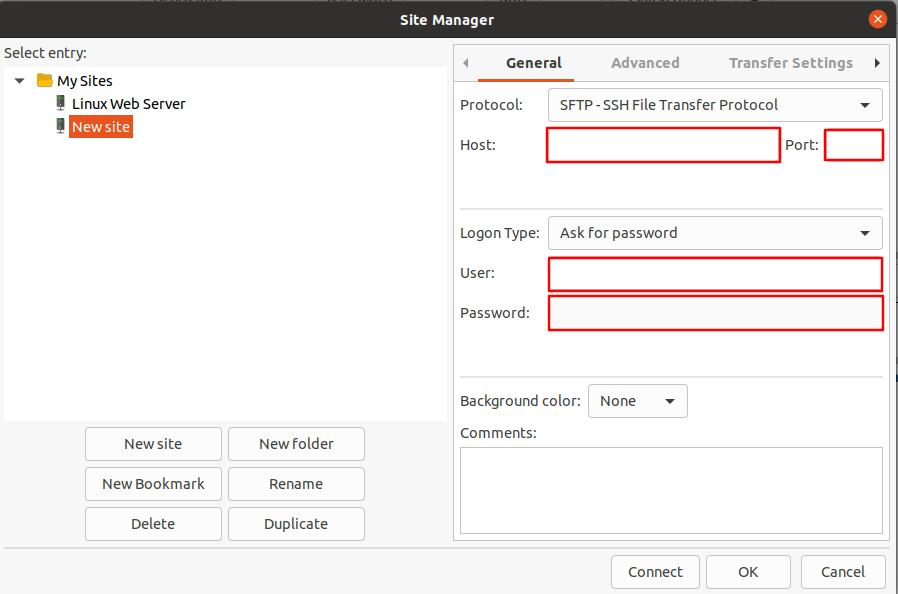
Once connected, you’ll be in an SFTP shell where you can use commands like `ls`, `cd`, `get [remote_file]`, `put [local_file]`, `pwd`, `lpwd` (local print working directory), etc. SFTP clients with GUI (like FileZilla, WinSCP) also use SFTP under the hood.
Troubleshooting Common SSH Issues
Even with careful setup, you might encounter issues connecting via SSH. Here are common problems and their solutions.
Permission Denied (publickey, password)
This is one of the most frequent errors.
- Incorrect Username/Password: Double-check your credentials. For password authentication, ensure Caps Lock isn’t on.
- Wrong SSH Key: Ensure you’re using the correct `IdentityFile` in your `~/.ssh/config` or that the default key (`~/.ssh/id_rsa`) is the one authorized on the server.
- Server-Side `authorized_keys` Permissions: The permissions for `~/.ssh` on the server must be `700` (read, write, execute for owner only), and `~/.ssh/authorized_keys` must be `600` (read, write for owner only). Incorrect permissions are a common cause of `Permission denied (publickey)` errors.
- On the server: `chmod 700 ~/.ssh && chmod 600 ~/.ssh/authorized_keys`
- User’s Home Directory Permissions: The user’s home directory on the server (e.g., `/home/your_username`) should not be writable by others (`chmod 755 /home/your_username` or `chmod 700 /home/your_username`).
- SSH Server Configuration (`sshd_config`): The server’s SSH configuration file (typically `/etc/ssh/sshd_config`) might have `PermitRootLogin no`, `PasswordAuthentication no`, or `PubkeyAuthentication no`. Ensure these are set appropriately for your desired authentication method.
- After changes to `sshd_config`, restart the SSH service: `sudo systemctl restart sshd`.
Connection Timed Out
This indicates the SSH client could not reach the server within a reasonable timeframe.
- Incorrect IP Address/Hostname: Verify the server’s network address.
- Server is Down/Unreachable: The remote server might be powered off, crashed, or its network interface is down.
- Firewall Blocking Port:
- Server-side Firewall: The server’s firewall (e.g., `ufw`, `firewalld`, cloud provider security groups) might be blocking incoming connections on the SSH port. Ensure port `22` (or your custom port) is open.
- Client-side Firewall/Network: Your local network’s firewall or router might be blocking outgoing SSH connections.
- Network Connectivity Issues: General internet connectivity problems between your local machine and the remote server. Try pinging the server’s IP address (`ping your_server_ip`).
Host Key Verification Failed
You get a warning like `WARNING: REMOTE HOST IDENTIFICATION HAS CHANGED!`.
- Potential Man-in-the-Middle Attack: This warning is a critical security alert. It means the server’s cryptographic fingerprint (its host key) does not match what your client has previously recorded in `~/.ssh/known_hosts`.
- Legitimate Server Change: The server’s operating system might have been reinstalled, its SSH server reconfigured, or it might have been assigned a new IP address which previously belonged to a different host.
- Resolution: If you’ve verified the change is legitimate (e.g., by contacting the server administrator or cloud provider), you can remove the old entry from your `known_hosts` file.
bash
ssh-keygen -R your_server_ip
Then, attempt to connect again. You will be prompted to accept the new host key.
SSH Server Not Running
The remote server’s SSH daemon (`sshd`) might not be active.
- Check Status: Connect to the server via another method (e.g., console access from your cloud provider) or via an existing SSH session if possible. Check the SSH service status:
bash
sudo systemctl status sshd
- Start Service: If it’s not running, start it:
bash
sudo systemctl start sshd
Verbose Mode for Debugging (`ssh -v`)
To get detailed debugging output from your SSH client, use the `-v` (verbose) flag, or `-vv`, `-vvv` for even more detail.
bash
ssh -v your_username@remote_host
This output can provide crucial information about where the connection is failing, such as authentication attempts, key exchanges, and error messages from the server.
SSH Security Best Practices
Securing your SSH access is paramount to protecting your remote servers. Implement these best practices to fortify your defenses.
Disable Password Authentication (if possible)
Once you have successfully set up SSH key-based authentication, disable password authentication on your server by editing `/etc/ssh/sshd_config` and setting `PasswordAuthentication no`. Restart `sshd` after the change. This eliminates the risk of brute-force password attacks entirely.
Use Strong, Unique Passphrases for SSH Keys
Always protect your private keys with strong passphrases. This encrypts your private key on your local machine, preventing unauthorized use even if the key file is compromised.
Change Default SSH Port (22)
While not a security measure against targeted attacks, changing the default SSH port (`22`) to a high, non-standard port (e.g., `2222`, `22222`) significantly reduces the volume of automated scanning and opportunistic attacks targeting port `22`. Update `/etc/ssh/sshd_config` with `Port [new_port]` and restart `sshd`. Remember to update your firewall rules and client configurations accordingly.
Limit User Access and Use `sudo`
Avoid direct root logins. Instead, log in as a regular user and use `sudo` for administrative tasks. Disable `PermitRootLogin yes` in `/etc/ssh/sshd_config` by setting it to `no` or `prohibit-password` (if using keys).
Configure Firewall (on both client and server)
Ensure that only necessary ports are open. On the server, configure a firewall (e.g., `ufw`, `firewalld`) to only allow SSH connections from known IP addresses or ranges if possible. On your local machine, ensure your firewall isn’t blocking outgoing SSH connections.
Keep Software Updated (OpenSSH client/server)
Regularly update your operating system and OpenSSH packages on both your client and server. Updates often include security patches for newly discovered vulnerabilities.
Use `Fail2Ban`
`Fail2Ban` is a service that automatically scans log files (e.g., `auth.log`) for malicious activity, such as repeated failed login attempts. It then dynamically updates firewall rules to temporarily or permanently block the offending IP addresses, effectively mitigating brute-force attacks.
Regularly Review `auth.log`
Periodically check the authentication logs on your server (e.g., `/var/log/auth.log` or `/var/log/secure`) for unusual login attempts or suspicious activity.
Two-Factor Authentication (Advanced)
For highly sensitive servers, consider implementing Two-Factor Authentication (2FA) for SSH. This usually involves integrating a service like Google Authenticator or other PAM (Pluggable Authentication Modules) modules, requiring a rotating code in addition to the SSH key or password.
Conclusion
SSH stands as an indispensable tool in the arsenal of anyone managing remote systems. Its foundation in robust cryptography provides an unparalleled layer of security, transforming insecure networks into reliable conduits for critical operations. From the initial password-based login to the secure and convenient key-based authentication, and further extending into advanced features like port forwarding and `ssh-agent` management, the protocol offers a depth of functionality that empowers users.
By following the comprehensive steps outlined in this guide – from understanding the core mechanics to implementing advanced configurations and diligently applying security best practices – you are now equipped to navigate the complexities of remote server access with confidence. Mastering SSH is not just about executing commands; it’s about securely bridging the physical distance to your digital infrastructure, maintaining control, and ensuring the integrity of your operations in an ever-evolving digital landscape. Embrace its power, uphold its security principles, and unlock the full potential of your remote computing environment.