In the expansive digital landscape, where operations span continents and data flows incessantly, the ability to securely and efficiently manage remote servers is not merely a convenience but a fundamental necessity. At the heart of this capability lies the Secure Shell Protocol, universally known as SSH. More than just a utility, SSH stands as a bastion of secure remote access, offering an encrypted conduit through which administrators, developers, and users can interact with distant systems as if they were physically present.
This comprehensive guide delves into the intricate yet accessible world of SSH, dissecting its principles, demystifying its mechanisms, and providing an expert-level walkthrough on connecting to a server. From the foundational commands to advanced security practices and troubleshooting techniques, we aim to equip you with the knowledge to not only establish a connection but to master secure remote interaction, fostering both efficiency and unwavering digital integrity.
The Indispensable Role of SSH in Modern Computing
SSH, or Secure Shell, is a cryptographic network protocol for operating network services securely over an unsecured network. Its primary and most recognizable application is for remote command-line login, but its capabilities extend far beyond this. Conceived in 1995 as a secure alternative to older, insecure protocols like Telnet, rlogin, and rsh, SSH rapidly evolved to become the de facto standard for remote server administration, code deployment, and secure file transfers across the internet.
At its core, SSH addresses the critical vulnerability of transmitting sensitive information—such as usernames, passwords, and commands—over open networks where they could be intercepted by malicious actors. By employing robust encryption and powerful authentication mechanisms, SSH establishes a fortified tunnel, ensuring that all data exchanged between the client (your local machine) and the server remains confidential, authentic, and untampered with. This security posture is indispensable in an era marked by persistent cyber threats and stringent data privacy regulations.
The protocol’s ubiquity is evident across virtually every operating system and cloud platform. Linux, macOS, and Windows systems all integrate or support SSH clients, making it a universal tool for managing everything from personal web servers to vast cloud infrastructures. Its versatility, combined with its unwavering commitment to security, cements SSH’s position as an essential pillar of contemporary digital infrastructure.
The Fundamental Principles of SSH Operation
Understanding how SSH works beneath the surface illuminates its power and the rationale behind its design. The protocol operates on a client-server model, orchestrating a secure communication channel through a series of cryptographic handshakes and authenticated sessions.
Client-Server Architecture
At the initiation of an SSH connection, your local machine acts as the SSH client, while the remote computer you wish to connect to functions as the SSH server (typically running a daemon like `sshd` on Unix-like systems). The client initiates a connection request to the server, usually targeting TCP port 22, the standard port for SSH. While port 22 is the default, it’s a common security practice to configure the SSH server to listen on an alternative, non-standard port to deter automated scanning attempts.
The Cryptographic Foundation: A Symphony of Security
SSH’s security prowess stems from its sophisticated use of cryptography, employing a blend of techniques to achieve confidentiality, integrity, and authenticity.
Key Exchange Algorithms
When a connection is initiated, the client and server agree upon a shared secret key using a key exchange algorithm, such as Diffie-Hellman. This process ensures that even if an eavesdropper intercepts the key exchange, they cannot derive the shared secret. This shared secret is then used to generate session keys for encrypting and decrypting the actual data exchanged during the session.
Symmetric Encryption
For the bulk of data transfer, SSH employs symmetric encryption algorithms (e.g., AES, ChaCha20). Once the shared secret is established, both the client and server use it to generate identical symmetric keys. All subsequent data transmitted between them is encrypted with this key by the sender and decrypted by the receiver. This method is highly efficient for encrypting large volumes of data.
Asymmetric Encryption
Asymmetric encryption (public-key cryptography, e.g., RSA, ECDSA, Ed25519) plays a crucial role in server authentication and, more importantly, in key-based user authentication.
- Server Authentication: When you connect to an SSH server for the first time, the server presents its public host key. Your client verifies this key against a record in its `known_hosts` file (if one exists for that server). This verifies the identity of the server, preventing “man-in-the-middle” attacks where an imposter server might try to intercept your credentials.
- User Authentication: For key-based authentication, the user holds a private key and a public key. The public key is stored on the server. During authentication, the server challenges the client to prove possession of the private key corresponding to the public key. This method is significantly more secure than password authentication.
Hashing Algorithms
Hashing algorithms (e.g., SHA-256) are used to ensure data integrity. They generate a fixed-size string of characters (a hash or digest) from data. If even a single bit of the data changes, the hash changes drastically, allowing the client and server to detect any tampering during transmission.
Authentication Methods: Passwords vs. Keys
SSH supports several authentication methods, with the two most common being:
- Password Authentication: The simplest method, where the user provides a username and password. While convenient, it’s vulnerable to brute-force attacks and phishing. Strong passwords and rate limiting on the server side are crucial if this method is used.
- Public Key Authentication: The highly recommended and most secure method. It involves generating a pair of cryptographic keys: a private key (kept secret on the client) and a public key (uploaded to the server). The server uses the public key to challenge the client, which can only respond correctly if it possesses the corresponding private key. This eliminates the risk of password interception and provides superior security.
Prerequisites for Establishing an SSH Connection
Before attempting to connect to a server via SSH, several components must be in place on both your local machine (client) and the remote server.
On Your Local Machine (Client)
1. SSH Client Software:
- Linux/macOS: Most Unix-like operating systems come pre-installed with OpenSSH client software. You can access it directly from your terminal.
- Windows:
- Built-in OpenSSH: Modern versions of Windows 10 and 11 include an optional OpenSSH client, which can be enabled via “Apps & Features” -> “Optional Features.” Once enabled, you can use the `ssh` command in PowerShell or Command Prompt.
- PuTTY: A popular, free, and open-source SSH client for Windows. It provides a graphical interface and is widely used for its simplicity and feature set.
- Windows Subsystem for Linux (WSL): For users who prefer a Linux-like environment on Windows, WSL provides a full Linux distribution where OpenSSH is available.
2. Network Connectivity: Your local machine must have an active internet connection and be able to reach the remote server’s IP address or hostname.
3. Basic Terminal/Command Line Proficiency: Familiarity with basic command-line operations is essential for using SSH clients like OpenSSH.
On the Remote Server
1. SSH Server (Daemon) Software: The remote server must have an SSH server (e.g., `sshd` on Linux) installed and running. This is typically enabled by default on most Linux distributions and cloud instances.
2. User Account: You must have a valid username and password (for password authentication) or a public key associated with a user account on the remote server (for key-based authentication).
3. Server IP Address or Hostname: You need the network address of the server. This could be a public IP address (e.g., `192.0.2.1`) or a hostname (e.g., `example.com`).
4. Firewall Rules: The server’s firewall must be configured to allow incoming connections on the SSH port (default TCP 22, or a custom port if changed). If a cloud provider is used, their security group/network access control list (ACL) must also permit the connection.
Step-by-Step Guide: Connecting to a Server via SSH
The process of connecting via SSH is straightforward once the prerequisites are met. The method varies slightly depending on your client operating system.
For Linux and macOS (Using OpenSSH Client)
1. Open Your Terminal: Launch the terminal application on your computer.
2. Use the `ssh` Command: The basic syntax for connecting is:
bash
ssh username@remote_host
- Replace `username` with your user account on the remote server.
- Replace `remote_host` with the IP address or hostname of the server.
Example:
bash
ssh [email protected]
or
bash
ssh [email protected]
3. First-Time Connection – Host Key Verification:
When you connect to a server for the very first time, your SSH client will prompt you to verify the server’s host key. It will display a message similar to this:
The authenticity of host ‘192.0.2.10 (192.0.2.10)’ can’t be established.
ECDSA key fingerprint is SHA256:abcd…
Are you sure you want to continue connecting (yes/no/[fingerprint])?
This is a crucial security step. You should ideally verify this fingerprint with the server administrator or your cloud provider’s documentation to ensure you are connecting to the legitimate server and not an imposter. If confirmed, type `yes` and press Enter. The server’s host key will be added to your `~/.ssh/known_hosts` file, and you won’t be prompted again for this server unless its key changes.
4. Enter Your Password:
If you’re using password authentication, you’ll be prompted to enter the password for the specified `username` on the remote server:
[email protected]’s password:
Type your password (no characters will appear on the screen as you type for security reasons) and press Enter.
5. Access Granted: Upon successful authentication, you will be presented with the remote server’s command prompt, indicating you are now securely connected and can execute commands on the server.
6. Exiting the Session: To disconnect from the server, simply type `exit` and press Enter, or press `Ctrl+D`.
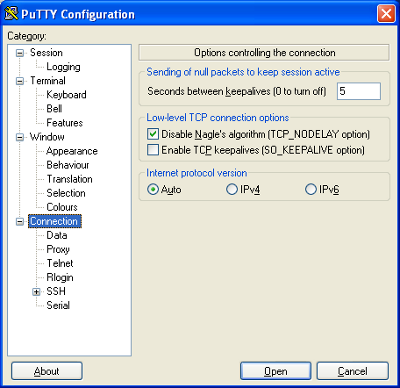
For Windows (Using PuTTY)
1. Download PuTTY: If you don’t have it, download PuTTY from its official website: `https://www.putty.org/`. It’s a single executable file, `putty.exe`.
2. Launch PuTTY: Double-click the `putty.exe` file.
3. Configure Session:
- In the “Session” category, enter the IP address or Hostname of your remote server in the “Host Name (or IP address)” field.
- Ensure the “Port” is set to `22` (or your custom SSH port).
- Ensure “Connection type” is set to `SSH`.
- You can save this session for future use by giving it a name under “Saved Sessions” and clicking “Save.”
4. Connect: Click the “Open” button at the bottom of the PuTTY configuration window.
5. First-Time Connection – Security Alert:
Similar to OpenSSH, PuTTY will show a “PuTTY Security Alert” if it’s the first time connecting to this server or if the host key has changed.
The server’s host key is not cached in the registry. You have no guarantee that the server is the computer you think it is.
The server’s rsa2 key fingerprint is:
ssh-rsa 2048 XX:XX:XX:XX:XX:XX:XX:XX:XX:XX:XX:XX:XX:XX:XX:XX
If you trust this host, hit Yes to add the key to PuTTY’s cache and carry on connecting.
Verify the fingerprint and click “Accept” to continue. This will cache the host key in your Windows registry.
6. Login Credentials:
A terminal window will open, prompting you for your username:
login as:
Enter your `username` and press Enter. Then, you’ll be prompted for your password:
password:
Enter your `password` (characters won’t be displayed) and press Enter.
7. Access Granted: Upon successful authentication, you will gain access to the server’s command-line interface.
8. Exiting the Session: Type `exit` and press Enter, or simply close the PuTTY window.
Connecting to a Non-Standard SSH Port
If the SSH server is configured to listen on a port other than the default 22 (a common security measure), you must specify this port during connection.
- For Linux/macOS (OpenSSH): Use the `-p` flag:
bash
ssh -p 2222 username@remote_host
Replace `2222` with the actual custom port number.
- For Windows (PuTTY): Simply change the “Port” field in the PuTTY configuration window to the desired custom port number before clicking “Open.”
Enhancing Security and Convenience: SSH Key-Based Authentication
While password authentication is functional, it carries inherent security risks. SSH key-based authentication offers a significantly more robust and convenient alternative, virtually eliminating the threat of brute-force password attacks and simplifying automated logins.
Why SSH Keys are Superior
- Strength: SSH keys are typically 2048 bits or higher (e.g., RSA, ECDSA, Ed25519), making them astronomically harder to guess or crack compared to even very strong passwords.
- Automation: Keys enable automated scripts and applications to connect to servers without manual password entry.
- Security: There’s no password to intercept during transmission, mitigating risks like keylogging or man-in-the-middle attacks.
Generating SSH Key Pairs
The first step is to generate a public/private key pair on your local machine.
1. OpenSSH (Linux/macOS/WSL/Windows OpenSSH):
Open your terminal and use the `ssh-keygen` command:
bash
ssh-keygen -t ed25519 -b 4096 -C “[email protected]”
- `-t ed25519`: Specifies the type of key to create. `ed25519` is currently recommended for its security and performance, though `rsa` with `-b 4096` (4096 bits) is also common.
- `-b 4096`: Specifies the number of bits in the key (for RSA). Not necessary for Ed25519.
- `-C “[email protected]”`: Adds a comment to the public key, useful for identification.
You’ll be prompted for a file to save the key:
Enter file in which to save the key (/home/user/.ssh/id_ed25519):
Press Enter to accept the default location and filename (`id_ed25519` for the private key, `id_ed25519.pub` for the public key). You can specify a different name if you manage multiple keys.
Next, you’ll be asked for a passphrase:
Enter passphrase (empty for no passphrase):
Enter same passphrase again:
It is highly recommended to use a strong passphrase for your private key. This encrypts your private key on your local machine, adding an extra layer of security. Even if your private key file is stolen, it cannot be used without the passphrase.
After generation, you’ll find two files in your `~/.ssh/` directory:
- `id_ed25519` (your private key – keep this absolutely secret)
- `id_ed25519.pub` (your public key – this is what you’ll put on servers)
2. PuTTYgen (Windows PuTTY):
- Launch `puttygen.exe`.
- Select the key type (e.g., `EdDSA` for Ed25519, or `RSA` with 4096 bits) and click “Generate.”
- Move your mouse randomly over the blank area to generate entropy.
- Enter a strong “Key passphrase” and confirm it.
- Click “Save private key” (save as `.ppk` format, e.g., `my-key.ppk`).
- Copy the public key text from the top window (starting with `ssh-ed25519 …`) – this is what you’ll need to paste into the server’s `authorized_keys` file.
Copying Your Public Key to the Server
Once you have your public key, it needs to be placed in a specific file on the remote server: `~/.ssh/authorized_keys` within your user’s home directory.
1. Using `ssh-copy-id` (Recommended for OpenSSH):
This utility automates the process of copying your public key and setting correct permissions.
bash
ssh-copy-id username@remote_host
You will be prompted for your password (if using password authentication) or your private key passphrase. Once authenticated, `ssh-copy-id` will add your default public key (`~/.ssh/id_ed25519.pub` or `~/.ssh/id_rsa.pub`) to the `authorized_keys` file on the server. If you used a custom key name, specify it with `-i`:
bash
ssh-copy-id -i ~/.ssh/my_custom_key.pub username@remote_host
2. Manual Copying (for OpenSSH):
If `ssh-copy-id` isn’t available or you prefer to do it manually:
- Connect to the server using password authentication.
- Create the `.ssh` directory if it doesn’t exist:
bash
mkdir -p ~/.ssh
chmod 700 ~/.ssh
- Create or append your public key to `authorized_keys`:
Copy the content of your public key (`~/.ssh/id_ed25519.pub`) from your local machine. You can view it using `cat ~/.ssh/id_ed25519.pub`.
Then, on the server, open or create the `authorized_keys` file with a text editor:
bash
nano ~/.ssh/authorized_keys
Paste your public key on a new line. Save and exit.
- Set correct permissions:
bash
chmod 600 ~/.ssh/authorized_keys
Crucially, permissions must be strict for SSH keys to work. The `.ssh` directory must be `700` (`rwx——`), and the `authorized_keys` file must be `600` (`rw——-`).
3. For PuTTY (Manual Copying):
- Copy the public key text generated by PuTTYgen.
- Connect to the server using password authentication via PuTTY.
- Follow the manual steps above to create `~/.ssh` and `authorized_keys` on the server and paste the public key content.
Connecting with SSH Keys
Once your public key is on the server, you can connect without a password:
- OpenSSH (Linux/macOS/WSL/Windows OpenSSH):
bash
ssh username@remote_host
Your SSH client will automatically look for private keys in `~/.ssh/` (e.g., `id_ed25519`, `id_rsa`). If you used a passphrase for your private key, you will be prompted for it. If you saved your private key with a custom name, use the `-i` flag:
bash
ssh -i ~/.ssh/my_custom_key username@remote_host
- PuTTY (Windows PuTTY):
- Launch PuTTY.
- Load your saved session or enter the Hostname/IP.
- Navigate to Connection -> SSH -> Auth in the left-hand category tree.
- Click “Browse” next to “Private key file for authentication” and select your `.ppk` private key file.
- Go back to the “Session” category, click “Save” to update your session with the key path, then click “Open.”
- If your private key has a passphrase, you’ll be prompted for it.
SSH Agent for Passphrase Management
Repeatedly entering your passphrase can be tedious. The `ssh-agent` is a program that holds private keys during your session, allowing you to enter your passphrase only once.
- Linux/macOS:
1. Start the `ssh-agent` (often starts automatically with your desktop session).
bash
eval “$(ssh-agent -s)”
2. Add your private key(s) to the agent:
bash
ssh-add ~/.ssh/id_ed25519
You’ll be prompted for your passphrase once. Your key will then be available to all new terminal sessions until the agent is killed or your system reboots.
- Windows: PuTTY has its own agent called `Pageant`, which functions similarly. Load your `.ppk` key into Pageant, enter the passphrase once, and PuTTY will use it for subsequent connections.
Advanced SSH Features and Practical Applications
Beyond simple remote login, SSH offers powerful features that greatly enhance productivity and security for various tasks.
Running Remote Commands Directly
You don’t always need an interactive shell. SSH can execute single commands on a remote server:
bash
ssh username@remote_host “ls -l /var/www/html”
The command will be executed, and its output will be displayed on your local terminal. This is excellent for scripting and automation.
Secure File Transfer: SCP and SFTP
SSH provides secure methods for transferring files between local and remote machines.
- SCP (Secure Copy Protocol): A command-line utility for copying files and directories.
- Copy local file to remote server:
bash
scp /path/to/local/file.txt username@remote_host:/path/to/remote/directory/
- Copy remote file to local machine:
bash
scp username@remote_host:/path/to/remote/file.txt /path/to/local/directory/
- Copy directories (recursive): Use the `-r` flag.
bash
scp -r /path/to/local/dir username@remote_host:/path/to/remote/parent_dir/
- Specify a port: Use the `-P` flag (uppercase for SCP).
bash
scp -P 2222 /path/to/local/file.txt username@remote_host:/path/to/remote/directory/
- SFTP (SSH File Transfer Protocol): A more interactive file transfer protocol that functions similarly to FTP but over an SSH tunnel. You can use command-line SFTP clients or graphical ones (like FileZilla, WinSCP).
- Command-line SFTP:
bash
sftp username@remote_host
Once connected, you’ll have an `sftp>` prompt where you can use commands like `ls`, `cd`, `get`, `put`.
SSH Tunnelling (Port Forwarding)
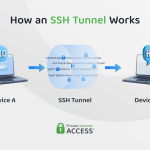
SSH tunnels allow you to forward network traffic over an encrypted SSH connection, enabling secure access to services that might otherwise be exposed or inaccessible.
1. Local Port Forwarding (`-L`):
Forwards a port on your local machine to a port on a remote machine *through* the SSH server. Useful for accessing a service on the server’s internal network that isn’t publicly exposed.
bash
ssh -L local_port:target_host:target_port username@ssh_server_host
- `local_port`: A port on your local machine (e.g., 8888).
- `target_host`: The actual host offering the service (often `localhost` from the server’s perspective, or another host in the server’s internal network).
- `target_port`: The port of the service you want to access (e.g., 80 for a web server).
- `ssh_server_host`: The public IP/hostname of your SSH server.
Example: Accessing a web server running on port 80 on the SSH server’s local machine via your local port 8888:
bash
ssh -L 8888:localhost:80 user@remote_host
Now, opening `http://localhost:8888` in your local browser will show the remote web server.
2. Remote Port Forwarding (`-R`):
Forwards a port on the SSH server to a port on your local machine. This is less common but useful for exposing a local service to a remote machine, perhaps for debugging or demonstration.
bash
ssh -R remote_port:local_host:local_port username@ssh_server_host
3. Dynamic Port Forwarding (SOCKS Proxy) (`-D`):
Turns your SSH connection into a SOCKS proxy. This allows you to tunnel all traffic from an application (e.g., a web browser) through the SSH server, effectively making your internet traffic appear to originate from the server’s location.
bash
ssh -D 8080 username@ssh_server_host
Then, configure your browser or application to use a SOCKS proxy at `localhost:8080`.
SSH Configuration File (`~/.ssh/config`)
For frequent connections or complex setups, the SSH configuration file (`~/.ssh/config`) is invaluable. It allows you to define aliases, default users, custom ports, key paths, and other SSH options, simplifying your commands.
Example `~/.ssh/config`:
Host myserver
HostName 192.0.2.10
User admin
Port 2222
IdentityFile ~/.ssh/id_ed25519_myserver
ForwardAgent yes
Compression yes
Host devbox
HostName dev.example.com
User developer
IdentitiesOnly yes
# For dynamic port forwarding
DynamicForward 8080
ServerAliveInterval 60
With this configuration, you can simply type `ssh myserver` or `ssh devbox` to connect, and all specified options will be automatically applied.
Multiplexing SSH Connections
For efficiency, `ControlMaster` and `ControlPath` in your SSH config allow multiple SSH sessions (e.g., `ssh`, `scp`, `sftp`) to share a single underlying connection. This speeds up subsequent connections by avoiding repeated authentication handshakes.
Host *
ControlMaster auto
ControlPath ~/.ssh/control/%r@%h:%p
ControlPersist 10m # Keep the master connection open for 10 minutes after last client closes
Troubleshooting Common SSH Connection Issues
Despite its robustness, SSH connections can sometimes encounter hurdles. Understanding common errors and diagnostic steps is crucial for efficient problem-solving.
1. Connection Timed Out
This is a common error indicating the client couldn’t establish a TCP connection with the server within a reasonable timeframe.
- Possible Causes:
- Incorrect IP Address/Hostname: Double-check the server’s network address.
- Server Offline: The remote server might be powered off or unreachable.
- Firewall Blocking: A firewall on your local machine, the remote server, or an intermediary network device (like a router or cloud security group) is blocking port 22 (or your custom SSH port).
- SSH Server Not Running: The `sshd` service might not be running on the remote server.
- Troubleshooting Steps:
- Ping the Server: `ping remote_host` to check basic network reachability.
- Check Server Status: If you have out-of-band access (e.g., cloud console), verify the server is running and `sshd` is active (`sudo systemctl status sshd` on Linux).
- Verify Firewall Rules: Check local firewalls (`ufw status`, `firewall-cmd –list-all`), server firewalls, and cloud provider security groups.
2. Permission Denied (Password/Publickey)
This error means the client successfully connected to the server, but authentication failed.
- For Password Authentication:
- Incorrect Password: Re-enter your password carefully.
- Incorrect Username: Ensure you’re using the correct username for the server.
- `PermitRootLogin` Disabled: Root login is often disabled for security. Try a regular user account.
- Password Authentication Disabled: The server’s `sshd_config` might be set to `PasswordAuthentication no`.
- For Public Key Authentication:
- Missing or Incorrect Public Key: Your public key might not be in the `~/.ssh/authorized_keys` file on the server, or it might be corrupted.
- Incorrect Permissions: File permissions for `~/.ssh` (must be `700`) or `~/.ssh/authorized_keys` (must be `600`) on the server are too permissive or too restrictive.
- Private Key Issues: Your local private key might not be loaded into `ssh-agent`, or you’re specifying the wrong private key with `-i`.
- Incorrect `IdentityFile` in `~/.ssh/config`: Verify the path to your private key.
- Troubleshooting Steps:
- Check `sshd_config` (on server): Examine `/etc/ssh/sshd_config` for `PasswordAuthentication`, `PubkeyAuthentication`, `AuthorizedKeysFile`, `PermitRootLogin` settings. Restart `sshd` after changes.
- Use `ssh -v` for verbose output: This provides detailed debugging information during the authentication process, often pinpointing the exact failure reason. Look for lines like “debug1: Authentications that can continue: publickey,password.”
- On the server, check `auth.log`: `/var/log/auth.log` (Debian/Ubuntu) or `/var/log/secure` (CentOS/RHEL) provides server-side details on authentication attempts and failures.
3. Host Key Verification Failed
This warning appears if the server’s host key presented during the handshake does not match the key stored in your `~/.ssh/known_hosts` file for that server.
- Possible Causes:
- Server Reinstallation/Rebuild: The server was reinstalled, generating a new host key.
- Server IP Change: The server’s IP address changed, and a different server now occupies the old IP with a different key.
- Man-in-the-Middle Attack: A malicious entity is attempting to impersonate the server.
- Troubleshooting Steps:
- Verify Authenticity: Contact the server administrator or cloud provider to confirm if the host key has legitimately changed.
- Remove Old Host Key: If the change is legitimate, you need to remove the old entry from your `known_hosts` file. The error message usually tells you which line number to remove: `ssh-keygen -R hostname_or_ip`. Alternatively, open `~/.ssh/known_hosts` in a text editor and manually delete the line(s) corresponding to the server.
- Reconnect: Attempt to connect again; you’ll be prompted to accept the new key.
4. Other Issues and General Diagnostics
- Incorrect Permissions on `~/.ssh` or `known_hosts` (client-side): Your local `~/.ssh` directory should be `700`, and `known_hosts` should be `600`.
- SSH Client Version Compatibility: Extremely old clients might have issues with modern server configurations. Update your SSH client if possible.
- Network Latency/Instability: Poor network conditions can cause intermittent connection drops.
- Debugging with Verbose Output: The most powerful troubleshooting tool is the verbose flag: `ssh -vvv username@remote_host`. Each `v` increases the verbosity level, providing much more detail about each step of the connection and authentication process.
Best Practices for Secure SSH Management
Mastering SSH extends beyond simply connecting; it involves implementing robust security practices to safeguard your servers and data.
1. Disable Password Authentication: If key-based authentication is fully implemented and working, disable password authentication in `/etc/ssh/sshd_config` by setting `PasswordAuthentication no`. This eliminates the largest attack vector for SSH.
2. Use Strong Passphrases for SSH Keys: Even though private keys are secure, a strong passphrase adds an essential layer of protection in case your private key file is compromised.
3. Change Default SSH Port (22): While not a security silver bullet, moving SSH to a non-standard port (e.g., 2222, 22222) significantly reduces the volume of automated brute-force attempts from bots scanning for port 22.
4. Disable Root Login: Never permit direct root login via SSH (`PermitRootLogin no` in `sshd_config`). Instead, log in as a regular user and use `sudo` for administrative tasks.
5. Limit User Access: Grant SSH access only to users who absolutely need it. Implement principle of least privilege.
6. Implement Firewall Rules: Configure firewalls (server-side and cloud security groups) to only allow SSH connections from known IP addresses or networks. This is one of the most effective ways to restrict access.
7. Keep Software Updated: Regularly update your SSH client and server software to patch known vulnerabilities.
8. Monitor SSH Login Attempts: Review server authentication logs (`/var/log/auth.log` or `/var/log/secure`) for suspicious login attempts. Tools like Fail2ban can automatically ban IP addresses after multiple failed login attempts.
9. Use SSH Configuration Files: Standardize and simplify your connections with `~/.ssh/config` for consistent and secure settings.
10. Regularly Review `authorized_keys` Files: Periodically check the `~/.ssh/authorized_keys` files on your servers to ensure only authorized public keys are present. Remove any unused or outdated keys.
11. Implement Multi-Factor Authentication (MFA): For highly sensitive systems, consider integrating MFA with SSH, adding another layer of security beyond keys or passwords.
Conclusion: Mastering Secure Remote Access
SSH is an unparalleled tool for secure remote access, a cornerstone of modern system administration and development workflows. From its robust cryptographic underpinnings to its versatile capabilities for file transfer and port forwarding, SSH empowers users to manage distant systems with both efficiency and profound security.
By understanding its fundamental principles, meticulously following connection procedures, embracing the superior security of key-based authentication, and diligently applying best practices, you move beyond mere connectivity to achieve true mastery of secure remote access. The digital realm demands vigilance, and with SSH, you wield one of its most potent shields, ensuring your interactions with remote servers remain private, authentic, and resilient against an ever-evolving threat landscape. Embrace SSH not just as a command, but as a commitment to secure and responsible digital stewardship.