In the vast and interconnected landscape of modern computing, the ability to securely manage remote systems is not merely a convenience but a foundational necessity. For anyone interacting with Linux servers, whether for web hosting, cloud infrastructure, or personal projects, the Secure Shell (SSH) protocol stands as the undisputed champion of remote administration. More than just a simple command, SSH is a cryptographic network protocol that enables secure data communication between two networked devices. It provides a robust, encrypted channel for interacting with your server, executing commands, transferring files, and ensuring the integrity and confidentiality of your operations.
This comprehensive guide aims to demystify the process of connecting to a Linux server via SSH. We will traverse from the fundamental concepts of what SSH entails, through detailed step-by-step instructions for various operating systems, to advanced configurations and crucial security best practices. Whether you are a budding system administrator, a developer deploying applications, or simply curious about the mechanics of remote server management, mastering SSH is an indispensable skill that will empower you to navigate the digital frontier with confidence and control.
Understanding SSH: The Secure Shell Protocol Unveiled
Before delving into the practicalities of initiating an SSH connection, it is imperative to grasp the underlying principles of this vital protocol. SSH is much more than a simple terminal session; it is a secure tunnel through which you can interact with a remote machine as if you were sitting right in front of it.
What is SSH? A Client-Server Paradigm
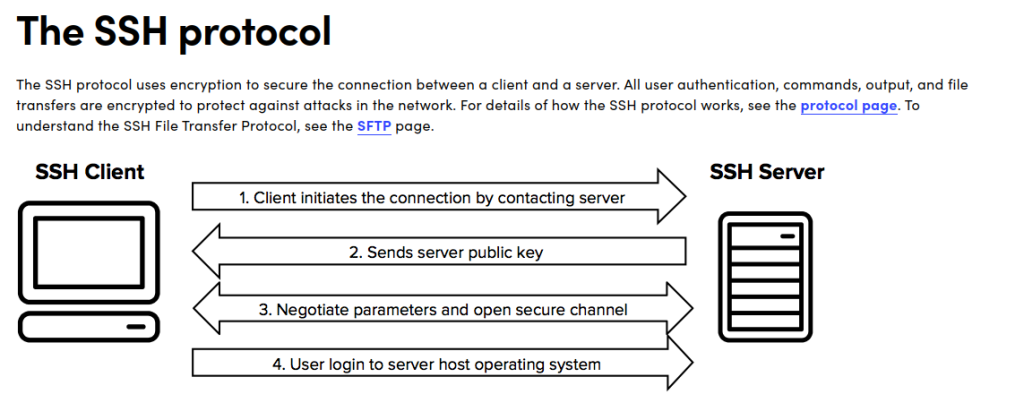
At its core, SSH operates on a client-server model. The “server” component, typically a daemon named `sshd` (SSH daemon), runs on the remote Linux machine and listens for incoming connections. The “client” is the application on your local machine that you use to connect to the server. When you initiate an SSH connection, the client sends a request to the server, and after a series of cryptographic handshakes, a secure, encrypted channel is established.
This encryption is the cornerstone of SSH’s security. All data exchanged between the client and the server – commands, outputs, and even file transfers – is encrypted, safeguarding it from eavesdropping, hijacking, and other malicious attacks that might occur over an insecure network like the internet.
Why is SSH Indispensable for Linux Server Management?
The prominence of SSH in server administration is not accidental; it stems from its unparalleled combination of security, flexibility, and power.
- Security: As highlighted, SSH encrypts all traffic. This is critical for protecting sensitive login credentials and preventing the interception of data, making it vastly superior to older, insecure protocols like Telnet or FTP.
- Remote Control: SSH provides a full command-line interface (CLI) to your server. This means you can execute any command, configure software, manage files, and perform system administration tasks from anywhere in the world, as long as you have network access.
- Data Transfer: Beyond simple command execution, SSH forms the basis for secure file transfer protocols like SCP (Secure Copy Protocol) and SFTP (SSH File Transfer Protocol), allowing you to move files to and from your server securely.
- Tunneling and Port Forwarding: SSH can create secure tunnels, known as port forwarding, to route network traffic securely between machines. This enables access to services that might otherwise be blocked by firewalls or exposed on insecure networks.
- Automation: SSH can be integrated into scripts and automation tools, allowing for unattended remote operations, crucial for modern infrastructure management.
How SSH Works: A Cryptographic Dance
The process of establishing an SSH connection involves several sophisticated cryptographic steps:
1. Negotiation of Protocol Version: Client and server agree on the SSH protocol version to use.
2. Key Exchange Algorithm Negotiation: They then negotiate and agree upon a key exchange algorithm (e.g., Diffie-Hellman) to establish a shared secret key. This key is used to encrypt all subsequent communication.
3. Server Authentication: The server presents its host key to the client. The client verifies this key, often by comparing it against a previously stored key (`known_hosts` file). If it’s the first connection or the key has changed, the client will typically warn the user. This step ensures that the client is connecting to the legitimate server and not an impostor.
4. User Authentication: Once the server is authenticated, the client attempts to authenticate the user. This can be done via:
- Password Authentication: The user provides a username and password, which are transmitted securely over the encrypted channel.
- Public Key Authentication: The client sends a public key to the server, which checks if it matches a key stored in the server’s `~/.ssh/authorized_keys` file. If a match is found, the server challenges the client to prove ownership of the corresponding private key. This is generally considered more secure and convenient than passwords.
5. Session Establishment: Upon successful user authentication, a secure session is established, and the client receives a shell prompt, ready to execute commands on the remote server.
Prerequisites for SSH Access
Before you can successfully SSH into a Linux server, several conditions must be met on both the server and your local client machine.
The Linux Server: Ready for Connection
- Running SSH Server (`sshd`): The remote Linux server must have an SSH server daemon running and actively listening for connections. Most Linux distributions (e.g., Ubuntu, CentOS, Debian) come with OpenSSH server pre-installed or readily available.
- Network Connectivity: Your client machine must be able to reach the server over the network. This means the server must have a public IP address or be accessible within your local network, and any firewalls (on the server, your local network, or intermediate routers) must permit traffic on the SSH port (default is 22).
- Login Credentials: You need a valid username and either a password or an SSH key pair authorized on the server for that user.
Your Client Machine: Equipped to Connect
- SSH Client Software: Your local machine needs an SSH client application.
- Linux/macOS: An SSH client is typically pre-installed and available directly from the terminal.
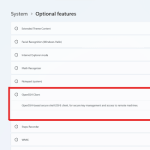
- Windows: Modern versions of Windows (10 and 11) include a built-in OpenSSH client accessible via PowerShell or Command Prompt. Alternatively, third-party clients like PuTTY have historically been popular.
- Terminal/Command Prompt: You’ll need access to a command-line interface to execute the SSH command.
Preparing Your Linux Server for SSH
While many cloud providers and pre-built server images come with OpenSSH server installed and configured, it’s essential to know how to ensure its readiness and basic security.
Installing and Enabling OpenSSH Server
If your server doesn’t have an SSH server installed, or you’re setting up a fresh minimal installation, you can typically install it with your distribution’s package manager:
- Debian/Ubuntu-based Systems:
bash
sudo apt update
sudo apt install openssh-server
- RHEL/CentOS/Fedora-based Systems:
bash
sudo yum install openssh-server -y # For older CentOS/RHEL
sudo dnf install openssh-server -y # For newer Fedora/RHEL 8+
After installation, ensure the `sshd` service is running and configured to start on boot:
bash
sudo systemctl enable ssh –now
sudo systemctl status ssh
The `systemctl status ssh` command should show “active (running)”.
Basic `sshd_config` Considerations
The primary configuration file for the SSH server is located at `/etc/ssh/sshd_config`. While extensive customization is possible, a few critical settings are worth noting:
- `Port 22`: The default SSH port. While changing this is often recommended for security by obscurity, it’s not a strong security measure on its own.
- `PermitRootLogin prohibit-password`: By default, root login via SSH with a password is often disabled. This is a crucial security measure. If you must enable root login (generally discouraged), use `PermitRootLogin yes` (less secure) or `PermitRootLogin without-password` (if using SSH keys for root).
- `PasswordAuthentication yes`: Allows users to log in with passwords. For higher security, this is often set to `no` once SSH key authentication is fully established.
After modifying `/etc/ssh/sshd_config`, you must restart the SSH service for changes to take effect:
bash
sudo systemctl restart ssh
Configuring the Firewall
A firewall is an essential layer of security. If your server has one enabled, you must allow incoming connections on the SSH port (default 22, or whatever you configured).
- UFW (Uncomplicated Firewall) – Common on Ubuntu:
bash
sudo ufw allow ssh # Or sudo ufw allow 22/tcp if you prefer
sudo ufw enable
sudo ufw status
- Firewalld – Common on CentOS/RHEL/Fedora:
bash
sudo firewall-cmd –permanent –add-service=ssh
sudo firewall-cmd –reload
sudo firewall-cmd –list-all
Without these firewall rules, even a running SSH server won’t be reachable.
Connecting via SSH: Step-by-Step Guides
With your server prepared, let’s connect from your client machine. The basic command structure is universal, but the method of accessing your terminal differs slightly across operating systems.
The general syntax for the SSH command is:
`ssh [options] [username]@[hostname_or_IP_address]`
From Linux/macOS (Terminal)
Both Linux and macOS systems come with a robust OpenSSH client pre-installed.
1. Open Terminal:
- Linux: Search for “Terminal” in your applications menu.
- macOS: Go to `Applications` > `Utilities` > `Terminal`.
2. Execute the SSH Command:
Assuming your server’s username is `myuser` and its IP address is `192.168.1.100`:
bash
ssh [email protected]
- First Connection Warning: If it’s your first time connecting to this specific server, you will see a message similar to:
The authenticity of host ‘192.168.1.100 (192.168.1.100)’ can’t be established.
ECDSA key fingerprint is SHA256:abcd1234efgh5678…
Are you sure you want to continue connecting (yes/no/[fingerprint])?
This is the client verifying the server’s host key. Type `yes` and press Enter to accept the key. The server’s public key fingerprint will be added to your `~/.ssh/known_hosts` file, preventing this prompt on future connections (unless the server’s key changes, which could indicate a man-in-the-middle attack).
- Password Prompt: You will then be prompted to enter the password for `myuser` on the server. Type the password (it won’t echo on the screen for security) and press Enter.
3. Successful Connection: If the password is correct, you’ll be granted a shell prompt on the remote server. Your terminal prompt will change, typically showing the remote username and hostname (e.g., `myuser@myserver:~$` ).
From Windows (PowerShell/CMD)
Windows 10 (version 1803 and later) and Windows 11 include a built-in OpenSSH client. This is the recommended method.
1. Open PowerShell or Command Prompt:
- Search for “PowerShell” or “CMD” in the Start menu and open it.
2. Execute the SSH Command:
The command is identical to Linux/macOS:
cmd
ssh [email protected]
Follow the same steps for accepting the host key and entering your password.
- Legacy Alternative: PuTTY: For older Windows versions or those who prefer a GUI-based client, PuTTY was the de-facto standard. While still functional, the native OpenSSH client is generally preferred now for simplicity and consistency across platforms. PuTTY requires downloading, installation, and specific configuration through its graphical interface.
Common SSH Command-Line Options
The `ssh` command supports various options to customize your connection:
- `-p [port]`: Specifies a different port if your SSH server isn’t running on the default port 22.
bash
ssh -p 2222 [email protected]
- `-i [path/to/private_key]`: Specifies the path to your private key file for key-based authentication. This will be covered in detail shortly.
bash
ssh -i ~/.ssh/id_rsa [email protected]
- `-X` or `-Y`: Enables X11 forwarding, allowing you to run graphical applications from the remote server and display them on your local machine. (`-Y` is generally preferred as it’s more trusted.)
bash
ssh -X [email protected]
- `-L` and `-R`: Used for local and remote port forwarding (SSH tunneling). These are advanced features for creating secure tunnels for network traffic.
Enhanced Security with SSH Key Authentication
While password authentication is straightforward, SSH key pairs offer a significantly more secure and convenient method of authenticating with your server.
Why Use SSH Keys?
- Stronger Security: SSH keys are cryptographically very strong (typically 2048-bit or 4096-bit RSA, or 256-bit ECDSA/Ed25519). They are nearly impossible to brute-force, unlike even complex passwords.
- No Password Transmission: Your password is never sent over the network. The authentication happens through a cryptographic challenge-response mechanism.
- Automation Friendly: Ideal for scripting and automated deployments, as no manual password entry is required.
- Convenience: Once set up, connecting becomes a single command without typing a password (especially with `ssh-agent`).
How SSH Keys Work: Public and Private Pairs
SSH keys work by using asymmetric cryptography. You generate a pair of keys:
- Private Key: This key remains on your local machine and should *never* be shared. It’s like the physical key to your house. It can optionally be protected with a passphrase.
- Public Key: This key can be freely shared. You place a copy of your public key on any server you wish to access. It’s like leaving a specific, unique lock on your server that *only* your private key can open.
When you attempt to connect, the server uses your public key to encrypt a challenge, which only your corresponding private key can decrypt. If your client can decrypt and respond correctly, you are authenticated.
Generating an SSH Key Pair
You can generate an SSH key pair on your local machine using the `ssh-keygen` command.
1. Open Terminal/PowerShell:
2. Execute `ssh-keygen`:
bash
ssh-keygen -t ed25519 -b 4096
- `-t ed25519`: Specifies the key type. `ed25519` is generally recommended for modern systems due to its efficiency and strong security. `rsa` with `-b 4096` (4096 bits) is also a strong choice.
- The command will prompt you for:
- File to save the key: Press Enter to accept the default location (`~/.ssh/id_ed25519` or `~/.ssh/id_rsa`).
- Passphrase: It is highly recommended to set a strong passphrase for your private key. This encrypts the private key on your local disk, adding another layer of security. If someone gains access to your local machine, they won’t be able to use your private key without the passphrase. Press Enter for no passphrase (less secure, only use for specific automation needs).
- After creation, you will find two files in your `~/.ssh` directory (e.g., `id_ed25519` and `id_ed25519.pub`). The `.pub` file is your public key.
Copying Your Public Key to the Server
For the server to recognize your private key, your public key must be placed in the `~/.ssh/authorized_keys` file on the remote server, within the home directory of the user you want to log in as.
The Recommended Way: `ssh-copy-id`
This utility automatically copies your public key to the remote server and sets the correct permissions.
bash
ssh-copy-id [email protected]
You will be prompted for the *password* of `myuser` on `192.168.1.100` (this is the last time you should need to use it for this server). Once authenticated, `ssh-copy-id` will append your public key to `~/.ssh/authorized_keys` on the server.
The Manual Way (If `ssh-copy-id` is not available)
1. Copy the public key content:
bash
cat ~/.ssh/id_ed25519.pub
Copy the entire output (it starts with `ssh-ed25519` or `ssh-rsa` and ends with your hostname/username).
2. SSH into the server using password authentication:
bash
ssh [email protected]
3. Create the `.ssh` directory and `authorized_keys` file on the server:
bash
mkdir -p ~/.ssh
chmod 700 ~/.ssh
touch ~/.ssh/authorized_keys
chmod 600 ~/.ssh/authorized_keys
4. Append your public key to `authorized_keys`:
bash
echo “paste_your_public_key_here” >> ~/.ssh/authorized_keys
Replace “paste_your_public_key_here” with the actual content you copied in step 1. Ensure you use `>>` to append, not `>` which would overwrite.
5. Exit the server:
bash
exit
Connecting with SSH Keys
Now, when you try to connect, SSH will automatically try your private key.
bash
ssh [email protected]
If you set a passphrase for your private key, you will be prompted for it. Once entered, you should log in without needing the server’s password.
`ssh-agent` and `ssh-add` for Convenience
Typing your private key’s passphrase repeatedly can be cumbersome. `ssh-agent` is a program that runs in the background and holds your decrypted private keys in memory, so you only need to enter your passphrase once per session.
1. Start `ssh-agent` (if not already running): Often started automatically by desktop environments. If not, you might see `eval “$(ssh-agent -s)”` in instructions.
2. Add your private key to the agent:
bash
ssh-add ~/.ssh/id_ed25519
You will be prompted for your private key’s passphrase. Once entered, the key is loaded into the agent until your current session ends or the agent is stopped.
Advanced SSH Usage and Configuration
Beyond basic connections, SSH offers powerful features for streamlining workflows and enhancing security.
The SSH Configuration File (`~/.ssh/config`)
The `~/.ssh/config` file on your local machine allows you to define custom settings for specific SSH connections, saving you from typing long commands repeatedly.
Host myserver
Hostname 192.168.1.100
User myuser
Port 2222
IdentityFile ~/.ssh/id_ed25519
ForwardAgent yes
Now, you can simply type `ssh myserver` to connect, and all the defined settings will be applied automatically.
- `Host`: An alias for the connection.
- `Hostname`: The actual IP address or domain name.
- `User`: The username to log in as.
- `Port`: The custom SSH port.
- `IdentityFile`: The path to your private key.
- `ForwardAgent yes`: Allows the SSH agent on your local machine to forward authentication requests to the remote server, enabling you to use your keys from the remote server to connect to yet another server without storing keys on the intermediate one.
SSH Tunneling/Port Forwarding
SSH tunneling allows you to establish secure connections for services that might not otherwise be encrypted or accessible.
- Local Port Forwarding (`-L`): Connects a port on your local machine to a port on the remote server (or another host accessible from the server). Useful for accessing a web server or database running on the remote server as if it were local.
bash
ssh -L 8080:localhost:80 [email protected]
This command connects to `192.168.1.100`. Any traffic sent to your local machine’s port 8080 will be securely forwarded through the SSH tunnel to port 80 on `localhost` (which refers to `192.168.1.100` from its perspective). You can then access `http://localhost:8080` in your browser to see the server’s web page.
SSH Proxy Jump (`-J`)
If you need to connect to a server that is only accessible from another “jump” server (e.g., a bastion host in a private network), `ProxyJump` makes this seamless.
bash
ssh -J [email protected] [email protected]
This command first connects to `jumpserver.com` and then uses that connection to proxy a further SSH connection to `targetserver.com`.
Running Commands Remotely Without an Interactive Shell
You can execute a single command on a remote server without fully logging in.
bash
ssh [email protected] ‘ls -l /var/log’
The command will execute, its output will be displayed locally, and the SSH connection will close.
Transferring Files with SSH
SSH provides secure methods for file transfer.
- SCP (Secure Copy Protocol): For simple, fast file transfers.
- Local to Remote: `scp /path/to/local/file [email protected]:/path/to/remote/directory`
- Remote to Local: `scp [email protected]:/path/to/remote/file /path/to/local/directory`
- Recursive copy (directories): Add the `-r` flag.
- SFTP (SSH File Transfer Protocol): Offers a more interactive, FTP-like interface over an SSH tunnel.
bash
sftp [email protected]
Once connected, you can use commands like `ls`, `cd`, `get`, `put` to navigate and transfer files. Many GUI FTP clients (like FileZilla) also support SFTP.
Troubleshooting Common SSH Issues
Even with careful setup, you might encounter issues. Here are some common problems and their solutions:
- “Connection refused”:
- Cause: The SSH server (`sshd`) is not running on the remote machine, or a firewall is blocking the connection.
- Solution: On the server, ensure `sshd` is running (`sudo systemctl status ssh`). Check firewall rules (`sudo ufw status` or `sudo firewall-cmd –list-all`) and allow port 22 (or your custom port).
- “Permission denied (publickey, password)”:
- Cause: Incorrect username, wrong password, or issues with SSH key authentication.
- Solution: Double-check username and password. For key issues, ensure your public key is correctly installed in `~/.ssh/authorized_keys` on the server with correct permissions (`chmod 700 ~/.ssh` and `chmod 600 ~/.ssh/authorized_keys`). Make sure your private key has correct permissions (`chmod 600 ~/.ssh/id_ed25519`). Use `ssh -v myuser@server` for verbose output to diagnose.
- “Host key verification failed”:
- Cause: The server’s host key has changed, possibly indicating a man-in-the-middle attack or a legitimate server reinstallation/IP change.
- Solution: If you’re certain it’s a legitimate change, remove the old key from your `~/.ssh/known_hosts` file. The error message will usually tell you which line number to remove. Alternatively, use `ssh-keygen -R hostname_or_IP`.
- “Operation timed out” / Slow connection:
- Cause: Network issues between your client and the server, or the server is under heavy load.
- Solution: Check network connectivity (`ping server_IP`). Contact your hosting provider if it’s a cloud server.
- “No route to host”:
- Cause: Your client machine cannot find a network path to the server’s IP address. This usually indicates a fundamental network configuration issue, incorrect IP address, or a router/firewall blocking the connection before it even reaches the server.
- Solution: Verify the server’s IP address and your local network configuration.
SSH Security Best Practices
While SSH is inherently secure, misconfiguration can expose your server. Adhering to these best practices is vital:
- Disable Root Login: Never permit direct SSH login for the `root` user. Instead, log in as a regular user and use `sudo` for administrative tasks. Edit `/etc/ssh/sshd_config`: `PermitRootLogin no`.
- Use Strong Passphrases for Private Keys: Protect your private keys with robust passphrases.
- Disable Password Authentication (Prefer Keys): Once SSH key authentication is fully operational for all users, disable password authentication in `sshd_config`: `PasswordAuthentication no`. This eliminates the risk of brute-force password attacks.
- Change Default SSH Port: While not a strong security measure, changing the default port (22) to a non-standard one can reduce the volume of automated brute-force attempts recorded in your logs. Edit `Port 22` to `Port [your_custom_port]` in `sshd_config`. Remember to update firewall rules.
- Implement Firewall Rules: Always configure a firewall on your server to allow SSH traffic only from trusted IP addresses or networks if possible. At a minimum, only allow the SSH port.
- Regularly Update OpenSSH: Keep your server’s OpenSSH package updated to benefit from security patches and bug fixes.
- Use Fail2ban: This intrusion prevention software automatically bans IP addresses that show malicious signs, like repeated failed SSH login attempts.
- Monitor SSH Logs: Regularly review authentication logs (`/var/log/auth.log` on Debian/Ubuntu, `/var/log/secure` on CentOS/RHEL) for suspicious activity.
Conclusion
Mastering the art of SSH is a rite of passage for anyone engaging with Linux servers. From understanding its cryptographic underpinnings to executing advanced tunneling commands, this protocol empowers you with secure, robust, and flexible control over your remote infrastructure. By diligently following best practices for key management, authentication, and server configuration, you not only unlock the full potential of your Linux systems but also fortify them against the myriad threats present in the digital realm.
Embrace SSH, and you embrace a powerful ally in your journey across the digital landscape. Its elegant design and unwavering security make it an enduring cornerstone of modern system administration, an essential skill that will serve you reliably in an ever-evolving technological world. Continue to explore its features, maintain vigilant security, and command your servers with confidence.