In an increasingly interconnected digital landscape, the ability to securely manage and interact with remote servers is not merely a convenience but a fundamental necessity. For many, the gateway to this powerful realm is the Secure Shell, universally known as SSH. While the acronym itself might sound intimidating to the uninitiated, SSH is, at its core, an elegant and robust protocol designed to provide a secure channel over an unsecured network. This comprehensive guide aims to demystify SSH, offering beginners a clear, deeply practical, and authoritative pathway to harnessing its capabilities, transforming apprehension into empowered proficiency.
The Imperative of Security: Why SSH Reigns Supreme
Before delving into the mechanics of “how,” it’s crucial to understand the “why.” In the nascent days of networking, protocols like Telnet and FTP were common for remote access and file transfer. However, these protocols operated without encryption, transmitting sensitive data, including usernames and passwords, in plain text. Imagine broadcasting your bank details over an open radio channel – that’s the equivalent of unencrypted communication in a hostile digital environment.
SSH emerged as the robust solution to this critical vulnerability. Its foundational principle is to establish a secure, encrypted connection between a client (your local machine) and a server (the remote machine you wish to access). This encryption ensures that all data exchanged, from commands typed to files transferred, remains confidential and protected from eavesdropping and tampering.
The Core Advantages SSH Offers:
- Confidentiality: All communications are encrypted, preventing unauthorized parties from reading data.
- Integrity: Data transmitted cannot be altered without detection, ensuring the authenticity of information.
- Authentication: Both the client and the server can verify each other’s identity, preventing impersonation.
- Remote Command Execution: Securely execute commands on a remote server as if you were sitting right in front of it.
- Secure File Transfer: Protocols like SCP (Secure Copy) and SFTP (SSH File Transfer Protocol) allow encrypted file transfers.
- Port Forwarding/Tunneling: Create secure tunnels for other network services, safeguarding otherwise insecure traffic.
For anyone managing web servers, cloud instances, development environments, or even a Raspberry Pi, SSH is not optional; it is the bedrock of secure administration.
Decoding SSH: A Deep Dive into Its Architecture
At its heart, SSH operates on a client-server model. An SSH client application on your local machine initiates a connection to an SSH server (also known as an SSH daemon) running on the remote host. This connection handshake involves a series of cryptographic negotiations to establish a secure channel.
Key Components of SSH:
- Client: The software on your local machine used to connect to a remote server (e.g., OpenSSH client in Linux/macOS, PuTTY on Windows).
- Server (Daemon): The software running on the remote machine that listens for incoming SSH connections (e.g., OpenSSH server).
- Encryption Algorithms: SSH utilizes robust algorithms like AES, Blowfish, and ChaCha20 for encrypting data, and SHA2 for hashing, ensuring the security of the session.
- Authentication Methods:
- Password Authentication: The simplest method, requiring a username and password. While encrypted, it’s susceptible to brute-force attacks if passwords are weak.
- Public-Key Authentication: The gold standard for security. It involves a pair of cryptographic keys: a private key (kept secret on your local machine) and a public key (placed on the remote server). When connecting, the server challenges the client to prove ownership of the private key, without ever exposing the private key itself. This method is far more secure and convenient than passwords.
Understanding these components is foundational to effectively using and securing your SSH connections.
Prerequisites: What You Need Before Connecting
Before you can establish your first secure connection, you’ll need a few essentials:
1. A Remote Server/Host: This could be a cloud VPS (Virtual Private Server) from providers like AWS, DigitalOcean, Linode, or Vultr; a shared hosting account that provides SSH access; a dedicated server; or even a local network device like a Raspberry Pi. Crucially, the server must have an SSH daemon installed and running, which is typically the default for most Linux-based servers.
2. An SSH Client:
- Linux/macOS: The OpenSSH client is pre-installed on virtually all distributions. You’ll use the terminal application.
- Windows: Modern Windows 10/11 versions include an optional OpenSSH client. Alternatively, a popular third-party client like PuTTY is widely used.
3. Credentials:
- Username: The username for an account on the remote server (e.g., `root`, `ubuntu`, `admin`).
- Password (optional, but initially likely): If using password authentication.
- Private Key (recommended): If using public-key authentication.
Setting Up Your SSH Client: Platform-Specific Instructions
The method for initiating an SSH connection varies slightly depending on your operating system.
For Linux and macOS Users: The Integrated Power of the Terminal
Linux and macOS environments come with the OpenSSH client pre-installed, making the setup process straightforward.
1. Open Your Terminal:
- macOS: You can find “Terminal” in `Applications/Utilities`.
- Linux: Typically found in your applications menu under “Utilities” or “System Tools.” Keyboard shortcuts like `Ctrl+Alt+T` often work.
Once open, you’re ready to use the `ssh` command directly.
For Windows Users: Two Modern Approaches
Windows users have excellent options for SSH connectivity, moving beyond the historical reliance on third-party tools.
##### 1. Using the Built-in OpenSSH Client (Windows 10/11)
Microsoft has integrated an OpenSSH client and server into Windows 10 (starting from Fall Creators Update) and Windows 11, offering a native Unix-like experience.
1. Enable OpenSSH Client:
- Go to `Settings` -> `Apps` -> `Optional features`.
- Click `Add an optional feature`.
- Scroll down and locate `OpenSSH Client`. Select it and click `Install`. (If already installed, you’ll see it listed).
2. Open Command Prompt or PowerShell:
- Search for “cmd” or “PowerShell” in the Start menu and open the application.
- You can now use the `ssh` command directly, just like on Linux or macOS.
##### 2. Using PuTTY (A Traditional Windows Favorite)
PuTTY remains a popular choice for Windows users, known for its graphical interface and extensive features.
1. Download PuTTY:
- Visit the official PuTTY website: `www.putty.org`.
- Download the appropriate `putty.exe` installer or standalone executable for your system (32-bit or 64-bit).
2. Launch PuTTY:
- If you downloaded the installer, run it. If you downloaded the executable, just double-click `putty.exe`.
3. Basic Configuration:
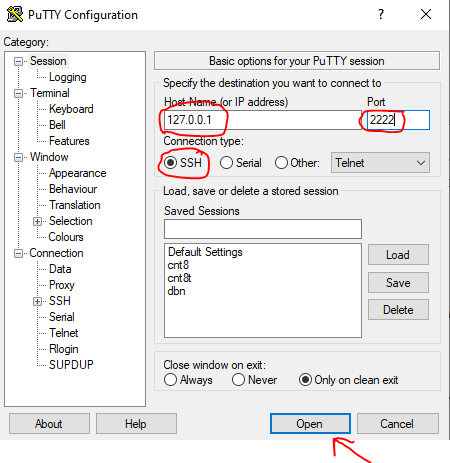
- In the PuTTY configuration window, locate the “Host Name (or IP address)” field. Enter your server’s IP address or domain name.
- Ensure “Port” is set to `22` (the default SSH port).
- “Connection type” should be `SSH`.
- You can save your session settings under “Saved Sessions” for quick access later. Enter a name and click `Save`.
- Click `Open` to initiate the connection.
Your First SSH Connection: The Basic Command Explained
With your client ready, let’s establish a connection. The fundamental SSH command syntax is remarkably simple:
bash
ssh username@your_server_ip_or_domain
Let’s break this down:
- `ssh`: The command to invoke the SSH client.
- `username`: The user account you want to log in as on the remote server. Common usernames include `root` (the superuser, often discouraged for daily use), `ubuntu` (for Ubuntu cloud images), or a custom username you created.
- `your_server_ip_or_domain`: The public IP address (e.g., `192.0.2.1`) or domain name (e.g., `example.com`) of your remote server.
Example:
If your username is `admin` and your server’s IP is `203.0.113.45`, you would type:
bash
ssh [email protected]
Specifying a Custom Port:
If your server’s SSH daemon is listening on a non-standard port (e.g., `2222` instead of the default `22`), you’ll need to specify it using the `-p` flag:
bash
ssh -p 2222 [email protected]
The First-Time Connection Warning: Host Key Verification
The very first time you connect to a new server, your SSH client will display a warning similar to this:
The authenticity of host ‘your_server_ip (your_server_ip)’ can’t be established.
ECDSA key fingerprint is SHA256:………………..
Are you sure you want to continue connecting (yes/no/[fingerprint])?
This is a security feature. The server is sending its “host key” (a unique cryptographic identifier) to your client. Your client doesn’t recognize this key, so it’s asking you to verify it. For a beginner, unless you have a way to independently verify the fingerprint (e.g., provided by your server host), you typically type `yes` and press Enter.
Once you confirm, the server’s host key is stored in your client’s `known_hosts` file (usually located at `~/.ssh/known_hosts` on Linux/macOS/Windows OpenSSH, or managed by PuTTY). Future connections to the same server will automatically verify against this stored key. If the key ever changes unexpectedly, you’ll receive a warning, indicating a potential security breach (e.g., a “man-in-the-middle” attack).
Password Authentication
After host key verification, if you are using password authentication, you will be prompted to enter the password for the specified username:
[email protected]’s password:
Type your password carefully. Note that as you type, no characters will appear on the screen (this is a security measure). Press Enter when done.
If the password is correct, you’ll be granted access to the remote server’s command-line interface (CLI), often indicated by a shell prompt like `admin@your_server_name:~$`. Congratulations, you are now securely connected!
The Gold Standard: Mastering SSH Key Pairs for Secure Authentication
While password authentication works, it’s generally less secure and less convenient than public-key authentication. SSH keys provide a significantly higher level of security, making them the preferred method for virtually all professional and personal server management.
How SSH Keys Work (Simplified)
SSH key pairs consist of two mathematically linked files:
1. Private Key: This file must be kept absolutely secret on your local machine. Think of it as your unique, unbreakable digital signature.
2. Public Key: This file can be freely distributed and is placed on the remote server you want to access.
When you attempt to connect using SSH keys:
1. Your client sends a request to the server, identifying itself with your username.
2. The server checks if the specified user has a public key authorized for login.
3. If found, the server encrypts a random piece of data using the public key and sends it to your client.
4. Your client then decrypts this data using your *private key*. If successful, it sends the decrypted data back to the server.
5. The server verifies the decrypted data. If it matches, it confirms you possess the correct private key and grants access, *without ever needing to transmit your private key*.
This handshake is incredibly secure, as your private key never leaves your local machine.
Step-by-Step: Generating an SSH Key Pair
The process for generating keys is consistent across Linux, macOS, and Windows with the OpenSSH client.
1. Open your Terminal/Command Prompt/PowerShell.
2. Execute the `ssh-keygen` command:
bash
ssh-keygen
3. Location to Save the Key:
The command will prompt you for a location to save the key. The default (`/home/your_user/.ssh/id_rsa` on Linux/macOS, or `C:Usersyour_user.sshid_rsa` on Windows) is usually fine. Just press Enter to accept the default.
Enter file in which to save the key (/home/your_user/.ssh/id_rsa):
4. Create a Passphrase:
You will then be prompted to “Enter passphrase (empty for no passphrase)”.
Highly Recommended: Always set a strong passphrase for your private key. This acts as an additional layer of security, encrypting your private key itself. Even if someone gains access to your local machine and steals your private key, they won’t be able to use it without the passphrase.
Enter passphrase (empty for no passphrase):
Enter same passphrase again:
After setting the passphrase, you’ll see confirmation that your public and private key files have been generated.
You will now have two files in your `~/.ssh/` directory (or `C:Usersyour_user.ssh` on Windows):
- `id_rsa`: Your private key (keep this absolutely secret!).
- `id_rsa.pub`: Your public key (this is what you’ll put on servers).
Copying Your Public Key to the Server
Once you have your key pair, the next step is to place your public key (`id_rsa.pub`) on the remote server.
##### Method 1 (Recommended): Using `ssh-copy-id`
The `ssh-copy-id` utility is the simplest and most robust way to copy your public key. It handles creating the necessary `~/.ssh` directory and setting correct permissions on the server.
1. From your local machine, run:
bash
ssh-copy-id username@your_server_ip_or_domain
Example:
bash
ssh-copy-id [email protected]
2. Enter Password: You will be prompted for the remote user’s password (the *existing* password, for the last time).
3. `ssh-copy-id` will then securely add your public key to the `~/.ssh/authorized_keys` file on the remote server.
##### Method 2: Manual Copying (Using `cat` and `ssh`)
If `ssh-copy-id` is not available or you prefer a manual approach, you can do this:
1. Display your public key locally:
bash
cat ~/.ssh/id_rsa.pub
This will output a long string starting with `ssh-rsa` or `ecdsa-sha2-nistp256`. Copy this entire string to your clipboard.
2. Connect to your server using password authentication (for the last time):
bash
ssh username@your_server_ip_or_domain
3. On the remote server, create the `.ssh` directory and `authorized_keys` file if they don’t exist, and set correct permissions:
bash
mkdir -p ~/.ssh
chmod 700 ~/.ssh
touch ~/.ssh/authorized_keys
chmod 600 ~/.ssh/authorized_keys
4. Append your public key to the `authorized_keys` file:
Use your preferred text editor (`nano` is beginner-friendly) or simply `echo` the key.
bash
echo “PASTE_YOUR_PUBLIC_KEY_STRING_HERE” >> ~/.ssh/authorized_keys
Important: Make sure you use `>>` (append) and not `>` (overwrite) if `authorized_keys` might already contain other keys.
5. Exit the remote session:
bash
exit
Connecting with SSH Keys
Now, when you try to connect again:
bash
ssh username@your_server_ip_or_domain
Instead of asking for a password, your client will attempt to authenticate using your private key. If you set a passphrase for your private key, you will be prompted to enter it:
Enter passphrase for key ‘/home/your_user/.ssh/id_rsa’:
Once the passphrase is entered correctly, you will be logged into the remote server. You no longer need to remember complex server passwords.
Essential Commands for Navigating the Remote Server
Once connected via SSH, you are interacting with the server’s command-line interface. Here are some fundamental Linux commands every beginner should know:
- `pwd`: Print Working Directory. Shows your current directory path.
- `ls`: List files and directories in the current location.
- `ls -l`: Long format (detailed information).
- `ls -a`: Show all files, including hidden ones (starting with `.`).
- `ls -la`: Combination of long format and all files.
- `cd [directory]`: Change Directory.
- `cd ..`: Move up one directory.
- `cd ~`: Go to your home directory.
- `cd /`: Go to the root directory.
- `mkdir [directory_name]`: Make directory. Creates a new directory.
- `rm [file_name]`: Remove file.
- `rm -r [directory_name]`: Recursively remove a directory and its contents (use with extreme caution!).
- `cp [source] [destination]`: Copy files or directories.
- `cp -r [source_dir] [destination_dir]`: Copy directories recursively.
- `mv [source] [destination]`: Move or rename files/directories.
- `cat [file_name]`: Concatenate and display file content.
- `nano [file_name]`: Opens the `nano` text editor for editing files. (Press `Ctrl+X` to exit, then `Y` to save changes, Enter to confirm filename).
- `sudo [command]`: Superuser do. Executes a command with elevated privileges. You’ll typically need to enter your user’s password. Use with care.
- `exit`: Logs out of the current SSH session.
Secure File Transfers: SCP and SFTP
SSH isn’t just for running commands; it’s also a highly secure way to transfer files.
SCP: Secure Copy Protocol
SCP is excellent for simple, direct file transfers from the command line.
##### Copying a File from Local to Remote:
bash
scp /path/to/local/file.txt username@your_server_ip:/path/to/remote/directory/
Example:
bash
scp ~/Documents/report.docx [email protected]:/home/admin/reports/
##### Copying a File from Remote to Local:
bash
scp username@your_server_ip:/path/to/remote/file.txt /path/to/local/directory/
Example:
bash
scp [email protected]:/var/log/nginx/access.log ~/Desktop/
##### Copying Directories Recursively:
Use the `-r` flag for directories.
bash
scp -r /local/folder/ [email protected]:/remote/destination/
SFTP: SSH File Transfer Protocol
SFTP offers a more interactive file transfer experience, similar to traditional FTP but over a secure SSH channel.
##### Using the SFTP Command-Line Client:
1. Connect to the server:
bash
sftp username@your_server_ip
2. Basic SFTP Commands:
- `ls`: List files on the remote server.
- `lls`: List files on your local machine.
- `cd [remote_directory]`: Change directory on the remote server.
- `lcd [local_directory]`: Change directory on your local machine.
- `put [local_file]`: Upload a file from local to remote.
- `get [remote_file]`: Download a file from remote to local.
- `exit`: Quit the SFTP session.
##### Graphical SFTP Clients:
For users who prefer a graphical interface, dedicated SFTP clients offer drag-and-drop functionality:
- WinSCP (Windows): A popular free SFTP, SCP, FTP client.
- FileZilla (Cross-platform): A versatile FTP, FTPS, and SFTP client. (Ensure you select SFTP as the protocol).
- Cyberduck (macOS/Windows): Another excellent choice for cloud and FTP/SFTP connections.
These clients make file management intuitive and visually appealing.
Beyond the Basics: Enhancing Your SSH Experience
As you become more comfortable, you’ll discover features that streamline your workflow.
The SSH Configuration File (`~/.ssh/config`)
This file allows you to create aliases and define specific connection parameters for different hosts, saving you from typing long commands repeatedly.
Example `~/.ssh/config` entry:
Host mywebserver
HostName 203.0.113.45
User admin
Port 2222
IdentityFile ~/.ssh/id_rsa_webserver
Now, to connect, you simply type:
bash
ssh mywebserver
SSH will automatically use the specified hostname, username, port, and private key.
SSH Agent and Key Management
If you have multiple private keys and use passphrases, you might find yourself typing passphrases frequently. The `ssh-agent` is a program that holds private keys in memory, allowing you to enter your passphrase once per session and then use your keys without re-entering it.
- Start the agent (if not already running, often handled by desktop environments): `eval “$(ssh-agent -s)”`
- Add your key: `ssh-add ~/.ssh/id_rsa` (you’ll be prompted for the passphrase here).
- `ssh-add -l`: List keys currently managed by the agent.
Port Forwarding (SSH Tunneling)
SSH can securely tunnel other network connections.
- Local Port Forwarding (`-L`): Access a service on the remote server (or a network only accessible from the server) through a local port on your machine.
bash
ssh -L 8888:localhost:8080 admin@your_server_ip
This connects to your server. While connected, you can access the remote server’s service on port `8080` by visiting `localhost:8888` in your local browser.
This is an advanced topic, but knowing its existence opens doors to solving complex network accessibility challenges securely.
SSH Security Best Practices for Beginners
While SSH is inherently secure, your practices dictate your overall security posture.
1. Always Use SSH Keys: Transition away from password authentication as soon as possible. Keys are demonstrably more secure.
2. Protect Your Private Key: Your `id_rsa` file is paramount. Keep it secure, never share it, and use a strong passphrase to encrypt it.
3. Disable Password Authentication on the Server: Once you have public-key authentication working reliably, configure your server’s SSH daemon to disable password login. This prevents brute-force attacks. (Edit `/etc/ssh/sshd_config` and set `PasswordAuthentication no`, then restart `sshd` service).
4. Use Strong Passphrases/Passwords: If you must use passwords (e.g., for `sudo`), ensure they are long, complex, and unique.
5. Use a Non-Root User: Avoid logging in directly as `root` for daily tasks. Create a separate user account with limited privileges and use `sudo` for administrative commands.
6. Regularly Update SSH Software: Keep your client and server software (OpenSSH) up to date to patch any newly discovered vulnerabilities.
7. Consider Changing the Default SSH Port: While not a security panacea, moving SSH from port 22 to a non-standard port reduces automated scanning and attack attempts (known as “security through obscurity”).
8. Understand Host Key Warnings: Never blindly accept a host key warning if it’s not your first connection to that server. It could indicate a severe security compromise.
Troubleshooting Common SSH Issues
Even with proper setup, you might encounter issues. Here are some common problems and their solutions:
- “Connection Refused” / “No route to host”:
- Causes: SSH server not running, firewall blocking port 22 (or custom port) on the server, incorrect IP address/port.
- Solutions: Verify server status, check server firewall rules (e.g., `ufw status`), confirm IP address and port.
- “Permission denied (publickey, password)”:
- Causes: Incorrect username, incorrect password, incorrect private key, private key not authorized on server, incorrect file permissions on server’s `~/.ssh` or `authorized_keys`.
- Solutions: Double-check username/password. Ensure your public key is correctly installed on the server in `~/.ssh/authorized_keys` with permissions `chmod 700 ~/.ssh` and `chmod 600 ~/.ssh/authorized_keys`.
- “Host key verification failed”:
- Causes: The server’s host key has changed (legitimately or maliciously), or you’re connecting to a different server with the same IP/domain.
- Solutions: If legitimate, remove the old key from `~/.ssh/known_hosts` (the error message usually tells you which line to remove) or edit it manually. Then reconnect and accept the new key. If suspicious, investigate immediately.
- “Too many authentication failures for username”:
- Causes: Repeatedly trying with incorrect passwords or too many incorrect keys.
- Solutions: Wait a few minutes (some servers temporarily block IPs), then try again with correct credentials.
- `ssh_exchange_identification: read: Connection reset by peer`:
- Causes: Often a firewall issue (client-side or server-side), or the server is actively dropping your connection before authentication. Could also indicate `DenyUsers` or `AllowUsers` rules on the server.
- Solutions: Check local and remote firewalls. Verify `sshd_config` rules on the server.
Conclusion: Your Gateway to Secure Remote Management
SSH is more than just a command-line tool; it’s the fundamental enabler of secure, remote interaction in the digital world. For beginners, mastering SSH unlocks a vast array of possibilities, from deploying websites and managing databases to automating tasks and securing sensitive communications. By understanding its underlying principles, practicing safe key management, and familiarizing yourself with essential commands, you gain not just technical proficiency but also a foundational pillar of modern cybersecurity. Embrace the power of SSH, and confidently take control of your remote digital assets. The journey into secure remote administration begins now.