In the intricate digital landscape that underpins modern computing, the ability to securely and efficiently manage remote systems is not merely a convenience but an absolute imperative. At the heart of this capability lies the Secure Shell protocol, universally known as SSH. Far from being a mere utility, SSH stands as a foundational pillar for system administrators, developers, and IT professionals worldwide, providing a cryptographically secure channel over an unsecured network.
While graphical user interfaces (GUIs) offer accessibility for many tasks, the true power, flexibility, and speed of interacting with remote servers are unlocked through the command line. Mastering the SSH command line is akin to gaining fluency in the native tongue of the internet’s backend – a skill that elevates productivity, enhances control, and deepens one’s understanding of network operations. This comprehensive tutorial aims to demystify the SSH command line, guiding you from foundational concepts to advanced techniques, all while emphasizing security best practices and the underlying rationale. Prepare to transcend basic remote access and harness the full potential of SSH.
Understanding the Fundamentals of SSH
Before diving into practical commands, a firm grasp of what SSH is and how it operates is crucial. This foundational knowledge empowers users to troubleshoot issues effectively and leverage SSH’s capabilities more strategically.
What is SSH and How Does It Work?
SSH, or Secure Shell, is a cryptographic network protocol that enables secure data communication between two networked devices. It provides a secure channel over an unsecured network by using strong encryption. SSH operates on a client-server model: an SSH client initiates a connection, and an SSH server (daemon) listens for and accepts connections.
The magic of SSH lies in its sophisticated use of cryptography to ensure confidentiality, integrity, and authenticity.
- Confidentiality: All data exchanged during an SSH session is encrypted, meaning unauthorized parties listening on the network cannot understand the communication.
- Integrity: SSH verifies that data has not been tampered with in transit.
- Authenticity: Both the client and the server can verify each other’s identity, preventing man-in-the-middle attacks.
This security is achieved through a multi-layered cryptographic approach involving symmetric encryption, asymmetric encryption (public-key cryptography), and hashing algorithms. When an SSH connection is initiated, the client and server negotiate a shared secret key using asymmetric encryption. This shared secret is then used for faster symmetric encryption of all subsequent communication.
The Core Components: Client, Server, and Protocol
To fully appreciate SSH, it’s helpful to identify its key components:
- SSH Client Software: This is the application on your local machine that you use to initiate an SSH connection.
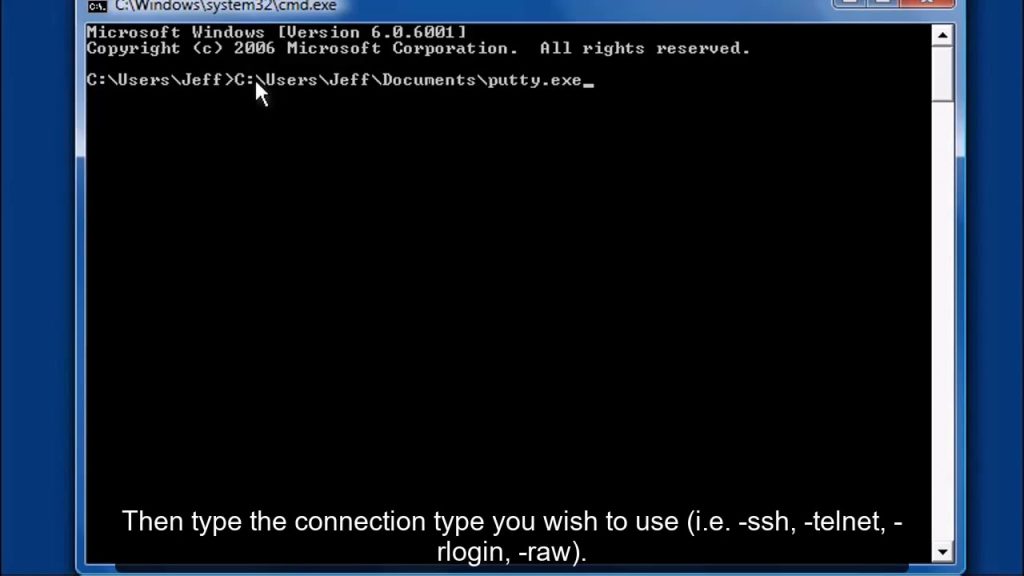
- OpenSSH: The most prevalent client (and server) implementation, typically pre-installed on Linux distributions and macOS. For Windows, OpenSSH is available as an optional feature, and alternatives like PuTTY have historically been popular. Windows Subsystem for Linux (WSL) also provides a Linux-like environment with OpenSSH.
- PuTTY: A popular free and open-source SSH client for Windows, known for its graphical interface and robust feature set.
- SSH Daemon (`sshd`): This is the server-side component, a program running on the remote host that listens for incoming SSH connections on a specific port (defaulting to TCP port 22). When a client attempts to connect, `sshd` handles the authentication, establishes the secure channel, and manages the session.
- SSH Protocol Versions: While there have been two major versions of the SSH protocol, SSH-1 is now considered insecure due to vulnerabilities and is largely deprecated. All modern SSH implementations exclusively use SSH-2, which offers enhanced security features, including stronger key exchange algorithms and improved message integrity checks.
Getting Started: Your First SSH Connection
With the theoretical groundwork laid, it’s time to make your first secure connection. The power of SSH is immediately evident when you connect to a remote server and operate it as if it were right in front of you.
Basic SSH Command Syntax
The fundamental syntax for establishing an SSH connection is elegantly simple yet incredibly powerful:
bash
ssh [options] [user@]hostname [command]
Let’s break this down:
- `ssh`: The command itself, invoking the SSH client.
- `[options]`: Optional flags that modify SSH’s behavior (e.g., `-p` for port, `-i` for identity file). We’ll explore many of these.
- `[user@]`: Specifies the username you wish to log in as on the remote host. If omitted, SSH defaults to your current local username.
- `hostname`: This can be the remote server’s IP address (e.g., `192.168.1.100`) or its domain name (e.g., `example.com`).
- `[command]`: An optional command to execute on the remote host *without* opening an interactive shell. The connection closes after the command finishes.
Connecting with Username and Password
The most straightforward way to establish a connection is using a username and password.
Example:
Suppose you want to connect to a server at `192.168.1.100` as the user `myuser`.
bash
ssh [email protected]
Upon executing this command, SSH will first perform a host key check.
First Connection Warning: Host Key Fingerprint
The very first time you connect to a new remote host, you’ll see a message similar to this:
The authenticity of host ‘192.168.1.100 (192.168.1.100)’ can’t be established.
ECDSA key fingerprint is SHA256:abcd…
Are you sure you want to continue connecting (yes/no/[fingerprint])?
This is SSH’s way of protecting you from man-in-the-middle attacks. The server presents a unique “host key,” and SSH client stores this key in your `~/.ssh/known_hosts` file. Future connections to the same host will verify this key. If the key ever changes unexpectedly, SSH will warn you, indicating a potential security compromise. For a first connection, you should verify this fingerprint (if possible, through an out-of-band channel) and then type `yes` to proceed.
After confirming the host key, you’ll be prompted for the password for `myuser`:
[email protected]’s password:
Enter your password (it won’t echo to the screen for security reasons), press Enter, and if successful, you’ll be presented with the remote server’s command prompt.
Common Connection Errors and Troubleshooting
Understanding common pitfalls is key to smooth SSH operations.
- `ssh: connect to host … port 22: Connection refused`:
- Cause: The remote SSH server (`sshd`) is not running, or a firewall is blocking the connection on the server side.
- Solution: Verify `sshd` status on the remote machine (`systemctl status sshd` on Linux) and check server firewall rules (`ufw status`, `firewall-cmd –list-all`).
- `Permission denied (publickey,password).`:
- Cause: Incorrect username, wrong password, or the server is configured to disallow the authentication method you’re trying to use (e.g., password authentication might be disabled in favor of key-based authentication).
- Solution: Double-check username and password. If using key-based auth, ensure the public key is correctly installed on the server and permissions are set correctly.
- `WARNING: REMOTE HOST IDENTIFICATION HAS CHANGED!`:
- Cause: The host key of the remote server has changed. This can happen if the server was reinstalled, or it could indicate a malicious man-in-the-middle attack.
- Solution: If legitimate, you need to remove the old entry from your `~/.ssh/known_hosts` file. SSH will usually tell you which line to remove: `ssh-keygen -R hostname_or_ip`. If suspicious, investigate further before connecting.
- `No route to host`:
- Cause: Network connectivity issues. Your client machine cannot find the remote host on the network.
- Solution: Check your local network connection, ensure the remote host is powered on and its network is configured correctly. Ping the remote IP address to confirm basic connectivity.
Mastering SSH Key-Based Authentication
While password authentication is simple, it’s generally less secure and less convenient than key-based authentication. For any serious work, SSH keys are the gold standard.
The Security Advantage of SSH Keys
SSH keys offer significant advantages over passwords:
- Stronger Security: SSH keys are typically 2048-bit or 4096-bit long, making them virtually impossible to guess or brute-force, unlike even complex passwords.
- No Brute-Force Vulnerability: Unless the private key itself is compromised, brute-force attacks against SSH keys are impractical.
- Convenience: Once set up, you no longer need to type a password for each connection, streamlining your workflow.
- Automation: Essential for scripts and automated processes that need to connect to remote servers without human intervention.
SSH key-based authentication relies on a pair of cryptographically linked files: a public key and a private key.
- Public Key: Stored on the remote server (`~/.ssh/authorized_keys`). It can be freely distributed and is used by the server to encrypt a challenge.
- Private Key: Stored securely on your local machine (`~/.ssh/id_rsa`, `~/.ssh/id_ed25519`, etc.). It’s kept secret and used to decrypt the challenge sent by the server, proving your identity without ever sending the private key itself over the network.
Generating SSH Key Pairs
You can generate an SSH key pair using the `ssh-keygen` command:
bash
ssh-keygen -t rsa -b 4096
Let’s break down the options:
- `-t rsa`: Specifies the type of key to create. RSA is a widely supported algorithm. Other modern and recommended options include `ed25519` for smaller, faster, and arguably more secure keys, or `ecdsa`.
- `-b 4096`: Sets the number of bits in the key. For RSA, 4096 bits is a strong recommendation. (Not applicable for `ed25519`).
When you run `ssh-keygen`, you’ll be prompted for a few things:
1. Enter file in which to save the key (`/home/youruser/.ssh/id_rsa`): You can accept the default location or specify a different path. It’s generally good practice to use the default for your primary key.
2. Enter passphrase (empty for no passphrase): Always use a strong passphrase to protect your private key. This encrypts the private key on your local machine, adding a crucial layer of security. Even if someone gains access to your private key file, they cannot use it without the passphrase.
After generation, you’ll have two files in your `~/.ssh/` directory (if you accepted the defaults):
- `id_rsa`: Your private key (KEEP THIS SECRET!)
- `id_rsa.pub`: Your public key (can be shared)
Copying Your Public Key to the Server
For key-based authentication to work, your public key must be placed in the `~/.ssh/authorized_keys` file on the remote server, under the user account you wish to log in as.
Using `ssh-copy-id` (Recommended)
The `ssh-copy-id` utility is the simplest and most robust way to install your public key. It handles creating the `.ssh` directory and setting correct permissions if they don’t exist.
bash
ssh-copy-id username@remote_host
This command will:
1. Connect to `remote_host` using password authentication (or existing keys if configured).
2. Ask for the password for `username`.
3. Copy your default public key (`~/.ssh/id_rsa.pub`) to the `~/.ssh/authorized_keys` file on the remote server.
4. Set the correct permissions for the `.ssh` directory and `authorized_keys` file.
Manual Copying
If `ssh-copy-id` isn’t available or you need to do it manually:
bash
cat ~/.ssh/id_rsa.pub | ssh username@remote_host ‘mkdir -p ~/.ssh && chmod 700 ~/.ssh && cat >> ~/.ssh/authorized_keys && chmod 600 ~/.ssh/authorized_keys’
This command:
1. Reads the content of your public key (`cat ~/.ssh/id_rsa.pub`).
2. Pipes it over an SSH connection to the remote host.
3. On the remote host:
- `mkdir -p ~/.ssh`: Creates the `.ssh` directory if it doesn’t exist.
- `chmod 700 ~/.ssh`: Sets permissions for the `.ssh` directory (only owner can read/write/execute).
- `cat >> ~/.ssh/authorized_keys`: Appends your public key to the `authorized_keys` file.
- `chmod 600 ~/.ssh/authorized_keys`: Sets permissions for `authorized_keys` (only owner can read/write).
After installing the key, you should be able to connect without a password (though you’ll still be prompted for your private key’s passphrase if you set one).
Managing Multiple SSH Keys and Configuration
As your remote server count grows, managing different keys for different hosts, or using non-standard ports, becomes a necessity. The `~/.ssh/config` file is your best friend here.
Each entry in this file defines specific settings for a given host or group of hosts. SSH will read this file when you attempt a connection.
Example `~/.ssh/config` entry:
Host myserver
HostName 192.168.1.100
User admin
Port 2222
IdentityFile ~/.ssh/myserver_id_rsa
IdentitiesOnly yes
Host otherbox
HostName example.com
User deploy
ForwardAgent yes
Host *
IdentityFile ~/.ssh/id_rsa
AddKeysToAgent yes
# Other global settings
Let’s break down the directives:
- `Host myserver`: Defines an alias. You can now connect using `ssh myserver`.
- `HostName`: The actual IP address or domain name of the remote server.
- `User`: The username to log in as.
- `Port`: The port number if it’s not the default 22.
- `IdentityFile`: Specifies the path to the private key file for this host.
- `IdentitiesOnly yes`: Ensures SSH only tries the specified `IdentityFile` and not other keys in `~/.ssh/`.
- `ForwardAgent yes`: Enables SSH agent forwarding (discussed next).
- `Host *`: Applies settings to all hosts not specifically matched by other `Host` entries.
With this configuration, you can simply type `ssh myserver` to connect to `192.168.1.100` on port `2222` as user `admin`, using the `myserver_id_rsa` key, without remembering all the details.
Advanced SSH Command Line Techniques
Beyond basic connections, SSH offers a powerful suite of functionalities that transform it into a versatile tool for networking, automation, and security.
Specifying SSH Ports
Many servers change the default SSH port (22) to a non-standard port for an added, albeit minor, layer of security (obscurity). You can specify the port using the `-p` option:
bash
ssh -p 2222 username@remote_host
Or, as seen above, configure it in `~/.ssh/config`.
Executing Remote Commands Directly
One of SSH’s powerful features is the ability to execute a command on a remote server without opening an interactive shell. The connection will close once the command finishes.
bash
ssh username@remote_host ‘ls -la /var/www’
In this example, SSH connects to `remote_host`, executes `ls -la /var/www`, prints the output to your local terminal, and then disconnects.
- Quoting is crucial: Always enclose the remote command in single quotes (`’`) to ensure that special characters are interpreted by the remote shell and not your local shell.
SSH Agent for Seamless Key Management
Constantly typing your private key’s passphrase can be tedious. The `ssh-agent` solves this by holding your decrypted private keys in memory for the duration of your session, allowing you to use them without re-entering the passphrase.
1. Start the agent:
bash
eval “$(ssh-agent -s)”
This command starts the agent and sets the necessary environment variables.
2. Add your keys to the agent:
bash
ssh-add ~/.ssh/id_rsa
You’ll be prompted for your private key’s passphrase once. After that, any SSH connection using this key will not require the passphrase until the agent is stopped or restarted.
You can combine `AddKeysToAgent yes` in your `~/.ssh/config` with `ssh-add` to automatically add keys to the agent when you first use them.
SSH Tunnels: Port Forwarding Explained
SSH’s port forwarding capabilities allow you to create secure tunnels for network traffic, effectively bridging networks and bypassing firewalls. This is immensely useful for accessing services securely.
Local Port Forwarding (`-L`)
Local port forwarding allows you to forward a port on your local machine to a port on the remote server, which then connects to another destination. It’s used to access a service on a remote network as if it were running locally.
Syntax:
bash
ssh -L [local_port]:[destination_host]:[destination_port] [user@]ssh_server
Example:
Suppose you want to access a web server running on `internal_server` (which is only accessible from `ssh_server`) on port 80. You can map `local_port` 8888 on your machine to `internal_server:80` through `ssh_server`:
bash
ssh -L 8888:internal_server:80 user@ssh_server
Now, if you point your local web browser to `http://localhost:8888`, your traffic will be securely tunneled through `ssh_server` to `internal_server:80`.
Remote Port Forwarding (`-R`)
Remote port forwarding allows you to forward a port on the remote server to a port on your local machine. This is useful for exposing a service running on your local machine to the remote network or to the internet via the remote server.
Syntax:
bash
ssh -R [remote_port]:[destination_host]:[destination_port] [user@]ssh_server
Example:
You have a local web server running on `localhost:8080` and want to make it accessible to `ssh_server` (or even other clients that can reach `ssh_server`) on port 9999.
bash
ssh -R 9999:localhost:8080 user@ssh_server
Now, anyone on `ssh_server` (or configured to listen externally on `ssh_server`) can access your local web server by connecting to `ssh_server:9999`.
Dynamic Port Forwarding (SOCKS Proxy) (`-D`)
Dynamic port forwarding creates a SOCKS proxy server on your local machine. This allows you to route all your network traffic (e.g., from a web browser) through the SSH tunnel, effectively browsing from the remote server’s network perspective.
Syntax:
bash
ssh -D [local_port] [user@]ssh_server
Example:
bash
ssh -D 8080 user@ssh_server
This opens a SOCKS proxy on your local machine at `localhost:8080`. You then configure your applications (like web browsers) to use `localhost:8080` as a SOCKS5 proxy. All their traffic will then be tunneled through `ssh_server`, masking your real IP and allowing you to access resources as if you were on the remote network.
Using `scp` for Secure File Transfers
The `scp` (secure copy protocol) command is an indispensable tool for transferring files between local and remote hosts securely over SSH.
Basic Syntax:
bash
scp [options] [source] [destination]
Copying a local file to a remote server:
bash
scp /path/to/local_file username@remote_host:/path/to/remote_directory/
Copying a file from a remote server to your local machine:
bash
scp username@remote_host:/path/to/remote_file /path/to/local_directory/
Key options:
- `-r`: Recursively copy entire directories.
bash
scp -r /path/to/local_directory username@remote_host:/path/to/remote_directory/
- `-P [port]`: Specify a non-default SSH port for the remote host (note: uppercase P for `scp`).
bash
scp -P 2222 local_file username@remote_host:/remote_path/
- `-p`: Preserves modification times, access times, and modes from the original file.
- `-i [identity_file]`: Specifies the private key to use for authentication.
Using `sftp` for Interactive File Transfers
For more interactive file management, `sftp` (SSH File Transfer Protocol) provides a command-line interface similar to FTP but with the security of SSH.
To start an `sftp` session:
bash
sftp username@remote_host
Once connected, you’ll be in an `sftp>` prompt and can use commands like:
- `ls`: List files on the remote server.
- `lls`: List files on your local machine.
- `cd [remote_directory]`: Change directory on the remote server.
- `lcd [local_directory]`: Change directory on your local machine.
- `get [remote_file]`: Download a file from the remote server.
- `put [local_file]`: Upload a file to the remote server.
- `help` or `?`: Display a list of commands.
- `exit` or `bye`: Close the `sftp` session.
SSH Jumping and `ProxyJump`
When you need to connect to a server that is only accessible from another “jump host” (a bastion host), SSH jumping is the solution.
Using the `-J` option (OpenSSH 7.3+)
The simplest way for modern OpenSSH clients is the `-J` (ProxyJump) option:
bash
ssh -J user@jumphost user@target_host
This command first establishes an SSH connection to `jumphost`, and then from there, tunnels a second SSH connection to `target_host`.
Using `ProxyJump` in `~/.ssh/config`
For more permanent or complex jump configurations, use the `ProxyJump` directive in your `~/.ssh/config` file:
Host jumphost_alias
HostName 192.168.1.10
User jumpuser
IdentityFile ~/.ssh/jump_key
Host target_alias
HostName 10.0.0.50
User targetuser
IdentityFile ~/.ssh/target_key
ProxyJump jumphost_alias
Now, you can simply run `ssh target_alias`, and SSH will automatically route your connection through `jumphost_alias`.
Persistent SSH Connections (ControlMaster)
For users who frequently open multiple SSH sessions to the same host (e.g., developers working on a server), `ControlMaster` offers a significant performance and convenience boost. It allows multiple SSH sessions to share a single underlying connection.
Configure this in your `~/.ssh/config` file:
Host my_dev_server
HostName dev.example.com
User developer
ControlMaster auto
ControlPath ~/.ssh/sockets/%r@%h:%p
ControlPersist 10m # Keep the master connection open for 10 minutes after all slaves close
- `ControlMaster auto`: Enables master mode. The first connection creates the master socket, subsequent connections reuse it.
- `ControlPath`: Specifies the path to the socket file used for the master connection. `%r`, `%h`, `%p` are placeholders for username, hostname, and port, making the socket unique per connection.
- `ControlPersist`: Keeps the master connection open for a specified duration (`10m` for 10 minutes) even after all client sessions are closed. This means subsequent connections within that timeframe will be almost instantaneous.
Enhancing SSH Security and Best Practices
While SSH is inherently secure, misconfigurations or lax practices can introduce vulnerabilities. Adhering to these best practices is paramount for maintaining a robust security posture.
- Regular Key Rotation: Periodically generate new SSH key pairs and update them on your servers. This limits the window of opportunity for an attacker if a key is ever compromised.
- Using Strong Passphrases: As emphasized, always protect your private keys with a strong, unique passphrase. This is your last line of defense if your private key file is stolen.
- Disabling Password Authentication (Server-Side): Once key-based authentication is fully configured and tested, disable password authentication on your SSH server by setting `PasswordAuthentication no` in `/etc/ssh/sshd_config`. This dramatically reduces the attack surface by eliminating brute-force password attempts.
- Restricting Root Login: Never allow direct root login over SSH (`PermitRootLogin no` in `sshd_config`). Instead, log in as a regular user and then use `sudo` to gain root privileges.
- Limiting User Access: Only allow necessary users to connect via SSH. Consider using `AllowUsers` or `AllowGroups` directives in `sshd_config` to restrict access to specific users or groups.
- Keeping Software Updated: Regularly update your SSH client and server software (`openssh-server`, `openssh-client`). Updates often contain security patches for newly discovered vulnerabilities.
- Understanding `~/.ssh/known_hosts` and `authorized_keys` Permissions: The `.ssh` directory should have `700` permissions (`drwx——`), and `authorized_keys` should have `600` permissions (`-rw——-`). Incorrect permissions will prevent SSH from working and can indicate a security issue.
- Using a non-standard port: While not a security panacea, changing the default SSH port (22) to a higher, non-standard port can reduce automated scanning and log noise.
Conclusion
The SSH command line is more than just a means to connect to a remote server; it is a meticulously engineered gateway to secure, efficient, and powerful remote system management. From the initial secure handshake and the foundational command syntax to the sophisticated orchestrations of key-based authentication, port forwarding, and proxy jumping, SSH empowers users with unparalleled control over their digital infrastructure.
This deep dive into the `ssh` command has traversed the essential terrain, equipping you with the knowledge to establish secure connections, transfer files, manage multiple keys, and construct intricate network tunnels. By embracing the best practices outlined, you fortify your operations against potential threats, transforming SSH from a simple utility into an impenetrable shield.
As you continue your journey in the digital realm, let the SSH command line be your trusted companion. Its versatility and robust security features make it an indispensable tool for every system administrator, developer, and technically inclined individual. The power is now in your hands; explore, build, and secure with confidence.