The Indispensable Art of Persistent SSH Connections in Linux
In the demanding landscape of modern system administration and development, the ability to maintain robust, uninterrupted connectivity to remote Linux systems is not merely a convenience—it is a critical operational necessity. Standard SSH sessions, while foundational, often fall short of this ideal, succumbing to network instabilities, idle timeouts, or the simple inconvenience of repeated authentication. This article delves into the sophisticated world of persistent SSH connections on Linux, exploring the mechanisms, tools, and best practices that empower professionals to forge unbreakable links with their remote infrastructure, enhancing efficiency, reliability, and security in equal measure.
The quest for persistent SSH is driven by a desire to transcend the transient nature of default connections. Imagine a scenario where a network hiccup or a momentary distraction forces the recreation of an SSH session, interrupting ongoing work, losing context, and necessitating re-authentication. For individuals managing complex server farms, deploying applications, or engaging in prolonged development cycles, such interruptions translate directly into lost productivity and heightened frustration. This deep dive will uncover how to leverage SSH’s native capabilities, alongside powerful supplementary tools, to architect connections that withstand the vagaries of the network and streamline virtually every remote interaction.
The Cruciality of Persistent SSH: Beyond the Transient
The default behavior of Secure Shell (SSH) is to establish a fresh TCP connection for each new session. While inherently secure and straightforward, this model presents several challenges in dynamic and production environments. Each new connection requires a full authentication handshake, which, even with SSH keys, adds a perceptible delay. More critically, these connections are susceptible to termination due to network volatility, client-side reboots, or server-side idle timeouts, leading to abrupt disconnections and the loss of terminal state.
Persistent SSH addresses these limitations head-on by establishing a master connection that can be reused for multiple subsequent “slave” sessions. This paradigm shift offers a multitude of benefits that resonate deeply with the needs of contemporary IT professionals. Firstly, it drastically improves efficiency. Once the initial connection is authenticated, subsequent sessions to the same host can be established almost instantaneously, bypassing the full authentication ritual. This is particularly advantageous for tasks involving frequent context switching between different remote sessions or when running multiple commands in parallel.
Secondly, reliability is significantly enhanced. By maintaining a single, underlying TCP connection, the system becomes more resilient to minor network fluctuations. Even if a slave session unexpectedly terminates, the master connection often remains intact, allowing for swift re-establishment without a complete re-login. This continuity is invaluable for long-running scripts, interactive debugging sessions, or any task where an unexpected disconnection could lead to data loss or operational setbacks.
Finally, the user experience is transformed. The seamless transition between remote sessions, the elimination of repetitive authentication prompts, and the inherent robustness of the connection contribute to a smoother, less interruptive workflow. This fosters a more focused and productive environment, allowing administrators and developers to concentrate on their tasks rather than battling connectivity issues. Understanding and implementing persistent SSH techniques is therefore not merely about technical configuration; it’s about fundamentally rethinking and optimizing one’s interaction with remote Linux systems.
Understanding SSH Multiplexing: The Core Mechanism
At the heart of native persistent SSH connections lies a powerful, yet often underutilized, feature known as SSH multiplexing. This mechanism allows multiple independent SSH sessions to share a single, underlying TCP connection to a remote host, dramatically improving efficiency and reducing overhead. To grasp its significance, it’s essential to understand its fundamental components and how they interact to create a resilient and responsive remote access experience.
What is SSH Multiplexing?
SSH multiplexing, also referred to as connection sharing, is a feature of the OpenSSH client that enables the reuse of an existing, authenticated SSH connection for subsequent connections to the same server. Instead of initiating a brand-new TCP handshake, key exchange, and authentication process for every SSH command or interactive shell, multiplexing channels these new requests through an already established “master” connection.
How it Works: Control Sockets, Master Connections, and Slave Sessions
The magic behind SSH multiplexing relies on three key elements:
1. Control Socket: When the first SSH connection (the “master”) is initiated with multiplexing enabled, the SSH client creates a special Unix domain socket file on the local filesystem. This file, often referred to as the “control socket,” acts as a communication channel.
2. Master Connection: This is the initial, full-fledged SSH connection established between your local machine and the remote server. It undergoes the complete authentication process and remains open in the background. Its primary role is to listen for new requests from other SSH client processes via the control socket.
3. Slave Sessions: Subsequent SSH commands targeting the same remote host will first attempt to connect to the control socket. If a master connection is found active and listening, these new SSH client processes become “slave” sessions. They send their requests (e.g., shell commands, file transfers, port forwards) through the control socket to the master connection, which then forwards them to the remote server. The remote server perceives these as distinct SSH channels multiplexed over the single underlying TCP connection.
`ControlMaster`, `ControlPath`, `ControlPersist` Explained
The behavior of SSH multiplexing is configured using specific directives in the SSH client configuration file (`~/.ssh/config` or `/etc/ssh/ssh_config`):
- `ControlMaster`: This directive governs whether the SSH client should attempt to create a master connection or join an existing one.
- `no`: Default. Do not use multiplexing.
- `yes`: Always open a master connection. If a master connection already exists, it will be used. If not, one will be created.
- `auto`: Similar to `yes`, but if a master connection doesn’t exist, it will create one in the background (daemonized), allowing the current session to proceed without waiting for the master to fully establish. This is often the most convenient setting.
- `autoask`: Asks the user whether to use an existing master connection or create a new one.
- `ControlPath`: This directive specifies the absolute path to the Unix domain control socket file that the master connection will create and that slave sessions will use to connect. It’s crucial for `ControlPath` to be unique per host and user to avoid conflicts. A common pattern uses placeholders: `~/.ssh/sockets/%r@%h:%p` where `%r` is the remote user, `%h` is the host, and `%p` is the port. This ensures a distinct socket for each unique user-host-port combination.
- `ControlPersist`: This directive, often used in conjunction with `ControlMaster auto`, dictates how long the master connection should remain open after the last slave session has disconnected.
- `no`: The master connection terminates immediately when the last slave session disconnects.
- `yes`: The master connection remains open indefinitely until explicitly killed or the local machine shuts down. This can be risky if the connection is left orphaned.
- `N` (e.g., `15m`, `1h`): The master connection remains open for a specified duration (`N` seconds, `m` for minutes, `h` for hours) after the last slave session disconnects. This is often the most balanced approach, providing persistence for a reasonable period without leaving connections open indefinitely.
By strategically combining these directives, users can craft a highly efficient and persistent SSH environment that significantly streamlines their remote interactions.
Setting Up Persistent SSH: A Step-by-Step Guide
Implementing persistent SSH connections is primarily done through the SSH client configuration file. While global configuration exists, the recommended and most common approach is user-specific, offering greater flexibility and preventing unintended system-wide changes.
Global Configuration (for all connections)
Modifying the global SSH client configuration file, `/etc/ssh/ssh_config`, affects all users on a Linux system. While possible, it’s generally discouraged for fine-tuning persistent connections unless you manage a dedicated environment where uniform behavior is paramount for all users. Changes made here require root privileges and could impact system-wide security policies. For example, you might globally enable `ServerAliveInterval` to prevent idle disconnections, but specific `ControlMaster` and `ControlPath` settings are usually best managed on a per-user basis to avoid conflicts and ensure proper permissions.
User-Specific Configuration (the recommended approach)
The `~/.ssh/config` file in your home directory is the definitive place for tailoring SSH client behavior for your user account. This file allows you to define specific connection parameters for individual hosts, groups of hosts, or all hosts, without affecting other users on the system. If this file doesn’t exist, simply create it with appropriate permissions (`chmod 600 ~/.ssh/config`).
`~/.ssh/config` file: Structure and Syntax
The `config` file uses a simple, intuitive syntax consisting of `Host` blocks, each followed by one or more configuration directives.
Host
Host
The “ can be a hostname, an IP address, or a wildcard (`*` for all hosts). When you `ssh `, the SSH client reads the directives under that `Host` block.
Example Configuration for Persistent SSH
Let’s construct a practical `~/.ssh/config` example to enable robust persistent SSH connections:
Default settings for all hosts unless overridden
Host *
Keep the connection alive by sending a null packet every 60 seconds
ServerAliveInterval 60
Disconnect after 3 unanswered keepalives (3 * 60s = 3 minutes)
ServerAliveCountMax 3
Enable ControlMaster to multiplex connections
ControlMaster auto
Path to the control socket file. %r=remote user, %h=host, %p=port
Ensure ~/.ssh/sockets exists and has correct permissions
ControlPath ~/.ssh/sockets/%r@%h:%p
Keep the master connection alive for 15 minutes after the last slave disconnects
ControlPersist 15m
Request a pseudo-terminal for interactive sessions unless explicitly forbidden
RequestTTY auto
Host my_production_server
Hostname 192.168.1.100
User admin
Port 2222
IdentityFile ~/.ssh/id_rsa_prod
Host dev_cluster_*
User devuser
Port 22
IdentityFile ~/.ssh/id_rsa_dev
For these hosts, persist indefinitely (use with caution)
ControlPersist yes
Let’s break down the key directives for persistence:
- `ControlMaster auto`: This is the primary directive that enables multiplexing. When you run `ssh` to a host, it will first check if a master connection already exists via the `ControlPath`. If it does, it will join it as a slave. If not, it will automatically create a new master connection in the background.
- `ControlPath ~/.ssh/sockets/%r@%h:%p`: This defines where the control socket file will be created.
- It’s highly recommended to create a dedicated directory for these sockets, e.g., `mkdir -p ~/.ssh/sockets && chmod 700 ~/.ssh/sockets`. This ensures proper permissions and avoids cluttering your home directory.
- The use of `%r`, `%h`, and `%p` placeholders is crucial. They guarantee a unique socket file for each combination of remote user, host, and port, preventing conflicts when connecting to different servers or using different users on the same server.
- `ControlPersist 15m`: This directive tells the master connection how long to remain active after the last slave session disconnects.
- `15m` means 15 minutes. Other common units are `s` for seconds, `h` for hours.
- Using a time-limited value is generally safer than `yes`, as it ensures that connections don’t linger indefinitely, potentially consuming resources or posing a security risk if left unattended.
- If you set it to `yes`, the master connection will only terminate if you explicitly run `ssh -O exit ` or if the local machine shuts down.
- `ServerAliveInterval 60` and `ServerAliveCountMax 3`: While not directly part of multiplexing, these are critical for *keeping* the underlying master connection alive.
- `ServerAliveInterval 60` instructs the client to send a null packet to the server every 60 seconds if no data has been exchanged. This prevents idle timeouts imposed by network devices (routers, firewalls) or the SSH server itself.
- `ServerAliveCountMax 3` specifies that if the client sends 3 consecutive keepalive messages without receiving a response from the server, it should consider the connection dead and terminate.
These combined settings ensure that your master connection remains active even during periods of inactivity, making it reliably available for subsequent slave sessions.
By integrating these configurations into your `~/.ssh/config` file, you unlock a significantly more efficient and resilient SSH workflow, reducing overhead and maximizing productivity. Remember to set the correct permissions for your `~/.ssh` directory and its contents (`chmod 700 ~/.ssh` and `chmod 600 ~/.ssh/config`) to prevent security warnings.
Advanced Persistence Strategies and Tools
While SSH’s native multiplexing offers a robust foundation for persistence, the Linux ecosystem provides several other powerful tools that enhance session management and connectivity in different scenarios. Understanding these tools and when to employ them allows for a highly adaptive and resilient remote access strategy.
Leveraging `tmux` or `screen` for Terminal Session Management
It’s vital to distinguish between SSH multiplexing and terminal multiplexing. SSH multiplexing (via `ControlMaster`) ensures that *the underlying network connection* to the remote host remains open and reusable. `tmux` (Terminal Multiplexer) or GNU `screen`, on the other hand, are tools that allow you to run multiple terminal sessions *within a single SSH connection* and, critically, detach from and reattach to these sessions without losing their state.
- The Distinction:
- SSH Multiplexing: Manages the TCP connection *to* the remote host. It makes subsequent `ssh` commands faster and more resilient. If your local machine reboots, the SSH master connection is lost.
- `tmux`/`screen`: Manages the terminal *on* the remote host. It allows your work to continue running on the server even if your SSH client disconnects (either intentionally or due to a network issue or local machine reboot).
- Setting up `tmux` for Persistent Sessions:
1. Connect via SSH (preferably with `ControlMaster` enabled):
bash
ssh my_server
2. Start a `tmux` session on the remote server:
bash
tmux new -s my_session
You are now inside a `tmux` session. You can open multiple windows (Ctrl+b c) and panes (Ctrl+b %) within this session.
3. Detach from the `tmux` session:
Press `Ctrl+b` then `d`. Your SSH connection can now be safely closed, or even your local machine rebooted. The `tmux` session, and any processes running within it, will continue to execute on the remote server.
4. Reattach to the `tmux` session:
Later, from a new SSH connection to the same server, run:
bash
tmux attach -t my_session
You will be dropped back into your exact working environment, with all commands and outputs preserved.
- Benefits of Combining SSH Persistence with `tmux`/`screen`:
Combining SSH `ControlMaster` with `tmux` offers the best of both worlds. The `ControlMaster` speeds up the initial SSH connection to the remote server, and `tmux` ensures that once you’re there, your work is never lost, even if the network connection breaks or your local machine goes down. This dual-layer persistence creates an incredibly robust and productive remote working environment.
Utilizing `mosh` (Mobile Shell) for Intermittent Connections
`mosh` (Mobile Shell) is a specialized tool designed specifically to handle highly intermittent and roaming network conditions, making it superior to SSH for certain use cases, particularly mobile users.
- How `mosh` differs from SSH:
- Protocol: `mosh` uses UDP for its primary data transfer, whereas SSH uses TCP. This is a crucial distinction. UDP allows `mosh` to handle IP address changes and packet loss much more gracefully without the overhead of TCP retransmissions, which can freeze SSH sessions.
- Roaming: `mosh` connections can seamlessly roam between different IP addresses (e.g., moving from Wi-Fi to cellular data) without dropping the session. SSH connections break if the client’s IP address changes.
- Responsiveness: `mosh` employs a state synchronization protocol that provides immediate local echo of keystrokes, even under high latency, making it feel more responsive than SSH in challenging network conditions. It also intelligently suppresses output when network delays are significant.
- Installation and Basic Usage:
`mosh` needs to be installed on both the client and server.
bash
# On Debian/Ubuntu client and server:
sudo apt install mosh
# On Fedora/CentOS client and server:
sudo dnf install mosh
To connect, simply replace `ssh` with `mosh`:
bash
mosh user@your_server
`mosh` typically uses UDP ports 60000-60010. Ensure these are open on your server’s firewall.
- When `mosh` is a superior choice:
`mosh` shines in environments with:
- High latency (e.g., connecting across continents).
- Intermittent connectivity (e.g., using public Wi-Fi, mobile hotspots).
- Frequent IP address changes (e.g., moving between networks, laptop users).
For stable, low-latency wired connections, SSH with `ControlMaster` and `tmux` might be sufficient, but `mosh` offers unparalleled resilience for mobile scenarios.
AutoSSH: Ensuring Uninterrupted Tunnels and Connections
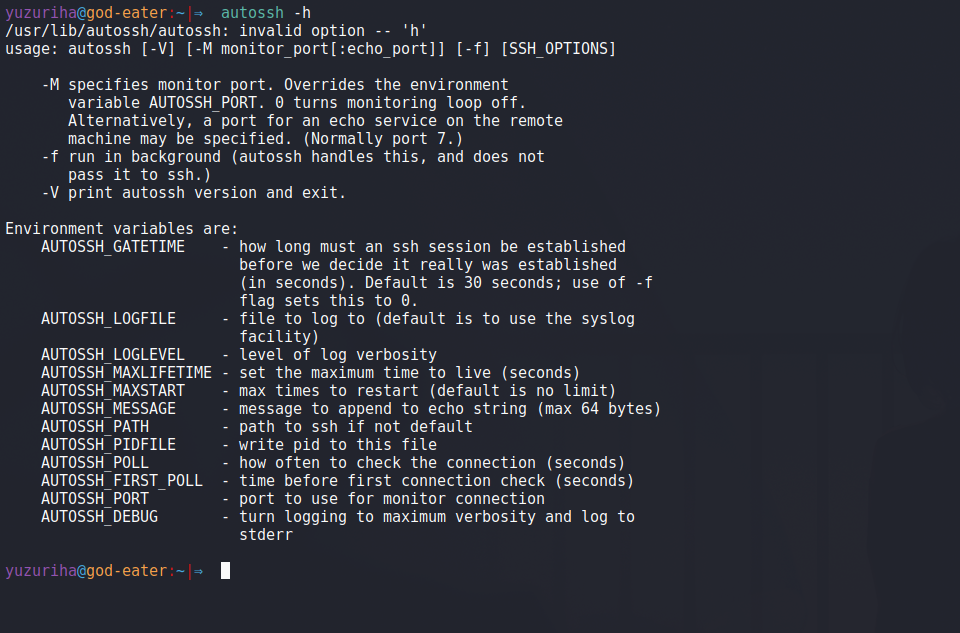
`autossh` is a program specifically designed to automatically restart SSH sessions and tunnels if they go down. While SSH’s `ControlPersist` keeps an interactive session alive for a duration, `autossh` focuses on ensuring *uninterrupted availability* of a connection or tunnel over extended periods, making it ideal for background services.
- What AutoSSH does: It acts as a wrapper around the standard `ssh` client. It monitors the SSH connection and, if it detects a disconnection (often by sending special keepalive probes), it automatically restarts the `ssh` process, re-establishing the connection or tunnel.
- Typical Use Cases:
- Reverse SSH Tunnels: Maintaining a persistent reverse tunnel from a remote server (behind a NAT/firewall) back to a jump host, allowing access to the remote server.
- Maintaining Server Access: Ensuring that a specific SSH connection to a critical server is always up, even if the network temporarily drops.
- Monitoring and Data Collection: Keeping a persistent channel open for continuous data streaming or remote monitoring agents.
- Basic `autossh` Command Structure and Options:
`autossh` generally takes the same arguments as `ssh`, plus its own specific options.
bash
autossh -M 0 -o “ServerAliveInterval 30” -o “ServerAliveCountMax 3” user@remote_host
- `-M 0`: This is crucial. It disables the `autossh` monitoring port. By default, `autossh` uses a pair of ports for its own monitoring. Setting it to 0 relies solely on SSH’s built-in keepalives (`ServerAliveInterval`) to detect disconnections, which is often sufficient and avoids opening extra ports.
- `-o “ServerAliveInterval 30″` and `-o “ServerAliveCountMax 3″`: These are standard SSH options, passed through `autossh`, ensuring the underlying SSH connection sends keepalives. `autossh` uses these to detect a dropped connection.
- `user@remote_host`: Your standard SSH connection details.
- Combining `autossh` with `systemd` for Robust Services:
For truly robust and persistent background services, `autossh` is often combined with `systemd`. You can create a `systemd` service unit file that starts `autossh` and ensures it automatically restarts upon boot or failure.
Example `systemd` service file (`/etc/systemd/system/my-reverse-tunnel.service`):
[Unit]
Description=AutoSSH Reverse Tunnel to my_jumphost
After=network-online.target
[Service]
User=myuser # The local user running autossh
ExecStart=/usr/bin/autossh -M 0 -o “ServerAliveInterval 60” -o “ServerAliveCountMax 3”
-N -R 2222:localhost:22 tunnel_user@my_jumphost
RestartSec=5
Restart=always
[Install]
WantedBy=multi-user.target
After creating the file:
bash
sudo systemctl daemon-reload
sudo systemctl enable my-reverse-tunnel.service
sudo systemctl start my-reverse-tunnel.service
This configuration will ensure your reverse tunnel (`-R 2222:localhost:22`) is always active, automatically restarting if the connection drops.
By strategically choosing among SSH multiplexing, `tmux`/`screen`, `mosh`, and `autossh`, administrators can construct a highly tailored and resilient remote access infrastructure capable of meeting diverse operational demands.
Optimizing Persistent Connections for Performance and Reliability
Beyond merely establishing persistence, optimizing these connections is key to achieving peak performance and unwavering reliability. This involves fine-tuning various SSH parameters, managing authentication efficiently, and understanding network dynamics.
Keepalives: Preventing Idle Disconnections
One of the most common reasons for SSH session termination is inactivity. Network devices (routers, firewalls, load balancers) and even the SSH server itself often have idle timeout mechanisms that drop connections that haven’t seen any traffic for a certain period. Keepalives are designed to combat this.
- `ServerAliveInterval` and `ClientAliveInterval` Explained:
- `ServerAliveInterval ` (Client-side): Configured in `~/.ssh/config` or `/etc/ssh/ssh_config`. This tells the SSH client to send a null packet (a “keepalive” message) to the server every “ if no data has been received from the server. This keeps the TCP connection alive from the client’s perspective, preventing intermediate network devices from closing it.
- `ClientAliveInterval ` (Server-side): Configured in `/etc/ssh/sshd_config` on the remote server. This tells the SSH daemon (`sshd`) to send a null packet to the client every “ if no data has been received from the client. This is useful for detecting unresponsive clients and freeing up server resources.
- Configuration in `ssh_config` and `sshd_config`:
Client (`~/.ssh/config`):
Host *
ServerAliveInterval 60
ServerAliveCountMax 3
This configuration will send a keepalive every 60 seconds and disconnect after 3 unanswered packets (i.e., if no response for 3 minutes).
Server (`/etc/ssh/sshd_config`):
ClientAliveInterval 300
ClientAliveCountMax 0
Here, the server sends a keepalive every 300 seconds (5 minutes). `ClientAliveCountMax 0` means the server will send keepalives indefinitely until the client responds or explicitly disconnects. A non-zero value would cause the server to disconnect the client after that many unanswered probes. Always restart `sshd` after modifying `/etc/ssh/sshd_config` (`sudo systemctl restart sshd`).
Compression for Slower Links
SSH includes built-in compression capabilities, which can be beneficial on slow or high-latency networks by reducing the amount of data transmitted.
- The `-C` flag or `Compression yes` in config:
- Command Line: `ssh -C user@host`
- `~/.ssh/config`:
Host *
Compression yes
- When to Use (and When Not To):
- Use when: You are on a genuinely slow network (e.g., dial-up, highly congested Wi-Fi, mobile hotspot) or transferring large amounts of text-based data (e.g., log files, code). The CPU overhead of compression/decompression is usually less than the time saved by reduced network traffic.
- Do not use when: You are on a fast local network (Gigabit Ethernet) or transferring already compressed data (e.g., JPEG images, MP3s, `.zip` archives). In these cases, the CPU overhead might outweigh the network benefits, potentially making the connection slower.
Minimizing Authentication Prompts: SSH Agent and `ssh-add`
Repeatedly entering your SSH key passphrase for each new master connection (even with `ControlMaster auto`) can be tedious. The SSH agent provides a secure solution.
- What is `ssh-agent`?
`ssh-agent` is a background program that securely stores your decrypted private SSH keys in memory. When an SSH client needs to authenticate using a key, it communicates with the `ssh-agent`, which performs the authentication on its behalf without exposing the passphrase or the raw private key to the client.
- Adding Keys with `ssh-add`:
1. Start the agent (if not already running, often done by your desktop environment):
bash
eval “$(ssh-agent -s)”
2. Add your private key(s) to the agent, providing your passphrase once:
bash
ssh-add ~/.ssh/id_rsa
ssh-add ~/.ssh/id_rsa_prod # Add multiple keys if needed
Once added, any subsequent SSH connection that uses these keys will authenticate without requiring the passphrase, as long as the `ssh-agent` is running.
- Persisting `ssh-agent` Across Reboots:
For maximum convenience, you want `ssh-agent` to start automatically and retain your keys across reboots or desktop environment sessions.
- Desktop Environments (GNOME, KDE): Most modern desktop environments automatically start `ssh-agent` and prompt you for passphrases on login.
- `systemd` (Linux systems without desktop): You can create a `systemd` user service to manage `ssh-agent`. This is more advanced but ensures agent persistence for CLI-only environments.
- `~/.bashrc` / `~/.zshrc` (less secure/robust): Older methods involved adding logic to shell startup scripts to check for and start `ssh-agent`. This is generally discouraged for permanent solutions due to its fragility and potential security implications if not configured carefully.
Mitigating Network Latency
While latency is primarily a network characteristic, certain SSH configurations can minimize its perceived impact.
- Choosing the right `ControlPath` location: The control socket should always be on a *local* filesystem (e.g., `~/.ssh/sockets/`) for optimal performance. Placing it on a network filesystem (NFS, SMB) would introduce network latency for every slave connection, defeating much of the purpose of multiplexing.
- Impact of Network Conditions: Be aware that very high latency or extreme packet loss will still degrade the interactive experience, even with `ControlMaster`. In such cases, `mosh` might offer a more fluid experience by optimizing for these conditions.
- Reducing DNS Lookups: If your connections are slow to establish, it might be DNS resolution on the server side. In your `~/.ssh/config`, you can specify `UseDNS no` for specific hosts if you know the IP addresses directly, or `sshd_config` on the server can have `UseDNS no` (but use with caution as it affects logs).
By carefully tuning these parameters, you can transform your persistent SSH connections from merely functional to highly performant and incredibly robust, making remote administration a far more fluid and less frustrating endeavor.
Security Considerations for Persistent SSH
While persistent SSH connections offer immense convenience and efficiency, they also introduce unique security considerations that must be meticulously managed. The convenience of an open, authenticated channel carries the inherent risk of prolonged exposure if not properly secured.
Safeguarding Control Sockets
The control socket file, specified by `ControlPath`, is the gateway for slave sessions to join the master connection. Its security is paramount.
- Permissions for `~/.ssh/sockets/`: The directory containing your control sockets, and the socket files themselves, must have strict permissions.
- The directory (e.g., `~/.ssh/sockets`) should be owned by your user and have `chmod 700` (read/write/execute for owner only).
- The socket files themselves are usually created with `600` permissions by SSH, ensuring only your user can access them.
- Risks of insecure `ControlPath` locations: If the `ControlPath` points to a directory writable by other users, or if the socket file itself has lax permissions, an attacker with local access to your machine could potentially:
- Hijack your existing master connection to the remote server.
- Run commands on the remote server as you, without needing to re-authenticate.
- Transfer files, or establish tunnels through your established, authenticated master connection.
Always keep control sockets within your `~/.ssh` directory or a subdirectory within it, with appropriate restrictive permissions.
SSH Key Security
Persistent connections amplify the importance of robust SSH key management.
- Passphrases for Private Keys: Always protect your private SSH keys with strong passphrases. While `ssh-agent` allows you to enter the passphrase once per session, that initial protection is critical. If your local machine is compromised, an attacker could potentially steal an unprotected private key. With a passphrase, they would still need to crack it.
- Limiting Key Usage (`from`, `command`): For particularly sensitive keys or bastion host keys, consider restricting their usage by adding options within the `authorized_keys` file on the remote server.
- `from=”192.168.1.0/24″`: Restricts the source IP addresses from which the key can be used.
- `command=”/usr/local/bin/my_script”`: Forces the key to execute only a specific command upon login, preventing interactive shells.
These options can significantly reduce the blast radius if a private key is compromised, even if a persistent connection is established.
Auditing and Logging
Visibility into SSH activity is crucial for detecting and responding to security incidents.
- Monitoring SSH Access: Regularly review SSH logs on both the client (if available, though typically less detailed) and, critically, the server.
- `journalctl` for `sshd` logs: On systems using `systemd`, `sshd` logs are typically accessible via `journalctl`.
bash
sudo journalctl -u sshd -f
This command will show real-time SSH daemon logs, including connection attempts, authentication successes/failures, and disconnections. Look for unusual activity, repeated failed logins, or connections from unexpected source IPs.
Exposure Management
The convenience of persistence introduces a trade-off: a longer-lived authenticated session might increase the window of opportunity for an attacker if your local machine is compromised.
- The Trade-off: While a persistent master connection is efficient, it means your authenticated session implicitly remains active on the remote server. If your local client machine is breached while a `ControlPersist yes` connection is active, an attacker gaining control of your local account could potentially leverage the existing master connection.
- Best Practices for Jump Hosts and Bastion Servers: For accessing highly sensitive production environments, often a multi-hop approach is used via a jump host or bastion server.
- Even with persistence, consider limiting the `ControlPersist` duration (e.g., `15m` or `1h`) for connections to critical infrastructure.
- Use separate, highly restricted SSH keys for jump hosts and production servers.
- Ensure jump hosts themselves are hardened, regularly patched, and subject to stringent access controls and monitoring.
By diligently applying these security best practices, you can harness the power of persistent SSH connections without inadvertently exposing your systems to undue risk. The goal is to strike a balance where operational efficiency and robust security mutually reinforce each other.
Troubleshooting Common Persistent SSH Issues
Even with careful configuration, persistent SSH connections can sometimes exhibit unexpected behavior. Knowing how to diagnose and resolve these issues efficiently is crucial for maintaining a smooth workflow.
- “Control socket already exists” errors:
- Symptom: When attempting to establish a new master connection, SSH reports that the control socket already exists, but it might not be working correctly or is orphaned.
- Cause: An previous master connection might have terminated abruptly (e.g., client crash, forced disconnection) without properly cleaning up its control socket file.
- Solution:
1. First, try to explicitly exit the master connection if you suspect it’s still alive but unresponsive: `ssh -O exit ` (where `host_alias` is from your `~/.ssh/config`).
2. If that doesn’t work, manually remove the orphaned control socket file. The path is defined by your `ControlPath` directive (e.g., `rm ~/.ssh/sockets/user@host:port`).
3. Ensure your `ControlPath` uses unique placeholders (`%r@%h:%p`) to prevent conflicts between different connections.
- Permissions issues (`Bad owner or permissions on ~/.ssh/config`):
- Symptom: SSH refuses to use your `~/.ssh/config` or private keys, often with “Bad owner or permissions” warnings.
- Cause: SSH enforces strict permissions on your `~/.ssh` directory and its contents for security reasons. If these are too permissive, SSH will reject them.
- Solution:
1. `chmod 700 ~/.ssh` (owner can read, write, execute; no one else can).
2. `chmod 600 ~/.ssh/config` (owner can read, write; no one else can).
3. `chmod 600 ~/.ssh/id_rsa` (for private keys; owner can read, write; no one else can).
4. Ensure your `~/.ssh` directory and its contents are owned by your user account (`chown youruser:youruser ~/.ssh -R`).
- Connections failing to persist:
- Symptom: Your connections are dropping after a period of inactivity, despite `ControlPersist` and `ServerAliveInterval` being configured.
- Cause:
- Firewall/NAT timeouts: Intermediate network devices might have shorter idle timeouts than your `ServerAliveInterval`.
- Server-side `sshd_config`: The remote server’s `ClientAliveInterval` might be too short or absent, causing the server to disconnect an idle client.
- No `ServerAliveCountMax`: If `ServerAliveCountMax` is too high or unset, the client might keep sending keepalives indefinitely even if the network is truly dead, preventing a clean restart.
- Solution:
1. Verify `ServerAliveInterval` and `ServerAliveCountMax` in your `~/.ssh/config`. Try decreasing `ServerAliveInterval` (e.g., to `30` seconds) and ensuring `ServerAliveCountMax` is a reasonable, non-zero number (e.g., `3`).
2. If you have control over the remote server, check and configure `ClientAliveInterval` and `ClientAliveCountMax` in `/etc/ssh/sshd_config` to match your desired persistence. Remember to restart `sshd` after changes.
3. Use `autossh` if truly indefinite and robust persistence is required for tunnels or background processes, as it specifically handles auto-reconnection.
- Debugging `ssh` with `-v`, `-vv`, `-vvv`:
- Symptom: You’re unsure why SSH isn’t behaving as expected, or you’re seeing cryptic errors.
- Solution: The most powerful debugging tool for SSH is its verbose output.
- `ssh -v user@host`: Prints debugging messages about connection progress, authentication, and negotiation.
- `ssh -vv user@host`: More verbose, showing more details about key exchange, cipher selection, etc.
- `ssh -vvv user@host`: Extremely verbose, providing granular details about every step, including socket creation and interaction.
- Analyzing this output can often pinpoint the exact stage where the connection is failing, whether it’s related to key negotiation, permissions, or socket issues.
- Checking `sshd` logs:
- Symptom: Connections are dropping, or users cannot log in, and client-side debugging isn’t providing enough information.
- Solution: Check the server’s SSH daemon logs. On `systemd` based systems:
bash
sudo journalctl -u sshd
Look for messages related to your connection attempts, authentication failures, or disconnections from your client’s IP address. The server logs provide the authoritative view of what happened on the remote end.
By systematically approaching troubleshooting with these methods, most common persistent SSH issues can be quickly identified and resolved, ensuring your connections remain as robust and reliable as intended.
The Future of SSH Persistence
The landscape of computing infrastructure is constantly evolving, yet the core principles of secure, persistent remote access remain universally relevant. SSH, and its various persistence mechanisms, continue to adapt to new paradigms, ensuring its enduring utility in an increasingly distributed world.
- Evolving Security Standards: As quantum computing advances and new cryptographic vulnerabilities emerge, SSH implementations will continue to evolve their cryptographic algorithms and key exchange mechanisms. Future versions of OpenSSH will likely integrate even stronger, quantum-resistant algorithms to safeguard long-lived persistent connections against sophisticated attacks. The focus will remain on robust authentication and integrity, which are paramount for any persistent link.
- Integration with Cloud Environments and Containerization: Cloud-native architectures, microservices, and containerization (Docker, Kubernetes) fundamentally change how we interact with remote machines. Persistent SSH connections are already crucial for:
- Bastion hosts/Jump boxes: Providing a secure, persistent gateway into private cloud networks.
- Development environments: Maintaining a persistent connection to a development container or VM in the cloud.
- Troubleshooting: Rapidly attaching to ephemeral containers or instances for debugging, leveraging the speed of multiplexing.
We may see more automated provisioning of SSH configurations and keys within cloud platforms, simplifying the setup of persistence for managed services and auto-scaling environments.
- The Continuous Relevance of Robust Connectivity: Despite the rise of GUI-based management tools, web consoles, and API-driven automation, the command line interface via SSH remains the ultimate fallback and often the most powerful and flexible interface for Linux systems. The need for a reliable, unbroken link to these systems will only intensify as infrastructure becomes more complex and distributed. Persistent SSH connections, therefore, are not just a historical feature; they are a forward-looking necessity, ensuring that regardless of architectural shifts, administrators and developers can always maintain a responsive and efficient connection to their critical resources. The art of the unbroken link, honed through these techniques, promises to be a foundational skill for generations of Linux professionals to come.
Conclusion: Mastering the Unbroken Link
The journey through the intricacies of persistent SSH connections in Linux reveals a powerful suite of tools and techniques designed to transform the often-fragile act of remote access into a seamless and robust experience. From the foundational brilliance of SSH multiplexing, enabling the reuse of a single, authenticated connection, to the dynamic session management offered by `tmux` and `screen`, the unparalleled resilience of `mosh` for mobile environments, and the unwavering reliability of `autossh` for critical tunnels, the options for forging an unbroken link are diverse and potent.
We’ve explored the practical steps of configuring `ControlMaster`, `ControlPath`, and `ControlPersist` in `~/.ssh/config`, underscored the critical role of `ServerAliveInterval` in thwarting idle disconnections, and detailed how `ssh-agent` can virtually eliminate repetitive authentication prompts. Crucially, we’ve navigated the vital security considerations, emphasizing the safeguarding of control sockets and SSH keys, and the importance of vigilant auditing. Finally, understanding common troubleshooting patterns equips users to quickly diagnose and rectify issues, ensuring minimal downtime and maximum productivity.
Mastering these techniques is more than just a technical skill; it is an investment in efficiency, reliability, and peace of mind. For system administrators, developers, and anyone regularly interacting with remote Linux systems, embracing the art of persistent SSH connections is an essential step towards a more fluid, responsive, and ultimately more productive professional workflow. The unbroken link is not merely a convenience; it is a strategic advantage in the modern digital landscape.