In the vast, interconnected world of network administration and remote computing, tools like PuTTY stand as indispensable bridges, connecting users to distant servers with the elegance of the Secure Shell (SSH) protocol. Yet, even the most robust tools can occasionally falter, presenting cryptic messages that halt productivity and spark frustration. Among these, the dreaded “Software caused connection abort” error is a particularly enigmatic one, often leaving even seasoned professionals scratching their heads. It’s a message that, at first glance, seems to point a finger directly at the client application, PuTTY itself, but its roots are frequently far more complex, weaving through layers of network infrastructure, operating system quirks, and even server-side configurations.
This comprehensive guide aims to demystify this pervasive PuTTY network error. We will embark on a journey to dissect its meaning, explore the myriad underlying causes, and equip you with a systematic troubleshooting methodology. Our goal is not just to provide quick fixes, but to foster a deeper understanding of the intricate dance between your local machine, the network, and the remote server, ensuring that the next time this error appears, you’ll be armed with knowledge and confidence to resolve it efficiently. Prepare to unravel the complexities and regain seamless remote access.
Decoding the “Software Caused Connection Abort” Message: What It Truly Means
At its core, the “Software caused connection abort” message signifies that the TCP connection, which forms the bedrock of your SSH session, was unexpectedly terminated by the client-side software or an intermediary device acting on its behalf. When your PuTTY client initiates an SSH session, it establishes a TCP (Transmission Control Protocol) connection with the remote server. This connection is a two-way street, constantly exchanging data and acknowledgments.
When this error occurs, it means that your local operating system’s TCP/IP stack received a “RST” (Reset) packet, indicating an abrupt termination of the connection. Crucially, this RST packet was not initiated by the remote server in a graceful shutdown, but rather by a component on your local machine or a network device positioned between your machine and the server. The “software” in the error message is often referring to something within your local network environment – be it your operating system’s network stack, a firewall, an antivirus program, a VPN client, or even your router’s NAT (Network Address Translation) functionality.
It’s vital to differentiate this from a server-side disconnect. If the server initiated the termination, you would typically see different error messages, such as “Connection reset by peer,” “Broken pipe,” or “Server unexpectedly closed network connection.” While server-side issues can indirectly contribute to conditions that lead to a client-side abort (e.g., a server becoming unresponsive, prompting a firewall to drop the connection), the direct cause of “Software caused connection abort” is almost always traceable to the client’s local environment or an intermediate hop.
The Myriad Culprits: Unraveling the Mystery Behind PuTTY Connection Aborts
Understanding the error’s nature is the first step; identifying its specific origin is the next, often more challenging, phase. The causes are diverse, ranging from simple misconfigurations to complex network anomalies. Let’s delve into the most common culprits.
Local Network Environment and System-Specific Issues
Your local machine and its immediate network surroundings are often the primary suspects when facing a “Software caused connection abort.”
- Firewall Interference: This is arguably the most frequent cause. Both your operating system’s built-in firewall (e.g., Windows Defender Firewall) and third-party security suites (e.g., McAfee, Norton, Avast, Kaspersky) can aggressively monitor network traffic. If a firewall rule is misconfigured, too strict, or suddenly updated, it might prematurely terminate an SSH connection, especially if it deems the traffic suspicious or if the connection remains idle for too long. Outbound rules are particularly relevant here, as they dictate what your machine can send out.
- Antivirus and Security Software: Beyond firewalls, many comprehensive security suites include features like deep packet inspection, network intrusion prevention systems (NIPS), or even VPN components. These features, designed to protect, can sometimes mistakenly identify legitimate SSH traffic as a threat or simply interfere with the TCP stream, leading to an abrupt connection reset.
- VPN/Proxy Conflicts: If you’re using a Virtual Private Network (VPN) client or a proxy server, it adds another layer of complexity. VPNs encapsulate your network traffic, and if the VPN tunnel itself becomes unstable, drops momentarily, or is configured incorrectly, it can cause your SSH connection to abort. Similarly, misconfigured proxy settings or an overloaded proxy server can interrupt the flow of data.
- Network Interface Card (NIC) Issues: The hardware responsible for your network connection can sometimes be the culprit. Outdated or corrupted NIC drivers, faulty network adapters, or even physical cable issues (loose connections, damaged cables) can lead to intermittent connectivity and connection resets.
- WiFi Instability: For users relying on wireless connections, an unstable Wi-Fi signal, frequent disconnections, or interference from other devices can severely impact SSH sessions, especially long-running ones, leading to abrupt aborts.
- System Resource Exhaustion: While less common for this specific error, if your local machine is severely constrained by CPU, memory, or network bandwidth, it might struggle to maintain stable network connections, potentially leading to the OS aborting the connection.
- Network Stack Corruption: In rare cases, the TCP/IP stack on your operating system can become corrupted, leading to erratic network behavior. This usually manifests as broader network issues but can impact SSH sessions specifically.
PuTTY Configuration and Client-Side Software Quirks
Sometimes, the issue lies closer to home, within PuTTY itself or related client-side configurations.
- Outdated PuTTY Version: Software bugs are a reality. An older version of PuTTY might have known issues related to connection stability or compatibility with newer SSH server versions or operating systems. Regularly updating PuTTY to its latest stable release is a simple yet effective preventative measure.
- Incorrect PuTTY Session Settings: While less likely to cause an “abort” and more likely a “connection refused,” ensure your hostname/IP address, port number (default is 22 for SSH), and connection type (SSH) are correctly configured. Minor discrepancies can sometimes lead to unexpected connection behaviors.
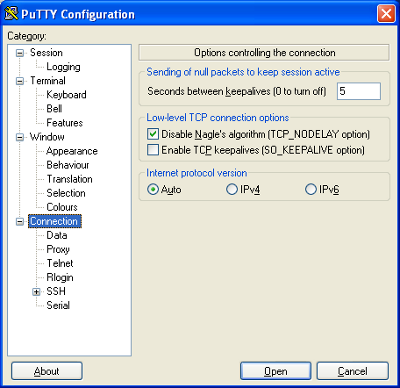
- SSH Keepalives Misconfiguration: SSH sessions can be terminated if they remain idle for too long, especially by intermediate network devices (like routers with NAT timeouts). PuTTY offers a “Keepalives” option (under Connection settings) that sends null packets at regular intervals to keep the connection alive. If this is not configured or set to too long an interval, idle connections might be aborted.
- SSH Agent (Pageant) Issues: If you’re using Pageant (PuTTY’s SSH authentication agent) for key management, ensure it’s running correctly and your private keys are loaded and accessible. While not a direct cause of “abort,” authentication failures can sometimes precede connection instability.
Intermediate Network Devices and ISP-Related Problems
Beyond your immediate machine, the journey your data takes to the server is fraught with potential pitfalls.
- NAT Timeout Issues: This is a significant factor. Many home and corporate routers use Network Address Translation (NAT) to allow multiple devices to share a single public IP address. NAT tables track active connections. If an SSH session remains idle for a period longer than the router’s NAT timeout setting (which can be as short as 30 seconds to a few minutes), the router might silently drop the connection from its table, causing your client to receive an RST packet when it next tries to communicate. PuTTY’s Keepalives are specifically designed to counteract this.
- ISP Throttling or Interruption: Your Internet Service Provider (ISP) can introduce instability. Intermittent service disruptions, network congestion, or even aggressive traffic shaping (throttling) by your ISP can lead to packet loss and connection resets.
- Packet Loss and Latency: High packet loss rates or extreme network latency along the path to the server can destabilize TCP connections. If too many packets are dropped or delayed, the TCP retransmission mechanism might fail, leading to the connection being aborted. This can be particularly prevalent over long distances or unreliable network links.
- Maximum Transmission Unit (MTU) Mismatch: The MTU defines the largest packet size that can be transmitted over a network. If there’s an MTU mismatch between your client, an intermediate router, and the server, fragmentation issues can occur. While usually leading to slower connections or complete stalls, severe MTU issues can sometimes manifest as connection resets.
Server-Side Nuances (Indirect Triggers)
While the error message points to client-side software, server-side issues can create conditions that trigger the client to abort the connection.
- Server Unresponsiveness: If the remote SSH server becomes overloaded, crashes, or experiences severe resource exhaustion, it might stop responding to your client’s requests. Although the server isn’t sending a direct “abort” signal, your client’s TCP/IP stack, after repeated failed attempts to communicate, might eventually decide the connection is dead and issue an RST packet locally.
- SSH Server Configuration (
sshd_config): The server’s SSH daemon (sshd) has its own keepalive settings (ClientAliveIntervalandClientAliveCountMax). If these are configured aggressively, the server might terminate idle connections, though this typically results in a “Connection reset by peer” message, not “Software caused connection abort.” However, an aggressive server-side timeout could potentially contribute to a scenario where the client’s local network stack determines the connection is lost.
Proactive Diagnostics and Troubleshooting Methodologies
Facing a “Software caused connection abort” requires a systematic approach. Haphazardly trying solutions can waste time and obscure the true problem. Here’s a structured methodology:
Initial Connectivity Checks and Basic Diagnostics
Before diving deep, rule out the simplest network problems.
- Ping the Server: Open a command prompt (Windows) or terminal (Linux/macOS) and type
ping [server_IP_or_hostname]. Look for consistent replies and low latency. High latency or packet loss indicates a general network problem. - Traceroute/Tracert: Use
tracert [server_IP_or_hostname](Windows) ortraceroute [server_IP_or_hostname](Linux/macOS). This shows the path your packets take and can help identify problematic hops (routers) along the way. Look for timeouts or high latency at specific points. - Test Other Services: Can you access other services on the server (e.g., a website on port 80/443, an FTP server) if available? If all services are unreachable, the problem is likely broader than just SSH.
- Try a Different Network: If possible, try connecting from a different network (e.g., mobile hotspot, a friend’s house). If it works, the issue is definitely within your local network environment.
PuTTY-Specific Troubleshooting Steps
Focus on PuTTY’s configuration and behavior.
- Enable PuTTY Logging: In PuTTY’s configuration, under Session -> Logging, select “Log all session output” and specify a log file. This log can sometimes reveal what happened leading up to the abort, offering clues about the last successful communication or the nature of the disconnection.
- Configure SSH Keepalives: Navigate to Connection in PuTTY’s configuration. Set “Seconds between keepalives” to a value like 30 or 60. This sends null packets to keep the NAT tables and firewalls aware that the connection is still active.
- Try Different SSH Protocol Versions: Under Connection -> SSH, try setting “SSH protocol version” to 2 only. While most modern servers use SSH-2, compatibility issues with older servers or specific network devices can sometimes arise.
- Test with Another SSH Client: Download and try an alternative SSH client like OpenSSH (built into Linux/macOS, available for Windows via WSL or Git Bash), MobaXterm, or Termius. If another client works flawlessly, the issue might indeed be specific to your PuTTY installation or configuration.
- Verify PuTTY Settings: Double-check the hostname/IP, port, and authentication method (password, key file) in your saved session profiles. A simple typo can lead to unexpected behavior.
- Check SSH Agent (Pageant): If using Pageant, ensure it’s running, your keys are loaded, and the correct key is selected for the session.
Network and System-Level Diagnostics
If PuTTY checks don’t yield results, broaden your scope to the operating system and network devices.
- Temporarily Disable Firewalls/Antivirus: CAUTION: Only do this for a brief diagnostic period and ensure you re-enable them immediately afterward. Disable your Windows Defender Firewall (or other OS firewall) and any third-party antivirus/security suites. If the connection suddenly works, you’ve found your culprit. You’ll then need to configure exceptions for PuTTY or SSH traffic in your security software.
- Bypass VPN/Proxy: If you’re using a VPN or proxy, try disconnecting from it and connecting directly. If the error disappears, the VPN/proxy is the source of the problem. Check its logs or settings for issues.
- Check Router/Modem:
- Restart your router and modem.
- Look for firmware updates for your router.
- Check your router’s logs (if accessible) for any connection drops, NAT errors, or unusual activity.
- Investigate NAT timeout settings on your router, if your router allows configuration of such advanced settings.
- Update Network Drivers: Ensure your Network Interface Card (NIC) drivers are up to date. Visit your computer manufacturer’s website or the NIC manufacturer’s website for the latest drivers.
- Monitor Network Traffic (Wireshark – Advanced): For advanced users, Wireshark can capture network packets. Filtering for TCP RST packets and analyzing the preceding traffic can provide definitive clues about where and why the connection was aborted. Look for the source of the RST packet – is it your local machine, your router, or somewhere else?
- Check System Event Logs (Windows): Open Event Viewer (
eventvwr.msc) and look under “Windows Logs” -> “System” or “Application” for any network-related errors or warnings that coincide with the connection aborts. - Reset Network Stack (Windows): In some stubborn cases, resetting the Windows network stack can resolve underlying issues. Open an elevated command prompt and run:
netsh winsock resetnetsh int ip resetipconfig /releaseipconfig /renewipconfig /flushdns
Restart your computer after running these commands.
Preventative Measures and Best Practices for Stable SSH Connections
Beyond troubleshooting, adopting best practices can significantly reduce the likelihood of encountering “Software caused connection abort” in the first place.
- Keep PuTTY Updated: Regularly check for and install the latest stable version of PuTTY. This ensures you benefit from bug fixes and compatibility improvements.
- Maintain Updated Security Software: While security software can be a culprit, keeping it updated ensures it has the latest definitions and bug fixes, potentially preventing false positives or unnecessary interference with legitimate traffic. Properly configure exceptions for PuTTY.
- Optimize SSH Keepalives: Consistently configure PuTTY’s client-side keepalives (e.g., 30-60 seconds). Consider also configuring server-side keepalives (
ClientAliveIntervalandClientAliveCountMaxin/etc/ssh/sshd_config) if you manage the server, creating a robust two-way keepalive mechanism. - Ensure Stable Network Hardware: Invest in reliable network hardware (routers, switches) and ensure their firmware is up-to-date. A stable local network environment is foundational for stable remote connections.
- Monitor Network Health: Periodically check your internet connection’s stability, especially if you experience frequent disconnects. Tools like
pingplottercan continuously monitor latency and packet loss to your server. - Understand NAT Timeouts: Be aware that consumer-grade routers often have aggressive NAT timeouts. If you’re frequently idle, keepalives are your best friend.
- Use Robust Authentication: While not directly related to aborts, using SSH keys for authentication instead of passwords can improve the initial connection robustness and security, reducing potential points of failure.
- Document Configurations: Keep a record of your PuTTY session settings, firewall rules, and any specific network configurations that resolve issues. This helps in quickly diagnosing future problems.
Advanced Scenarios and Edge Cases
Sometimes, the problem isn’t straightforward and might involve more nuanced scenarios:
- Intermittent Issues: If the error occurs sporadically, it’s often harder to diagnose. These are frequently linked to network instability (WiFi, ISP issues, overloaded network segments) or transient resource spikes on either client or server. Continuous monitoring tools become invaluable here.
- Large File Transfers: While transferring large files, if the connection experiences significant slowdowns or temporary stalls, some network devices or security software might interpret this as a hung connection and reset it. Ensure your network bandwidth is sufficient and stable for such operations.
- Corporate Network Policies: In corporate environments, strict firewall policies, content filters, or proxy servers can be highly aggressive. You might need to consult your IT department to understand specific network restrictions or to request exceptions for your SSH traffic.
- IPv6 vs. IPv4: Ensure consistency in addressing. If your client is trying to connect via IPv6 but the server only supports IPv4 (or vice-versa, or there’s a misconfiguration in between), this can lead to connection issues. Explicitly specify the IP version in PuTTY if needed.
Conclusion
The “Software caused connection abort” error in PuTTY, while initially daunting, is far from insurmountable. It serves as a powerful reminder of the intricate layers that constitute a seemingly simple remote connection. By systematically approaching the problem, starting with local configurations and gradually expanding your diagnostic scope to include network infrastructure and even server-side interactions, you can pinpoint the root cause.
Remember, the key is patience, methodical testing, and a willingness to explore beyond the obvious. Armed with the insights and troubleshooting techniques detailed in this guide, you are now better equipped to not only resolve this specific error but also to cultivate a more profound understanding of network diagnostics. May your SSH sessions be long, stable, and uninterrupted, allowing you to focus on your work rather than wrestling with connection issues.
Comprehensive Question & Answer (Q&A) Section
This section addresses common questions related to the “Software caused connection abort” error, providing concise and actionable answers.
Q1: What exactly does “Software caused connection abort” mean in the context of PuTTY?
A1: This error signifies that the TCP connection established by your PuTTY client was abruptly terminated by a component on your local machine or an intermediate network device acting on its behalf. It means your operating system’s network stack received a TCP RST (Reset) packet, indicating an unexpected closure, but this RST packet originated from your side of the connection or a device directly upstream from you, not the remote server.
Q2: Is “Software caused connection abort” a server-side or client-side problem?
A2: While server issues can indirectly contribute to conditions that lead to this error, the “abort” message itself is a client-side (or local network environment) problem. It indicates that the termination signal originated from your local machine’s software (e.g., firewall, antivirus, operating system’s network stack) or an intermediate device like your router, rather than the remote SSH server.
Q3: How do I check if my firewall is blocking PuTTY or causing the connection abort?
A3: The simplest diagnostic step is to temporarily disable your operating system’s firewall (e.g., Windows Defender Firewall) and any third-party security software (antivirus suites with network protection). Attempt to connect with PuTTY. If the connection succeeds, your firewall or security software is the culprit. You then need to create an exception or rule to allow PuTTY’s traffic (typically outbound TCP on port 22, or whatever custom port your SSH server uses) through the firewall.
Q4: What are SSH Keepalives, and how do they help prevent this error?
A4: SSH Keepalives are small, null packets sent periodically over an idle SSH connection. They help prevent the “Software caused connection abort” error by keeping the connection “active” in the eyes of network devices like routers (which have NAT timeouts) and firewalls. If a connection remains idle for too long, these devices might prematurely drop it. By sending keepalives (e.g., every 30-60 seconds), you signal that the connection is still in use, preventing these devices from terminating it. In PuTTY, you configure this under Connection -> “Seconds between keepalives”.
Q5: Can VPNs or proxy servers cause this “Software caused connection abort” error?
A5: Yes, absolutely. VPNs and proxy servers add additional layers to your network connection. If the VPN tunnel drops, experiences instability, or is misconfigured, or if the proxy server is overloaded or has incorrect settings, it can interrupt the underlying TCP connection, leading to your local system aborting the SSH session. Troubleshooting should include trying to connect without the VPN/proxy to isolate the issue.
Q6: When should I consider reinstalling PuTTY to fix this error?
A6: Reinstalling PuTTY should generally be a later step, after you’ve exhausted other troubleshooting avenues like checking firewalls, network connectivity, and PuTTY’s configuration settings. It might be helpful if you suspect a corrupted PuTTY installation, an outdated version with known bugs, or if you’ve made numerous configuration changes and want a fresh start. Always try updating to the latest version first.
Q7: How can Wireshark help diagnose the “Software caused connection abort” error?
A7: Wireshark is an advanced network protocol analyzer that can capture and display network traffic. For this error, Wireshark is invaluable because it can show you the exact source of the TCP RST (Reset) packet that terminates the connection. By filtering for RST packets (tcp.flags.reset == 1) and analyzing the surrounding traffic, you can determine if the RST packet originated from your local machine’s IP address, your router’s IP, or another intermediate device, thus pinpointing the culprit. It provides definitive proof of where the connection was aborted.
Q8: My connection aborts only when I’m idle. What’s the most likely cause?
A8: If the connection aborts specifically during periods of inactivity, the most likely causes are NAT timeouts on your router or aggressive firewall/security software rules that drop idle connections. Implementing PuTTY’s SSH Keepalives (setting “Seconds between keepalives” to a low value like 30-60) is the primary solution for this scenario, as it prevents the connection from being seen as idle.