In the contemporary digital landscape, where operations span global networks and data traverses countless nodes, the imperative for secure and efficient remote access is paramount. Whether managing a cloud server, collaborating on a development project, or accessing a home network from afar, the ability to connect securely and reliably underpins much of our modern technological infrastructure. This is where the Secure Shell Protocol, universally known as SSH, emerges as an indispensable cornerstone.
SSH provides a robust, encrypted conduit for establishing a secure connection between a client machine and a remote server. More than just a tool for executing commands, it’s a versatile protocol that safeguards data integrity and confidentiality, preventing eavesdropping, tampering, and impersonation. For anyone involved in system administration, software development, or simply striving to secure their digital interactions, mastering SSH is not merely advantageous – it’s fundamental. This comprehensive guide will meticulously dismantle the intricacies of SSH, from its foundational principles to advanced configurations, empowering you to establish, secure, and optimize your remote connections with expert proficiency.
Understanding SSH: The Foundation of Secure Remote Computing
At its core, SSH is a network protocol that enables cryptographic security for operating network services securely over an unsecured network. Its design principle revolves around providing a secure channel over an untrusted network by utilizing a client-server architecture.
What is SSH?
SSH, or Secure Shell, is a cryptographic network protocol for operating network services securely over an unsecured network. The best-known application of the protocol is for remote login to computer systems using command-line interface applications. However, SSH extends far beyond simple remote terminal access. It offers a suite of functionalities that include:
- Remote Command Execution: Running commands on a remote server as if you were sitting directly in front of it.
- Secure File Transfer: Protocols like SCP (Secure Copy Protocol) and SFTP (SSH File Transfer Protocol) allow for encrypted file transfers.
- Port Forwarding (Tunneling): Creating secure tunnels for other network services, encapsulating their traffic within the SSH encrypted connection.
- X11 Forwarding: Securely running graphical applications from a remote server on your local machine.
The protocol replaces insecure predecessors like Telnet and rsh (remote shell), which transmitted data, including passwords, in plain text, making them highly vulnerable to interception and malicious attacks.
How Does SSH Work? A Conceptual Overview
The operational mechanism of SSH is built upon a sophisticated interplay of cryptographic techniques, primarily leveraging asymmetric (public-key) and symmetric encryption, along with hashing.
1. Client-Server Architecture: An SSH connection always involves an SSH client (the machine initiating the connection) and an SSH server (the remote machine accepting the connection). The server typically runs a daemon (e.g., `sshd` on Linux/Unix systems) that listens for incoming connection requests, usually on port 22.
2. Initial Handshake and Key Exchange:
- When an SSH client attempts to connect to a server, they first negotiate a set of cryptographic algorithms to be used for the session.
- The server then presents its host key to the client. This is a public-key cryptographic key that uniquely identifies the server. The client checks if it has previously encountered this host key and, if so, verifies its authenticity against its `known_hosts` file. If it’s a new server or the key has changed, the client prompts the user for verification. This step is crucial for preventing Man-in-the-Middle (MITM) attacks.
- Following host key verification, a key exchange algorithm (e.g., Diffie-Hellman) is used to establish a shared session key. This session key is never transmitted over the network; it’s computed independently by both client and server based on exchanged public information, ensuring that even if the initial handshake is compromised, the session key remains secret.
3. Authentication: Once a secure, encrypted channel is established using the session key, the client authenticates itself to the server. SSH supports several authentication methods:
- Password-based Authentication: The client sends the user’s password to the server over the encrypted channel. The server verifies it against its local user database. While secure due to encryption, it’s still susceptible to brute-force attacks if passwords are weak.
- Public-Key Authentication (Key-based): This is the most recommended and secure method. The client possesses a private key, and the server holds a corresponding public key for that user. During authentication, the client proves possession of the private key without ever revealing it. The server uses the public key to challenge the client, and the client responds by cryptographically signing the challenge with its private key. If the signature is valid, authentication succeeds.
- Other Methods: Less common methods include host-based authentication, keyboard-interactive authentication, and GSSAPI authentication.
4. Secure Communication: After successful authentication, all subsequent communication (commands, output, file transfers) between the client and server is encrypted using the agreed-upon symmetric encryption algorithm and the session key. This ensures data confidentiality and integrity throughout the session.
Why SSH is Indispensable
The widespread adoption and continuous evolution of SSH underscore its critical role in modern computing:
- Unparalleled Security: By encrypting all traffic, SSH thwarts various network attacks, including packet sniffing, IP spoofing, and DNS spoofing, making it safe for transmitting sensitive information.
- Versatility: Its capabilities extend far beyond basic shell access, offering solutions for secure file management, VPN-like tunneling, and managing distributed systems.
- Ubiquity and Standardization: SSH is a de facto standard for remote access on Unix-like operating systems (Linux, macOS) and is readily available and supported on Windows. This widespread compatibility makes it a universal tool for system administrators and developers alike.
- Automation Capabilities: With key-based authentication, SSH connections can be automated, facilitating scripting for system maintenance, deployment, and integration within CI/CD pipelines without human intervention for password entry.
Prerequisites for Establishing an SSH Connection
Before you can dive into establishing an SSH connection, both your local machine (the client) and the remote machine (the server) need to meet certain fundamental requirements. Understanding these prerequisites will save you considerable troubleshooting effort.
On the Client Side (Your Machine)
The machine from which you intend to initiate the SSH connection needs the following:
- SSH Client Software:
- Linux and macOS: These operating systems typically come with an OpenSSH client pre-installed. You can access it directly from your terminal using the `ssh` command.
- Windows:
- Windows 10/11: OpenSSH Client is often an optional feature that can be installed via “Optional features” in Settings. Once installed, you can use the `ssh` command directly in PowerShell or Command Prompt.
- Older Windows Versions or Alternative Clients: PuTTY is a widely popular, free, and open-source SSH client for Windows. It provides a graphical user interface (GUI) for managing connections. Alternatively, using Windows Subsystem for Linux (WSL) allows you to use the native `ssh` command as if you were on a Linux machine.
- Network Connectivity: Your client machine must have network access to the remote server. This implies that your local network connection is active and that any local firewalls are configured to allow outbound connections on the SSH port (default 22).
On the Server Side (Remote Machine)
The machine you wish to connect to remotely must be properly configured to accept SSH connections:
- SSH Server Software (`sshd`): The remote machine must have an SSH server daemon running. On most Linux distributions, this is typically OpenSSH Server (`sshd`).
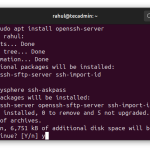
- To install on Debian/Ubuntu: `sudo apt update && sudo apt install openssh-server`
- To install on CentOS/RHEL: `sudo yum install openssh-server`
- After installation, ensure the service is running and enabled to start on boot: `sudo systemctl enable ssh –now`
- Network Accessibility:
- Public IP Address or Hostname: The server needs a public IP address or a registered domain name (hostname) that resolves to its public IP. If the server is behind a NAT router (e.g., in a home network), you might need to configure port forwarding on the router to direct incoming SSH traffic to the server’s internal IP address.
- Firewall Rules: The server’s firewall (e.g., `ufw` on Ubuntu, `firewalld` on CentOS) must be configured to allow incoming connections on the SSH port (default 22, or any custom port you configure).
- Example for `ufw`: `sudo ufw allow ssh` (or `sudo ufw allow 22/tcp`)
- Example for `firewalld`: `sudo firewall-cmd –permanent –add-service=ssh && sudo firewall-cmd –reload`
- User Account: You must have a valid user account (and its corresponding password or SSH key) on the remote machine that you wish to log in as.
- SSH Configuration (`sshd_config`): The server’s SSH configuration file, usually located at `/etc/ssh/sshd_config`, dictates how the SSH daemon behaves. This file controls various settings such as the listening port, allowed authentication methods, root login permissions, and more. It’s crucial for security and customization.
Step-by-Step Guide: Establishing Your First SSH Connection
With the prerequisites in place, let’s walk through the practical steps of establishing an SSH connection using the most common methods.
Basic Password-Based Authentication
This is often the first method new users encounter and is straightforward to set up, though less secure than key-based authentication.
1. Open Your Terminal or Command Prompt:
- Linux/macOS: Open Terminal (usually found in Applications/Utilities).
- Windows 10/11: Open PowerShell or Command Prompt.
- Windows (with PuTTY): Launch the PuTTY application.
2. Execute the SSH Command (Linux/macOS/Windows PowerShell):
The basic syntax for connecting is:
bash
ssh [username]@[hostname_or_IP_address]
- Replace `[username]` with the actual username on the remote server you want to log in as.
- Replace `[hostname_or_IP_address]` with either the server’s public IP address (e.g., `192.0.2.10`) or its registered domain name (e.g., `example.com`).
Example:
bash
ssh [email protected]
or
bash
ssh [email protected]
3. Handle the Host Key Verification (First Connection):
- The first time you connect to a new server, the SSH client will display a message similar to:
The authenticity of host ‘my-server.com (192.0.2.10)’ can’t be established.
ECDSA key fingerprint is SHA256:abcd123…
Are you sure you want to continue connecting (yes/no/[fingerprint])?
- This is the server presenting its host key. You should ideally verify this fingerprint against an out-of-band source (e.g., provided by your hosting provider) to ensure you’re connecting to the legitimate server and not an impersonator. For most personal or known servers, typing `yes` and pressing Enter is common. The client will then add this host key to your `~/.ssh/known_hosts` file, so you won’t be prompted again unless the server’s key changes.
4. Enter Your Password:
- After accepting the host key, you’ll be prompted for the password for the specified username on the remote server:
[email protected]’s password:
- Type your password carefully. Note that characters will typically *not* appear on the screen as you type (for security reasons). Press Enter.
5. Successful Connection: If the password is correct, you will be granted access to the remote server’s command-line interface. Your terminal prompt will change to reflect the remote system (e.g., `john_doe@my-server:~$` or `root@server-name:`). You are now securely connected.
Connecting with a Specific Port
By default, SSH uses port 22. However, for security reasons (security through obscurity) or specific network configurations, servers often run SSH on a different, non-standard port.
To connect to an SSH server listening on a custom port, use the `-p` flag:
bash
ssh -p [port_number] [username]@[hostname_or_IP_address]
Example (connecting to port 2222):
bash
ssh -p 2222 [email protected]
Using PuTTY on Windows (GUI Client)
For Windows users who prefer a graphical interface or are on older versions without OpenSSH Client, PuTTY is an excellent choice.
1. Download and Install PuTTY:
- Go to the official PuTTY download page (e.g., `putty.org`).
- Download the appropriate installer (MSI installer is recommended for ease of use).
- Follow the installation prompts.
2. Launch PuTTY: Find PuTTY in your Start Menu and open it.
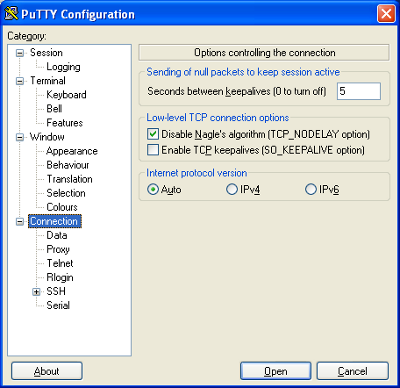
3. Configure Your Session:
- In the “Session” category:
- Host Name (or IP address): Enter the server’s public IP or hostname (e.g., `my-server.com` or `192.0.2.10`).
- Port: Enter the SSH port (default is 22). If your server uses a custom port, change it here.
- Connection type: Ensure “SSH” is selected.
- (Optional) In the “Connection” -> “Data” category, you can specify an “Auto-login username” to avoid typing it every time.
4. Save Your Session (Optional but Recommended):
- Under “Saved Sessions”, enter a descriptive name (e.g., `MyProductionServer`).
- Click “Save”. This allows you to quickly load these settings for future connections.
5. Open the Connection:
- Click “Open”.
- The first time connecting, PuTTY will display a security alert about the server’s host key. Review the key fingerprint if possible, then click “Accept” to add it to PuTTY’s cache.
- A terminal window will open, prompting you for your username (if not auto-logged) and then your password.
- Enter your password and press Enter.
You are now connected to the remote server via PuTTY.
Advanced SSH Connection: Leveraging Key-Based Authentication (Highly Recommended)
While password authentication is functional, key-based authentication offers a significantly higher level of security and convenience. It is the industry standard for securing SSH access.
Why Key-Based Authentication is Superior
- Enhanced Security: SSH keys are typically 2048-bit or 4096-bit long (or more, for ED25519 keys), making them virtually impossible to guess or brute-force compared to even very strong passwords.
- No Password Reuse Risk: Eliminates the risk associated with reusing passwords across different services.
- Convenience: Once set up, you don’t need to type a password for every connection (especially with `ssh-agent`), streamlining your workflow.
- Automation: Essential for scripting and automated deployments where human interaction is undesirable.
- Passphrase Protection: Private keys can themselves be protected by a strong passphrase, adding an extra layer of security.
Generating SSH Key Pairs
An SSH key pair consists of two files: a private key (kept secret on your local machine) and a public key (that you place on the remote server).
1. Open Your Terminal/PowerShell:
2. Generate the Key Pair: Use the `ssh-keygen` command.
bash
ssh-keygen -t rsa -b 4096 -C “[email protected]”
- `-t rsa`: Specifies the key type (RSA is common; ED25519 is another strong, modern alternative: `ssh-keygen -t ed25519 -C “[email protected]”`).
- `-b 4096`: Specifies the number of bits in the key (4096 is recommended for RSA; not applicable for ED25519 as its length is fixed).
- `-C “[email protected]”`: Adds a comment to the public key file, which helps identify the key’s owner or purpose.
3. Follow the Prompts:
- `Enter file in which to save the key (/home/user/.ssh/id_rsa):` Press Enter to accept the default location (`~/.ssh/id_rsa` and `~/.ssh/id_rsa.pub`). It’s generally best to keep the default names unless you need multiple keys for different purposes.
- `Enter passphrase (empty for no passphrase):` Strongly recommend entering a strong passphrase. This encrypts your private key on your local machine, so even if someone gains access to your computer, they cannot use your private key without this passphrase. You will be prompted for this passphrase when you first use the key in a session.
- `Enter same passphrase again:` Re-enter your passphrase.
Upon successful generation, you’ll see output confirming the keys have been saved. You now have two files in your `~/.ssh/` directory (e.g., `id_rsa` and `id_rsa.pub`). Ensure the private key (`id_rsa`) has strict permissions (`chmod 600 ~/.ssh/id_rsa`).
Copying the Public Key to the Server
The public key needs to be placed in a special file on the remote server: `~/.ssh/authorized_keys`.
Easiest Method: Using `ssh-copy-id` (Recommended for Linux/macOS)
This utility automates the process of copying your public key to the remote server and setting correct permissions.
bash
ssh-copy-id [username]@[hostname_or_IP_address]
Example:
bash
ssh-copy-id [email protected]
- It will prompt you for your password (for the remote user) to establish the initial connection.
- Once connected, it will automatically append your local public key (`~/.ssh/id_rsa.pub` by default) to `~/.ssh/authorized_keys` on the remote server and set the correct permissions.
Manual Method (If `ssh-copy-id` is unavailable or for fine-grained control)
1. Copy your public key to the remote server:
bash
cat ~/.ssh/id_rsa.pub | ssh [username]@[hostname] “mkdir -p ~/.ssh && chmod 700 ~/.ssh && cat >> ~/.ssh/authorized_keys && chmod 600 ~/.ssh/authorized_keys”
- This command concatenates (`cat`) your public key, pipes it (`|`) over an SSH connection to the remote server, where it creates the `~/.ssh` directory (if it doesn’t exist), sets its permissions to `700` (read/write/execute for owner only), appends the public key to `~/.ssh/authorized_keys`, and then sets `authorized_keys` permissions to `600` (read/write for owner only).
- You will be prompted for the remote user’s password.
2. Verify on the Server: Log in to the server using password authentication (or another key if you have one) and check the contents and permissions:
bash
cat ~/.ssh/authorized_keys
ls -ld ~/.ssh
ls -l ~/.ssh/authorized_keys
- The `authorized_keys` file should contain your public key.
- `~/.ssh` should have permissions `drwx——` (700).
- `~/.ssh/authorized_keys` should have permissions `-rw——-` (600). Incorrect permissions are a common cause of “Permission denied (publickey)” errors.
Connecting with SSH Keys
Once your public key is on the server, connecting is simplified:
bash
ssh [username]@[hostname_or_IP_address]
- If your private key is `~/.ssh/id_rsa` and it’s protected by a passphrase, you’ll be prompted for the passphrase.
- If your private key has a custom name (e.g., `my_custom_key`), specify it using the `-i` flag:
bash
ssh -i ~/.ssh/my_custom_key [username]@[hostname]
Disabling Password Authentication (Server-Side Hardening)
After successfully setting up key-based authentication, it is a critical security best practice to disable password authentication on the server. This prevents brute-force attacks against user passwords.
1. Edit the SSH Server Configuration:
bash
sudo nano /etc/ssh/sshd_config
2. Locate and Modify Settings:
Find the line `PasswordAuthentication` and change its value to `no`. If it’s commented out (starts with `#`), uncomment it first.
#PasswordAuthentication yes
PasswordAuthentication no
Also, ensure `PermitRootLogin` is set to `no` (and ideally, only allow specific users to SSH):
PermitRootLogin no
For added security, you can also consider `ChallengeResponseAuthentication no`.
3. Save and Restart the SSH Service:
- Save the file (Ctrl+O, Enter, Ctrl+X in Nano).
- Restart the `sshd` service for changes to take effect:
bash
sudo systemctl restart sshd
- Crucial Note: Before restarting `sshd`, ensure you can connect via SSH keys. If you disable password authentication and your key setup is flawed, you could lock yourself out of the server. Keep one terminal window with an active SSH session open until you’ve successfully tested the key-based login from a new terminal.
Enhancing Your SSH Connection and Workflow
SSH’s utility extends far beyond basic remote shell access. Advanced features allow for streamlined workflows, secure data transfers, and flexible network tunneling.
SSH Configuration File (`~/.ssh/config`)
The SSH configuration file on your client machine (`~/.ssh/config`) is a powerful tool for managing multiple SSH connections and custom settings. It allows you to define aliases, specify custom ports, usernames, and key files, simplifying complex commands.
Example `~/.ssh/config` file:
Host mywebserver
HostName example.com
User webadmin
Port 2222
IdentityFile ~/.ssh/id_rsa_webserver
ForwardAgent yes
Host *github.com
User git
IdentityFile ~/.ssh/id_rsa_github
IdentitiesOnly yes
Host devserver
HostName 192.168.1.10
User devuser
Port 22
With this configuration:
- To connect to `example.com` as `webadmin` on port `2222` using `id_rsa_webserver` key: `ssh mywebserver`
- To connect to `github.com` (as `git` with `id_rsa_github`): `ssh github.com`
- To connect to `192.168.1.10` as `devuser`: `ssh devserver`
The `ForwardAgent yes` option is for `ssh-agent` forwarding, which we’ll discuss next. `IdentitiesOnly yes` ensures that only the specified `IdentityFile` is offered for authentication, preventing the agent from trying all keys, which can be slow or problematic.
SSH Agent for Passphrase Management
If you use passphrases for your private keys (which you should!), you’ll be prompted to enter the passphrase every time you use the key. The `ssh-agent` is a program that holds your decrypted private keys in memory, allowing you to enter your passphrase only once per session.
1. Start the `ssh-agent` (if not already running):
On most systems, it starts automatically with your desktop environment. If not, you might need:
bash
eval “$(ssh-agent -s)”
2. Add your private key(s) to the agent:
bash
ssh-add ~/.ssh/id_rsa
You will be prompted for your private key’s passphrase. Once added, you won’t need to enter it again until the agent restarts or you explicitly remove the key.
3. To see keys currently loaded in the agent:
bash
ssh-add -l
The `ssh-agent` significantly enhances convenience without compromising security, as the key is still encrypted on disk.
Using SCP and SFTP for File Transfer
SSH isn’t just for commands; it provides secure file transfer capabilities:
- SCP (Secure Copy Protocol): A command-line utility for copying files and directories between machines over SSH. It’s syntax is similar to `cp`.
- Copy local file to remote server:
bash
scp /path/to/local/file.txt user@remote_host:/path/to/remote/directory/
- Copy remote file to local machine:
bash
scp user@remote_host:/path/to/remote/file.txt /path/to/local/directory/
- Copy entire directory recursively: Use the `-r` flag.
bash
scp -r /path/to/local/directory/ user@remote_host:/path/to/remote/
- Specify port: Use the `-P` flag (uppercase for SCP).
bash
scp -P 2222 local_file.txt user@remote_host:/remote_path/
- SFTP (SSH File Transfer Protocol): Provides an interactive file transfer program, similar to FTP, but secured by SSH.
bash
sftp user@remote_host
Once connected, you’ll be in an SFTP prompt, where you can use commands like `ls`, `cd`, `get` (download), `put` (upload), `pwd`, `lpwd`.
- `get remote_file.txt`
- `put local_file.txt`
- Graphical SFTP Clients: For those who prefer a GUI, clients like FileZilla, WinSCP (Windows), and Cyberduck (macOS/Windows) offer drag-and-drop SFTP functionality, simplifying file management over SSH.
SSH Port Forwarding (Tunneling)
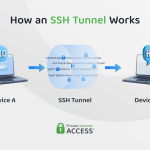
Port forwarding, also known as SSH tunneling, allows you to create secure connections between arbitrary ports on local and remote machines. This is incredibly powerful for accessing services that are not directly exposed to the internet, bypassing firewalls, or encrypting unencrypted traffic.
Local Port Forwarding (`-L`)
This forwards a port on your *local* machine to a port on the *remote* server, which then connects to another service (potentially on a third machine, relative to the SSH server).
Syntax: `ssh -L [local_port]:[target_host]:[target_port] [username]@[ssh_host]`
Use Case: Accessing an internal web application (e.g., Jira, database GUI) on the server’s private network that isn’t publicly accessible.
Suppose the web app runs on `192.168.1.5` on port `8080`, and your SSH server is `ssh.example.com`.
bash
ssh -L 8888:192.168.1.5:8080 [email protected]
Now, while this SSH connection is active, you can open your local browser and navigate to `http://localhost:8888`. Your browser’s traffic to `localhost:8888` will be securely tunneled through `ssh.example.com` to `192.168.1.5:8080`.
Remote Port Forwarding (`-R`)
This forwards a port on the *remote* server to a port on your *local* machine, allowing remote users to access a service running on your local machine.
Syntax: `ssh -R [remote_port]:[target_host]:[target_port] [username]@[ssh_host]`
Use Case: Temporarily exposing a local web server (e.g., for demonstration) to a colleague who can SSH into your remote server.
Suppose your local web server is on `localhost:8000`, and you want your colleague to access it via port `9999` on `ssh.example.com`.
bash
ssh -R 9999:localhost:8000 [email protected]
Now, your colleague (or anyone with access to `ssh.example.com`) can access your local web server by navigating to `http://ssh.example.com:9999`.
Dynamic Port Forwarding (SOCKS Proxy) (`-D`)
This turns your SSH client into a SOCKS proxy server, allowing you to proxy all traffic from applications configured to use it.
Syntax: `ssh -D [local_port] [username]@[ssh_host]`
Use Case: Browsing the internet as if you were located at the SSH server’s location, useful for bypassing geo-restrictions or encrypting all browser traffic.
bash
ssh -D 8080 [email protected]
Once connected, configure your browser’s proxy settings to use SOCKS v5 on `localhost` port `8080`. All your browser traffic will then be routed securely through your SSH server.
Troubleshooting Common SSH Connection Issues
Even with careful setup, you might encounter issues. Here’s how to diagnose and resolve some common SSH connection problems.
Connection Refused
This usually means the SSH server explicitly rejected your connection attempt.
- `sshd` not running: The SSH daemon might not be active on the server.
- Solution: On the server, check its status: `sudo systemctl status sshd`. If inactive, start it: `sudo systemctl start sshd`.
- Firewall blocking: The server’s firewall is blocking incoming connections on the SSH port.
- Solution: On the server, allow traffic on the SSH port (default 22, or your custom port). Examples: `sudo ufw allow 22/tcp` or `sudo firewall-cmd –permanent –add-service=ssh && sudo firewall-cmd –reload`.
- Incorrect IP/hostname: You’re trying to connect to the wrong address.
- Solution: Double-check the IP address or hostname.
Connection Timed Out
This indicates that your client couldn’t reach the server at all. The server didn’t respond to your connection request.
- Server unreachable/offline: The remote server might be down, rebooting, or have a network outage.
- Solution: Verify the server’s status and network connectivity.
- Network connectivity issues: Your client machine or an intermediary network device (router, ISP) has connectivity problems.
- Solution: Ping the server’s IP address (`ping 192.0.2.10`). If it fails, troubleshoot your local network or contact your ISP/hosting provider.
- Router port forwarding missing/incorrect: If the server is behind a NAT, port forwarding must be correctly configured on the router.
- Solution: Ensure your router forwards the SSH port to the server’s internal IP.
- Severe firewall blocking: A firewall (either on the server, client, or in between) is silently dropping packets, not refusing them.
- Solution: Check firewalls on both ends.
Permission Denied (publickey, password)
This means the connection was established, but your authentication failed.
- Incorrect password: For password-based authentication.
- Solution: Re-enter your password carefully.
- Incorrect username:
- Solution: Verify the username you’re using.
- SSH key issues (most common):
- Public key not on server: Your public key isn’t in `~/.ssh/authorized_keys` on the server.
- Solution: Copy your public key using `ssh-copy-id` or the manual method.
- Incorrect permissions on server: The `~/.ssh` directory or `~/.ssh/authorized_keys` file has incorrect permissions. They should be `700` for `~/.ssh` and `600` for `~/.ssh/authorized_keys`.
- Solution: On the server: `chmod 700 ~/.ssh && chmod 600 ~/.ssh/authorized_keys`.
- Incorrect private key permissions on client: Your local private key (`id_rsa`) has too liberal permissions. It should be `600`.
- Solution: On your client: `chmod 600 ~/.ssh/id_rsa`.
- Wrong key specified: You’re using the wrong private key or no key at all.
- Solution: Ensure `ssh-agent` has the correct key loaded, or use `ssh -i /path/to/key` if it’s a non-default key.
- `sshd_config` disallowing method: Server config might be preventing password or root login.
- Solution: Check `/etc/ssh/sshd_config` for `PasswordAuthentication no` or `PermitRootLogin no`.
Host Key Verification Failed
This warning indicates that the server’s host key has changed or is different from what your client expects.
- Possible MITM attack: A malicious actor might be impersonating the server.
- Server reinstallation/IP change: The legitimate server might have been reinstalled, its host key regenerated, or its IP address reassigned to a different machine.
- Solution: If you are certain the server is legitimate, you need to remove the old host key entry from your client’s `~/.ssh/known_hosts` file. The error message usually tells you which line to remove:
bash
ssh-keygen -R hostname_or_IP_address
Then, reconnect and accept the new fingerprint.
Verbose Output for Debugging
For any stubborn issue, the most powerful debugging tool is the verbose output from the SSH client.
- `ssh -v`: Provides verbose output.
- `ssh -vv`: Even more verbose.
- `ssh -vvv`: The most verbose output, showing every step of the connection process.
Analyze the output carefully. It often reveals exactly where the connection fails (e.g., “Authentications that can continue: publickey,gssapi-keyex,gssapi-with-mic,password”).
Conclusion
Establishing an SSH connection is a foundational skill in today’s interconnected world, serving as the gateway to secure remote operations across virtually every computing domain. From its inception, SSH has evolved into a sophisticated protocol, offering not just an encrypted channel for commands but also versatile tools for secure file transfers and powerful network tunneling.
By understanding the client-server architecture, the cryptographic handshake, and the robust authentication mechanisms—particularly the superior security of key-based authentication—you gain control over your remote interactions. The journey from a basic password-authenticated login to leveraging SSH keys, managing configurations with `~/.ssh/config`, and employing advanced features like port forwarding and `ssh-agent`, marks a significant enhancement in both security posture and operational efficiency.
While potential pitfalls and troubleshooting challenges exist, the verbose debugging options and a systematic approach can demystify most connection issues. Embrace key-based authentication as the gold standard, protect your private keys with strong passphrases, and regularly review server configurations to maintain an impenetrable remote access strategy. With these principles mastered, you are not merely establishing connections; you are forging secure, reliable pathways essential for navigating the complexities of modern digital infrastructure.