Conquering the Cryptic: A Definitive Guide to Fixing ‘SSH Connection Timed Out’ Errors
The digital realm, for all its wonders, is not without its vexations. Among the most frustrating for developers, system administrators, and even casual users managing remote servers, is the dreaded “SSH connection timed out” error. This seemingly simple message can halt workflows, delay deployments, and plunge productive individuals into a frustrating diagnostic odyssey. It’s not a simple rejection, but rather a silence—a lack of response from a remote host that leaves you suspended in an unresolved digital limbo.
Understanding and resolving this pervasive issue requires more than a cursory glance; it demands a systematic, informed approach. This comprehensive guide aims to demystify the “SSH connection timed out” error, dissecting its myriad causes and providing a definitive, step-by-step framework to diagnose, troubleshoot, and ultimately fix the problem, restoring your critical remote access and peace of mind.
Understanding the “SSH Connection Timed Out” Error
Before we dive into the solutions, it’s crucial to understand precisely what “SSH connection timed out” signifies. This error is fundamentally different from messages like “connection refused” or “permission denied,” each of which points to distinct stages of connection failure.
The Mechanism of an SSH Connection
To appreciate a timeout, one must first grasp the intricate ballet of an SSH (Secure Shell) connection. When you initiate an `ssh` command from your local machine (the client) to a remote server:
1. DNS Resolution: Your client first resolves the server’s hostname (e.g., `my-server.example.com`) into an IP address.
2. TCP Handshake: The client attempts to establish a basic TCP/IP connection to the server on the specified SSH port (defaulting to 22). This involves a three-way handshake: SYN (client to server), SYN-ACK (server to client), ACK (client to server).
3. SSH Protocol Handshake: Once the TCP connection is established, the SSH protocol layer takes over, negotiating versions, ciphers, and initiating authentication.
4. Authentication: The client authenticates with the server (e.g., via password, public key, or other methods).
5. Session Establishment: Upon successful authentication, a secure shell session is established, allowing you to execute commands remotely.
What “Timed Out” Truly Means
When an SSH connection “times out,” it almost invariably means the TCP handshake—the initial step of establishing a raw network connection—failed to complete within a predefined period. Your client sent a SYN packet to the server, but it did not receive a SYN-ACK response within the expected timeframe.
This doesn’t mean the server actively *refused* the connection; it means the server either didn’t receive the SYN packet, or it received it but was unable to send a SYN-ACK back to your client. The implication is critical: the problem lies somewhere in the path between your client and the server, preventing even the most rudimentary communication.
Common scenarios leading to a timeout include:
- The server is completely offline or unresponsive.
- A firewall (on the client, server, or an intermediary network device) is silently dropping the packets.
- Network routing issues are preventing packets from reaching the server or responses from returning.
- The SSH daemon (`sshd`) on the server is not running or listening on the expected port.
- Server resources are exhausted, making it unable to respond.
Understanding these distinctions is the first step toward a targeted and efficient troubleshooting process.
The Systematic Troubleshooting Framework: Your Diagnostic Checklist
Navigating the complexities of network and server issues demands a methodical approach. Randomly trying fixes is inefficient and can even introduce new problems. Adopt this systematic framework, moving from the most common and easily verifiable issues to more intricate diagnostics.
1. Verify Basic Connectivity (Client & Network): Can you reach the internet? Can you reach the server’s IP directly?
2. Check Server Status: Is the remote server actually online and running?
3. Inspect Firewalls: Are any firewalls blocking traffic (client, intermediate, server)?
4. Confirm SSH Service (Server): Is the SSH daemon running and configured correctly on the server?
5. Review Client Configuration: Are your local SSH client settings correct?
6. Investigate DNS: Are you using a hostname, and is it resolving correctly?
7. Consider Advanced Network Issues: Look into MTU problems or routing complexities.
Let’s delve into each of these areas with detailed diagnoses and actionable fixes.
Common Culprits and Their Definitive Fixes
This section systematically addresses the most frequent causes of SSH connection timeouts, providing clear diagnostic steps and robust solutions.
1. Network Connectivity Issues (Client-Side & Intermediate)
Often, the problem isn’t with the server at all, but with the network path leading to it, starting right from your local machine.
- Problem: Your local network (Wi-Fi, Ethernet), your Internet Service Provider (ISP), or an intermediate network device between you and the server is preventing the SSH packets from reaching their destination or the responses from returning.
- Diagnosis:
- Internet Access Check: Can you access other websites or services (e.g., Google, your email) from your local machine? If not, the issue is likely with your local internet connection.
- Ping the Server: Open your terminal/command prompt and `ping` the server’s IP address (not hostname, initially) to check basic reachability.
bash
ping 192.168.1.100 # Replace with your server’s IP
If you see “Request timed out” or “Destination Host Unreachable,” packets aren’t even reaching the server at a basic ICMP level.
- Traceroute/Tracert: Use `traceroute` (Linux/macOS) or `tracert` (Windows) to identify where the connection is failing in the network path.
bash
traceroute your-server-ip-or-hostname
Look for asterisks (`*`) or long delays at a specific hop, which might indicate a failing router or a blocking firewall along the route.
- Test from a Different Network: If possible, try connecting to the server from a different network (e.g., a mobile hotspot, a friend’s Wi-Fi, or another internet connection). If it works, the issue is definitively with your original client network.
- Fixes:
- Local Network Reset: Restart your local router and modem. This can resolve temporary glitches with network devices.
- Check Local Cables/Wi-Fi: Ensure your Ethernet cable is securely connected, or your Wi-Fi connection is stable.
- ISP Issues: If you’re experiencing widespread internet problems, contact your ISP.
- VPN/Proxy Interference: If you’re using a VPN or proxy, try disabling it temporarily to see if it’s interfering with the connection.
- Test with IP: Always try connecting with the server’s direct IP address first (`ssh [email protected]`) to rule out DNS resolution problems.
2. Server Availability and Health
A common, yet sometimes overlooked, cause is that the remote server itself is simply not running, or its resources are so strained that it cannot respond.
- Problem: The remote server is offline, has crashed, is undergoing maintenance, or is severely overloaded (CPU, RAM, disk I/O). The SSH daemon (`sshd`) might also not be running.
- Diagnosis:
- Hosting Provider Panel: If your server is hosted with a cloud provider (AWS, GCP, Azure, DigitalOcean, Linode, Vultr, etc.), check its status dashboard. Many providers offer a web-based console or terminal that bypasses network issues, allowing you to log in directly to the server’s operating system.
- Alternative Services: Can you access other services running on the server? For example, if it’s a web server, can you access a website hosted on it? If the website is down, it strongly suggests a server-wide issue.
- Port Check with `telnet` (or `nc`): From your client, attempt to connect to the SSH port specifically.
bash
telnet your-server-ip 22 # On Linux/macOS
# or
nc -vz your-server-ip 22 # Netcat, if telnet isn’t available
If `telnet` immediately connects and shows some garbled text (the SSH banner), it means a service is listening on port 22. If it hangs and then times out, no service is listening or a firewall is blocking it before the service can respond.
- Fixes:
- Reboot the Server: If you have access via a hosting provider’s panel (console access), a hard reboot can often resolve server freezes or resource exhaustion issues. *Use this with caution and as a last resort, as it can disrupt running applications.*
- Contact Server Administrator/Hosting Support: If you don’t have direct access or are unsure, reach out to your server administrator or hosting provider’s support team. They can confirm server status and assist with reboots or diagnostics.
- Check Resource Usage (via console): If you can access the server via a web console, check resource usage with commands like `top`, `htop`, `df -h`, `iostat`. High CPU, RAM, or disk I/O could prevent `sshd` from responding.
3. Firewall Blockage (Client, Intermediate, Server)
Firewalls are a primary suspect for connection timeouts because they are designed to silently drop unwanted packets, making it appear as if the server simply isn’t there.
- Problem: A firewall at any point in the connection chain (your local machine, your router, your ISP, an intermediate network, or the remote server itself) is blocking outgoing or incoming SSH traffic.
- Diagnosis:
- Client-Side Firewall:
- Windows: Check “Windows Defender Firewall” settings. Temporarily disable it for testing, then re-enable and configure an exception.
- macOS: Go to “System Settings” > “Network” > “Firewall.”
- Linux: If you’re using `ufw` or `firewalld`, check its status: `sudo ufw status` or `sudo firewall-cmd –state`.
- Intermediate Network Firewall: This is common in corporate environments or heavily secured home networks. Your router might have a built-in firewall. This often requires IT department assistance.
- Server-Side Firewall (Most Common): This is the most frequent culprit.
- Linux (iptables/ufw/firewalld): You’ll need console access to the server.
- `sudo iptables -L -n` (list iptables rules)
- `sudo ufw status` (check UFW status)
- `sudo firewall-cmd –list-all` (check Firewalld status)
- Cloud Provider Security Groups/Network ACLs: For servers hosted on AWS, Azure, GCP, DigitalOcean, etc., security groups or network access control lists (NACLs) act as firewalls. These are configured *outside* the OS. Check the ingress rules for your server’s instance or droplet; ensure port 22 (or your custom SSH port) is allowed from your IP address or `0.0.0.0/0` (for testing, though `0.0.0.0/0` is generally insecure for production).
- `nmap` from a different machine: If you have another machine on a *different* network that can reach your server, try `nmap` to scan the SSH port.
bash
nmap -p 22 your-server-ip
If it shows “filtered,” a firewall is likely dropping the packets. If it shows “open,” the port is reachable.
- Fixes:
- Client-Side:
- Temporarily Disable: For testing, disable your client-side firewall. If the connection works, re-enable it and add an exception for SSH.
- Server-Side (via Console/Web Terminal):
- UFW (Uncomplicated Firewall):
bash
sudo ufw allow 22/tcp # Or your custom SSH port
sudo ufw enable # If not already enabled
sudo ufw status # Verify the rule
- iptables:
bash
sudo iptables -A INPUT -p tcp –dport 22 -j ACCEPT
sudo service netfilter-persistent save # For persistence on Debian/Ubuntu
sudo /sbin/service iptables save # For persistence on CentOS/RHEL
*Note: `iptables` rules are temporary until explicitly saved and often require more advanced management.*
- Firewalld:
bash
sudo firewall-cmd –permanent –add-service=ssh # Or –add-port=22/tcp
sudo firewall-cmd –reload
sudo firewall-cmd –list-all # Verify the rule
- Cloud Security Groups: Log into your cloud provider’s console, navigate to your server instance, and modify the associated security group/firewall rules to allow inbound TCP traffic on port 22 (or your custom port) from your client’s IP address.
4. Incorrect SSH Client Configuration
Sometimes, the client initiating the connection might have misconfigured settings that lead to a timeout before even reaching the server meaningfully.
- Problem: Typographical errors in the hostname/IP, incorrect port specified, or problematic settings in your `~/.ssh/config` file.
- Diagnosis:
- Double-Check Command: Carefully review the `ssh` command you’re using.
bash
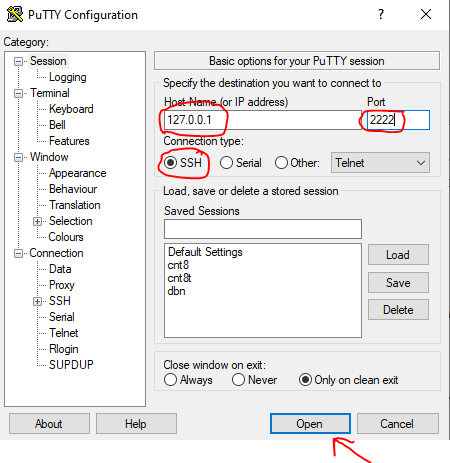
ssh -p 2222 user@your-server-ip-or-hostname # Ensure -p is correct
- Verbose Mode: The most powerful diagnostic tool on the client side is verbose output.
bash
ssh -v user@your-server-ip
ssh -vvv user@your-server-ip # Even more verbose
This output will show the client’s attempts to connect, negotiate protocols, and authenticate. A timeout will usually manifest after “connect to host [IP] port [PORT]: Connection timed out.”
- `~/.ssh/config` Review: Check your SSH configuration file for the specific host or global settings that might be interfering. Look for `Port`, `HostName`, `User`, `ProxyJump`, `ConnectTimeout`, or `ServerAliveInterval` directives.
- Fixes:
- Correct Command Syntax: Ensure the IP address, username, and especially the port (`-p `) are accurate.
- Clean `~/.ssh/config`: Temporarily rename or move your `~/.ssh/config` file to eliminate it as a variable.
bash
mv ~/.ssh/config ~/.ssh/config_backup
Then try connecting. If it works, gradually reintroduce and correct settings in a new `config` file.
- Specify `ConnectTimeout`: If network latency is high, your client’s default timeout might be too short. You can extend it:
bash
ssh -o ConnectTimeout=30 user@your-server-ip
Or add `ConnectTimeout 30` to your `~/.ssh/config` for that host.
5. Incorrect SSH Daemon Configuration (Server-Side)
Even if the server is up and its firewall is open, a misconfigured SSH daemon (`sshd`) can prevent connections. This usually requires console access.
- Problem: The `sshd_config` file on the server has incorrect settings (e.g., listening on the wrong port/interface, restrictive `AllowUsers`/`DenyUsers`).
- Diagnosis (via console/web terminal):
- `sshd` Status: Check if the SSH daemon is running.
bash
sudo systemctl status sshd # For systemd-based systems (most modern Linux)
sudo service sshd status # For older SysVinit systems
If it’s not running, try to start it: `sudo systemctl start sshd`.
- `sshd_config` Review: Examine the main SSH daemon configuration file, typically located at `/etc/ssh/sshd_config`. Pay close attention to:
- `Port`: Ensure it matches the port you’re trying to connect to.
- `ListenAddress`: Should generally be `0.0.0.0` or a specific IP address accessible from the outside.
- `Protocol`: Should be `2` for modern SSH.
- `AllowUsers`, `DenyUsers`, `AllowGroups`, `DenyGroups`: Ensure your user is not explicitly blocked.
- `PermitRootLogin`: If you’re trying to log in as root, ensure this is set to `yes` (though generally discouraged for security).
- Server Logs: Check SSH-related logs for errors or warnings.
- `/var/log/auth.log` (Debian/Ubuntu)
- `/var/log/secure` (CentOS/RHEL)
- `journalctl -u sshd` (for systemd logs)
Look for messages indicating `sshd` failing to start, or issues related to binding to ports or network interfaces.
- Fixes:
- Correct `sshd_config`: Edit `/etc/ssh/sshd_config` using a text editor like `nano` or `vi`.
- Example: If `Port` was changed and you’re not aware, set it back to `22` or the custom port you intend to use.
- Make sure `ListenAddress` isn’t set to an internal-only IP or an incorrect value.
- Restart `sshd`: After making *any* changes to `sshd_config`, you must restart the service for them to take effect.
bash
sudo systemctl restart sshd
*Caution: If your configuration has a fatal error, `sshd` might fail to restart, locking you out if you don’t have console access.* It’s good practice to run `sudo sshd -t` to test the configuration file syntax before restarting.
6. DNS Resolution Issues
If you’re connecting via a hostname (e.g., `example.com`) instead of a direct IP address, a failure in DNS resolution can prevent the client from even knowing which IP to send packets to.
- Problem: Your client cannot resolve the server’s hostname into a valid IP address, or it’s resolving to an incorrect IP.
- Diagnosis:
- Connect with IP: First, try connecting using the server’s IP address directly. If this works, the problem is definitely DNS-related.
- `nslookup` or `dig`: Use these tools to query DNS.
bash
nslookup your-server-hostname
dig your-server-hostname
Verify that the returned IP address matches your server’s actual public IP.
- Client-Side DNS: Check your local machine’s DNS settings (e.g., `/etc/resolv.conf` on Linux, network settings on Windows/macOS).
- Fixes:
- Use IP Address: For critical connections, using the direct IP address bypasses DNS issues.
- Correct DNS Records: If you control the domain, ensure the A record for your server’s hostname points to the correct IP address. DNS changes can take time to propagate (TTL).
- Flush DNS Cache: On your client machine, flush your local DNS cache.
- Windows: `ipconfig /flushdns`
- macOS: `sudo dscacheutil -flushcache; sudo killall -HUP mDNSResponder`
- Linux: `sudo systemctl restart systemd-resolved` (if using systemd-resolved), or `sudo /etc/init.d/nscd restart` (if using nscd).
- Change Client DNS Servers: Temporarily change your client’s DNS servers to public ones like Google DNS (8.8.8.8, 8.8.4.4) or Cloudflare DNS (1.1.1.1, 1.0.0.1) to rule out issues with your current DNS resolver.
7. MTU (Maximum Transmission Unit) Problems
While less common, MTU mismatches can cause seemingly random timeout issues, especially when SSH works on some networks but not others, or only for small data transfers.
- Problem: The Maximum Transmission Unit (MTU) setting along the network path (client, router, server) is mismatched, leading to packet fragmentation issues where some packets are lost or too large to be handled correctly. This is particularly prevalent with VPNs or certain WAN setups.
- Diagnosis:
- Path MTU Discovery: Use `ping` with flags to prevent fragmentation and specify packet size.
- Linux/macOS:
bash
ping -M do -s 1472 your-server-ip # Try different sizes, 1472 + 28 (headers) = 1500
Gradually reduce the `-s` value until pings succeed without fragmentation errors.
- Windows:
bash
ping -f -l 1472 your-server-ip
Again, reduce the `-l` value until successful.
The largest value that succeeds gives you the optimal MTU for the path.
- Fixes:
- Adjust MTU on Client/Server: If you identify a smaller optimal MTU, you might need to adjust the MTU of your network interface on either the client or the server.
- Linux (temporarily): `sudo ip link set dev eth0 mtu 1400` (replace `eth0` with your interface name and `1400` with the optimal MTU).
- Linux (persistently): Modify network configuration files (e.g., `/etc/netplan/` for Ubuntu, `/etc/sysconfig/network-scripts/` for CentOS).
- Router/VPN Settings: In more complex scenarios, the MTU issue might be with an intermediate router or VPN gateway that you don’t control, making it harder to fix.
8. SSH Protocol and Version Mismatches
In rare cases, particularly with very old or very new clients/servers, an incompatibility in SSH protocol versions or supported ciphers can lead to connection failures that might manifest as a timeout.
- Problem: The client and server cannot agree on a common SSH protocol version or a mutually acceptable encryption cipher/MAC algorithm.
- Diagnosis:
- Verbose SSH Output: `ssh -vvv user@host` will show the negotiation process. Look for lines like “SSH2_MSG_KEXINIT sent” and “SSH2_MSG_KEXINIT received,” followed by a failure to agree on algorithms.
- `sshd_config`: Check the server’s `/etc/ssh/sshd_config` for `Protocol`, `Ciphers`, `MACs`, `KexAlgorithms` directives.
- Fixes:
- Update SSH Software: Ensure both your client (OpenSSH) and the server’s `sshd` are reasonably up-to-date. Newer versions typically support a broader range of protocols and algorithms.
- Explicit Protocol/Cipher: If you suspect an incompatibility, you can try forcing a specific protocol or a common cipher from the client (e.g., `ssh -o Ciphers=aes128-ctr user@host`) or by adjusting the `sshd_config` on the server (e.g., `Ciphers aes128-ctr,aes192-ctr,aes256-ctr`). *Consult documentation before making arbitrary changes to encryption settings.*
Advanced Diagnostics and Best Practices
Beyond the primary troubleshooting steps, a few advanced techniques and considerations can further refine your diagnostic capabilities and enhance your overall SSH experience.
Leveraging Verbose Mode (`ssh -vvv`)
As mentioned, verbose mode is your best friend. The `-v` flag (and up to `-vvv`) provides increasingly detailed output of the client’s actions.
- What to look for:
- `debug1: Connecting to [] port .`: Confirms DNS resolution and initial connection attempt.
- `debug1: connect to host port : Connection timed out`: Confirms the exact point of failure.
- `debug1: SSH2_MSG_KEXINIT sent`: Indicates the client successfully established TCP and sent its key exchange proposals. If you see this, the problem is likely *after* the initial TCP handshake (e.g., server SSH daemon not fully responsive, or advanced SSH configuration issues). If you don’t see this, it’s a fundamental network/firewall issue.
Checking Server Logs (via Console)
When you have console access, server logs are invaluable.
- Authentication Logs:
- `/var/log/auth.log` (Debian/Ubuntu)
- `/var/log/secure` (CentOS/RHEL)
These logs record authentication attempts, `sshd` startup/shutdown, and any related errors. Look for messages from `sshd` that occur around the time of your failed connection attempt.
- System Logs:
- `/var/log/syslog` (general system messages)
- `journalctl -u sshd` (for systemd-managed services)
These can reveal issues with `sshd` starting, problems with network interfaces, or resource exhaustion warnings.
Persistent SSH Connections and Keepalives
For connections over unstable networks or to prevent timeouts during periods of inactivity, SSH offers built-in mechanisms.
- Client-Side `ServerAliveInterval`: Add this to your `~/.ssh/config` for a specific host or globally.
Host your-server
HostName your-server-ip-or-hostname
User your-username
ServerAliveInterval 60 # Send a null packet every 60 seconds
ServerAliveCountMax 3 # Try 3 times before giving up
This instructs your client to send a null packet to the server if no data has been exchanged for the specified interval. This keeps the connection alive and can prevent NAT/firewall devices from prematurely closing inactive TCP sessions.
- Server-Side `ClientAliveInterval`: In `/etc/ssh/sshd_config` on the server:
ClientAliveInterval 300 # Wait 300 seconds for client response
ClientAliveCountMax 0 # Don’t disconnect, just log
This instructs the server to send a null packet to the client. If `ClientAliveCountMax` is set to a non-zero value, the server will disconnect the client if it doesn’t respond after that many intervals. This is usually for security (disconnecting inactive sessions), not for fixing connection timeouts.
Using Mosh as an Alternative
For highly unreliable connections, Mobile Shell (Mosh) offers a robust alternative to SSH. Mosh maintains a session even if your client’s IP address changes (e.g., switching from Wi-Fi to cellular) and handles intermittent network drops much more gracefully than traditional SSH, providing a more fluid experience over poor connections. It requires Mosh to be installed on both client and server.
Proactive Measures to Prevent Future Timeouts
The best fix is prevention. Implement these practices to minimize the likelihood of future SSH connection timeouts.
- Regular Server Health Monitoring: Implement monitoring tools (e.g., Prometheus, Nagios, Zabbix, cloud provider monitoring) to track server uptime, resource usage (CPU, RAM, disk I/O), and network connectivity. Early warnings can prevent full outages.
- Consistent Firewall Configuration Reviews: Regularly audit your server’s firewall rules (iptables, ufw, firewalld, cloud security groups) to ensure they are correct, restrictive, and not accidentally blocking legitimate SSH traffic. Document any changes.
- Use Public/Private Key Authentication: While not directly preventing timeouts, key-based authentication is more secure and generally more robust than password authentication, reducing potential issues related to password prompts or brute-force attempts that could overload `sshd`.
- Keep Systems and SSH Clients/Servers Updated: Regularly update your operating systems, SSH clients (e.g., OpenSSH on your local machine), and the SSH daemon (`sshd`) on your servers. Updates often include bug fixes, performance improvements, and security patches that can improve connection stability.
- Document Network Architecture and Server Configurations: Maintain clear documentation of your network topology, firewall rules, custom SSH ports, and any non-standard server configurations. This will drastically speed up troubleshooting.
- Implement a Robust Backup Strategy: In the event of a catastrophic server failure that leads to persistent SSH timeouts, a good backup strategy ensures that you can recover your data and configuration, even if the original server is irrecoverable.
Conclusion
The “SSH connection timed out” error, while frustrating, is rarely an insurmountable obstacle. By adopting a disciplined, systematic troubleshooting methodology, you can methodically identify and address the root cause, whether it resides in your local network, an intermediary firewall, a misconfigured server, or an overloaded host.
Remember to start with the simplest checks and progressively work through the more complex possibilities. Leverage verbose client output, scrutinize server logs, and apply the specific fixes detailed in this guide. Moreover, by embracing proactive monitoring and maintaining diligent server hygiene, you can significantly reduce the incidence of future timeouts, ensuring your remote server access remains consistently reliable and secure. Mastering these diagnostics transforms a perplexing error into a solvable challenge, empowering you to maintain seamless control over your digital infrastructure.