In the intricate tapestry of modern computing, Secure Shell (SSH) stands as a foundational pillar, enabling secure remote access and data transfer across myriad systems. Its ubiquity, however, occasionally gives rise to frustrating roadblocks, none more common or vexing than the dreaded “Connection Refused” error. This seemingly terse message, while succinct, encapsulates a multitude of potential underlying issues, transforming a routine task into an immediate troubleshooting mission.
This deeply comprehensive guide aims to demystify the ‘SSH Connection Refused’ error, providing system administrators, developers, and power users with a systematic, professional, and highly actionable framework for diagnosis and resolution. We will dissect the technical implications of this error, explore its root causes on both server and client ends, and furnish detailed, step-by-step solutions designed to restore your secure connections with efficiency and confidence.
Introduction: Deciphering the Digital Dead End
The “Connection Refused” error isn’t merely an inconvenience; it’s a direct communication from the target machine’s operating system, specifically its TCP/IP stack. Unlike “Connection Timed Out” (which suggests no response from the target at all), “Connection Refused” indicates that the client successfully reached the server’s IP address, but the server explicitly rejected the connection attempt on the specified port. This rejection is often immediate and definitive, signaling that no service is listening on that port, or a firewall is actively blocking the inbound request.
Understanding this fundamental distinction is the first critical step in effective troubleshooting. It narrows the scope of investigation considerably, pointing directly towards server-side configurations or network intermediary devices that actively deny the connection, rather than passive network failures.
Understanding the ‘Connection Refused’ Error
When an SSH client initiates a connection, it attempts a TCP handshake on port 22 (or a custom configured port) with the target server.
1. SYN (Synchronize): The client sends a SYN packet to the server.
2. SYN-ACK (Synchronize-Acknowledge): If a service is listening on the port and is willing to accept connections, the server responds with a SYN-ACK packet.
3. ACK (Acknowledge): The client acknowledges, and the connection is established.
A “Connection Refused” error occurs when the client sends the SYN packet, but the server responds with an RST (Reset) packet instead of SYN-ACK. This RST packet explicitly tells the client: “I cannot or will not accept your connection on this port.” This can happen for several primary reasons:
- No Service Listening: There is no daemon (like `sshd`) running and listening on the specified port. The operating system’s kernel, upon receiving the SYN packet for a port without an active listener, issues an RST.
- Active Firewall Blocking: A firewall (either on the server itself or an intermediate network device) is configured to explicitly reject connections on that port. Instead of dropping packets silently (which would lead to a timeout), it sends an RST packet to signify active denial.
- Misconfigured Service: The SSH daemon might be running, but it’s misconfigured (e.g., listening on the wrong IP address or interface, or configured to deny connections from the client’s source IP/user).
It’s crucial to differentiate “Connection Refused” from other common SSH errors, such as “Connection Timed Out” (often a network path issue or passive firewall block) or “Permission Denied” (which occurs *after* a successful connection handshake, indicating authentication failure). This guide focuses exclusively on the “Connection Refused” scenario.
The Systematic Approach to SSH Troubleshooting
Effective troubleshooting is a methodical process, not a frantic trial-and-error spree. When faced with an SSH connection refusal, a systematic approach saves time, reduces frustration, and ensures that all potential avenues are explored logically. This section outlines the recommended diagnostic workflow.
Prioritizing Checks: A Methodical Pathway
Begin with the most common and easily verifiable issues, progressively moving towards more complex or less frequent scenarios. This “quick wins” strategy ensures that simple oversights are corrected swiftly before diving into deep system diagnostics.
1. Verify SSH Service Status (Server-Side): Is the `sshd` daemon running?
2. Check Server Firewall (Server-Side): Is the port open on the server’s local firewall?
3. Inspect SSH Configuration (Server-Side): Are there any misconfigurations in `sshd_config`?
4. Network Connectivity (Client-Side & Network-Side): Can the client even reach the server’s IP? Are there intermediate firewalls?
5. Client-Side Parameters: Is the client attempting to connect to the correct IP/hostname and port?
6. Advanced Diagnostics: Delve into verbose client output and server logs for specific clues.
By adhering to this hierarchy, you can efficiently isolate the problem’s origin.
Server-Side Culprits: Where the SSH Daemon Dwells
The overwhelming majority of “Connection Refused” errors originate on the target server. This section details the most common server-side issues and their precise resolution steps.
The SSH Daemon: Is It Even Running?
The most straightforward reason for a connection refusal is that the SSH daemon (`sshd`) is not running on the target server. If no service is listening on the expected port, the kernel will immediately respond with an RST packet.
Diagnosing SSHD Status
To check if the SSH daemon is active, you’ll need console access to the server (e.g., via a cloud provider’s web console, KVM, or an alternative remote access method).
For systems using `systemd` (most modern Linux distributions like Ubuntu, Debian, CentOS 7+, Fedora):
bash
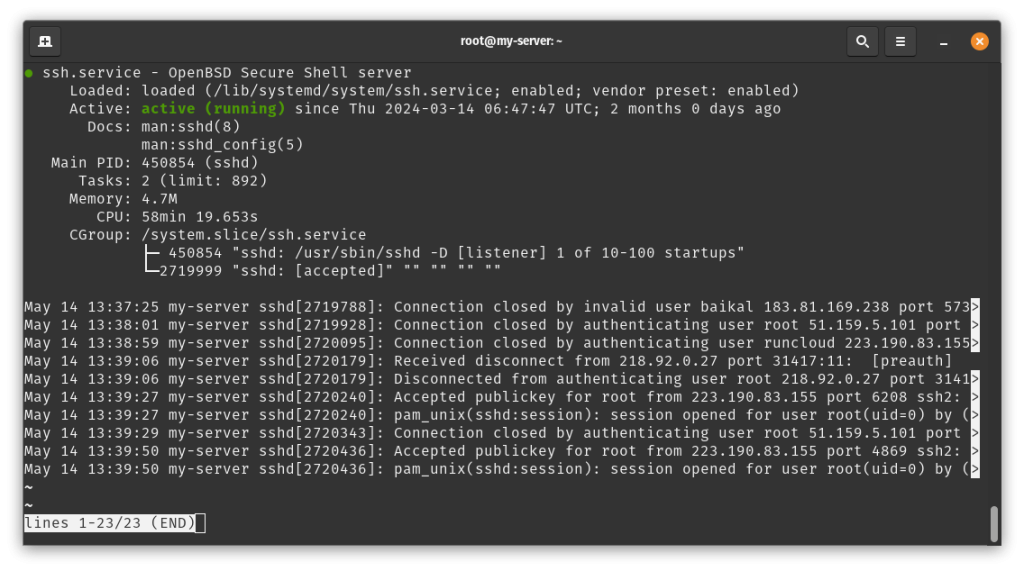
sudo systemctl status sshd
Look for `Active: active (running)`. If it’s `inactive (dead)` or `failed`, the service is not operational.
For systems using `SysVinit` (older Linux distributions):
bash
sudo service ssh status
# or
sudo /etc/init.d/ssh status
The output will indicate whether the SSH daemon is running.
Initiating or Restarting the SSH Service
If `sshd` is not running, or if you suspect it’s in a faulty state, attempt to start or restart it.
For `systemd` systems:
bash
sudo systemctl start sshd
sudo systemctl enable sshd # Ensures it starts on boot
sudo systemctl restart sshd # If it was running but you want to refresh it
For `SysVinit` systems:
bash
sudo service ssh start
sudo service ssh restart
After attempting to start the service, re-check its status using the commands above. If it fails to start, examine the service’s logs for clues (`sudo journalctl -u sshd` for `systemd`, or check `/var/log/syslog` / `/var/log/auth.log` for more general errors). Common reasons for failure to start include syntax errors in `sshd_config` or conflicts with another service.
The Server’s Firewall: A Silent Blocker
Even if `sshd` is running, a server-side firewall can actively block incoming connections on port 22 (or your custom SSH port). This is a very common cause of “Connection Refused.”
Understanding Firewall Types
Linux distributions employ various firewall management tools:
- UFW (Uncomplicated Firewall): A user-friendly front-end for `iptables`, common on Ubuntu and Debian.
- Firewalld: A dynamic firewall management solution, default on CentOS/RHEL 7+, Fedora.
- IPTables: The traditional Linux kernel firewall, directly manipulating netfilter rules.
Additionally, cloud providers introduce their own network-level firewalls (Security Groups, Network ACLs) that operate *before* traffic reaches the VM’s operating system.
Managing UFW (Uncomplicated Firewall)
Check UFW status:
bash
sudo ufw status verbose
Look for rules related to port 22 (or your custom port). If UFW is active and SSH is not explicitly allowed, it will be blocked.
Allow SSH access:
bash
sudo u ufw allow ssh # Allows port 22 by default
sudo ufw allow 22/tcp # Explicitly allows TCP port 22
sudo ufw allow 22022/tcp # If using a custom port, e.g., 22022
Reload UFW (if changes don’t apply immediately):
bash
sudo ufw reload
Important: Ensure UFW is actually enabled after configuring rules: `sudo ufw enable`. Be extremely cautious when enabling UFW on a remote server if you haven’t explicitly allowed SSH, as you risk locking yourself out.
Managing Firewalld (CentOS/RHEL)
Check Firewalld status:
bash
sudo firewall-cmd –state
sudo firewall-cmd –list-all # Lists all active rules for the default zone
Look for `ports: 22/tcp` in the output.
Allow SSH access (default port 22):
bash
sudo firewall-cmd –permanent –add-service=ssh
sudo firewall-cmd –reload
Allow custom SSH port (e.g., 22022):
bash
sudo firewall-cmd –permanent –add-port=22022/tcp
sudo firewall-cmd –reload
Managing IPTables (Traditional Linux Firewall)
`iptables` is more complex, as it directly manipulates rules in the kernel’s netfilter tables.
List current IPTables rules:
bash
sudo iptables -L -n -v
Look for `DROP` or `REJECT` rules on the `INPUT` chain that might affect port 22 (or your custom port) before an `ACCEPT` rule.
Allow SSH access (example, these rules are usually managed by a script or service):
bash
sudo iptables -A INPUT -p tcp –dport 22 -j ACCEPT # Allows incoming TCP on port 22
sudo iptables -A OUTPUT -p tcp –sport 22 -j ACCEPT # Allows outgoing TCP on port 22 (usually implicit)
sudo service iptables save # Saves rules (depends on distribution, e.g., using `netfilter-persistent`)
Caution: Directly manipulating `iptables` rules without persistence can lead to rules being lost on reboot. It’s often safer to use `ufw` or `firewalld` if available, or a dedicated `iptables` management script.
Cloud Provider Security Groups and Network ACLs
If your server is hosted on a cloud platform (AWS, Azure, GCP, DigitalOcean, etc.), its built-in network firewalls (often called Security Groups, Network Security Groups, or Cloud Firewalls) are the *first* line of defense. They operate at the hypervisor level, meaning traffic is blocked *before* it even reaches your VM’s operating system.
- AWS Security Groups: Attach to EC2 instances. Ensure an inbound rule allows TCP traffic on your SSH port (default 22) from your client’s IP address or a wider range (e.g., `0.0.0.0/0` for testing, but restrict for production).
- Azure Network Security Groups (NSGs): Associate with VNets or subnets. Verify inbound security rules permit your SSH port.
- Google Cloud Platform Firewall Rules: Applied globally or to specific networks/tags. Check for rules allowing inbound SSH.
Always check cloud provider firewalls first, as they can sometimes override or precede your instance’s local firewall settings.
SSH Daemon Configuration: The Heart of the Service
The `sshd` configuration file, typically `/etc/ssh/sshd_config`, dictates how the SSH daemon behaves. Incorrect settings here can lead to explicit connection refusals.
Locating and Editing `sshd_config`
The primary configuration file is usually located at `/etc/ssh/sshd_config`. Always make a backup before editing:
bash
sudo cp /etc/ssh/sshd_config /etc/ssh/sshd_config.bak
sudo nano /etc/ssh/sshd_config # or your preferred text editor
Critical Configuration Directives to Review
##### Port Number Mismatch
The `Port` directive specifies which port `sshd` listens on. If your client is connecting to port 22, but `sshd_config` specifies `Port 22022`, you’ll get “Connection Refused.”
Port 22
Ensure this matches the port your client is attempting to connect to. If you change it, remember to update firewall rules accordingly.
##### Listen Address Restrictions
The `ListenAddress` directive tells `sshd` which network interfaces or IP addresses to bind to.
ListenAddress 0.0.0.0 # Listen on all available IPv4 interfaces
ListenAddress :: # Listen on all available IPv6 interfaces
ListenAddress 192.168.1.100 # Listen only on this specific IPv4 address
If `ListenAddress` is set to a specific IP that is not active on the server, or if the client is trying to connect to a different IP, connections will be refused. Commenting it out (or setting to `0.0.0.0` or `::`) usually makes `sshd` listen on all interfaces.
##### `AllowUsers` and `DenyUsers` Directives
These directives specify which users are allowed or denied SSH access. If your username is explicitly denied or not explicitly allowed, the connection can be refused (though sometimes this manifests as “Permission Denied” *after* the handshake).
AllowUsers user1 user2
DenyUsers baduser
Review these carefully. Ensure your user account isn’t inadvertently blocked.
##### `PermitRootLogin`
If you’re attempting to log in as `root`, this directive is critical.
PermitRootLogin yes # Allows root login with password or key
PermitRootLogin prohibit-password # Allows root login with keys only
PermitRootLogin no # Disallows root login entirely
If set to `no` or `prohibit-password` and you’re trying a password login, this could lead to a refusal or permission denied. For “Connection Refused,” it’s usually `PermitRootLogin no`.
##### `PasswordAuthentication`
If you’re trying to log in with a password and this is set to `no`, the server will refuse to authenticate with a password (often leading to “Permission Denied,” but in some strict configurations or specific SSH client versions, it might lead to refusal).
PasswordAuthentication no
For “Connection Refused,” this is less common but worth checking if you’re struggling with multiple authentication methods.
Validating `sshd_config` Syntax
Before restarting `sshd` after making changes, it’s highly recommended to test the configuration file for syntax errors. A syntax error will prevent `sshd` from starting, locking you out.
bash
sudo sshd -t
If the command returns nothing, the syntax is valid. If it outputs errors, fix them before proceeding.
Applying Configuration Changes
After modifying `sshd_config` and validating its syntax, you must restart the SSH service for the changes to take effect.
bash
sudo systemctl restart sshd # For systemd systems
sudo service ssh restart # For SysVinit systems
Immediately after restarting, try connecting from your client.
Network Interface and IP Address Binding
Sometimes, the SSH daemon might be configured to listen on an IP address that is no longer active, or not the one the client is attempting to reach.
Verifying Network Interfaces
On the server, check the active network interfaces and their assigned IP addresses:
bash
ip addr show
# or for older systems
ifconfig -a
Confirm that the server has an active IP address and that it matches the IP you are trying to connect to from your client. Look for the `UP` flag on interfaces.
Checking `ListenAddress` in `sshd_config` vs. Available IPs
Compare the IP addresses listed by `ip addr show` with the `ListenAddress` directive in `/etc/ssh/sshd_config`. If `sshd` is configured to listen on `192.168.1.100` but `ip addr show` doesn’t show that IP, `sshd` won’t be able to bind to it, and thus won’t listen, resulting in a refusal.
Resource Constraints and System Health
While less common for a direct “Connection Refused,” severe resource exhaustion can prevent `sshd` from starting or operating correctly.
Disk Space Exhaustion
If the server’s root filesystem (or the partition where `/var/log` or `/etc/ssh` resides) is 100% full, `sshd` might fail to write logs, read configuration files, or even start properly.
bash
df -h
Look for partitions at 100% usage. Clear some space if necessary.
Memory Limitations
On very low-resource systems, insufficient RAM could prevent `sshd` from starting or lead to it being killed by the OOM (Out Of Memory) killer.
bash
free -h
Check available memory. This is a rare cause for “Connection Refused” specifically, but can contribute to service failures.
Client-Side Considerations: Ensuring the Right Request
While most “Connection Refused” errors stem from the server, it’s prudent to quickly verify client-side parameters, as simple mistakes can lead to this specific error message.
Correct Hostname or IP Address
A typo in the hostname or IP address is a common, albeit embarrassing, oversight.
Verifying the Target Address
Double-check the hostname or IP address you’re using in your SSH command:
bash
ssh [email protected]
ssh [email protected]
Ensure it precisely matches the server’s correct address.
DNS Resolution Issues
If you’re using a hostname, ensure it resolves to the correct IP address.
bash
ping your_hostname.com
dig your_hostname.com
nslookup your_hostname.com
If DNS is resolving to an incorrect or unreachable IP, it will manifest as a connection issue.
Specifying the Correct Port
If the server’s SSH daemon is listening on a non-standard port (not 22), you *must* specify it in your client command. Forgetting to do so will attempt connection on port 22, leading to “Connection Refused.”
The `-p` Flag
Use the `-p` flag to specify the port:
bash
ssh -p 22022 user@your_server_ip
Verify that the port specified by `-p` matches the `Port` directive in the server’s `sshd_config`.
Local Client Firewall (Less Common for ‘Refused’)
A local firewall on your *client* machine *could* theoretically block outgoing connections to port 22 (or your custom port) of the *server*. However, this would typically result in a “Connection Timed Out” error rather than “Connection Refused,” as the client’s packet would likely be dropped before reaching the server to solicit a refusal. Nonetheless, if all else fails and you’re on a highly restricted client network, it’s a minor consideration.
Network-Side Interventions: The Journey Between
Beyond the server and client themselves, the network path can harbor devices that actively block or interfere with SSH connections, leading to a “Connection Refused” message.
Basic Network Connectivity Checks
Before suspecting deep network issues, perform fundamental connectivity tests.
Ping Test
A `ping` command checks basic IP-level reachability.
bash
ping your_server_ip
If `ping` fails (100% packet loss), it indicates a fundamental network problem, a complete firewall block (often leading to timeout), or an incorrect IP. While `ping` uses ICMP, not TCP, its success confirms the server’s IP is active and reachable at a basic level.
Traceroute/MTR
`traceroute` (Linux/macOS) or `tracert` (Windows) maps the path your packets take to reach the server.
bash
traceroute your_server_ip
This can reveal if packets are getting stuck at a particular hop, or if a router/firewall along the path is explicitly rejecting connections. An `MTR` (My Traceroute) command offers a more continuous, diagnostic view, showing latency and packet loss at each hop.
Intermediate Network Devices and Security Appliances
Beyond your immediate control, intermediate network devices can cause issues.
Routers and Switches
Misconfigured routers, switches, or load balancers might not be forwarding traffic correctly to the server, or might have their own access control lists (ACLs) that block traffic. This is more common in complex corporate environments.
Corporate Firewalls and Proxies
If you’re connecting from a corporate network, there might be an outbound corporate firewall or proxy server that is explicitly blocking connections to non-standard ports, or even port 22 to external IPs. In such cases, you might need to consult your network administrator or use a VPN. Some proxies might even intercept traffic and issue the refusal.
Advanced Diagnostics: Peeling Back the Layers
When the obvious solutions fail, deeper investigation is required. SSH clients and servers provide verbose logging that can pinpoint the exact moment and reason for the failure.
Verbose Client Output: `ssh -v` and Beyond
The SSH client itself can be instructed to provide highly detailed output about the connection process. This is often the most valuable first step in advanced troubleshooting.
Interpreting Verbose Output
Add one or more `-v` flags to your SSH command for verbose output:
bash
ssh -v user@your_server_ip
ssh -vvv user@your_server_ip # Even more verbose
Examine the output carefully. For “Connection Refused,” you’ll typically see something like:
…
debug1: Connecting to your_server_ip [your_server_ip] port 22.
debug1: connect to address your_server_ip port 22: Connection refused
ssh: connect to host your_server_ip port 22: Connection refused
…
This confirms that the client successfully attempted to connect but was explicitly rejected. If the output hangs *before* this or shows `Connection timed out`, the problem is likely network reachability, not an active refusal from the server. If it gets past this and then fails, the problem might be authentication.
Server Logs: The Daemon’s Diary
The server’s logs provide the SSH daemon’s perspective on connection attempts and failures.
Accessing SSH Logs
You’ll need console access to the server to check these logs.
`auth.log` and `syslog`
On Debian/Ubuntu-based systems, SSH connection attempts and authentication failures are typically logged in:
- `/var/log/auth.log`
- `/var/log/syslog`
On CentOS/RHEL, they are usually in:
- `/var/log/secure`
Use `tail -f` to monitor logs in real-time while attempting a connection:
bash
sudo tail -f /var/log/auth.log
Look for any entries related to `sshd` around the time of your failed connection attempt. If `sshd` is refusing the connection, you might see entries indicating *why* (e.g., “Disconnected from invalid user,” “Bad protocol version,” or simply no entry if `sshd` isn’t running or a firewall blocked it too early). If there are *no* entries related to your connection attempt, it strongly suggests a firewall is blocking the connection *before* it even reaches `sshd` for logging, or `sshd` isn’t running at all.
`journalctl` for Systemd Environments
For `systemd` systems, `journalctl` is the modern way to query logs.
bash
sudo journalctl -u sshd -f # Follow logs for the sshd service
sudo journalctl -u sshd –since “10 minutes ago” # Show logs from the last 10 minutes
This is often more effective than `tail` as it aggregates all relevant logs for the `sshd` service. Look for errors during `sshd` startup or specific reasons for connection rejection.
Packet Sniffing (Advanced): `tcpdump`
For highly experienced users, packet sniffers like `tcpdump` can provide a low-level view of network traffic, revealing exactly what packets are being sent and received (or not received).
When to Use `tcpdump`
This is a powerful tool when you suspect subtle network issues, or if logs are inconclusive. It can confirm if SYN packets are reaching the server, and if the server is indeed sending an RST in response.
Basic `tcpdump` Usage for SSH
On the server, you can listen for traffic on the SSH port:
bash
sudo tcpdump -i any port 22 -vv -n
# Replace ‘any’ with your specific network interface (e.g., eth0) if known.
# Replace ’22’ with your custom SSH port if applicable.
Then, attempt to connect from your client. If you see SYN packets arriving from your client’s IP and RST packets immediately leaving the server’s IP, it confirms the “Connection Refused” is happening precisely as theorized. If you see SYN packets arriving but no response from the server, it points to a server-side firewall or a non-listening service. If you see no SYN packets at all, the problem is upstream (client-side firewall, intermediate firewall, or routing issue).
Prevention and Best Practices: Avoiding Future Refusals
Proactive measures can significantly reduce the likelihood of encountering “Connection Refused” errors in the future.
Regular Service Monitoring
Implement monitoring solutions (e.g., Nagios, Prometheus, Zabbix, or simple shell scripts) to regularly check if the `sshd` service is running and listening on the correct port. Early detection of a stopped service prevents prolonged outages.
Documenting Configurations
Maintain clear, up-to-date documentation of your SSH configurations, including:
- Custom SSH ports.
- Specific `ListenAddress` directives.
- Firewall rules (UFW, Firewalld, iptables, cloud security groups).
- User access rules (`AllowUsers`, `DenyUsers`).
This documentation is invaluable during troubleshooting.
Network Diagramming and Inventory
Keep a clear diagram of your network architecture, including all intermediate firewalls, routers, and load balancers. An accurate inventory of your servers and their assigned IP addresses/hostnames prevents misconnection attempts.
Configuration Management Tools
For managing multiple servers, use configuration management tools like Ansible, Puppet, or Chef. These tools ensure that `sshd_config` files and firewall rules are consistently applied across your infrastructure, reducing manual errors that lead to connection issues.
Regular Backups
Always back up your `sshd_config` file and firewall rule sets before making changes. This allows for quick restoration in case a change inadvertently locks you out.
Conclusion: Mastering the SSH Connection
The “Connection Refused” error, while initially intimidating, is a solvable problem through a systematic and informed approach. By understanding its technical underpinnings, methodically checking server-side services, configurations, and firewalls, verifying client-side parameters, and acknowledging potential network interferences, you can efficiently diagnose and resolve this common SSH challenge.
Embracing advanced diagnostic tools like verbose SSH client output and server logs, coupled with a commitment to preventative best practices, transforms the “Connection Refused” error from a frustrating dead end into a routine, manageable troubleshooting exercise. With the insights provided in this guide, you are now equipped to navigate these digital roadblocks with the expertise of a seasoned professional, ensuring your secure remote access remains robust and reliable.