The Unyielding Gate: Decrypting ‘SSH Connection Authentication Failed’ Errors
In the intricate world of system administration and remote server management, Secure Shell (SSH) stands as an indispensable conduit. It is the encrypted lifeline that connects administrators to their digital fortresses, enabling secure command execution, file transfers, and tunnel creation. Yet, this essential utility often presents a cryptic challenge: the dreaded “SSH Connection Authentication Failed” error. More than a mere hiccup, this message is a sentinel’s stern declaration, barring entry and demanding a meticulous investigation into the gates of access.
For both seasoned professionals and burgeoning developers, encountering this error can be a source of significant frustration and lost productivity. It signals a breakdown in the trust handshake between client and server, a refusal to grant passage despite seemingly correct credentials. Understanding the root causes of these failures is not just about troubleshooting; it’s about mastering the underlying security mechanisms of SSH, ensuring robust system integrity, and maintaining seamless operational continuity.
This article delves deep into the labyrinth of “SSH Connection Authentication Failed” errors. We will dissect the SSH authentication process, explore the myriad reasons why it might falter, and equip you with a comprehensive arsenal of diagnostic tools and preventative best practices. From the simplest typo to the most obscure server configuration, we aim to illuminate every shadow where authentication failures might hide, transforming a daunting error message into a navigable roadmap for resolution.
The Foundation: Understanding the SSH Handshake and Authentication Principles
Before we can effectively troubleshoot authentication failures, it’s crucial to grasp the fundamental choreography of an SSH connection. When you initiate an SSH session, a complex multi-step process unfolds, involving cryptographic negotiations and user authentication.
The Cryptographic Overture: Key Exchange and Session Establishment
The initial phase of an SSH connection is dedicated to establishing a secure, encrypted channel. This involves:
- Protocol Version Negotiation: Client and server agree on the SSH protocol version to use (e.g., SSH-2).
- Key Exchange Algorithm Negotiation: They select algorithms for exchanging session keys securely (e.g., Diffie-Hellman).
- Host Key Verification: The server presents its unique host key (e.g., RSA, ECDSA, ED25519) to the client. The client checks this against its `~/.ssh/known_hosts` file. If it’s a new host or the key has changed, the client prompts the user for verification. This step is critical for preventing Man-in-the-Middle (MITM) attacks.
- Session Key Generation: Using the agreed-upon key exchange algorithm, both client and server derive a shared secret session key, which is then used to encrypt all subsequent communication.
Only after this secure channel is established does the actual user authentication phase begin. An “authentication failed” message inherently means this cryptographic setup was successful, but the *identity* of the user attempting to connect could not be verified by the server.
The Authentication Gambit: Proving Your Identity
Once the secure tunnel is formed, the client attempts to prove its identity to the server using one or more authentication methods. SSH supports several robust mechanisms, each with its own specific failure points. The server decides which methods it will accept, typically prioritizing more secure options.
The common authentication methods include:
- Password Authentication: The simplest and most common, where the user provides a password for their account on the remote server.
- Public Key Authentication: A more secure and widely recommended method, involving a cryptographic key pair (a public key on the server and a private key on the client).
- Keyboard-Interactive Authentication: A flexible method where the server can prompt the user for arbitrary information, often used for multi-factor authentication (MFA) or one-time passwords.
- Host-based Authentication: Less common for direct user logins, typically used for machine-to-machine trust within trusted networks.
- GSSAPI Authentication: Used for integrating with Kerberos or other generic security services.
An authentication failure indicates that none of the attempted methods succeeded in convincing the server of the client’s legitimate identity for the specified user account.
Common Culprits: The Primary Causes of Authentication Failure
The journey to resolving “SSH Connection Authentication Failed” typically begins by examining the most frequent and straightforward causes. These are often easy to overlook but are responsible for a significant percentage of failed login attempts.
Incorrect Username
One of the most elementary yet persistent causes is simply attempting to log in with the wrong username. Linux and Unix-like systems are case-sensitive. `root` is different from `Root`, and `john` is different from `John`.
- Scenario: You attempt `ssh [email protected]` but the user on the server is actually `john_doe`.
- Troubleshooting: Double-check the exact username required for the remote server. Many systems have common default users like `root`, `admin`, `ubuntu`, `ec2-user`, etc.
Incorrect Password (for Password Authentication)
If your server relies on password authentication, a mistyped or forgotten password is a prime suspect.
- Scenario: You’re entering a password, but it’s incorrect. You might have caps lock on, num lock off, or simply forgotten the updated password.
- Troubleshooting:
- Carefully re-enter the password, paying attention to case sensitivity and special characters.
- Ensure your keyboard layout matches what the server expects.
- If you’re unsure, try resetting the password (which often requires console access or another administrative method).
- Consider password managers to avoid human error.
Client-Side Private Key Issues (for Public Key Authentication)
When using public key authentication, the client needs access to the correct private key, and that key must be protected appropriately.
- Incorrect Private Key Path: You might be specifying the wrong private key file or none at all.
- Scenario: You have multiple private keys (e.g., `id_rsa_prod`, `id_rsa_dev`) and you’re trying to connect to a production server with the development key, or you’ve moved the key file.
- Troubleshooting: Use the `-i` flag to explicitly specify the private key: `ssh -i /path/to/your/private_key_file user@host`. Ensure the path is correct and the file exists.
- Private Key Permissions (Client-Side): SSH clients are very strict about private key file permissions. If the private key is readable by anyone other than the owner, SSH will refuse to use it.
- Scenario: Your private key file `~/.ssh/id_rsa` has permissions `rw-rw-r–` (664) or `rw-r–r–` (644).
- Troubleshooting: Change permissions to `rw——-` (600): `chmod 600 ~/.ssh/id_rsa`.
- Incorrect Passphrase for Private Key: Many private keys are further protected by a passphrase.
- Scenario: You’re entering the wrong passphrase when prompted after providing the correct key.
- Troubleshooting: Recall the correct passphrase. If forgotten, there’s no recovery without brute-forcing (highly impractical) or generating a new key pair and updating the server.
Server-Side Public Key Issues (for Public Key Authentication)
The server also needs to be correctly configured to accept your public key. This involves the `~/.ssh/authorized_keys` file.
- Missing or Incorrect Public Key: The server’s `authorized_keys` file for the target user might not contain your public key, or it might contain an outdated or malformed one.
- Scenario: You generated a new key pair but forgot to add the new public key to `~/.ssh/authorized_keys` on the server, or you copied it incorrectly (e.g., with extra newlines, missing characters).
- Troubleshooting: Access the server via an alternative method (e.g., console, another working SSH key, password if enabled). Verify `~/.ssh/authorized_keys` for the target user contains your *entire* public key on a single line, exactly as generated.
- `~/.ssh/authorized_keys` Permissions (Server-Side): Similar to private keys, server-side public key files and their containing directory must have strict permissions.
- Scenario: The `~/.ssh` directory or `~/.ssh/authorized_keys` file has permissions that are too open or incorrect ownership. SSH will ignore them for security reasons.
- Troubleshooting:
- `chmod 700 ~/.ssh` (directory)
- `chmod 600 ~/.ssh/authorized_keys` (file)
- `chown user:user ~/.ssh` and `chown user:user ~/.ssh/authorized_keys` (where `user` is the login user).
- The user’s home directory (`~`) should also not be world-writable (`chmod 755 ~` or `chmod 700 ~`). `sshd` checks this!
SSH Service Not Running or Misconfigured (Server-Side)
While this often manifests as a “Connection Refused” rather than “Authentication Failed,” a misconfigured SSH daemon (`sshd`) could contribute to authentication issues if certain methods are disabled or paths are incorrect.
- Scenario: The `sshd` service isn’t active, or its main configuration file (`/etc/ssh/sshd_config`) has errors.
- Troubleshooting:
- Check if the SSH daemon is running: `sudo systemctl status sshd` (on systemd-based systems).
- Start/restart if necessary: `sudo systemctl restart sshd`.
- Validate `sshd_config` syntax: `sudo sshd -t`. If there are errors, correct them.
Deep Dive: Nuances in Authentication Methods and Specific Failures
Having covered the low-hanging fruit, let’s explore more granular causes tied to specific authentication mechanisms and server configurations.
Password Authentication Pitfalls
Even seemingly simple password authentication can be fraught with subtle issues.
- Password Changed Recently: If a user’s password was updated via another mechanism (e.g., an admin, a web panel), the old password stored in your muscle memory will fail.
- Account Locked or Expired: On Linux systems, accounts can be locked (`passwd -l user`), expired, or disabled due to security policies (e.g., too many failed login attempts triggering `pam_tally2` or `faillock` mechanisms).
- Troubleshooting: Check account status using `passwd -S user` or `chage -l user`. Unlock with `passwd -u user` if necessary.
- `PermitRootLogin` Settings in `sshd_config`: By default or good security practice, direct `root` login via SSH might be disabled.
- Scenario: You’re trying to `ssh [email protected]` but `/etc/ssh/sshd_config` contains `PermitRootLogin no` or `PermitRootLogin prohibit-password`.
- Troubleshooting: Login as a regular user, then `su -` or `sudo -i` to root. Or, if necessary and secure, temporarily change `PermitRootLogin` to `yes` (or `prohibit-password` if using keys).
- `PasswordAuthentication no` in `sshd_config`: Many hardened servers disable password authentication entirely, relying solely on public keys.
- Scenario: You’re trying to log in with a password, but `PasswordAuthentication no` is present in the server’s `sshd_config`.
- Troubleshooting: Ensure `PasswordAuthentication yes` if you intend to use passwords. Better yet, switch to public key authentication.
- PAM (Pluggable Authentication Modules) Issues: If the server uses PAM for authentication, misconfigurations in PAM modules can lead to failures even with correct passwords.
- Scenario: A PAM module like `pam_cracklib` or `pam_unix.so` is misconfigured, or a specific `auth` requirement isn’t met.
- Troubleshooting: This is advanced. Check `/etc/pam.d/sshd` and related PAM configuration files. Reviewing `auth.log` is critical here.
Public Key Authentication Intricacies
Public key authentication is generally more secure, but its complexity introduces more potential points of failure.
- `AuthorizedKeysFile` Directive: The `sshd_config` on the server might specify a non-standard location for the `authorized_keys` file.
- Scenario: Instead of `~/.ssh/authorized_keys`, the server expects keys in `/etc/ssh/authorized_keys/%u` or a similar custom path.
- Troubleshooting: Check `AuthorizedKeysFile` in `sshd_config`.
- SELinux or AppArmor Interference: Security frameworks like SELinux (on Fedora/RHEL/CentOS) or AppArmor (on Ubuntu/Debian) can impose strict access controls, preventing `sshd` from reading `authorized_keys` even if standard Unix permissions are correct.
- Scenario: Permissions are `600` and owner is correct, but SELinux labels on `~/.ssh` or `authorized_keys` are wrong (e.g., `httpd_sys_content_t` instead of `ssh_home_t`).
- Troubleshooting:
- Check SELinux status: `sestatus`.
- Check file contexts: `ls -Z ~/.ssh ~/.ssh/authorized_keys`.
- Restore default contexts: `sudo restorecon -Rv ~/.ssh`.
- If necessary, temporarily set SELinux to permissive mode (`setenforce 0`) to confirm if it’s the culprit, then investigate proper policy adjustments.
- Home Directory Permissions: As mentioned, `sshd` checks the home directory’s permissions. If it’s world-writable, it might refuse key-based authentication for security reasons.
- Troubleshooting: Ensure the home directory is not world-writable: `chmod 755 ~` or `chmod 700 ~`.
- Incorrect Public Key Content:
- Newline Issues: When copying a public key, extra newlines or hidden characters can corrupt it. A public key must be a single, continuous line.
- Key Type Mismatch: Less common, but ensure the key type in `authorized_keys` matches what was generated (e.g., `ssh-rsa`, `ecdsa-sha2-nistp256`).
- `StrictModes no` in `sshd_config`: While `StrictModes yes` (the default) enforces strict permission checks on user home directories and key files, setting it to `no` can sometimes circumvent permission-related issues. However, this is a significant security risk and not recommended for production environments. It should only be used as a temporary diagnostic step, if at all.
Other Less Obvious Causes
Some issues, while not directly related to credentials, can manifest as authentication failures or prevent the authentication process from even starting correctly.
- Firewall Rules (Server-Side): A firewall blocking port 22 (or your custom SSH port) will result in a “Connection Refused” or timeout, not an “Authentication Failed.” However, if a firewall *intermittently* blocks connections or if it’s configured to drop specific types of packets related to the authentication handshake, it might indirectly lead to confusion.
- Troubleshooting: Verify `iptables`, `firewalld`, or cloud security groups allow inbound traffic on the SSH port.
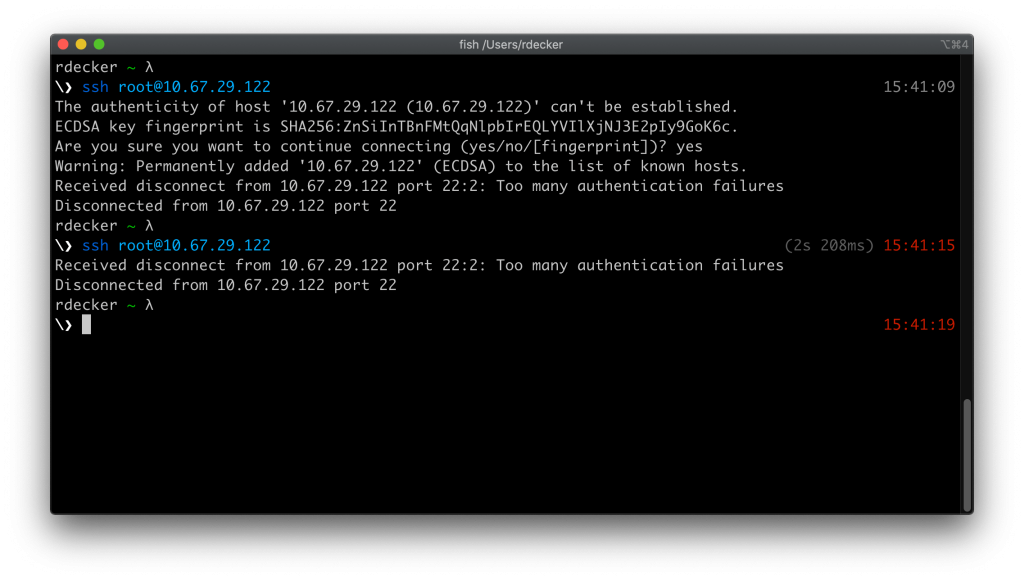
- MaxAuthTries Exceeded: The server might be configured to disconnect after a certain number of failed authentication attempts (`MaxAuthTries` in `sshd_config`). If you repeatedly try wrong credentials, the server will eventually drop the connection.
- Troubleshooting: This will usually be logged on the server. Try again after a cooldown period with the correct credentials.
- SSH Protocol Version Mismatch: Very old clients or servers might have issues negotiating the protocol. Modern SSH is SSH-2. If a server only supports SSH-1 (highly insecure and rare), a modern client will fail.
- Troubleshooting: Update both client and server SSH software.
- Time Synchronization Issues (NTP): While less direct for standard password/key authentication, significant time drift between client and server can cause issues with more complex authentication methods like Kerberos (GSSAPI) or when validating certificates, which might present as a generic authentication failure.
- Troubleshooting: Ensure both client and server have accurate time synchronized via NTP.
- Resource Exhaustion (Server-Side): A server under extreme load, running out of memory, or hitting file descriptor limits might struggle to process new SSH connections and authentication requests.
- Troubleshooting: Check server resources (`top`, `free -h`, `df -h`). Restarting the SSH service might free up some resources temporarily.
The Investigator’s Toolkit: Troubleshooting Strategies and Diagnostic Commands
Successfully resolving “SSH Connection Authentication Failed” requires a methodical approach, leveraging both client-side and server-side diagnostics.
Client-Side Diagnostics: What Your SSH Client Tells You
Your SSH client is your first witness. Its verbose output can provide invaluable clues.
- Verbose Output (`-v`, `-vv`, `-vvv`): The `-v` flag increases the verbosity of the SSH client, providing detailed information about the connection process, including key exchange, authentication attempts, and specific errors.
- `ssh -v user@host`: Shows basic debug info.
- `ssh -vv user@host`: More detailed, including specific authentication methods tried.
- `ssh -vvv user@host`: Most verbose, showing even packet contents and cryptographic negotiations (use with caution, as it can reveal sensitive info in logs).
- What to look for:
- `debug1: Authentications that can continue: publickey,gssapi-keyex,gssapi-with-mic,password` (lists server-accepted methods)
- `debug1: Offering public key: /path/to/id_rsa RSA SHA256:….` (confirms which key the client is attempting to use)
- `debug1: Server accepts key: /path/to/id_rsa RSA SHA256:….` (good sign, means server acknowledged the key)
- `debug1: Authentication failed: publickey.` (server rejected the offered key)
- `debug1: No more authentication methods to try.` (client ran out of options)
- Checking `ssh-agent`: If you’re using `ssh-agent` to manage your keys, ensure the correct key is loaded.
- `ssh-add -l`: Lists keys currently loaded in the agent.
- `ssh-add /path/to/your/private_key`: Adds a key to the agent.
- `ssh-add -D`: Deletes all keys from the agent.
- Validating Key Files: Double-check the path and permissions of your private key on the client.
- `ls -l /path/to/your/private_key`: Verify permissions are `600`.
- `cat /path/to/your/private_key.pub`: Display your public key to ensure it’s the correct one you intend to put on the server.
Server-Side Diagnostics: The Ultimate Authority
The server’s logs are the most authoritative source of information regarding authentication failures. If you can access the server via another means (e.g., console, an existing working SSH session, a cloud provider’s web console), this is where you’ll find the definitive answers.
- SSH Daemon Logs: The `sshd` process logs all authentication attempts and failures.
- Location:
- Debian/Ubuntu: `/var/log/auth.log`
- RHEL/CentOS/Fedora: `/var/log/secure`
- Systemd Journals: `sudo journalctl -u sshd` (for systemd-based systems, which aggregates logs). Use `-f` to follow in real-time or `-p err` for errors only.
- What to look for: Search for entries related to `sshd` and your connecting username.
- `Failed password for user from IP port ssh2`
- `Authentication refused: bad ownership or modes for directory /home/user/.ssh`
- `Authentication refused: bad ownership or modes for file /home/user/.ssh/authorized_keys`
- `User user from IP not allowed because not listed in AllowUsers`
- `No such user`
- `Publickey for user from IP: authentication failed` (if the key was offered but rejected)
- `fatal: … too many authentication failures for user`
- Checking `sshd_config`: Review the SSH daemon’s configuration file (`/etc/ssh/sshd_config`) for restrictive directives.
- `sudo grep -E “PasswordAuthentication|PubkeyAuthentication|PermitRootLogin|AuthorizedKeysFile|AllowUsers|DenyUsers|AuthenticationMethods|StrictModes” /etc/ssh/sshd_config`
- Ensure settings like `PasswordAuthentication yes` or `PubkeyAuthentication yes` are active if you intend to use those methods.
- Remember to restart `sshd` after any changes: `sudo systemctl restart sshd`.
- File and Directory Permissions (Server-Side): This is a frequent cause for key-based authentication issues.
- `ls -ld ~ ~/.ssh ~/.ssh/authorized_keys`: Check ownership and permissions of the user’s home directory, the `.ssh` directory, and the `authorized_keys` file.
- `stat ~/.ssh/authorized_keys`: Provides detailed information, including SELinux context if applicable.
- Ideal Permissions:
- Home directory (`~`): `drwxr-xr-x` (755) or `drwx——` (700)
- `.ssh` directory (`~/.ssh`): `drwx——` (700)
- `authorized_keys` file (`~/.ssh/authorized_keys`): `-rw——-` (600)
- Ownership: All should be owned by the target user (`chown user:user <file/dir>`).
- SELinux/AppArmor Status:
- `sestatus`: Check if SELinux is enforcing.
- `sudo getenforce`: Shows Enforcing, Permissive, or Disabled.
- `sudo restorecon -Rv ~/.ssh`: Attempts to restore default SELinux contexts.
- PAM Configuration: If logs point to PAM issues, examine `/etc/pam.d/sshd` and related configuration. This is often complex and requires understanding PAM syntax.
- Test with `ssh -T [email protected]`: (Specific to Git/GitHub) While not directly for regular server login, this command helps diagnose key issues for Git repositories by testing key validity against GitHub’s SSH server.
Prevention is Better Than Cure: Best Practices
Mitigating “SSH Connection Authentication Failed” errors proactively involves adopting robust security practices and meticulous configuration management.
Embrace Public Key Authentication
- Principle: Public key authentication is inherently more secure than passwords, especially against brute-force attacks.
- Practice: Generate strong key pairs (e.g., ED25519 or RSA 4096-bit). Protect your private key with a strong passphrase. Use `ssh-agent` to manage keys and avoid re-entering passphrases.
- Disable Password Authentication: Once public key authentication is robustly configured and tested, consider setting `PasswordAuthentication no` in `sshd_config` on your servers.
Meticulous Key Management
- One Key Per Service/User: While not always practical, strive for distinct key pairs for different services or roles to limit compromise.
- Regular Audits: Periodically review `~/.ssh/authorized_keys` on your servers. Remove stale or unused public keys.
- Dedicated Keys for Automation: For automated scripts or CI/CD pipelines, use dedicated SSH keys with minimal necessary permissions, and never use your personal primary key.
Strong Password Policies (Where Applicable)
- If password authentication must be enabled, enforce strong password policies (length, complexity, rotation) on the server.
- Utilize tools like `pam_cracklib` or `zxcvbn` for password strength checking.
- Implement account lockout mechanisms (e.g., `pam_tally2`, `faillock`, `fail2ban`) to deter brute-force attempts.
Principle of Least Privilege
- `PermitRootLogin no`: Always disable direct root login via SSH. Log in as a regular user and use `sudo` for administrative tasks.
- `AllowUsers`, `AllowGroups`: Use these directives in `sshd_config` to explicitly define which users or groups are permitted to log in via SSH, enhancing security by whitelisting.
Keep Software Updated
- Regularly update both your SSH client and server (`OpenSSH`) software. Updates often include security patches and improved compatibility.
Monitor Logs Vigorously
- Implement centralized log management and monitoring for `auth.log` or `secure` logs. Alert on repeated failed authentication attempts, especially for privileged accounts. This can help detect intrusion attempts and internal misconfigurations.
Configuration Management Tools
- For managing multiple servers, use configuration management tools like Ansible, Puppet, or Chef to deploy and manage `sshd_config` and `authorized_keys` files consistently and correctly. This reduces human error in permission and content management.
Use an SSH Bastion Host or Jump Server
- For complex networks, deploy a hardened bastion host that acts as a single point of entry for SSH access. All remote connections go through this intermediary, simplifying firewall rules and centralizing access control and logging.
Conclusion: The Path to Uninterrupted Access
The “SSH Connection Authentication Failed” error, while initially daunting, is ultimately a clear signal within a highly secure system. It is a protective mechanism working precisely as intended, preventing unauthorized access. By understanding the intricate layers of SSH authentication, from basic usernames and passwords to the nuances of public key cryptography and server-side configurations, we transform this error from a roadblock into a diagnostic opportunity.
Armed with a systematic troubleshooting methodology and a toolkit of client and server-side commands, even the most elusive authentication failures can be uncovered and resolved. Furthermore, by integrating best practices – prioritizing public key authentication, adhering to strict permission hygiene, and vigilantly monitoring server logs – administrators and developers can build and maintain more resilient and secure remote access environments.
Mastering SSH authentication is not merely about fixing errors; it’s about fostering a deeper appreciation for secure communication and ensuring the uninterrupted, fortified operation of our digital infrastructure. May your SSH connections always be secure, and your authentication attempts, successful.