Unveiling the Mechanics: How Does an SSH Tunnel Actually Work?
In the intricate tapestry of modern networking, where security and accessibility often seem to be at odds, the SSH tunnel emerges as a powerful, elegant solution. It’s a concept frequently mentioned in developer circles, cybersecurity discussions, and by network administrators alike, yet its underlying mechanics often remain shrouded in a veil of technical jargon. For many, an SSH tunnel is simply a “magic bullet” that makes a remote service accessible or secures an otherwise insecure connection. But what truly happens beneath the surface? How does an SSH tunnel actually work?
This comprehensive exploration aims to demystify the SSH tunnel, peeling back its layers to reveal the sophisticated engineering that makes it an indispensable tool. We’ll dive deep into the Secure Shell Protocol, understand its various port forwarding capabilities, examine real-world applications, and discuss critical security considerations. Prepare to gain not just a theoretical understanding, but a practical insight into leveraging this remarkable network utility.
The Foundational Pillar: Understanding the Secure Shell Protocol (SSH)
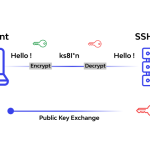
Before we can truly grasp the intricacies of an SSH tunnel, we must first appreciate its bedrock: the Secure Shell Protocol. SSH is far more than just a remote command-line interface; it’s a cryptographic network protocol for operating network services securely over an unsecured network. It provides a secure channel over an unsecured network in a client-server architecture, connecting an SSH client application with an SSH server.
At its core, SSH offers three crucial functionalities:
- Strong Authentication: SSH ensures that both the client and the server are who they claim to be. This is typically achieved through password authentication, but more robust methods like public-key cryptography (SSH keys) are widely preferred for their enhanced security and automation capabilities.
- Data Confidentiality: All data exchanged between the client and server is encrypted. This means that even if a malicious actor intercepts the network traffic, they cannot decipher its contents. This encryption is a cornerstone of SSH’s security, preventing eavesdropping and data leakage.
- Data Integrity: SSH also guarantees that the data transmitted has not been altered in transit. Cryptographic hash functions are employed to detect any tampering, ensuring that the information received is precisely what was sent.
These features make SSH an ideal candidate for creating secure conduits—tunnels—through which other, potentially insecure, network traffic can flow safely. Imagine a highly fortified, armored pipeline laid across a public space; that’s essentially what an SSH connection provides for your data.
The Essence of Tunneling: Port Forwarding Explained
The “tunnel” aspect of an SSH tunnel primarily refers to port forwarding, a technique that redirects network traffic from one port to another, potentially on a different machine. SSH leverages its secure, encrypted connection to encapsulate and transport this redirected traffic. Instead of sending data directly to a remote service, you send it through the SSH connection, which then forwards it to its ultimate destination.
Think of it like this: you want to send a secret message to a friend in a crowded room, but you don’t want anyone else to hear it. Instead of shouting, you whisper it to a trusted intermediary (your SSH server), who then securely delivers it to your friend. The “tunnel” is the secure whisper channel between you and the intermediary, and the intermediary’s delivery to your friend is the “forwarding.”
There are three primary types of SSH port forwarding, each serving distinct purposes and offering unique capabilities:
- Local Port Forwarding (Client-Side)
- Remote Port Forwarding (Server-Side)
- Dynamic Port Forwarding (SOCKS Proxy)
Understanding these distinctions is key to unlocking the full power of SSH tunneling.
Diving Deep into Local Port Forwarding (-L)
Local port forwarding is perhaps the most common and intuitive form of SSH tunneling. It allows you to forward a port on your local machine (the client) to a port on a remote machine (accessible from the SSH server).
How it Works:
When you initiate a local port forward, your SSH client listens on a specified port on your local machine. Any connection made to this local port is then securely transmitted through the SSH tunnel to the SSH server. The SSH server then “unwraps” this traffic and forwards it to a specified destination host and port, which is typically another service running on the SSH server itself or a machine accessible from the SSH server’s network.
The general syntax for local port forwarding is:
ssh -L [LOCAL_IP:]LOCAL_PORT:REMOTE_HOST:REMOTE_PORT USER@SSH_SERVER
-L: Specifies local port forwarding.[LOCAL_IP:]: (Optional) The IP address on your local machine that the tunnel will bind to. If omitted, it defaults tolocalhost(127.0.0.1).LOCAL_PORT: The port on your local machine that you will connect to.REMOTE_HOST: The hostname or IP address of the target service, relative to the SSH server.REMOTE_PORT: The port of the target service onREMOTE_HOST.USER@SSH_SERVER: Your username and the IP address or hostname of the SSH server you are connecting to.
Illustrative Example: Accessing an Internal Database
Imagine you’re a developer working from home, and you need to access a PostgreSQL database (running on port 5432) that resides on a private network within your company. This database server (let’s say db.internal.com) is only accessible from a bastion host (bastion.yourcompany.com) that you can SSH into. You can’t directly connect to db.internal.com:5432 from your home network due to firewalls.
You can set up a local port forward like this:
ssh -L 54320:db.internal.com:5432 [email protected]
Once this command is executed and your SSH connection is established:
- Your local machine will start listening on port
54320(we use a non-standard port to avoid conflicts with a local PostgreSQL instance). - When you connect your database client (e.g., pgAdmin or psql) to
localhost:54320on your machine, that traffic is encrypted and sent through the SSH tunnel tobastion.yourcompany.com. - The
bastion.yourcompany.comserver receives this traffic, decrypts it, and then forwards it todb.internal.com:5432. - The response from the database travels back through the bastion host, through the SSH tunnel, and finally to your local database client.
From your perspective, you’re simply connecting to localhost:54320, completely unaware of the secure journey your data is taking through the SSH tunnel. This effectively bypasses the firewall restrictions and secures your database connection.
Key Use Cases for Local Port Forwarding:
- Accessing Services Behind Firewalls: As shown with the database example, it’s perfect for reaching internal services that aren’t exposed to the public internet.
- Securing Insecure Protocols: If you need to access an old service that uses an unencrypted protocol (e.g., HTTP, VNC, RDP) over an untrusted network, an SSH tunnel can wrap that traffic in encryption.
- Bypassing Network Restrictions: In some highly restricted environments, only SSH traffic on standard ports (like 22) might be allowed. Tunnels can leverage this to access other services.
Exploring Remote Port Forwarding (-R)
Remote port forwarding is the inverse of local port forwarding. It allows you to forward a port on the remote machine (the SSH server) to a port on your local machine (the client) or another machine accessible from your client.
How it Works:
When you initiate a remote port forward, your SSH client instructs the SSH server to listen on a specified port on the server’s machine. Any connection made to this remote port is then securely transmitted back through the SSH tunnel to your local machine. Your local SSH client then forwards this traffic to a specified destination host and port, which is typically a service running on your local machine or a machine accessible from your local network.
The general syntax for remote port forwarding is:
ssh -R [REMOTE_IP:]REMOTE_PORT:LOCAL_HOST:LOCAL_PORT USER@SSH_SERVER
-R: Specifies remote port forwarding.[REMOTE_IP:]: (Optional) The IP address on the SSH server that the tunnel will bind to. If omitted, it defaults tolocalhost(127.0.0.1) on the server. To make it accessible from other machines on the server’s network, you might need to specify0.0.0.0and ensure the SSH server’s configuration (GatewayPorts yes) allows this.REMOTE_PORT: The port on the SSH server that external users will connect to.LOCAL_HOST: The hostname or IP address of the target service, relative to your local machine.LOCAL_PORT: The port of the target service onLOCAL_HOST.USER@SSH_SERVER: Your username and the IP address or hostname of the SSH server you are connecting to.
Illustrative Example: Exposing a Local Web Server
Let’s say you’re developing a web application on your laptop (localhost:8000) and you want to quickly demonstrate it to a colleague who only has access to a public SSH server (public_server.com). Your laptop is behind a NAT router and has no public IP address, so your colleague can’t directly access your local web server.
You can set up a remote port forward:
ssh -R 8080:localhost:8000 your_user@public_server.com
Once this connection is active:
- The
public_server.comwill start listening on port8080. - When your colleague accesses
public_server.com:8080, that request is sent through the SSH tunnel to your local machine. - Your local SSH client receives this traffic and forwards it to
localhost:8000, where your web application is running. - The response from your web application travels back through the tunnel to
public_server.comand then to your colleague’s browser.
This is often referred to as a “reverse SSH tunnel” because the connection is initiated from the client side to punch a hole through NAT/firewalls, allowing remote access back to the client.
Key Use Cases for Remote Port Forwarding:
- NAT Traversal: Exposing a service running on a machine behind a NAT or firewall to the outside world via an accessible intermediate server.
- Remote Access to Local Services: Allowing others (or yourself from another location) to access services on your local machine without needing a public IP or complex router configurations.
- IoT Device Management: Remotely managing IoT devices behind restrictive networks.
Demystifying Dynamic Port Forwarding (-D) and SOCKS Proxy
Dynamic port forwarding is a more versatile form of tunneling that creates a SOCKS proxy server on your local machine. Unlike local and remote forwarding, which map specific ports, dynamic forwarding allows a client application to specify its own destination for each connection.
How it Works:
When you initiate a dynamic port forward, your SSH client creates a SOCKS proxy server on a specified port on your local machine. Any application configured to use this SOCKS proxy will send its traffic to your local SOCKS server. This traffic is then securely encapsulated and sent through the SSH tunnel to the SSH server. The SSH server acts as an intermediary, forwarding the traffic to its ultimate destination on behalf of your local application.
The general syntax for dynamic port forwarding is:
ssh -D [LOCAL_IP:]LOCAL_PORT USER@SSH_SERVER
-D: Specifies dynamic port forwarding.[LOCAL_IP:]: (Optional) The IP address on your local machine that the SOCKS proxy will bind to. Defaults tolocalhost.LOCAL_PORT: The port on your local machine where the SOCKS proxy server will listen.USER@SSH_SERVER: Your username and the IP address or hostname of the SSH server.
Illustrative Example: Bypassing Geo-Restrictions or Censorship
Suppose you are in a country with internet censorship, or you want to access a service only available in the region where your SSH server is located. You can set up a dynamic port forward:
ssh -D 8080 your_user@your_remote_server.com
After establishing this connection, you would configure your web browser, instant messaging client, or other applications to use a SOCKS5 proxy at localhost:8080. When you access a website:
- Your browser sends the request to the SOCKS proxy running on your local machine (
localhost:8080). - The SOCKS proxy encapsulates this request and sends it through the SSH tunnel to
your_remote_server.com. your_remote_server.comthen makes the actual request to the target website on your behalf.- The website’s response travels back through
your_remote_server.com, through the SSH tunnel, and finally to your browser.
From the website’s perspective, the request originated from your_remote_server.com, effectively masking your true IP address and location. This is why dynamic port forwarding is often used for privacy, security, and bypassing network restrictions.
Key Use Cases for Dynamic Port Forwarding:
- Bypassing Censorship and Geo-Restrictions: Accessing content or services that are blocked in your current location.
- Enhanced Privacy/Anonymity (to an extent): Masking your IP address by routing all traffic through a remote server. Note that this is not a full VPN and doesn’t encrypt all system traffic unless configured specifically.
- Accessing Multiple Services on a Remote Network: Instead of setting up individual local port forwards for each service, a SOCKS proxy allows you to access any service on the remote network (or beyond, if the SSH server allows it) through a single tunnel.
Advanced Considerations and Best Practices for SSH Tunnels
While the core mechanics are straightforward, mastering SSH tunnels involves understanding several advanced aspects and adhering to best practices.
Security Implications and Mitigations
- The Tunnel Secures the Connection, Not Necessarily the Endpoints: An SSH tunnel encrypts the data between your client and the SSH server. However, if the SSH server then forwards traffic to an insecure service (e.g., an unencrypted HTTP server), that leg of the connection remains vulnerable. Always ensure the entire path is secure if sensitive data is involved.
- Authentication is Key: Always use strong authentication methods. Public-key authentication (SSH keys) is vastly superior to passwords. Disable password authentication on your SSH server if possible.
- Principle of Least Privilege: Configure your SSH server and client to only allow necessary forwarding. On the server side,
AllowTcpForwarding noor specificPermitOpendirectives insshd_configcan restrict what tunnels can be created. - SSH Agent Forwarding: While convenient for chaining SSH connections, be cautious. If the remote server is compromised, an attacker could use your forwarded agent to authenticate to other servers you have access to.
Performance Considerations
SSH tunnels introduce overhead due to encryption, decryption, and encapsulation. For highly bandwidth-intensive applications, you might notice a slight performance degradation. However, for most common use cases (database access, web browsing, VNC), the overhead is negligible compared to the security benefits.
Maintaining Tunnel Persistence
SSH tunnels are tied to the life of the SSH connection. If your network connection drops or the SSH server terminates your session, the tunnel will close. To maintain persistent tunnels, consider tools like autossh, which automatically monitors and restarts SSH sessions and tunnels when they break. Alternatively, SSH client configurations like ServerAliveInterval and ServerAliveCountMax can help keep the connection alive.
Firewall Interaction
Firewalls play a crucial role. For a local forward, your local firewall must allow outgoing connections to the SSH server on its SSH port (usually 22). For a remote forward, the SSH server’s firewall must allow incoming connections to the forwarded port (e.g., 8080 in our example). If you’re using 0.0.0.0 for REMOTE_IP, ensure the server’s firewall allows external access to that port.
Streamlining with SSH Configuration File (~/.ssh/config)
Manually typing long SSH commands for tunnels can be tedious. The ~/.ssh/config file is your best friend for managing complex SSH configurations, including tunnels. You can define aliases and specify forwarding rules:
Host my_db_tunnel
    Hostname bastion.yourcompany.com
    User your_user
    LocalForward 54320 db.internal.com:5432

Host my_socks_proxy
    Hostname your_remote_server.com
    User your_user
    DynamicForward 8080
Then, you can simply run ssh my_db_tunnel or ssh my_socks_proxy to establish the respective tunnels.
Chaining Tunnels with ProxyJump/ProxyCommand
Sometimes, you need to reach a target through multiple intermediary SSH servers (e.g., you need to SSH into a jump server, and from there SSH into another internal server). ProxyJump (or the older ProxyCommand) allows you to chain SSH connections, creating a multi-hop tunnel:
Host internal_server
    Hostname 192.168.1.100
    User internal_user
    ProxyJump bastion.yourcompany.com
Now, ssh internal_server will automatically connect to bastion.yourcompany.com first, and then from there, establish a connection to internal_server, all within a single command.
Real-World Applications and Scenarios
The versatility of SSH tunnels makes them invaluable across various professional domains:
- Developer Workflows: Developers frequently use local port forwarding to access development databases, message queues, or microservices running in a private cloud environment or on a remote development server. This allows them to use their local IDEs and tools securely.
- System Administration and DevOps: Network administrators use SSH tunnels to securely manage servers via VNC or RDP, access internal monitoring tools, or perform secure file transfers (SFTP) to machines not directly exposed to the internet. Remote port forwarding can be used for temporary exposure of a local diagnostic tool to a central management server.
- Cybersecurity Professionals: Ethical hackers and penetration testers use SSH tunnels to pivot through compromised hosts, establish command and control channels, or bypass network segmentation. Dynamic forwarding is a common technique for routing traffic through a compromised machine to explore internal networks.
- Data Scientists and Researchers: Accessing powerful remote computing clusters or data repositories that reside in secure, isolated networks.
- Remote Work and Hybrid Environments: Securing connections to internal company resources from home networks, often used as a lightweight alternative or complement to a full VPN.
Troubleshooting Common SSH Tunnel Issues
Even with a solid understanding, you might encounter issues. Here are some common problems and their solutions:
- “Port already in use”: This means the
LOCAL_PORTyou specified for local or dynamic forwarding is already being used by another application on your local machine. Choose a different, unused port (e.g.,54320instead of5432). - “Connection refused” or “Permission denied”:
- SSH server side: The SSH daemon might not be running, or your credentials (username/password/key) are incorrect. Check server logs (
/var/log/auth.logorjournalctl -xe). - Firewall: A firewall on your local machine, the SSH server, or the target
REMOTE_HOSTis blocking the connection. Ensure necessary ports are open. GatewayPorts noon server: For remote port forwarding, if you want others to connect to the SSH server’s forwarded port (i.e., you used0.0.0.0forREMOTE_IP), the SSH server’ssshd_configmust haveGatewayPorts yes. After changing, restart the SSH service.PermitOpenrestrictions: The SSH server might have specificPermitOpendirectives limiting what hosts/ports it can forward to.
- SSH server side: The SSH daemon might not be running, or your credentials (username/password/key) are incorrect. Check server logs (
- Tunnel appears to be open, but traffic isn’t flowing:
- Target service not running: The
REMOTE_HOST:REMOTE_PORT(for local forward) orLOCAL_HOST:LOCAL_PORT(for remote forward) service might not be running or listening on the specified port. - Incorrect IP/hostname: Double-check the
REMOTE_HOSTorLOCAL_HOSTspecified in your SSH command. Ensure it’s reachable from the respective SSH client/server. - Application not configured for SOCKS: For dynamic forwarding, ensure your application is correctly configured to use the SOCKS proxy at
localhost:LOCAL_PORT.
- Target service not running: The
ssh: Could not resolve hostname ...: The hostname for your SSH server or the target host (e.g.,db.internal.com) cannot be resolved. Check DNS settings or use an IP address.
Conclusion: The Enduring Power of SSH Tunnels
The SSH tunnel, built upon the robust Secure Shell Protocol, is a testament to elegant engineering in network security. It’s not merely a trick for bypassing firewalls; it’s a fundamental mechanism for creating secure, encrypted conduits through untrusted networks. Whether you’re a developer needing to access a private database, a system administrator managing remote infrastructure, or a cybersecurity professional securing sensitive traffic, understanding how an SSH tunnel actually works is paramount.
By mastering local, remote, and dynamic port forwarding, along with best practices for security and configuration, you unlock a powerful capability that enhances both your network accessibility and your data’s integrity. SSH tunnels empower you to navigate complex network topologies with confidence, transforming insecure connections into fortified pathways for your critical data. They are, in essence, your personal, encrypted express lanes across the vast and often perilous landscape of the internet.
Frequently Asked Questions (Q&A)
Q1: Is an SSH tunnel the same as a VPN?
A1: No, while both provide encrypted tunnels, they are not the same. A VPN (Virtual Private Network) typically creates a virtual network interface on your machine, routing all (or most) of your network traffic through a remote server, often at the operating system level. It usually involves a dedicated VPN client and server software. An SSH tunnel, particularly local and remote port forwarding, is more granular, forwarding traffic for specific ports or applications. Dynamic port forwarding (SOCKS proxy) comes closest to a VPN in terms of routing multiple application types, but it still requires applications to be explicitly configured to use the SOCKS proxy. A VPN usually offers broader network access and can be more complex to set up but provides system-wide protection, whereas an SSH tunnel is often simpler for specific, targeted secure connections.
Q2: Can SSH tunnels be detected by network administrators?
A2: Yes, they can. While the content of the tunnel is encrypted, the fact that an SSH connection is active is usually visible. Network administrators can detect:
- SSH traffic itself: They can see connections to port 22 (or whatever custom port your SSH server uses).
- Volume of traffic: If a large amount of non-SSH-like traffic (e.g., web browsing) is suddenly flowing through an SSH connection, it might raise suspicion.
- Destination of SSH connection: They know which external SSH server you are connecting to.
- Specific server configurations: Some advanced firewalls (Deep Packet Inspection – DPI) *might* be able to identify SSH traffic even on non-standard ports, though this is harder.
It’s important to use SSH tunnels ethically and in accordance with your organization’s IT policies. Using them to bypass security measures or access unauthorized content can lead to disciplinary action.
Q3: What are the security risks associated with SSH tunnels?
A3: While SSH itself is highly secure, tunnels can introduce risks if not managed properly:
- Compromised SSH server: If the SSH server you are tunneling through is compromised, an attacker could potentially intercept traffic after it leaves the SSH tunnel (if it’s forwarded to an unencrypted service) or use the server as a pivot point.
- Weak authentication: Using weak passwords makes your SSH connection vulnerable to brute-force attacks. Always use strong, unique passwords or, preferably, SSH keys.
- SSH Agent Forwarding: While convenient, if the remote server you forwarded your agent to is compromised, an attacker could use your agent to authenticate to other servers you have access to, without needing your private key.
- Unintended exposure: Misconfiguring remote port forwarding (e.g., using
0.0.0.0without proper firewall rules) can expose a local service to the entire internet, creating a security hole. - Data leakage outside the tunnel: The tunnel only encrypts traffic between your client and the SSH server. If the SSH server forwards traffic to an insecure service (e.g., HTTP), that leg of the connection is unencrypted and vulnerable.
Q4: Can I run multiple tunnels simultaneously?
A4: Yes, absolutely. You can establish multiple SSH tunnels concurrently, even through the same SSH connection. For example, you can have one local port forward for a database, another for a web service, and a dynamic port forward (SOCKS proxy) for general browsing, all active at the same time through a single SSH session. Each tunnel will listen on a different local port, allowing you to manage various secure connections efficiently.
Q5: What is the difference between localhost and 0.0.0.0 when binding a port for tunneling?
A5:
localhost(127.0.0.1): When you bind a port tolocalhost(the default if you omit the IP address in-Lor-D, or explicitly specify127.0.0.1), the forwarded port will only be accessible from the machine where the tunnel is initiated (your local machine for-L/-D, or the SSH server for-R). This is generally the most secure option as it limits access.0.0.0.0: When you bind a port to0.0.0.0, the forwarded port becomes accessible from any network