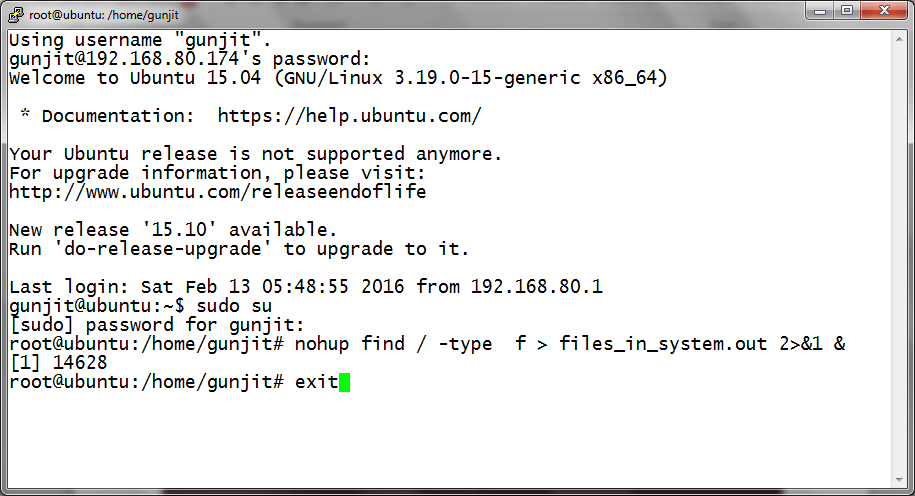
Mastering the Gateway: A Comprehensive Guide to the SSH Command for Remote Server Connectivity
In the intricate tapestry of modern computing, the ability to securely and efficiently connect to remote servers stands as a cornerstone of operations. From deploying web applications to managing databases, orchestrating cloud infrastructure, or simply accessing files on a distant machine, reliable remote access is indispensable. At the heart of this capability lies the Secure Shell (SSH) protocol, a cryptographic network protocol that enables secure data communication between two networked devices. And its primary interface for users? The ubiquitous `ssh` command.
This article delves deep into the anatomy, functionality, and advanced applications of the `ssh` command, empowering both nascent users and seasoned administrators to navigate the complexities of remote server connectivity with confidence and unparalleled security. We will embark on a journey from the fundamental command syntax to sophisticated configuration and best practices, aiming to provide a definitive resource for mastering this essential tool.
The Indispensable Role of SSH in Modern Computing
Before dissecting the `ssh` command itself, it’s crucial to understand the profound impact of SSH. Developed as a secure replacement for insecure remote shell protocols like Telnet and rlogin, SSH encrypts all traffic, including passwords, commands, and output, effectively neutralizing eavesdropping, connection hijacking, and other network-level attacks. Its widespread adoption across virtually all Unix-like operating systems, including Linux and macOS, and its availability on Windows via clients like PuTTY or built-in OpenSSH, underscores its universality and critical importance in IT infrastructure, development workflows, and cybersecurity paradigms.
Deconstructing the Basic SSH Command to Connect to Remote Server
At its core, connecting to a remote server using SSH is remarkably straightforward. The most basic form of the command is elegant in its simplicity:
`ssh [username]@[hostname_or_IP_address]`
Let’s break down each component:
The `ssh` Invocation
`ssh` is the command-line client for the SSH protocol. When executed, it initiates a connection attempt to a specified remote server, acting as the local agent in the client-server interaction. It’s the gateway through which all subsequent secure communication will flow.
Specifying the Remote User: `[username]`
The `[username]` component indicates the account on the remote server you wish to log into. This is crucial because a server can host multiple user accounts, each with distinct permissions and home directories.
- Example: If your username on the remote server is `admin`, you would specify `admin`.
- Default Behavior: If you omit the `[username]`, the `ssh` client will attempt to log in using your current local username. For instance, if your local username is `johndoe` and you run `ssh example.com`, the client will try to log into `example.com` as `johndoe`.
Identifying the Remote Host: `[hostname_or_IP_address]`
This component specifies the target remote server. It can be provided in two forms:
1. Hostname: A human-readable domain name (e.g., `example.com`, `my-server.cloudprovider.com`). This relies on DNS resolution to translate the hostname into an IP address.
2. IP Address: The numerical Internet Protocol address of the server (e.g., `192.168.1.100`, `203.0.113.45`). This bypasses DNS lookups and directly targets the server.
- Example: To connect to a server named `webserver.example.com` as user `ubuntu`, the command would be: `ssh [email protected]`.
- Example: To connect to a server at IP address `192.168.1.50` as user `root`, the command would be: `ssh [email protected]`.
The First Connection Experience: Host Key Verification
When you connect to a server for the first time, SSH employs a security mechanism to verify the server’s identity. You will typically see a prompt similar to this:
The authenticity of host ‘example.com (203.0.113.45)’ can’t be established.
ECDSA key fingerprint is SHA256:abcd…
Are you sure you want to continue connecting (yes/no/[fingerprint])?
This is the server presenting its public host key. SSH clients maintain a `known_hosts` file (typically located at `~/.ssh/known_hosts`) where they store the public keys of previously connected servers. This prevents “Man-in-the-Middle” attacks, where a malicious actor might impersonate a legitimate server.
- Action: If you are confident this is the legitimate server (e.g., you’ve verified the fingerprint with your server administrator or documentation), type `yes` and press Enter. The server’s public key will then be added to your `known_hosts` file.
- Caution: If this message appears for a server you’ve connected to before, it’s a critical warning sign that the server’s key has changed, potentially indicating a security compromise or a legitimate server rebuild. Investigate before proceeding.
Understanding the SSH Protocol: A Deeper Dive
While the command is simple, the underlying protocol is sophisticated. SSH operates on a client-server model, typically over TCP port 22 (though this is configurable).
How SSH Works: The Handshake and Encryption
1. Connection Setup: The SSH client initiates a TCP connection to the server on port 22.
2. Protocol Version Exchange: Client and server agree on the SSH protocol version to use.
3. Algorithm Negotiation: They negotiate a set of cryptographic algorithms (for encryption, hashing, and key exchange) that both support.
4. Host Key Presentation: The server sends its public host key to the client. The client checks this against its `known_hosts` file.
5. Key Exchange: A secure key exchange algorithm (like Diffie-Hellman) is used to establish a shared secret session key, which is then used to encrypt all subsequent communication. This ensures perfect forward secrecy – even if the server’s private key is compromised later, past session data remains encrypted.
6. Authentication: The client authenticates itself to the server using one of several methods.
7. Session Initiation: Once authenticated, a secure shell session is established, and the client can execute commands on the remote server.
Key Benefits of SSH Beyond Basic Remote Access
The power of SSH extends far beyond merely gaining a remote shell:
- Robust Security: End-to-end encryption protects against eavesdropping, data tampering, and replay attacks.
- Versatility: Supports multiple authentication methods, port forwarding (tunneling), X11 forwarding for graphical applications, and agent forwarding.
- File Transfer: Protocols like SCP (Secure Copy Protocol) and SFTP (SSH File Transfer Protocol) leverage SSH for secure file transfers.
- Automation: Scripting SSH commands allows for powerful automation of administrative tasks across multiple servers.
Essential SSH Command Options for Enhanced Connectivity
The `ssh` command comes equipped with a plethora of options that extend its capabilities and allow for fine-tuned control over connection parameters. Here are some of the most frequently used:
Specifying a Different Port (`-p` or `–port`)
By default, SSH connects on TCP port 22. However, for security reasons or specific network configurations, servers often use a non-standard port.
- Syntax: `ssh -p [port_number] [user]@[host]`
- Example: To connect to `example.com` on port `2222` as `devuser`: `ssh -p 2222 [email protected]`
Verbose Output for Debugging (`-v`, `-vv`, `-vvv`)
When troubleshooting connection issues, verbose output is invaluable. The `-v` option increases the verbosity level, providing detailed information about the connection process, authentication attempts, and errors. More `v`’s mean more verbosity.
- Syntax: `ssh -v [user]@[host]`
- Example: `ssh -vvv [email protected]` will display maximum debugging information.
Compressing Data (`-C`)
The `-C` option enables compression for all data transmitted, which can be useful on slow network connections.
- Syntax: `ssh -C [user]@[host]`
- Example: `ssh -C [email protected]`
Forwarding an Authentication Agent (`-A`)
SSH agent forwarding allows you to use your local SSH private keys to authenticate to another SSH server through the first hop, without ever exposing your private key to the intermediary server. This is critical for multi-hop connections or Git operations.
- Syntax: `ssh -A [user]@[host]`
- Example: `ssh -A [email protected]` (then, from `jumphost`, you can `ssh [email protected]` using your local keys).
Disabling Pseudo-Terminal Allocation (`-T`)
When you run SSH without specific commands, it typically allocates a pseudo-terminal (like a shell). The `-T` option prevents this, which is useful when you only want to execute a single command remotely and don’t need an interactive shell.
- Syntax: `ssh -T [user]@[host] ‘command_to_execute’`
- Example: `ssh -T [email protected] ‘uptime’`
Executing a Remote Command Directly
You can execute a command on the remote server without entering an interactive shell by appending the command after the host specification.
- Syntax: `ssh [user]@[host] ‘command_to_execute’`
- Example: `ssh [email protected] ‘sudo systemctl restart nginx’`
Authentication Methods with SSH
While the connection itself is secure, establishing *who* is connecting requires authentication. SSH supports several methods, with key-based authentication being the highly recommended standard.
Password Authentication
This is the most straightforward method: after connecting, the server prompts you for the `[username]`’s password.
- Drawbacks:
- Vulnerable to Brute-Force Attacks: Weak passwords can be guessed.
- Less Secure: Passwords are typed, making them susceptible to shoulder surfing or logging.
- Not Automation Friendly: Requires manual input, hindering scripting.
- Best Practice: Disable password authentication on your servers in favor of key-based methods for enhanced security.
SSH Key-Pair Authentication: The Gold Standard
SSH key-pair authentication relies on a pair of cryptographically linked keys: a public key and a private key.
- Public Key: Stored on the remote server (`~/.ssh/authorized_keys`). It can be freely shared.
- Private Key: Kept secret on your local machine (`~/.ssh/id_rsa`, `~/.ssh/id_ed25519`). It must be protected with strong file permissions and preferably a passphrase.
When you attempt to connect, the server uses the public key to challenge your client, which then proves possession of the corresponding private key without ever transmitting the private key over the network.
Generating SSH Keys (`ssh-keygen`)
If you don’t already have an SSH key pair, you can generate one using `ssh-keygen`:
`ssh-keygen -t rsa -b 4096`
- `-t rsa`: Specifies the key type (RSA is common; ED25519 is newer and often preferred).
- `-b 4096`: Specifies the key length in bits (4096 is recommended for RSA).
During generation, you’ll be prompted for a file to save the key (default is `~/.ssh/id_rsa` and `~/.ssh/id_rsa.pub`) and a passphrase. Always use a strong passphrase for your private key; it encrypts the key, providing an additional layer of security even if your private key file is compromised.
Copying the Public Key to the Remote Server (`ssh-copy-id`)
Once you have your key pair, the next step is to get your public key onto the remote server’s `authorized_keys` file. The `ssh-copy-id` utility simplifies this process:
`ssh-copy-id [user]@[host]`
This command securely logs into the remote server (potentially using password authentication initially), creates the `~/.ssh` directory if it doesn’t exist, sets correct permissions, and appends your public key to `~/.ssh/authorized_keys`.
Manual Public Key Copying
If `ssh-copy-id` isn’t available or you prefer a manual approach:
1. Copy public key: `cat ~/.ssh/id_rsa.pub` (copy the output).
2. SSH into the remote server (using password): `ssh [user]@[host]`
3. Create `.ssh` directory and `authorized_keys` file:
bash
mkdir -p ~/.ssh
chmod 700 ~/.ssh
touch ~/.ssh/authorized_keys
chmod 600 ~/.ssh/authorized_keys
4. Append your public key: `echo “YOUR_PUBLIC_KEY_HERE” >> ~/.ssh/authorized_keys` (replace `YOUR_PUBLIC_KEY_HERE` with the content copied in step 1).
5. Exit and test: `exit` then `ssh [user]@[host]` (you should now connect using your key).
Configuring SSH Client for Key-Based Authentication
Typically, the `ssh` client automatically tries `~/.ssh/id_rsa` or `~/.ssh/id_ed25519`. If your private key is located elsewhere, or you have multiple keys, you can specify it using the `-i` option:
- Syntax: `ssh -i /path/to/your/private_key [user]@[host]`
- Example: `ssh -i ~/.ssh/my_custom_key [email protected]`
Advanced SSH Client Configuration (`~/.ssh/config`)
For frequent connections or complex setups, manually typing options can be cumbersome and error-prone. The SSH client configuration file, typically located at `~/.ssh/config`, provides a powerful mechanism to define custom connection parameters for specific hosts.
Why Use `~/.ssh/config`?
- Simplification: Define short aliases for complex connection strings.
- Centralization: Store all host-specific settings in one place.
- Automation: Ensure consistent connection behavior for scripts.
- Security: Enforce specific keys or authentication methods for sensitive servers.
Basic Structure and Common Directives
The `~/.ssh/config` file uses a simple, human-readable syntax. Each block starts with a `Host` directive, followed by indented key-value pairs defining parameters for that host.
Host [alias_name]
Hostname [actual_hostname_or_IP]
User [remote_username]
Port [remote_port]
IdentityFile [/path/to/private_key]
ForwardAgent [yes/no]
Compression [yes/no]
LogLevel [INFO/VERBOSE/DEBUG]
# … more options …
Practical Examples
1. Simple Alias:
Host mywebserver
Hostname webserver.prod.example.com
User deploy
Port 2222
IdentityFile ~/.ssh/id_rsa_prod
ForwardAgent yes
Now, instead of `ssh -p 2222 -i ~/.ssh/id_rsa_prod -A [email protected]`, you can simply type: `ssh mywebserver`.
2. Wildcard for a Domain:
Host *.example.com
User commonuser
IdentityFile ~/.ssh/id_rsa_general
LogLevel INFO
This configuration applies to any host ending in `.example.com` unless a more specific `Host` entry overrides it.
3. ProxyJump (Multi-Hop): For reaching a server behind a bastion host.
Host bastion
Hostname 198.51.100.10
User jumpuser
IdentityFile ~/.ssh/id_rsa_bastion
Host internal-server
Hostname 10.0.0.5
User appuser
IdentityFile ~/.ssh/id_rsa_internal
ProxyJump bastion # This is the magic!
Now `ssh internal-server` will first connect to `bastion`, then tunnel through to `internal-server` using appropriate keys.
Remember to set correct permissions for your `~/.ssh/config` file: `chmod 600 ~/.ssh/config`.
Troubleshooting Common SSH Connection Issues
Despite its robustness, SSH connections can sometimes fail. Understanding common error messages and troubleshooting techniques is crucial.
“Connection Refused”
- Meaning: The server actively rejected your connection attempt.
- Possible Causes:
- SSH service not running: The `sshd` (SSH daemon) service might be down on the remote server.
- Firewall blocking: A firewall (either on the server or in between, like a cloud security group) is blocking incoming connections to the SSH port.
- Incorrect port: You’re trying to connect to the wrong port.
- Solution: Verify `sshd` status on the server, check firewall rules, and ensure you’re using the correct port (`-p` option).
“Permission Denied (publickey, password)”
- Meaning: The server rejected your authentication attempt.
- Possible Causes:
- Incorrect password: For password authentication.
- Incorrect username: The user you’re trying to log in as doesn’t exist or isn’t allowed to SSH.
- Private key not recognized: The public key isn’t in `~/.ssh/authorized_keys` on the server, or the server’s `sshd_config` doesn’t permit key authentication.
- Incorrect key permissions: Private key on local machine or `authorized_keys` on remote server have incorrect permissions (too permissive).
- Solution: Double-check username and password. Ensure your public key is correctly installed on the server. Check permissions: `chmod 600 ~/.ssh/id_rsa` on client, `chmod 700 ~/.ssh` and `chmod 600 ~/.ssh/authorized_keys` on server.
“Host key verification failed”
- Meaning: The public host key presented by the server does not match the one stored in your `~/.ssh/known_hosts` file for that server.
- Possible Causes:
- Legitimate server rebuild: The server has been reinstalled or its key has changed.
- Man-in-the-Middle attack: A malicious actor is impersonating the server.
- Solution: If you are certain the change is legitimate, you can remove the old key from `~/.ssh/known_hosts` (the error message usually provides the line number) or use `ssh-keygen -R [hostname]` to remove it. Then reconnect and accept the new key. If unsure, investigate thoroughly.
Leveraging Verbose Mode (`-v`) for Debugging
When encountering issues, always start by adding one or more `-v` flags to your `ssh` command. The detailed output will often pinpoint the exact stage where the connection or authentication failed, providing crucial clues for diagnosis.
Beyond Basic Connectivity: Leveraging SSH’s Full Potential
The `ssh` command’s capabilities extend far beyond simply opening a remote shell.
SSH File Transfer Protocol (SFTP) and Secure Copy (SCP)
- SCP: A legacy but still functional tool for copying files securely between hosts using SSH.
- `scp /local/path/file.txt user@host:/remote/path/`
- `scp user@host:/remote/path/file.txt /local/path/`
- SFTP: A more feature-rich file transfer protocol built on SSH, offering directory listings, remote file deletion, and more. Often accessed via a dedicated client like FileZilla or directly from the command line: `sftp user@host`.
SSH Port Forwarding (Tunneling)
One of SSH’s most powerful features, port forwarding creates a secure tunnel through the SSH connection.
- Local Port Forwarding (`-L`): Forwards a local port to a port on the remote server (or another host reachable from the remote server). Useful for accessing internal services from your local machine.
- `ssh -L 8080:localhost:80 user@remote_server` (Access `remote_server`’s web server on port 80 via `localhost:8080` on your machine).
- Remote Port Forwarding (`-R`): Forwards a port on the remote server to a port on your local machine. Useful for making a service on your local machine accessible to others via the remote server.
- `ssh -R 8080:localhost:80 user@remote_server` (Makes your local web server on port 80 accessible via `remote_server:8080`).
- Dynamic Port Forwarding (`-D`): Creates a SOCKS proxy on your local machine. All traffic directed to this SOCKS port is forwarded through the SSH tunnel to the remote server and then out to its destination. Ideal for secure browsing or bypassing firewalls.
- `ssh -D 8080 user@remote_server` (Configure your browser to use `localhost:8080` as a SOCKS proxy).
Executing Multiple Commands and Automation
SSH can be seamlessly integrated into scripts for automation.
- `ssh user@host ‘command1; command2; command3’`
- `ssh user@host < local_script.sh` (Executes a local script on the remote server).
- Using tools like Ansible or Fabric, which rely on SSH, allows for complex orchestration of tasks across fleets of servers.
Best Practices for SSH Security
Given SSH’s pivotal role, maintaining robust security is non-negotiable.
1. Always Use Key-Based Authentication: Disable password authentication on your servers to mitigate brute-force attacks. Edit `/etc/ssh/sshd_config` on the server: `PasswordAuthentication no`.
2. Strong Passphrases for Private Keys: Encrypt your private keys with a memorable, complex passphrase.
3. Strict File Permissions: Ensure your private keys and SSH configuration files (`~/.ssh/config`, `~/.ssh/authorized_keys`) have the correct, restrictive permissions.
- Private key: `chmod 600 ~/.ssh/id_rsa`
- Public key: `chmod 644 ~/.ssh/id_rsa.pub`
- `~/.ssh` directory: `chmod 700 ~/.ssh`
- `authorized_keys`: `chmod 600 ~/.ssh/authorized_keys`
4. Change Default SSH Port (Debatable): Moving `sshd` from port 22 to a non-standard port can reduce the volume of automated scanning attempts, but it’s not a true security measure as determined attackers can still find it. It’s security through obscurity but can reduce log noise.
5. Use `fail2ban`: Implement `fail2ban` on your servers to automatically block IP addresses that show malicious signs, such as too many failed password authentication attempts.
6. Disable Root Login: Prevent direct SSH login as the `root` user. Instead, log in as a regular user and use `sudo` for administrative tasks. Edit `/etc/ssh/sshd_config`: `PermitRootLogin no`.
7. Regularly Update SSH Software: Keep your SSH client and server software (OpenSSH) up-to-date to benefit from security patches and new features.
8. Implement Two-Factor Authentication (2FA): For highly sensitive environments, consider integrating 2FA with SSH, adding another layer of security.
Conclusion: SSH – The Unseen Backbone of Remote Operations
The `ssh` command, in its deceptive simplicity, is a powerhouse—a secure conduit that empowers individuals and organizations to manage, develop, and connect with remote systems across the globe. From its fundamental role in providing a secure shell to its advanced capabilities in tunneling, file transfer, and automation, SSH is an indispensable tool in the modern digital landscape.
Mastering the `ssh` command and understanding the underlying protocol is not merely a technical skill; it is a foundational pillar for secure and efficient remote operations. By adhering to best practices in security, leveraging configuration files, and exploring its versatile options, users can harness the full potential of SSH, transforming the complex art of remote connectivity into a streamlined and secure daily reality. The journey into SSH is continuous, with new applications and security considerations constantly emerging, but its core principles remain steadfast, ensuring that secure remote access remains robust and reliable for the foreseeable future.