In an increasingly interconnected digital landscape, the imperative for secure communication and remote access has never been more pronounced. For users navigating the advanced capabilities of Windows 11, particularly those in development, system administration, or remote work, the ability to establish encrypted connections is not merely a convenience but a cornerstone of cybersecurity. This is where OpenSSH, the open-source implementation of the Secure Shell protocol, steps into the limelight, offering a robust, industry-standard solution for safeguarding data in transit.
Windows 11, building on its predecessors’ evolving support for open technologies, now integrates OpenSSH as a first-class citizen, moving beyond rudimentary tools to provide a sophisticated environment for secure operations. This comprehensive guide will illuminate the path to installing, configuring, and mastering OpenSSH on your Windows 11 machine, transforming it into a formidable fortress for your digital interactions. We will dissect the “why” before the “how,” ensuring a profound understanding of OpenSSH’s utility and the strategic advantages it confers upon its users.
The Unseen Power of SSH: Why It Matters for Windows 11 Users
At its core, SSH (Secure Shell) is a cryptographic network protocol for operating network services securely over an unsecured network. Its significance transcends simple remote logins; it is a versatile toolkit for secure data transfer, remote command execution, and encrypted tunneling. For the discerning Windows 11 user, developer, or IT professional, OpenSSH unlocks a new dimension of secure interaction within the Windows ecosystem and beyond.
What is SSH? A Deeper Dive
SSH operates on a client-server model, establishing a secure channel between two networked devices. It employs strong encryption algorithms to ensure that data exchanged between the client and server remains confidential, protected from eavesdropping, tampering, and unauthorized access. Unlike older, insecure protocols like Telnet or FTP, SSH inherently encrypts the entire communication session, from authentication credentials to the actual data payload.
The protocol relies on public-key cryptography for authenticating remote computers and allows optional public-key authentication for users. This dual layer of authentication forms the bedrock of its security, making it incredibly resilient against common network attacks.
Key Benefits: Transforming Your Windows 11 Experience
Integrating OpenSSH into your Windows 11 workflow brings a multitude of strategic advantages:
- Secure Remote Access: Foremost among its benefits, OpenSSH enables you to securely connect to remote servers, virtual machines, or even other Windows 11 machines from anywhere in the world. This means you can manage files, execute commands, and administer systems with confidence, knowing your session is encrypted end-to-end.
- Secure File Transfer (SFTP/SCP): Beyond just remote shells, SSH underpins secure file transfer protocols. SCP (Secure Copy Protocol) allows for fast, encrypted file transfers, while SFTP (SSH File Transfer Protocol) offers a more feature-rich, interactive file transfer experience, akin to FTP but with SSH’s robust security. These tools are indispensable for moving sensitive data without exposure.
- Port Forwarding/Tunneling: A powerful, often underutilized feature, SSH port forwarding allows you to create secure tunnels for forwarding network traffic. This can be used to securely access services on a private network, bypass firewalls, or encrypt traffic for applications that don’t natively support encryption.
- SSH Keys for Passwordless Authentication: Moving beyond vulnerable passwords, SSH keys offer a significantly more secure and convenient method of authentication. By using a cryptographic key pair (public and private keys), you can log into remote systems without typing a password, enhancing both security and workflow efficiency.
- Automation and Scripting: The command-line nature of OpenSSH makes it an ideal candidate for scripting and automation. IT professionals can write scripts to perform routine tasks, deploy applications, or manage configurations across multiple servers securely, leveraging PowerShell or other scripting languages alongside SSH commands.
- Why Windows 11? Evolving IT Landscape: Windows 11 is not just a consumer OS; it’s a platform for creators, developers, and power users. Its tight integration with technologies like Windows Subsystem for Linux (WSL) and its continued embrace of open-source tools make OpenSSH a natural fit. Having native, robust SSH capabilities directly within Windows 11 streamlines multi-platform workflows and consolidates development environments.
Pre-Installation Checklist: Paving the Way for OpenSSH on Windows 11
Before diving into the installation process, a brief checklist ensures a smooth and effective setup. Understanding what’s already available and what prerequisites are necessary will save considerable time and potential frustration.
System Requirements and Administrative Privileges
The primary requirements are minimal:
- A fully updated Windows 11 installation.
- Administrative privileges on your Windows 11 machine. You will need these to install and configure system services and modify firewall rules.
Understanding Windows 11’s Built-in OpenSSH Client & Server
One of the most significant advancements in recent Windows versions, including Windows 11, is the native inclusion of OpenSSH. This means you typically don’t need to download third-party software or struggle with complex manual installations. Both the OpenSSH Client and OpenSSH Server components are available as optional features directly within Windows.
- OpenSSH Client: This allows your Windows 11 machine to connect *out* to remote SSH servers. It’s often installed by default or can be easily added.
- OpenSSH Server: This enables other SSH clients (including those on Linux, macOS, or other Windows machines) to connect *into* your Windows 11 machine. This is particularly useful for remote administration of your Windows device.
Checking for Existing Installations
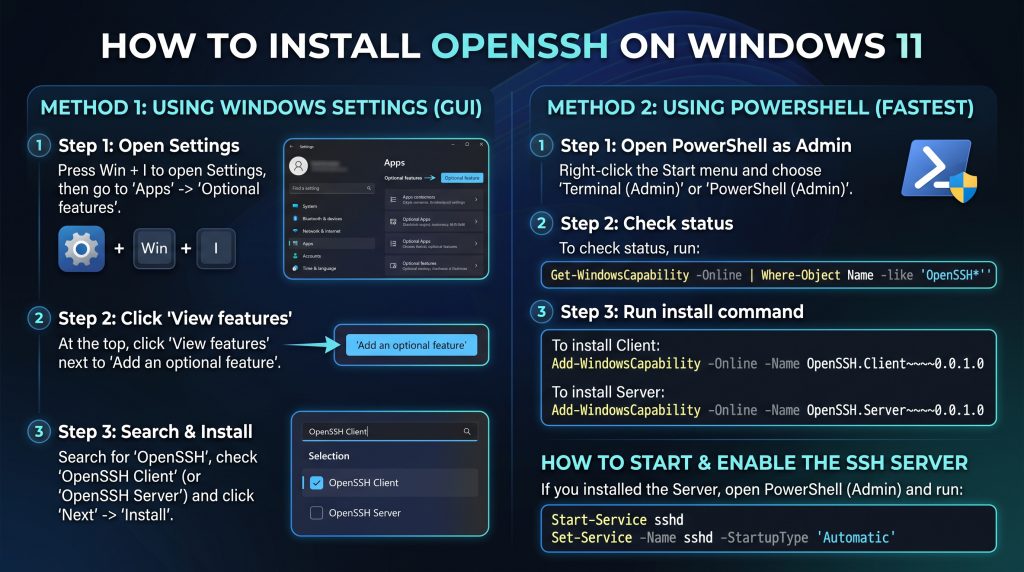
It’s wise to verify if OpenSSH components are already installed on your system. You can do this quickly via PowerShell:
1. Open PowerShell as an Administrator.
2. Type the following command and press Enter:
powershell
Get-WindowsCapability -Online | Where-Object Name -like ‘OpenSSH*’
3. The output will list both `OpenSSH.Client` and `OpenSSH.Server`. Look at the `State` column. If it shows `Installed`, the component is already present.
Knowing the `State` column is crucial:
- `NotPresent`: The feature is not installed.
- `Installed`: The feature is installed.
Installation Guide: Seamlessly Integrating OpenSSH into Windows 11
Windows 11 offers straightforward methods for installing OpenSSH. We will focus on the recommended approach using Windows Features, followed by alternative methods for completeness.
Method 1: Utilizing Windows Features (Recommended for Most Users)
This is the most common and simplest method, leveraging Windows’ built-in “Optional features” management.
Enabling the OpenSSH Client
The OpenSSH client is often pre-installed on Windows 11, but if it isn’t, or if you want to ensure it is:
1. Open Settings (Windows key + I).
2. Navigate to Apps > Optional features.
3. Click on View features next to “Add an optional feature”.
4. In the search box, type “OpenSSH”.
5. Select OpenSSH Client from the results and click Next, then Install.
6. The installation should be quick.
Enabling the OpenSSH Server
To allow other devices to connect to your Windows 11 machine via SSH, you need to install the OpenSSH Server.
1. Open Settings (Windows key + I).
2. Navigate to Apps > Optional features.
3. Click on View features next to “Add an optional feature”.
4. In the search box, type “OpenSSH”.
5. Select OpenSSH Server from the results and click Next, then Install.
6. Allow the installation to complete.
Verification Post-Installation
After installing the server, it’s essential to ensure it’s running and configured correctly.
1. Open PowerShell as an Administrator.
2. Check the status of the `sshd` (OpenSSH server) service:
powershell
Get-Service -Name sshd
The `Status` should show `Running`. If it’s `Stopped`, start it with:
powershell
Start-Service -Name sshd
3. Set the service to start automatically on boot:
powershell
Set-Service -Name sshd -StartupType Automatic
This ensures the SSH server is always available after your computer restarts.
4. Verify the `ssh` (OpenSSH client) command is available:
powershell
ssh
You should see the SSH usage information, indicating the client is installed and accessible via your PATH.
Method 2: Manual Installation via PowerShell (Advanced Users)
While the Windows Features method is preferred, advanced users might prefer PowerShell for scripting or in environments where the GUI is not available. This method achieves the same outcome as the GUI.
Installing via PowerShell Cmdlets
1. Open PowerShell as an Administrator.
2. To install the OpenSSH Client:
powershell
Add-WindowsCapability -Online -Name OpenSSH.Client~~~~0.0.1.0
3. To install the OpenSSH Server:
powershell
Add-WindowsCapability -Online -Name OpenSSH.Server~~~~0.0.1.0
4. After installation, follow the “Verification Post-Installation” steps from Method 1 to ensure the `sshd` service is running and set to automatic startup.
This PowerShell method directly interacts with the Windows capabilities feature, bypassing the graphical interface but using the same underlying mechanism.
Method 3: Via Winget (Package Manager)
Winget, the Windows Package Manager, is a relatively new but powerful tool for managing applications. While OpenSSH is a native Windows feature, Winget can also be used to install it, offering another command-line option for those who prefer package managers.
Checking Winget Availability
1. Open Command Prompt or PowerShell.
2. Type `winget` and press Enter. If installed, you’ll see version information and usage options. If not, you might need to install it from the Microsoft Store (App Installer) or ensure your Windows 11 is updated.
Installation Command for Client and Server
1. Open PowerShell or Command Prompt as an Administrator.
2. Search for OpenSSH:
powershell
winget search OpenSSH
This will show available OpenSSH packages, typically `OpenSSH for Windows` (which bundles both client and server).
3. Install OpenSSH (this usually installs both client and server as a single package):
powershell
winget install OpenSSH.OpenSSH
Follow any prompts during installation.
4. Again, perform the “Verification Post-Installation” steps to ensure services are running and set to automatic.
Configuring OpenSSH Server for Optimal Performance and Security
Once the OpenSSH server (`sshd`) is installed, the next crucial step is configuration. The default settings are a good starting point, but customizing the `sshd_config` file is vital for enhancing security, defining access rules, and optimizing performance.
Understanding the `sshd_config` File
The primary configuration file for the OpenSSH server is `sshd_config`.
- Location: On Windows, this file is typically located at `%ProgramData%sshsshd_config`. `%ProgramData%` usually resolves to `C:ProgramData`. So, the full path is `C:ProgramDatasshsshd_config`.
- Syntax: The file uses a simple `Key Value` pair format. Lines starting with `#` are comments.
- Editing: Always use a plain text editor like Notepad, VS Code, or Notepad++ to edit this file. Avoid rich text editors. After making changes, you *must* restart the `sshd` service for them to take effect (`Restart-Service sshd` in an administrative PowerShell).
Essential Configuration Directives
Let’s explore some critical directives you might want to modify in `sshd_config`:
- `Port`:
#Port 22
By default, SSH uses port 22. It’s a common security practice to change this to a non-standard port (e.g., `Port 2222`). This doesn’t make your server invulnerable but reduces noise from automated scanning bots looking for port 22. Remember to update your firewall rule if you change this.
- Authentication Methods (`PasswordAuthentication`, `PubkeyAuthentication`):
#PasswordAuthentication yes
#PubkeyAuthentication yes
- `PasswordAuthentication`: Set this to `no` once you have successfully set up SSH key-based authentication. This significantly enhances security by preventing brute-force password attacks.
- `PubkeyAuthentication`: Ensure this is set to `yes` to allow login with SSH keys. This is generally preferred over password authentication.
- `AllowUsers`/`DenyUsers`:
#AllowUsers user1 user2
#DenyUsers user3
These directives control which users are explicitly allowed or denied SSH access. Using `AllowUsers` is often a good security practice, as it creates an explicit whitelist of permitted users. For example, `AllowUsers Administrator YourWindowsUser` would only allow these two accounts to connect.
- Subsystem for SFTP (`Subsystem sftp`):
Subsystem sftp sftp-server.exe
This line is usually present and correctly configured by default. It defines the SFTP server component, allowing secure file transfers. Do not change this unless you have a specific, advanced reason.
- Logging (`SyslogFacility`, `LogLevel`):
#SyslogFacility AUTH
#LogLevel INFO
You can adjust the verbosity of logging. `INFO` is a good default. For troubleshooting, `VERBOSE` or `DEBUG` can provide more detail, but generate larger logs.
- SSH Key Location (`AuthorizedKeysFile`):
#AuthorizedKeysFile .ssh/authorized_keys
This specifies the file on the server where public keys for user authentication are stored. On Windows, this translates to `C:Users.sshauthorized_keys`. Ensure this directive points to the correct location and that the file/folder permissions are appropriate (see the “SSH Key-Based Authentication” section).
Firewall Configuration: Opening the SSH Port
After installing and configuring OpenSSH Server, you must ensure that your Windows Firewall allows incoming connections on the SSH port. By default, Windows Firewall will block these connections.
Creating an Inbound Rule (Step-by-step)
1. Open Windows Defender Firewall with Advanced Security: Search for “Windows Defender Firewall” in the Start Menu and select “Advanced settings”.
2. In the left pane, select Inbound Rules.
3. In the right pane, click New Rule….
4. Rule Type: Select `Port` and click `Next`.
5. Protocol and Ports:
- Select `TCP`.
- For “Specific local ports”, enter `22` (or your custom port if you changed it in `sshd_config`). Click `Next`.
6. Action: Select `Allow the connection` and click `Next`.
7. Profile: Ensure `Domain`, `Private`, and `Public` are checked (or select only the profiles relevant to your network environment, e.g., `Private` for home networks). Click `Next`.
8. Name: Give your rule a descriptive name, such as “OpenSSH Server Inbound” or “SSH Port 22”. Add an optional description if desired. Click `Finish`.
Your Windows 11 machine is now configured to accept SSH connections on the specified port.
Harnessing OpenSSH: Practical Applications and Usage Scenarios
With OpenSSH installed and configured, it’s time to put it to work. The client tools provide the interface for secure remote interaction.
Connecting to Remote Servers (SSH Client)
The fundamental use of OpenSSH is to connect to a remote server. The `ssh` command is your gateway.
Basic `ssh` command
bash
ssh username@remote_host
- `username`: The user account on the remote server you want to log in as.
- `remote_host`: The IP address or hostname of the remote server.
Example: `ssh [email protected]`
Specifying User and Port
If the username on the remote host is different from your current Windows username, or if the remote SSH server uses a non-standard port:
bash
ssh -p 2222 remote_user@remote_host
- `-p 2222`: Specifies port 2222 instead of the default 22.
First-time Connection Host Key Warning
The first time you connect to a new remote host, SSH will prompt you with a host key verification message:
The authenticity of host ‘example.com (192.168.1.100)’ can’t be established.
ED25519 key fingerprint is SHA256:….
Are you sure you want to continue connecting (yes/no/[fingerprint])?
This is a security feature to prevent man-in-the-middle attacks. You should verify the fingerprint with the administrator of the remote host. If it matches, type `yes` and press Enter. The host key will be stored in your `known_hosts` file (`C:Users.sshknown_hosts`), and you won’t be prompted again unless the host key changes.
Secure File Transfer (SCP and SFTP)
OpenSSH provides two primary tools for secure file transfer: SCP for quick, non-interactive copies, and SFTP for an interactive session.
`scp` command examples
`scp` uses similar syntax to the `cp` command in Linux/Unix.
- Upload a file from Windows to a remote server:
bash
scp C:pathtolocal_file.txt remote_user@remote_host:/path/to/remote/directory/
- Download a file from a remote server to Windows:
bash
scp remote_user@remote_host:/path/to/remote/file.txt C:pathtolocaldirectory
- Copy an entire directory (recursive):
bash
scp -r C:pathtolocal_folder remote_user@remote_host:/path/to/remote/directory/
- Specify a port:
bash
scp -P 2222 C:pathtolocal_file.txt remote_user@remote_host:/path/to/remote/directory/
*Note: `scp` uses `-P` for port, not `-p` like `ssh`.*
Using SFTP client (OpenSSH built-in `sftp`)
The `sftp` command provides an interactive file transfer environment.
1. Connect to an SFTP server:
bash
sftp remote_user@remote_host
(You can also add `-P` for port here: `sftp -P 2222 remote_user@remote_host`)
2. Once connected, you’ll see an `sftp>` prompt. You can then use commands similar to an FTP client or shell:
- `ls`: List remote files.
- `lls`: List local files.
- `get remote_file`: Download `remote_file` to your current local directory.
- `put local_file`: Upload `local_file` to the current remote directory.
- `cd /remote/path`: Change remote directory.
- `lcd C:localpath`: Change local directory.
- `help` or `?`: View available commands.
- `exit` or `bye`: Disconnect.
SSH Key-Based Authentication: A Paradigm of Security and Convenience
SSH keys offer a superior alternative to password authentication, providing stronger security and a more convenient login experience.
Generating SSH Keys (`ssh-keygen`)
1. Open PowerShell or Command Prompt.
2. Run the key generation command:
bash
ssh-keygen
3. Enter file in which to save the key: Press Enter to accept the default location (`C:Users.sshid_rsa`). This will create `id_rsa` (private key) and `id_rsa.pub` (public key).
4. Enter passphrase (empty for no passphrase): *Strongly recommended* to enter a robust passphrase. This passphrase encrypts your private key, adding a layer of security in case your private key is compromised. You’ll need to enter this passphrase whenever you use the private key (unless an SSH agent is running).
5. Confirm passphrase.
This process generates a pair of cryptographic keys:
- Private Key (`id_rsa`): Keep this file absolutely secret and secure on your local machine. Never share it.
- Public Key (`id_rsa.pub`): This key can be freely shared. It is placed on the remote servers you wish to access.
Understanding Public and Private Keys
When you attempt to connect using SSH keys:
1. The SSH client sends your public key to the server.
2. The server checks if this public key is authorized for your user account (by looking in `~/.ssh/authorized_keys` or the configured `AuthorizedKeysFile`).
3. If authorized, the server generates a challenge encrypted with your public key and sends it back.
4. Your client decrypts the challenge using your private key and sends back the correct response.
5. If the response is correct, authentication succeeds, and you’re logged in without a password.
Copying Public Key to Remote Server
To use your generated SSH key, your public key (`id_rsa.pub`) needs to be placed on the remote server in the `~/.ssh/authorized_keys` file of the user you want to log in as.
1. Manual Copy (if `ssh-copy-id` is not available or preferred):
- Display your public key:
bash
Get-Content C:Users.sshid_rsa.pub
Copy the entire output (it starts with `ssh-rsa` or `ssh-ed25519` and ends with your username@hostname).
- SSH into the remote server using password authentication for the *first time*:
bash
ssh remote_user@remote_host
- Once logged in, create the `.ssh` directory if it doesn’t exist, and set correct permissions:
bash
mkdir -p ~/.ssh
chmod 700 ~/.ssh
- Append your public key to the `authorized_keys` file:
bash
echo “PASTE_YOUR_PUBLIC_KEY_HERE” >> ~/.ssh/authorized_keys
chmod 600 ~/.ssh/authorized_keys
Replace `”PASTE_YOUR_PUBLIC_KEY_HERE”` with the actual content of your `id_rsa.pub` file.
- Log out from the remote server (`exit`).
2. Using `ssh-copy-id` (if available, e.g., via WSL):
If you have WSL installed, you can use the `ssh-copy-id` utility directly:
bash
ssh-copy-id -i C:Users.sshid_rsa.pub remote_user@remote_host
This command automates the process of copying the public key and setting correct permissions. You’ll be prompted for the remote user’s password once.
After successfully copying your public key, you should be able to SSH into the remote server using `ssh remote_user@remote_host` without entering a password (or only your passphrase if you protected your private key).
Advanced Topics and Best Practices for OpenSSH on Windows 11
Beyond basic usage, OpenSSH offers powerful features and requires adherence to security best practices.
SSH Agent for Key Management
The `ssh-agent` is a program that holds private keys used for public key authentication. It stores your decrypted private keys in memory and serves them to SSH clients upon request, eliminating the need to enter your passphrase repeatedly for each connection.
What is `ssh-agent`?
It’s a background process that keeps your private keys loaded. When an SSH client needs to authenticate, it talks to the `ssh-agent` instead of directly accessing your private key file, meaning you only enter your passphrase once per session (or until the agent restarts).
Starting and using `ssh-agent` on Windows 11
The OpenSSH Agent service (`ssh-agent`) is installed with the OpenSSH Client.
1. Open PowerShell as an Administrator.
2. Set the `ssh-agent` service to start automatically:
powershell
Set-Service -Name ssh-agent -StartupType Automatic
3. Start the service if it’s not running:
powershell
Start-Service -Name ssh-agent
4. Verify the service is running:
powershell
Get-Service -Name ssh-agent
Adding keys to the agent
Once the `ssh-agent` service is running, you can add your private keys to it:
bash
ssh-add C:Users.sshid_rsa
You will be prompted for your private key’s passphrase. After entering it, the key is added to the agent. You can verify keys loaded in the agent with `ssh-add -l`.
Port Forwarding / SSH Tunneling
SSH tunneling allows you to forward network ports from a client to a server, or vice-versa, over an encrypted SSH connection. This is invaluable for accessing services securely across networks or bypassing strict firewalls.
Local Port Forwarding
This creates a tunnel from a port on your *local* machine to a port on a *remote* machine, through the SSH server. Useful for accessing a service on the remote server’s network that isn’t directly exposed.
bash
ssh -L local_port:target_host:target_port user@ssh_server_host
- `local_port`: A port on your Windows 11 machine.
- `target_host`: A host (IP or hostname) that the `ssh_server_host` can reach.
- `target_port`: A port on the `target_host`.
- `user@ssh_server_host`: Your login details for the SSH server.
Example: `ssh -L 8080:localhost:80 user@remote_server`
This would tunnel traffic from `localhost:8080` on your Windows 11 machine to `remote_server:80`, allowing you to access a web server running on `remote_server` at port 80 through your local browser at `http://localhost:8080`.
Remote Port Forwarding
This forwards a port on the *remote* SSH server to a port on your *local* Windows 11 machine. Useful for making a local service accessible to the remote server or its network.
bash
ssh -R remote_port:target_host:target_port user@ssh_server_host
- `remote_port`: A port on the `ssh_server_host`.
- `target_host`: A host (IP or hostname) that your local Windows 11 machine can reach (often `localhost`).
- `target_port`: A port on the `target_host`.
Example: `ssh -R 8080:localhost:80 user@remote_server`
This would expose your local web server running on Windows 11 at port 80, to `remote_server`’s port 8080. Anyone accessing `remote_server:8080` would be accessing your local web server.
Dynamic Port Forwarding (SOCKS Proxy)
This creates a SOCKS proxy on your local machine, routing all traffic from applications configured to use this proxy through the SSH server. Ideal for anonymizing traffic or bypassing geo-restrictions.
bash
ssh -D local_port user@ssh_server_host
Example: `ssh -D 1080 user@remote_server`
You then configure your browser or other applications to use a SOCKS proxy at `localhost:1080`.
Security Hardening Tips
To maximize the security of your OpenSSH installation on Windows 11:
- Disable Password Authentication: Once SSH key-based authentication is fully functional, set `PasswordAuthentication no` in `sshd_config`. This is the single most important hardening step.
- Use Strong Passphrases for Keys: Always protect your private keys with strong, unique passphrases.
- Limit Login Attempts: In `sshd_config`, consider `MaxAuthTries 3` to limit the number of authentication attempts per connection.
- Regularly Update Windows: Ensure your Windows 11 installation is always up-to-date, as security patches often include updates for OpenSSH components.
- Change Default SSH Port: As mentioned, moving from port 22 reduces automated scanning attempts.
- Implement `AllowUsers` / `DenyUsers`: Explicitly whitelist users who are permitted to connect via SSH.
- Monitor Logs: Periodically check the SSH server logs (found in Event Viewer under “Applications and Services Logs” -> “OpenSSH”) for suspicious activity.
Integrating with Windows Subsystem for Linux (WSL)
For developers and power users, WSL offers a seamless integration point with OpenSSH.
Using SSH from WSL
If you have a Linux distribution installed in WSL, you can use its native OpenSSH client to connect to remote servers. This client often has more features and a familiar Unix-like environment.
1. Open your WSL terminal (e.g., Ubuntu).
2. Install OpenSSH client if not already present: `sudo apt update && sudo apt install openssh-client`
3. Generate new SSH keys within WSL if you prefer separate keys: `ssh-keygen`
4. Connect to remote servers: `ssh user@remote_host`
Accessing Windows SSH server from WSL
Your Windows 11 OpenSSH server is accessible from within your WSL distribution using `localhost` or your Windows machine’s internal IP address.
bash
ssh YourWindowsUsername@localhost
This allows you to manage Windows files and execute commands from your WSL environment securely.
Troubleshooting Common OpenSSH Issues on Windows 11
Even with careful installation, issues can arise. Here are some common problems and their solutions:
- “Connection Refused” Errors:
- Firewall: The most common culprit. Double-check your Windows Firewall rules to ensure the SSH port (default 22, or your custom port) is open for inbound connections.
- `sshd` service not running: Verify the OpenSSH Server service is running using `Get-Service sshd` in an administrative PowerShell. Start it if it’s stopped.
- Incorrect Port: Ensure your client is trying to connect on the correct port if you changed it on the server (`ssh -p CUSTOM_PORT …`).
- “Permission Denied (publickey,password)” Errors:
- Incorrect Password: If using password authentication, ensure the password is correct for the remote user.
- SSH Keys Issues:
- Public Key not on Server: Ensure your public key is correctly placed in `~/.ssh/authorized_keys` on the remote server and has the correct permissions (directory `700`, file `600`).
- Private Key Permissions: On Windows, your private key file (`id_rsa`) should only be accessible by your user. Right-click the file, go to `Properties > Security > Advanced`, and ensure only your user account has full control. Remove inherited permissions if necessary.
- Incorrect `AuthorizedKeysFile` path: Verify the `sshd_config` on the *Windows 11 server* points to the correct `authorized_keys` file.
- Password Authentication Disabled: If you’ve set `PasswordAuthentication no` and haven’t set up key-based authentication correctly, you’ll get this error.
- SSH Service Not Running:
- As an administrator, use `Start-Service sshd` in PowerShell. If it fails, check the Event Viewer (`Applications and Services Logs > OpenSSH`) for error messages.
- Ensure the `sshd` service `Startup Type` is set to `Automatic` (`Set-Service -Name sshd -StartupType Automatic`).
- Verbose Debugging (`ssh -vvv`):
When troubleshooting client-side connection issues, add the `-vvv` flag to your `ssh` command (e.g., `ssh -vvv user@host`). This produces very verbose output, which can help pinpoint the exact step where the connection fails or where authentication issues occur.
The journey through installing and configuring OpenSSH on Windows 11 reveals a landscape of enhanced security, streamlined workflows, and unparalleled flexibility for remote operations. From basic secure remote access to advanced port forwarding and robust key-based authentication, OpenSSH transforms your Windows 11 machine into a powerful nexus for secure digital interactions.
By meticulously following the installation steps, judiciously configuring the server, and embracing the best practices outlined, you empower yourself with a resilient defense against common cyber threats. Whether you are a developer pushing code, an administrator managing remote infrastructure, or a power user seeking to fortify your digital footprint, the native integration of OpenSSH within Windows 11 stands as a testament to the platform’s commitment to security and openness. Master these tools, and you master your digital frontier, ensuring that every connection you make is as secure as it is seamless.