In the vast landscape of computing, the ability to connect to and manage remote servers is not just a convenience; it’s a fundamental skill. At the heart of this capability lies SSH, or Secure Shell, a cryptographic network protocol that enables secure remote command-line access. For anyone venturing into server administration, cloud computing, web development, or even just managing a Raspberry Pi, understanding SSH is the crucial first step.
This comprehensive guide is meticulously crafted for beginners, demystifying SSH through practical, easy-to-understand command examples. We’ll navigate from the absolute basics of establishing a connection to more advanced (yet beginner-friendly) techniques like secure file transfers and key-based authentication. Our goal is to equip you with the foundational knowledge and confidence to interact with remote systems securely and efficiently, transforming a daunting concept into an accessible, powerful tool.
Understanding the Fundamentals of SSH
Before diving into commands, it’s vital to grasp what SSH is and why it’s indispensable. SSH isn’t just a command; it’s an entire protocol designed for secure network services over an unsecured network.
The Client-Server Model
SSH operates on a classic client-server model.
- SSH Client: This is the software you run on your local machine (your computer) to initiate a connection. Common clients include OpenSSH (built into Linux and macOS, available for Windows via WSL or Git Bash) or standalone tools like PuTTY for Windows.
- SSH Server (Daemon): This is the software running on the remote machine you wish to connect to. It listens for incoming SSH connection requests, authenticates users, and then establishes a secure session. The most common server implementation is OpenSSH Server.
When you use an SSH client to connect to an SSH server, a secure, encrypted tunnel is established. All data transmitted through this tunnel—commands, output, files—is encrypted, protecting it from eavesdropping, hijacking, and other network attacks.
Key Components and Their Roles
Several elements work in concert to make SSH function:
- Port 22: By default, SSH servers listen for connections on TCP port 22. While this is the standard, administrators often change it for a layer of “security by obscurity,” though true security comes from strong authentication.
- Encryption: SSH uses robust encryption algorithms to scramble all data flowing between the client and server. This ensures privacy and integrity.
- Authentication: SSH verifies the identity of both the user and the server. This can be done through:
- Password Authentication: The simplest method, where you provide a username and password. While common, it’s susceptible to brute-force attacks if passwords are weak.
- Key-Based Authentication: A more secure and highly recommended method. It uses a pair of cryptographic keys: a private key (kept secret on your local machine) and a public key (placed on the remote server). When you try to connect, the server challenges your client, which then proves its identity using the private key without ever sending the key itself over the network.
Getting Started: Your First SSH Connection
Before you can execute any commands, you need to establish a connection. This is the cornerstone of all SSH operations.
Prerequisites
To connect via SSH, you’ll need:
1. An SSH Client: As mentioned, OpenSSH is native to most Linux distributions and macOS. For Windows, you can use the built-in OpenSSH client (available in recent Windows 10/11 versions), Windows Subsystem for Linux (WSL), or third-party tools like PuTTY.
2. A Remote Server: This could be a cloud instance (AWS EC2, DigitalOcean Droplet, Linode), a virtual machine, a dedicated server, or even another computer on your local network running an SSH server.
3. Server’s IP Address or Hostname: The network address of the remote machine.
4. Username: The account you wish to log in as on the remote server (e.g., `root`, `ubuntu`, `ec2-user`, or a custom user).
5. Authentication Method: Either the password for the specified user or the path to your private SSH key.
Basic Connection Syntax (The Core Command)
The most fundamental SSH command follows a straightforward pattern:
`ssh [username]@[host]`
Here, `[username]` is the user account you want to log in as on the remote server, and `[host]` is the IP address or hostname of that server.
Example 1: Connecting to a Server by IP Address
Let’s say your remote server has the IP address `192.168.1.100`, and you want to log in as the user `myuser`.
bash
ssh [email protected]
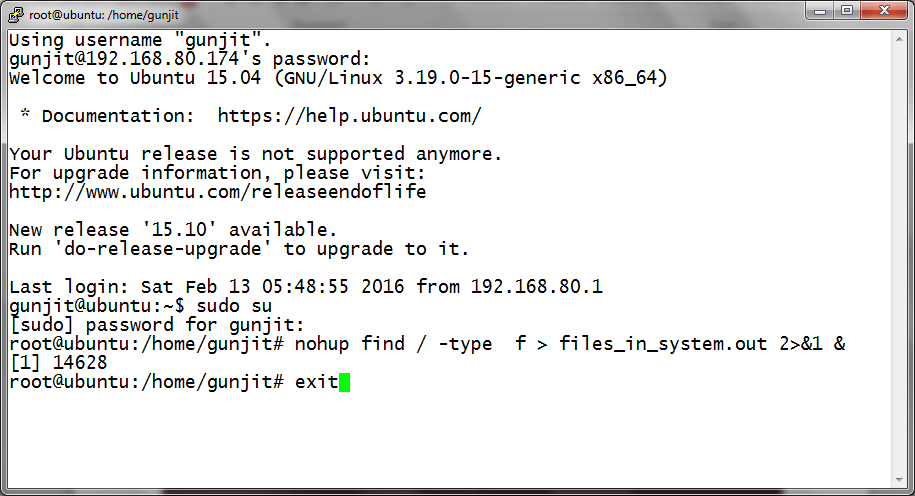
Upon executing this command, the SSH client will attempt to connect. If it’s the first time connecting to this specific server, you’ll likely encounter a prompt asking about the authenticity of the host.
Accepting the Host Key Fingerprint
When you connect to a server for the first time, SSH doesn’t know if the server is legitimate. It presents you with the server’s unique host key fingerprint and asks for confirmation:
The authenticity of host ‘192.168.1.100 (192.168.1.100)’ can’t be established.
ED25519 key fingerprint is SHA256:xxxxxxxxxxxxxxxxxxxxxxxxxxxxxxxxxxxxxxxxxxx.
Are you sure you want to continue connecting (yes/no/[fingerprint])?
This is a critical security measure. You should ideally verify this fingerprint against an out-of-band source (e.g., your hosting provider’s documentation). For personal or trusted servers, typing `yes` and pressing Enter will add the server’s public key to your local `~/.ssh/known_hosts` file. Subsequent connections to the same server will use this stored key to verify the server’s identity, preventing potential “man-in-the-middle” attacks.
After confirming, you’ll be prompted for the password for `myuser` (if using password authentication). Enter it carefully (it won’t show on screen), press Enter, and you should be logged in! Your terminal prompt will change to reflect the remote server.
Example 2: Connecting to a Server by Hostname
If your server has a domain name (e.g., `yourdomain.com`) that resolves to its IP address, you can use that directly:
bash
ssh [email protected]
This works identically to using an IP address, relying on DNS to translate the hostname into an IP.
Specifying a Different Port
While port 22 is the default, many servers configure SSH to listen on a non-standard port for various reasons (often for a minor obscurity benefit against automated scans). If your server uses a different port, you need to specify it using the `-p` flag:
`ssh -p [port_number] [username]@[host]`
Example 3: Connecting on a Non-Standard Port
If your server’s SSH daemon is configured to listen on port `2222`, and your username is `developer` on `staging.example.com`:
bash
ssh -p 2222 [email protected]
This command explicitly tells your SSH client to try connecting on port 2222 instead of the default 22.
Essential SSH Commands for Navigation and Interaction
Once successfully connected to your remote server, you’re effectively operating within a Linux (or Unix-like) terminal environment. The commands you use are standard shell commands, but they are executed *on the remote server*. Here are some fundamental commands for navigating the file system and interacting with the remote machine.
Basic Shell Navigation
- `ls` (list directory contents): Shows files and directories in the current location.
- `ls -l`: Long format, showing permissions, owner, size, date.
- `ls -a`: Shows all files, including hidden ones (starting with `.`).
- `ls -lh`: Long format with human-readable sizes.
- `pwd` (print working directory): Displays the full path of your current directory.
- `cd` (change directory): Moves you between directories.
- `cd ..`: Move up one directory.
- `cd ~`: Go to your home directory.
- `cd /var/www/html`: Go to an absolute path.
- `mkdir` (make directory): Creates a new directory.
- `mkdir my_new_project`
- `rmdir` (remove empty directory): Deletes an *empty* directory.
- `rmdir old_dir` (Use `rm -r` for non-empty directories, but be *extremely* careful with `rm`!)
Example 4: Navigating a Simple Directory Structure
Let’s assume you’ve just logged in, and you want to see what’s in your home directory, create a new one, and then explore.
bash
First, see where you are
pwd
Expected output: /home/myuser
List contents of your home directory
ls
Create a new directory for web files
mkdir public_html
Change into the new directory
cd public_html
Confirm your new location
pwd
Expected output: /home/myuser/public_html
Go back to your home directory
cd ..
Remove the empty directory (only works if it’s empty)
rmdir public_html
File Operations
- `touch` (create empty file): Creates a new, empty file or updates the timestamp of an existing one.
- `touch newfile.txt`
- `cat` (concatenate and display files): Displays the entire content of a file to your terminal. Useful for small files.
- `cat /etc/os-release`
- `less` / `more` (view file content page by page): For larger files, these commands allow you to scroll through content without overwhelming your terminal. Press `q` to quit.
- `less /var/log/syslog`
- `nano` / `vi` (basic text editors): These are command-line text editors. `nano` is generally more beginner-friendly. `vi` (or `vim`) is powerful but has a steeper learning curve.
- `nano myfile.txt` (to open/create a file for editing)
- *Inside nano:* Use `Ctrl+X` to exit, `Y` to save changes.
Example 5: Creating and Viewing a Simple Text File
bash
# Create a new directory
mkdir documents
cd documents
# Create a new empty file
touch todo.txt
# Add some content to the file using nano
nano todo.txt
# (Type some text, then Ctrl+X, Y, Enter to save and exit)
# View the content of the file
cat todo.txt
# Expected output: whatever you typed into todo.txt
# View it page by page (useful for longer files)
less todo.txt
# (Press ‘q’ to quit less)
# Go back to home
cd ~
System Information
- `uname -a` (system information): Displays detailed information about the operating system kernel.
- `df -h` (disk space usage): Shows the amount of free and used disk space on your file systems in a human-readable format.
- `free -h` (memory usage): Displays total, used, and free physical memory and swap space, also in human-readable format.
- `htop` / `top` (process monitor): Real-time monitoring of system processes and resource usage. `htop` is generally more user-friendly and feature-rich than `top`. (You might need to install `htop` first: `sudo apt install htop` on Debian/Ubuntu).
Example 6: Checking Server Health
bash
# See kernel and OS details
uname -a
# Check disk space
df -h
# Check memory usage
free -h
# Monitor running processes (exit htop/top by pressing ‘q’)
htop
Running Commands on the Remote Server (Non-Interactive)
You don’t always need an interactive shell session. SSH allows you to execute a single command directly on the remote server and then exit.
`ssh [username]@[host] “command to execute”`
Example 7: Listing Files in a Specific Directory Remotely
To list the contents of the `/var/www/html` directory on `myserver.com` as user `webadmin` without logging in interactively:
bash
ssh [email protected] “ls -l /var/www/html”
The output of `ls -l /var/www/html` will be printed to your local terminal, and the SSH connection will close automatically after the command finishes. This is extremely useful for scripting and automation.
Advanced (but Beginner-Friendly) SSH Techniques
Beyond basic connections, SSH offers powerful features that enhance security, simplify workflows, and enable more complex networking.
SSH Key-Based Authentication: The Secure Method
Password authentication is convenient but less secure. SSH keys offer a far more robust alternative.
Why Use Keys?
- Enhanced Security: Keys are much longer and more complex than typical passwords, making them nearly impossible to guess or brute-force.
- No Password Entry: Once set up, you don’t need to type a password for each connection, improving workflow.
- Automation: Essential for scripts and automated deployments.
Generating SSH Keys
You generate a pair of keys on your *local machine*: a private key (which you keep secret and never share) and a public key (which you can freely share and place on any server you want to access).
The command `ssh-keygen` is used for this:
bash
ssh-keygen
When prompted:
- “Enter file in which to save the key”: Press Enter to accept the default location (`~/.ssh/id_rsa`).
- “Enter passphrase (empty for no passphrase)”: It’s highly recommended to set a strong passphrase for your private key. This encrypts the private key on your disk, adding an extra layer of security. You’ll enter this passphrase once per session when you first use the key.
This process creates two files in your `~/.ssh` directory:
- `id_rsa`: Your private key.
- `id_rsa.pub`: Your public key.
Copying Public Key to Server with `ssh-copy-id`
The easiest way to install your public key on a remote server is using the `ssh-copy-id` utility. This tool automatically connects to the remote server, creates the `~/.ssh` directory if it doesn’t exist, sets correct permissions, and appends your public key to the `~/.ssh/authorized_keys` file.
Example 8: Copying Your Public Key
bash
ssh-copy-id [email protected]
You’ll be prompted for the password for `myuser` on `remote.server.com` *one last time*. After successful authentication, `ssh-copy-id` does its magic. From then on, you should be able to connect without a password (though you’ll still enter your private key’s passphrase if you set one).
Manual Key Copy (If `ssh-copy-id` is Unavailable)
If `ssh-copy-id` isn’t available on your local system or you prefer to do it manually:
bash
cat ~/.ssh/id_rsa.pub | ssh [email protected] “mkdir -p ~/.ssh && chmod 700 ~/.ssh && cat >> ~/.ssh/authorized_keys && chmod 600 ~/.ssh/authorized_keys”
This command pipeline does the following:
1. `cat ~/.ssh/id_rsa.pub`: Displays your local public key.
2. `|`: Pipes the output to the SSH command.
3. `ssh [email protected] “…”`: Connects to the remote server and executes the commands in quotes.
4. `mkdir -p ~/.ssh`: Creates the `.ssh` directory if it doesn’t exist.
5. `chmod 700 ~/.ssh`: Sets secure permissions for the `.ssh` directory (owner can read/write/execute, no one else).
6. `cat >> ~/.ssh/authorized_keys`: Appends your public key to the `authorized_keys` file.
7. `chmod 600 ~/.ssh/authorized_keys`: Sets secure permissions for the `authorized_keys` file (owner can read/write, no one else).
After this, you can connect using `ssh [email protected]` and should be prompted for your private key’s passphrase instead of the user’s password.
File Transfer with SCP (Secure Copy Protocol)
SCP is a command-line utility for securely copying files and directories between local and remote hosts, or between two remote hosts. It uses SSH for data transfer and authentication.
Uploading a File from Local to Remote
`scp [local_file_path] [username]@[host]:[remote_directory_path]`
Example 9: Uploading a Local File
To copy a file named `report.pdf` from your current local directory to the `documents` folder in `myuser`’s home directory on `remote.server.com`:
bash
scp report.pdf [email protected]:~/documents/
Downloading a File from Remote to Local
`scp [username]@[host]:[remote_file_path] [local_directory_path]`
Example 10: Downloading a Remote File
To copy a log file named `access.log` from `/var/log/apache2/` on `remote.server.com` to your current local directory:
bash
scp [email protected]:/var/log/apache2/access.log .
(The `.` at the end signifies the current local directory.)
Transferring Directories
Use the `-r` flag for recursive copying of entire directories.
Example 11: Uploading a Local Directory
To upload your entire local `website_backup` directory to `public_html` on the remote server:
bash
scp -r website_backup/ [email protected]:~/public_html/
File Transfer with SFTP (SSH File Transfer Protocol)
SFTP provides an interactive file transfer experience, similar to an FTP client, but secured by SSH. It’s often preferred for more complex file management tasks where you need to browse directories or transfer multiple files interactively.
When to Use SFTP vs. SCP
- SCP: Best for quick, one-off file transfers when you know the exact paths. Excellent for scripting.
- SFTP: Best for interactive sessions, browsing remote directories, and when you need more control over the transfer process (e.g., resuming interrupted transfers, creating directories).
Basic SFTP Session
`sftp [username]@[host]`
Once connected, you’ll enter an SFTP prompt, typically `sftp>`. Here are some common commands:
- `ls`: List remote directory contents.
- `pwd`: Print remote working directory.
- `cd [remote_path]`: Change remote directory.
- `lpwd`: Print local working directory.
- `lcd [local_path]`: Change local directory.
- `get [remote_file]`: Download a file.
- `put [local_file]`: Upload a file.
- `mget [remote_files…]`: Download multiple files.
- `mput [local_files…]`: Upload multiple files.
- `mkdir [directory_name]`: Create a remote directory.
- `rm [file_name]`: Delete a remote file.
- `exit` or `bye`: Exit the SFTP session.
Example 12: Interactive SFTP Session
bash
sftp [email protected]
sftp> ls
# Displays remote files
sftp> cd /var/www/html
sftp> get index.html
# Downloads index.html from /var/www/html to your local current directory
sftp> lcd ~/my_local_site_files
sftp> put new_page.html
# Uploads new_page.html from ~/my_local_site_files to /var/www/html on remote
sftp> exit
Port Forwarding (SSH Tunneling)
Port forwarding, also known as SSH tunneling, allows you to create a secure tunnel between your local machine and a remote server, often to access services that are not directly exposed to the internet. For beginners, the most common use case is local port forwarding.
Local Port Forwarding
This technique allows you to access a service on a *remote network* (which your SSH server can reach) as if it were running on your *local machine*.
`ssh -L [local_port]:[remote_host]:[remote_port] [username]@[ssh_server]`
- `[local_port]`: A port on your local machine that you will use to connect.
- `[remote_host]`: The hostname or IP of the machine on the remote network where the desired service is running. This might be the SSH server itself or another machine accessible *from* the SSH server.
- `[remote_port]`: The port on `[remote_host]` where the service is listening.
- `[ssh_server]`: Your main SSH server that will act as the tunnel endpoint.
Example 13: Accessing an Internal Web Server
Imagine you have a web server running on an internal machine (`internal-web-server`) on port 80, but this machine isn’t directly accessible from the internet. Your `ssh_server.com` *can* reach `internal-web-server`. You want to access this web server from your local browser.
bash
ssh -L 8080:internal-web-server:80 myuser@ssh_server.com
Keep this terminal window open. Now, open your web browser locally and navigate to `http://localhost:8080`. Your browser will connect to your local port 8080, which SSH then securely tunnels through `ssh_server.com` to `internal-web-server:80`. When you close the SSH connection, the tunnel is closed.
This is incredibly useful for securely accessing databases, internal dashboards, or development services that should not be publicly exposed.
Best Practices for SSH Beginners
As you become more comfortable with SSH, adopting these best practices will significantly improve your security and efficiency:
- Always Use SSH Key-Based Authentication: Prioritize keys over passwords. It’s more secure and convenient in the long run. If you use a passphrase for your private key, use `ssh-agent` to avoid re-typing it for every new connection.
- Use Strong Passphrases for SSH Keys: If you protect your private key with a passphrase, make it strong and unique.
- Disable Password Authentication on Servers (Once Keys are Set Up): After successfully configuring key-based authentication, edit the `sshd_config` file on your server (`/etc/ssh/sshd_config`) and set `PasswordAuthentication no`. Restart the SSH service (`sudo systemctl restart sshd`) to apply changes. *Crucially, ensure your SSH key works before doing this!*
- Disable Root Login: Never allow direct SSH login as the `root` user. Instead, log in as a regular user and use `sudo` for administrative tasks. In `sshd_config`, set `PermitRootLogin no`.
- Change the Default SSH Port (Optional but Common): While not a security panacea, changing port 22 to a random, high-numbered port reduces the number of automated scans hitting your server. Remember to update your firewall rules and use the `-p` flag when connecting.
- Keep SSH Client/Server Software Updated: Regularly update your operating system and SSH software to patch any security vulnerabilities.
- Use `screen` or `tmux` for Persistent Sessions: If your SSH connection drops, any running commands will terminate. `screen` or `tmux` are terminal multiplexers that allow you to detach from a session and reattach later, keeping your remote processes running even if your connection breaks.
- Be Cautious with Remote Commands: Always double-check commands before executing them, especially those involving `rm` (remove), `mv` (move), or `cp` (copy) with the `-r` (recursive) flag, and especially when combined with `sudo`. Mistakes on a remote server can have serious consequences.
- Log Out Gracefully: When you’re done, always type `exit` and press Enter to close your SSH session properly.
Troubleshooting Common SSH Issues
Even with the best preparation, you might encounter issues. Here’s how to diagnose and resolve some common problems:
- “Connection refused”:
- Server not running SSH daemon: The SSH server software (`sshd`) might not be running on the remote machine.
- Firewall blocking port: A firewall on the server (or network) is blocking incoming connections on the SSH port. Check server firewall rules (e.g., `ufw`, `firewalld`, AWS Security Groups).
- Wrong port: You’re trying to connect on the default port 22, but the server is listening on a different one. Use `ssh -p [port] …`.
- “Permission denied (publickey,password)”:
- Incorrect password: You’re entering the wrong password.
- Incorrect private key: If using key-based authentication, your local private key isn’t being offered or isn’t accepted by the server. Ensure the public key is correctly installed in `~/.ssh/authorized_keys` on the server and has correct permissions (`chmod 600 authorized_keys`).
- Wrong username: You’re trying to log in with a user that doesn’t exist or doesn’t have SSH access.
- Private key permissions: On your local machine, your private key (`id_rsa`) must have very strict permissions (`chmod 600 ~/.ssh/id_rsa`).
- “Host key verification failed”:
- This usually means the host key fingerprint of the server has changed or doesn’t match what’s stored in your local `~/.ssh/known_hosts` file. This can happen if the server was reinstalled, or if you’re connecting to a new server with the same IP/hostname as an old one. It *could* also indicate a malicious “man-in-the-middle” attack.
- Solution: Open your `~/.ssh/known_hosts` file and delete the line corresponding to the problematic host. The `ssh` error message usually tells you exactly which line number to remove. Then, reconnect; you’ll be prompted to accept the new fingerprint.
Conclusion
The journey into secure remote administration begins with SSH, and with these fundamental commands and best practices, you are now equipped to navigate this essential gateway. From establishing your first connection to securely transferring files and setting up robust authentication with SSH keys, you’ve gained practical skills that form the bedrock of modern server management.
SSH is a remarkably versatile and powerful tool. Its design emphasizes security, flexibility, and efficiency, making it an indispensable part of any developer’s or system administrator’s toolkit. As you continue to explore, remember to practice these commands regularly, delve into the `man` pages for more options (`man ssh`, `man scp`, `man sftp`), and always prioritize security in your remote interactions. The world of remote computing is now securely at your fingertips.