How to Setup VPN on Windows 10 Step by Step – Despite the rapid deployment of newer operating systems, Windows 10 remains the undisputed backbone of corporate enterprise, remote work environments, and global PC gaming. Because it handles the vast majority of the world’s desktop internet traffic, a Windows 10 machine is the primary target for network surveillance, aggressive Internet Service Provider (ISP) tracking, and malicious packet interception on unsecured public networks.
To mitigate these severe security risks, deploying a Virtual Private Network (VPN) is no longer a luxury; it is a fundamental requirement for digital hygiene. A VPN creates an encrypted, impenetrable tunnel between your computer and a remote server, masking your IP address and securing your data payload from prying eyes.
While many users rely on bloated, third-party commercial applications, Windows 10 actually houses a highly sophisticated, native VPN client buried within its system settings. Learning how to utilize this built-in tool grants you total control over your network adapters, reduces CPU overhead, and allows you to connect directly to workplace servers, university mainframes, or your own private cloud setups.
If you want to bypass third-party software and master your machine’s native networking capabilities, this comprehensive guide will show you exactly how to setup VPN on Windows 10 step by step.
Part 1: The Two Paths of Windows 10 VPN Configuration
Before diving into the technical execution, it is crucial to understand the two primary methods of establishing a VPN connection on a Windows desktop. The path you choose depends entirely on the tunneling protocol you are trying to use and the requirements of your host server.
1. The Native Windows 10 VPN Client
Microsoft engineered Windows 10 with robust, built-in support for several legacy and modern tunneling protocols. You do not need to download any external software to use them. The native client perfectly supports:
-
PPTP (Point-to-Point Tunneling Protocol): Fast, but highly insecure and considered obsolete for privacy.
-
L2TP/IPsec (Layer 2 Tunneling Protocol): Highly secure, widely supported by almost every router and server, and excellent for bypassing standard firewalls.
-
SSTP (Secure Socket Tunneling Protocol): A proprietary Microsoft protocol that routes traffic through SSL/TLS (Port 443). It is virtually indistinguishable from standard secure web traffic, making it the ultimate tool for bypassing strict corporate Deep Packet Inspection (DPI).
-
IKEv2 (Internet Key Exchange version 2): Developed jointly by Microsoft and Cisco, this is incredibly fast and boasts exceptional auto-reconnect capabilities if your local network drops momentarily.
2. Third-Party Protocol Clients (OpenVPN and WireGuard)
If your employer, VPN provider, or personal server utilizes OpenVPN or WireGuard—the current industry gold standards for speed and open-source security—you cannot use the native Windows settings. Windows 10 does not support these protocols out of the box. You must download a lightweight graphical user interface (GUI) application, such as the OpenVPN Connect GUI or the official WireGuard for Windows client, to import their respective .ovpn or .conf configuration files.
For the core focus of this masterclass, we will concentrate on mastering the built-in Windows 10 client.
Part 2: The Prerequisites – Gathering Your Network Data
You cannot configure a manual VPN connection blindly. Whether you are connecting to an enterprise corporate network, a university campus, or a private VPS (Virtual Private Server) you rented from a cloud provider, you must obtain a specific set of parameters from your IT administrator or server host.
Before proceeding to the setup steps, ensure you have the following information written down or copied to your clipboard:
-
The Server Name or Address: This will either be a standard IP address (e.g.,
198.51.100.23) or a Fully Qualified Domain Name (FQDN) (e.g.,vpn.yourcompany.com). -
The VPN Protocol Type: You must know exactly which protocol the server expects (IKEv2, SSTP, or L2TP/IPsec).
-
Your Authentication Credentials: Usually, this is a standard Username and Password.
-
The Pre-Shared Key (PSK) or Certificate: If you are using L2TP/IPsec, the server requires a cryptographic “Pre-Shared Key” (a long string of text) to initiate the handshake before your username is even checked. If using highly secure enterprise IKEv2 or SSTP setups, you may need to install a digital certificate on your Windows machine first.
Part 3: Step-by-Step Execution (The Native Setup)
Once you have gathered your prerequisite data, the configuration process is straightforward. Follow these instructions precisely to avoid connection errors.
Step 1: Navigating to the Network Settings
-
Click the Start button in the bottom left corner of your screen (or press the Windows key on your keyboard).
-
Click the Gear icon to open the Settings menu.
-
In the main Settings window, locate and click on Network & Internet.
-
Look at the left-hand navigation pane and select VPN.
Step 2: Adding the VPN Profile
This is the command center for your native tunneling.
-
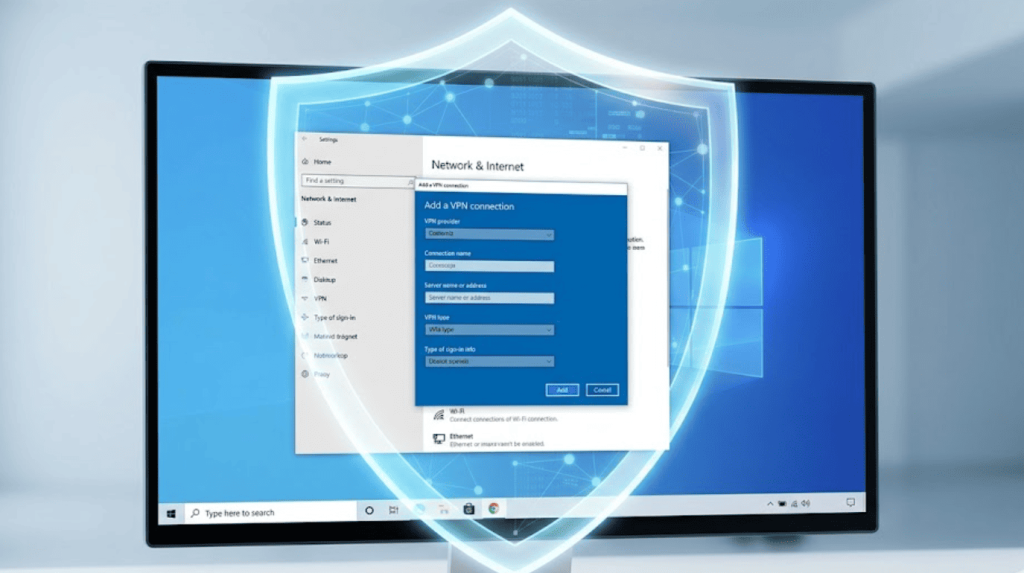
At the top of the VPN menu, click the button labeled “+ Add a VPN connection”.
-
A blue configuration overlay will appear. You must fill out the fields carefully:
-
VPN provider: Click the dropdown menu. There is only one option. Select Windows (built-in).
-
Connection name: This is purely cosmetic. Choose a name that helps you identify it easily (e.g., “Chicago Office Server,” “My Private L2TP,” or “Campus Network”).
-
Server name or address: Carefully type or paste the IP address or domain name you acquired in the prerequisites. Do not include
http://or any port numbers here. -
VPN type: Click the dropdown menu. Do not leave this on “Automatic” if you can avoid it. While Automatic forces Windows to probe the server with all protocols until one works, manually selecting the correct protocol (e.g., L2TP/IPsec with pre-shared key or IKEv2) drastically reduces the time it takes to connect.
-
(Conditional) Pre-shared key: If you selected L2TP/IPsec, a new text box will appear. Enter your PSK exactly as provided by your network administrator. It is case-sensitive.
-
Type of sign-in info: Leave this on the default Username and password unless your IT department has provided you with a Smart Card or One-Time Password (OTP) system.
-
User name (optional): Enter your assigned username.
-
Password (optional): Enter your password. Entering them here saves the credentials to the Windows Credential Manager, allowing for seamless one-click connections in the future.
-
-
Check the box that says “Remember my sign-in info” if it is a personal computer.
-
Click the Save button at the bottom.
Step 3: Initiating the Connection
Your new VPN profile is now permanently saved in your network adapters.
-
You will be returned to the main VPN settings page, and your new connection (e.g., “Chicago Office Server”) will be listed.
-
Click on the profile name. A drop-down will expand to reveal a Connect button, an Advanced options button, and a Remove button.
-
Click Connect.
-
Windows will display the connection status: Connecting… Verifying sign-in info… Completing the connection…
-
Once successful, the text will turn blue and display Connected.
The Quick Connect Method: Now that the setup is complete, you no longer need to open the Settings app. Simply click the Network/Wi-Fi icon in your system tray (the bottom right corner of your taskbar, next to the clock). Your VPN profile will appear at the top of the network list. You can connect and disconnect with a single click.
Part 4: Advanced Configuration – Split Tunneling
By default, when you connect to a native Windows VPN, all of your computer’s internet traffic is forced through the encrypted tunnel. This is called a “Full Tunnel.” However, what if you only want to use the VPN to access a secure corporate intranet, but you want your regular web browsing and Netflix streaming to use your standard, high-speed local ISP connection?
This is called Split Tunneling. Configuring this requires diving slightly deeper into Windows adapter settings:
-
Right-click the Start button and select Network Connections.
-
Click on Change adapter options.
-
You will see a list of your network adapters. Locate the one with the exact name of the VPN profile you just created (e.g., “Chicago Office Server”).
-
Right-click the VPN adapter and select Properties.
-
Navigate to the Networking tab.
-
Select Internet Protocol Version 4 (TCP/IPv4) and click the Properties button below it.
-
Click the Advanced… button.
-
Uncheck the box that says “Use default gateway on remote network”.
-
Click OK on all three open windows to save the configuration.
Now, when you connect to the VPN, only traffic destined for the specific IP subnet of the remote server will use the tunnel, leaving your general internet speeds entirely unaffected.
Part 5: Troubleshooting Common Windows VPN Error Codes
When configuring connections manually, protocol mismatches and firewall blocks are common. The Windows native client provides specific error codes to help you diagnose the issue. Here is how to resolve the most frequent roadblocks:
Error 809 (The Firewall Block)
-
The Message: “The network connection between your computer and the VPN server could not be established because the remote server is not responding.”
-
The Cause: This is incredibly common with L2TP/IPsec connections. It means the server is online, but a firewall (either Windows Defender, your home router, or your ISP) is blocking the specific ports required for the IPsec handshake.
-
The Fix: You must log into your home router’s admin panel and ensure that VPN Passthrough (specifically IPsec Passthrough) is enabled. Furthermore, you may need to open UDP Port 500 and UDP Port 4500 in your Windows Defender Advanced Firewall rules.
Error 691 (Authentication Failure)
-
The Message: “The connection was denied because the user name and password combination you provided is not recognized, or the selected authentication protocol is not permitted.”
-
The Cause: You simply typed your username or password incorrectly, or your account has expired on the host server.
-
The Fix: Go back to the VPN settings, click your profile, select Advanced options, click Edit, and carefully retype your credentials. Ensure Caps Lock is off.
Error 868 (DNS Resolution Failure)
-
The Message: “The remote connection was not made because the name of the remote access server did not resolve.”
-
The Cause: You entered a domain name (like
vpn.server.com) instead of an IP address, and your local DNS resolver cannot figure out what IP address that domain points to. -
The Fix: Flush your DNS cache. Open Command Prompt as Administrator, type
ipconfig /flushdns, and hit Enter. If it still fails, replace the domain name in your VPN settings with the server’s direct numerical IP address.
Conclusion
Understanding how to setup VPN on Windows 10 step by step using the native client is a hallmark of an advanced PC user. By eschewing commercial applications and tapping directly into the operating system’s networking core, you achieve a cleaner, faster, and more customizable secure connection. Whether you are deploying IKEv2 for unparalleled speed, utilizing SSTP to evade aggressive censorship firewalls, or configuring split tunneling to optimize your bandwidth, you now possess the comprehensive knowledge required to take absolute control of your desktop’s network security.