In the intricate tapestry of modern digital infrastructure, securing access to remote systems stands as a paramount concern. At the heart of this security lies the Secure Shell (SSH) protocol, an indispensable tool for system administrators, developers, and IT professionals worldwide. While SSH offers various authentication methods, the use of private keys has ascended to become the gold standard, offering an unparalleled blend of convenience, robustness, and security compared to traditional password-based logins. This article delves deeply into the mechanics, best practices, and advanced applications of employing the `ssh` command with a private key, providing a comprehensive guide for anyone seeking to master this essential aspect of server management.
The Foundational Principles of SSH
Before dissecting the specific command syntax, it’s crucial to understand the underlying architecture and cryptographic principles that empower SSH.
What is SSH? (Secure Shell)
SSH is a cryptographic network protocol that enables secure remote access to computers over an unsecured network. It provides a secure channel over an untrusted network in a client-server architecture, connecting an SSH client application with an SSH server. Unlike older protocols like Telnet or FTP, SSH encrypts all traffic, preventing eavesdropping, connection hijacking, and other network-based attacks.
Client-Server Architecture
The SSH interaction involves two primary components:
- SSH Client: The program initiated by the user (e.g., `ssh` on Linux/macOS, PuTTY on Windows) to connect to a remote server.
- SSH Server (Daemon): A background service running on the remote machine (e.g., `sshd` on Linux) that listens for incoming SSH connections, authenticates users, and manages secure sessions.
When a client initiates a connection, the server first authenticates the client, and then, if successful, establishes a secure, encrypted channel for command execution, file transfers (via SCP or SFTP), and port forwarding.
The Role of Cryptography: Asymmetric Encryption
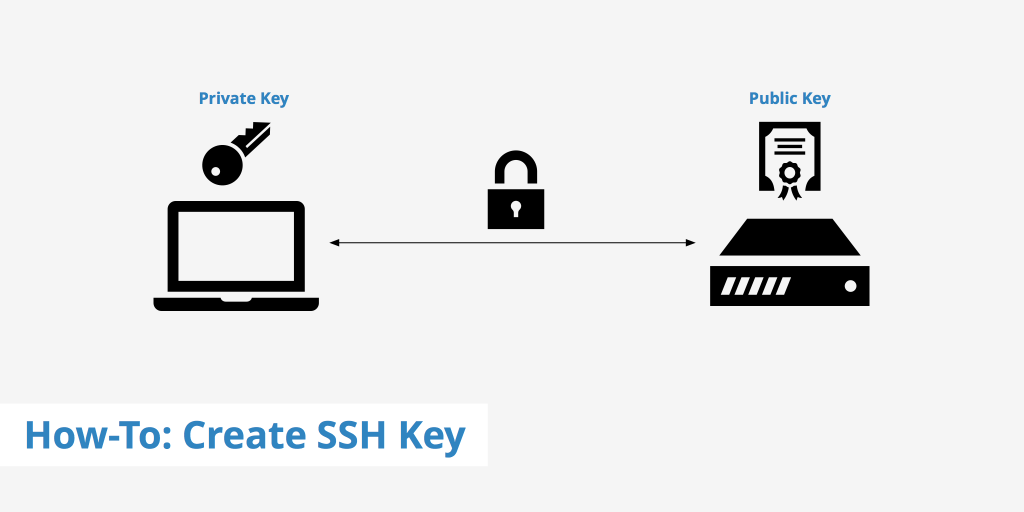
The magic of SSH’s security largely hinges on asymmetric cryptography, also known as public-key cryptography. This system utilizes a pair of mathematically linked keys: a public key and a private key.
- Public Key: Can be freely distributed. It’s used to encrypt data or verify a digital signature. Crucially, it cannot be used to decrypt data encrypted with itself.
- Private Key: Must be kept secret by its owner. It’s used to decrypt data that was encrypted with the corresponding public key or to create a digital signature.
In the context of SSH, this key pair forms the basis of authentication, providing a much stronger security posture than traditional passwords.
Key Pairs: Public and Private Keys Explained
For SSH authentication, the public key is placed on the remote server you wish to access (typically in the `~/.ssh/authorized_keys` file of the target user). When you attempt to connect from your local machine, the SSH client uses your private key to prove your identity to the server. The server, possessing your public key, challenges your client. If your client can successfully respond to the challenge using your private key, the server trusts that you are who you claim to be, and access is granted. This handshake ensures that your private key never leaves your local machine, significantly reducing the risk of compromise.
The Genesis of SSH Key Pairs
Understanding *how* to generate and deploy these crucial key pairs is the next logical step in mastering key-based authentication.
Why Use Keys Instead of Passwords?
The advantages of SSH keys over passwords are manifold:
- Superior Security: Keys are typically much longer and more complex than any human-memorable password, making them virtually impossible to guess or brute-force.
- Automation: SSH keys allow for unattended login, critical for scripting and automated deployments without requiring manual password entry.
- Convenience: Once configured, you can log in without typing a password, especially when using `ssh-agent`.
- Reduced Risk of Phishing/Keylogging: Since you’re not typing a password, you’re immune to these types of attacks aimed at stealing credentials.
- Centralized Revocation: If a key is compromised, it can be revoked from the `authorized_keys` file on all servers simultaneously, without changing passwords on each server.
Generating Your SSH Key Pair (`ssh-keygen`)
The `ssh-keygen` utility is the standard command-line tool for creating SSH key pairs.
bash
ssh-keygen -t ed25519 -b 4096 -C “[email protected]”
Let’s break down the options:
- `-t `: Specifies the type of key to create.
- `ed25519` (Recommended): A modern, highly efficient, and secure elliptic-curve key type. It’s generally preferred due to its strong security guarantees and smaller key sizes.
- `rsa`: A widely supported and still secure option, though `ed25519` is often faster and smaller.
- `dsa`: Considered less secure and deprecated. Avoid using it.
- `ecdsa`: Another elliptic-curve type, but `ed25519` is generally preferred.
- `-b `: Specifies the number of bits in the key. This is primarily relevant for RSA keys.
- For RSA, 2048 bits is a minimum, but 4096 bits is highly recommended for future-proofing and enhanced security.
- For `ed25519`, the key size is fixed, so this option is ignored.
- `-C “comment”`: Adds a comment to the public key file, typically an email address or a description, helping you identify the key’s purpose later.
When you run `ssh-keygen`, you’ll be prompted for:
1. File in which to save the key:
- The default location is `~/.ssh/id_ed25519` (for `ed25519`) or `~/.ssh/id_rsa` (for `rsa`). It’s generally a good practice to accept the default or use a descriptive name if you manage multiple keys (e.g., `~/.ssh/my_web_server_key`).
2. Passphrase:
- Always use a strong passphrase! This encrypts your private key file on your local machine. Even if someone gains access to your private key file, they cannot use it without the passphrase. Think of it as a password for your private key. An empty passphrase is convenient but significantly diminishes the security of your private key if it’s ever compromised.
After generation, you’ll have two files in your `~/.ssh/` directory:
- `id_ed25519` (or `id_rsa`): Your private key. Keep this file absolutely secret and secure.
- `id_ed25519.pub` (or `id_rsa.pub`): Your public key. This is the file you can freely distribute to servers.
Deploying Your Public Key to the Remote Server
Once you have your key pair, the next step is to place the public key on the remote server you intend to access. The server will use this public key to verify your private key during authentication.
The `ssh-copy-id` Utility (Recommended Method)
The `ssh-copy-id` command is the simplest and most recommended way to install your public key on a remote server. It automatically appends your public key to the `~/.ssh/authorized_keys` file on the remote host, handling file creation and correct permissions if necessary.
bash
ssh-copy-id -i ~/.ssh/id_ed25519.pub user@remote_server
- `-i ~/.ssh/id_ed25519.pub`: Specifies the public key file to install. If omitted, `ssh-copy-id` defaults to `~/.ssh/id_rsa.pub` or `~/.ssh/id_ed25519.pub` if it exists.
- `user@remote_server`: The username and hostname/IP address of the remote server.
The first time you run this, you will likely be prompted for the *password* of `user` on `remote_server` (or your SSH private key’s passphrase if you’ve already authenticated in the current session). This is the last time you should need to use a password for that server with this key.
Manual Copying (When `ssh-copy-id` isn’t available)
If `ssh-copy-id` is not available on your system or the target server, you can manually copy the public key.
1. Copy the public key content:
bash
cat ~/.ssh/id_ed25519.pub
Copy the entire output to your clipboard.
2. Log in to the remote server using password authentication:
bash
ssh user@remote_server
Enter your password when prompted.
3. Create the `.ssh` directory and `authorized_keys` file if they don’t exist:
bash
mkdir -p ~/.ssh
chmod 700 ~/.ssh
touch ~/.ssh/authorized_keys
chmod 600 ~/.ssh/authorized_keys
These permissions are critical for SSH security. If they are too permissive, SSH will refuse to use the key.
4. Append your public key to the `authorized_keys` file:
bash
echo “PASTE_YOUR_PUBLIC_KEY_HERE” >> ~/.ssh/authorized_keys
Replace `”PASTE_YOUR_PUBLIC_KEY_HERE”` with the content you copied in step 1. Be careful not to overwrite the file (use `>>` for append, not `>`).
5. Verify the content:
bash
cat ~/.ssh/authorized_keys
Ensure your public key is present.
Now you should be able to log in using your private key.
Mastering the `ssh` Command with Your Private Key
With the public key deployed, you’re ready to harness the power of key-based SSH authentication.
The Basic Syntax (`ssh user@host`)
By default, the `ssh` client will attempt to use private keys found in standard locations (e.g., `~/.ssh/id_rsa`, `~/.ssh/id_ed25519`). If you’ve named your private key according to these defaults, a simple command is often sufficient:
bash
ssh user@remote_server
If your private key is protected by a passphrase, you’ll be prompted to enter it.
Explicitly Specifying the Private Key (`-i` option)
If you have multiple private keys, or if your private key is not in a default location or has a non-standard name, you must explicitly tell the `ssh` client which private key to use with the `-i` (IdentityFile) option.
bash
ssh -i ~/.ssh/my_custom_key user@remote_server
In this example, `~/.ssh/my_custom_key` is the path to your private key file. This is particularly useful when you have different keys for different servers or different roles.
Managing Multiple Keys and Aliases (`~/.ssh/config`)
Manually specifying the `-i` option for every connection can become tedious. The `~/.ssh/config` file is a powerful tool for defining custom SSH configurations, making connections more streamlined and robust.
Each entry in the `~/.ssh/config` file typically starts with a `Host` directive, followed by specific configuration options for that host.
# Example SSH Config File (~/.ssh/config)
Host webserver
HostName 192.168.1.100
User admin
IdentityFile ~/.ssh/id_ed25519
Port 22
Host staging_env
HostName staging.example.com
User deployuser
IdentityFile ~/.ssh/keys/staging_key
Port 2222
ForwardAgent yes
Host *
# Default settings for all hosts not explicitly listed above
# Example: If you want to disable password authentication by default
# PreferredAuthentications publickey
# AddKeysToAgent yes
To connect to `webserver` defined above, you simply type:
bash
ssh webserver
The `ssh` client will automatically pick up the `HostName`, `User`, `IdentityFile`, and `Port` settings from your `~/.ssh/config` file.
Common `~/.ssh/config` directives:
- `Host `: A nickname for the connection.
- `HostName `: The real hostname or IP address of the remote server.
- `User `: The username to log in as on the remote server.
- `IdentityFile `: Specifies the private key file to use for this host.
- `Port `: The port on the remote server to connect to (default is 22).
- `ForwardAgent yes/no`: Enables/disables SSH agent forwarding (discussed later).
- `AddKeysToAgent yes/no`: Automatically adds keys to `ssh-agent` when used.
Remember to set the correct permissions for your `~/.ssh/config` file: `chmod 600 ~/.ssh/config`.
Using `ssh-agent` for Key Management
Typing your private key’s passphrase every time you connect can be annoying, especially if you have a strong, complex one. This is where `ssh-agent` comes into play.
- What is `ssh-agent`?
`ssh-agent` is a program that runs in the background and stores your unencrypted private keys in memory. When you attempt an SSH connection, your SSH client communicates with `ssh-agent` to use the stored private key for authentication, without requiring you to re-enter your passphrase. This means you only enter your passphrase once per session (or reboot), significantly enhancing convenience.
- `ssh-add`:
You add your private key to the `ssh-agent` using the `ssh-add` command:
bash
ssh-add ~/.ssh/id_ed25519
You will be prompted for your private key’s passphrase. Once entered, the key is loaded into the agent. If you have multiple keys, add them all.
- Automatic Key Loading:
- macOS: `ssh-agent` is typically started automatically, and keys are often added to your keychain, allowing passphrase caching across reboots.
- Linux (Desktop Environments): Many desktop environments (like GNOME, KDE) start `ssh-agent` automatically. You might need to configure them to auto-add keys.
- Linux (CLI/Servers): You might need to start `ssh-agent` explicitly:
bash
eval “$(ssh-agent -s)”
ssh-add ~/.ssh/id_ed25519
The `eval` command sets the necessary environment variables (`SSH_AUTH_SOCK`, `SSH_AGENT_PID`) for your current shell session to communicate with the agent. This usually needs to be run in your `~/.bashrc` or `~/.zshrc` for persistence across new shell sessions.
To check which keys are currently loaded in your `ssh-agent`:
bash
ssh-add -l
To remove keys from the agent:
bash
ssh-add -D # Removes all keys
ssh-add -d ~/.ssh/id_ed25519 # Removes a specific key
Advanced Scenarios and Best Practices
Moving beyond the basics, there are several advanced techniques and crucial best practices to elevate your SSH key management.
SSH Key Passphrases: A Layer of Defense
As mentioned, a strong passphrase for your private key is non-negotiable. It provides a vital layer of security. If your local machine is compromised and your private key file is stolen, the passphrase prevents the attacker from immediately using it. Aim for a long, complex passphrase, ideally a sentence or a string of random words.
You can change a key’s passphrase with:
bash
ssh-keygen -p -f ~/.ssh/id_ed25519
Permissions: Crucial for Security
Incorrect file permissions are a common cause of SSH key authentication failures. The `ssh` client and server are extremely strict about permissions to prevent unauthorized access to your private key or manipulation of your `authorized_keys` file.
- `~/.ssh` directory: Must be `700` (read, write, execute for owner only).
bash
chmod 700 ~/.ssh
- Private Key file (e.g., `id_ed25519`): Must be `600` (read, write for owner only).
bash
chmod 600 ~/.ssh/id_ed25519
- Public Key file (e.g., `id_ed25519.pub`): Can be `644` (read for owner, read for group, read for others), but `600` is also fine.
- `authorized_keys` file on remote server: Must be `600` (read, write for owner only).
bash
chmod 600 ~/.ssh/authorized_keys
If `ssh` complains about “Permissions too open,” check these first.
Troubleshooting Common SSH Key Issues
- “Permissions too open” / “Bad permissions”:
- This is the most frequent issue. Double-check the permissions listed above for your `~/.ssh` directory and private key file locally, and the `~/.ssh` directory and `authorized_keys` file on the remote server.
- “Authentication failed (publickey)”:
- Public key not on server: Ensure your public key is correctly installed in `~/.ssh/authorized_keys` on the remote server, and that the `authorized_keys` file has correct permissions.
- Private key not found/used: Are you specifying the correct `IdentityFile` in `~/.ssh/config` or using the `-i` option correctly?
- Incorrect user: Are you trying to log in as the correct user (`user@remote_server`)? The public key must be in *that user’s* `~/.ssh/authorized_keys`.
- `ssh-agent` issue: Is `ssh-agent` running? Is the key loaded into it? (`ssh-add -l`).
- Key type/strength: Ensure the key type (e.g., `ed25519`) is supported by both your client and the server’s SSH daemon configuration.
- Verbose Debugging:
Use the verbose options with `ssh` to get more diagnostic information:
- `ssh -v user@host`: Prints debugging messages.
- `ssh -vv user@host`: More verbose output.
- `ssh -vvv user@host`: Even more verbose, showing every step of the authentication process. This is invaluable for pinpointing where authentication fails.
Disabling Password Authentication (Server-Side Hardening)
Once you’ve confirmed that key-based authentication is working reliably, it is a critical security best practice to disable password authentication on the SSH server. This eliminates the possibility of brute-force attacks against weak passwords.
On the remote server, edit the SSH daemon’s configuration file, typically `/etc/ssh/sshd_config`:
ini
PasswordAuthentication no
ChallengeResponseAuthentication no
After making changes, restart the SSH service:
bash
sudo systemctl restart sshd # For systemd-based systems (most modern Linux)
# OR
sudo service sshd restart # For older init systems
Crucial Warning: DO NOT disable password authentication until you have thoroughly tested that you can log in with your SSH key. If you disable passwords and your key doesn’t work, you could lock yourself out of the server. Always maintain an open SSH session or have console access during this change.
SSH Agent Forwarding (`-A` option)
SSH agent forwarding (`ssh -A`) allows you to use your local private key to authenticate to a *third* machine from a *remote* machine. This means your private key never leaves your local machine, even when you’re jumping through multiple servers.
Example: You’re on `Local` machine, want to connect to `ServerA`, and then from `ServerA` to `ServerB`.
1. Start `ssh-agent` and add your key on `Local`.
2. Connect to `ServerA` with agent forwarding:
bash
ssh -A userA@ServerA
3. From `ServerA`, you can now connect to `ServerB` without needing your private key on `ServerA`:
bash
ssh userB@ServerB
Your local `ssh-agent` handles the authentication for `ServerB`.
You can also enable agent forwarding in your `~/.ssh/config` file:
Host ServerA
HostName serverA.example.com
User userA
IdentityFile ~/.ssh/id_ed25519
ForwardAgent yes
Specifying Different Ports (`-p` option)
If your SSH server listens on a non-standard port (e.g., to obfuscate it from automated scanning bots), you can specify the port using the `-p` option:
bash
ssh -p 2222 user@remote_server
Or, as shown before, in your `~/.ssh/config` file:
Host my_server_on_custom_port
HostName remote.example.com
User myuser
Port 2222
IdentityFile ~/.ssh/id_ed25519
Security Considerations and Key Management Lifecycle
Proper key management extends beyond initial setup to ongoing security practices.
Protecting Your Private Key: Physical and Digital Security
Your private key is akin to the master key to your digital infrastructure. Its compromise is severe.
- Passphrase: As discussed, always use a strong passphrase.
- File Permissions: Ensure correct `600` permissions.
- Location: Store it on your local machine, preferably on an encrypted drive. Never upload it to public repositories or unencrypted cloud storage.
- Backup: Create a secure, encrypted backup of your private key and passphrase. Consider using a hardware security module (HSM) or a secure password manager for passphrase storage.
Revoking Compromised Keys
If you suspect your private key has been compromised (e.g., your local machine was stolen or breached), immediate action is required:
1. Remove the corresponding public key from the `~/.ssh/authorized_keys` file on *all* servers it was deployed to.
2. Generate a new SSH key pair.
3. Deploy the new public key to all necessary servers.
4. Consider auditing affected systems for signs of unauthorized activity.
Key Rotation Policies
Regularly rotating your SSH keys (e.g., annually or bi-annually) is a good security practice, even if you don’t suspect compromise. This limits the window of opportunity for an attacker to exploit a potentially compromised key.
Using Hardware Security Modules (HSMs) or YubiKeys
For highly sensitive environments, storing your private key on a hardware security module (HSM) or a FIDO2-compliant security key (like a YubiKey) significantly enhances security. These devices perform cryptographic operations on the key internally, meaning the private key never leaves the device itself. This makes it much harder to extract or compromise the key, even if your computer is compromised. SSH clients can be configured to use these devices via `PKCS#11` or FIDO drivers.
Conclusion
The `ssh` command, when used with private keys, represents the pinnacle of secure and efficient remote server management. By understanding the underlying cryptographic principles, mastering key generation and deployment, and diligently applying best practices for configuration and security, you can establish an ironclad defense for your digital assets. From streamlining routine administrative tasks with `~/.ssh/config` to safeguarding critical infrastructure with agent forwarding and hardware keys, the capabilities are extensive. Embrace key-based authentication as the cornerstone of your cybersecurity strategy, ensuring robust, convenient, and scalable access to your remote systems. Continuous vigilance, adherence to permission guidelines, and proactive key management are not just recommendations; they are imperatives in today’s threat landscape.