Unlocking Secure Remote Access: A Deep Dive into Establishing SSH Connections
In the vast, interconnected landscape of digital infrastructure, the ability to securely access and manage remote servers is not just a convenience—it’s a foundational necessity. At the heart of this capability lies the Secure Shell Protocol, universally known as SSH. More than just a utility, SSH is the bedrock of secure remote administration, enabling developers, system administrators, and even advanced users to traverse digital distances with unparalleled security and efficiency.
This comprehensive guide aims to demystify the process of establishing an SSH connection, taking you from the fundamental principles to advanced configurations and crucial security practices. Whether you’re a novice looking to make your first secure leap into a remote server or an experienced hand seeking to refine your understanding and troubleshoot common issues, this article provides an exhaustive resource for navigating the world of SSH. We will explore the architectural underpinnings, guide you through step-by-step connection procedures across various operating systems, illuminate the power of key-based authentication, and equip you with the knowledge to maintain robust security.
The Foundational Principles of SSH
Before diving into the practicalities of establishing a connection, it’s paramount to grasp the core concepts that make SSH an indispensable tool in modern computing. Understanding its mechanisms provides context and clarity, empowering you to use it more effectively and securely.
What is SSH? The Secure Shell Protocol Defined
SSH, or Secure Shell, is a cryptographic network protocol for operating network services securely over an unsecured network. It provides a secure channel over an unsecured network in a client-server architecture, connecting an SSH client application with an SSH server. Unlike older, insecure protocols like Telnet or FTP, which transmit data including passwords in plaintext, SSH encrypts all communications between the client and the server. This encryption protects against eavesdropping, connection hijacking, and other network-level attacks, making it the de facto standard for remote command-line access, remote execution of commands, and secure file transfers.
Why is SSH Indispensable? Security, Remote Access, and File Transfer
The indispensability of SSH stems from its multifaceted capabilities:
- Unparalleled Security: SSH utilizes strong encryption algorithms (like AES, ChaCha20, RSA, ECDSA) to scramble data exchanged between client and server. This ensures data confidentiality and integrity. Furthermore, it employs robust authentication mechanisms, primarily password-based and public-key based, to verify the identity of both parties, preventing unauthorized access.
- Seamless Remote Access: For system administrators, developers, and IT professionals, SSH provides a command-line interface (CLI) to remotely manage servers located anywhere in the world. This means you can execute commands, manage files, install software, and configure systems as if you were sitting right in front of the machine, all without physically being present.
- Secure File Transfer: Beyond terminal access, SSH underpins secure file transfer protocols like SCP (Secure Copy Protocol) and SFTP (SSH File Transfer Protocol). These allow users to copy files and directories between local and remote hosts securely, integrating the encryption and authentication features of SSH into file operations.
- Port Forwarding and Tunneling: SSH can securely tunnel other network services, encapsulating their traffic within the encrypted SSH connection. This allows access to services that might otherwise be blocked by firewalls or are intentionally kept internal, creating a secure conduit for various applications.
Client-Server Architecture Explained
SSH operates on a classic client-server model.
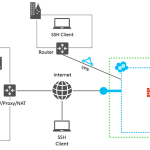
- SSH Client: This is the software running on your local machine (e.g., your laptop or desktop) that initiates the connection. It requests to connect to a remote SSH server. Common SSH clients include OpenSSH (built into Linux/macOS, available on Windows 10/11), PuTTY for Windows, and various integrated terminals in IDEs.
- SSH Server (Daemon): This is the software running on the remote machine you wish to access. It listens for incoming connection requests on a specific port (by default, TCP port 22). When a client attempts to connect, the server responds, negotiates the connection parameters, authenticates the client, and, if successful, establishes a secure session. The most common SSH server is OpenSSH Server, often referred to as `sshd`.
Encryption and Authentication: The Core Pillars
The security of SSH rests firmly on two core pillars:
- Encryption: From the moment a connection is initiated, SSH employs several layers of encryption. It starts with an initial key exchange, using algorithms like Diffie-Hellman, to establish a shared secret key without ever transmitting it directly. This shared key is then used for symmetric encryption (e.g., AES-256) of all subsequent data transfer, ensuring that even if an attacker intercepts the communication, they cannot decipher its contents.
- Authentication: SSH supports various methods for authenticating clients to the server:
- Password Authentication: The client sends a username and password to the server. While simple, it’s susceptible to brute-force attacks if passwords are weak.
- Public-Key Authentication (SSH Keys): This is the recommended and most secure method. It involves a pair of cryptographically linked keys: a public key stored on the server and a private key kept securely on the client machine. When a client attempts to connect, the server challenges it, and the client uses its private key to prove its identity without ever sending the private key itself over the network. This method is highly resistant to brute-force attacks and eliminates the need to remember complex passwords for each server.
Prerequisites for Establishing an SSH Connection
Before you can successfully establish an SSH connection, a few fundamental components must be in place. Ensuring these prerequisites are met will streamline your connection process and prevent common frustrations.
A Remote Server with SSH Daemon Running
The most critical prerequisite is that the target remote server must have an SSH server application (daemon) installed and actively running. On most Linux distributions and Unix-like systems, OpenSSH Server (`sshd`) is pre-installed or easily installable. For instance, on Ubuntu/Debian, you’d use `sudo apt install openssh-server`. On macOS, SSH server access can be enabled via System Preferences (Sharing > Remote Login). Without an active SSH daemon listening for connections, your client will be unable to establish communication.
An SSH Client on Your Local Machine
You need an SSH client application on your local computer to initiate the connection.
- Linux/macOS: OpenSSH client is pre-installed and available directly from the terminal.
- Windows 10/11: OpenSSH client is often pre-installed or can be enabled as an optional feature through “Apps & Features” -> “Optional features.” Once enabled, you can use the `ssh` command from PowerShell or Command Prompt.
- Older Windows Versions or PuTTY Preference: PuTTY is a free, open-source SSH client widely used on Windows. It’s a standalone executable that provides a graphical interface for configuring and managing SSH connections.
Network Connectivity
Your local machine must have network connectivity to the remote server. This implies:
- Internet Access: If the server is on the public internet.
- Correct IP Address/Hostname: You need the accurate IP address (e.g., `192.168.1.100` or `203.0.113.45`) or hostname (e.g., `my-server.example.com`) of the remote server.
- Firewall Rules: Any firewalls (both on your local network, the internet service provider, or the remote server itself) must permit traffic on the SSH port (default TCP port 22) between your client and the server. If the server’s firewall blocks port 22, you won’t be able to connect.
Credentials (Username, Password/SSH Key)
To authenticate with the remote server, you’ll need valid credentials:
- Username: The username for an account on the remote server (e.g., `root`, `ubuntu`, `ec2-user`).
- Authentication Method:
- Password: The password associated with that username on the remote server.
- SSH Key Pair: Your private key (on your local machine) and the corresponding public key (on the remote server, typically in `~/.ssh/authorized_keys`). This is the highly recommended method.
Step-by-Step Guide: Establishing Your First SSH Connection (Password Authentication)
This section provides a practical, step-by-step walkthrough for establishing an SSH connection using password authentication, covering the most common operating systems and client tools.
On Linux/macOS
For users on Linux or macOS, the OpenSSH client is built directly into the operating system and accessed via the terminal.
Opening the Terminal
- macOS: Open “Applications” -> “Utilities” -> “Terminal” or use Spotlight Search (Cmd + Space) and type “Terminal.”
- Linux: Typically found in your applications menu under “Utilities,” “System Tools,” or “Accessories.” Common shortcuts include Ctrl+Alt+T.
The `ssh` Command Syntax
The basic syntax for connecting to a remote server is:
bash
ssh username@remote_host
- `username`: The username on the remote server you wish to log in as.
- `remote_host`: The IP address or hostname of the remote server.
Example: If your username on the server is `john` and the server’s IP is `203.0.113.10`, you would type:
bash
ssh [email protected]
If the SSH server is running on a non-standard port (not 22), you’ll need to specify it using the `-p` flag:
bash
ssh -p 2222 [email protected]
First Connection & Host Key Verification
The very first time you connect to a new server, SSH performs a host key verification. This is a crucial security step. The server presents a unique fingerprint (its public host key) to your client. Your client will ask you to verify this key:
The authenticity of host ‘203.0.113.10 (203.0.113.10)’ can’t be established.
ECDSA key fingerprint is SHA256:abcd…
Are you sure you want to continue connecting (yes/no/[fingerprint])?
- Verify: You should ideally compare this fingerprint with the one provided by your server administrator or cloud provider. If they match, type `yes` and press Enter.
- Trust on First Use (TOFU): If you don’t have the fingerprint to compare, typing `yes` tells your client to trust this host key for future connections. The key will be stored in your `~/.ssh/known_hosts` file. Subsequent connections to the same server will use this stored key for verification. If the server’s host key ever changes unexpectedly, SSH will warn you, indicating a potential man-in-the-middle attack.
Entering Your Password
After accepting the host key, you will be prompted to enter the password for the specified username on the remote server:
[email protected]’s password:
Type your password carefully. Note that characters will typically *not* appear on the screen as you type, for security reasons. Press Enter when finished.
If the password is correct, you’ll be granted access to the server’s command-line interface. Your terminal prompt will change, often reflecting the remote server’s hostname and your username (e.g., `john@myserver:~$` or `[john@myserver ~]$`).
Disconnecting
To disconnect from the SSH session, simply type `exit` or `logout` at the remote server’s prompt and press Enter. Alternatively, you can press `Ctrl+D`.
On Windows (Using PuTTY)
PuTTY is a popular free SSH client for Windows, offering a graphical interface.
Downloading and Installing PuTTY
1. Navigate to the official PuTTY download page (e.g., `www.putty.org`).
2. Download the appropriate `putty.exe` standalone executable or the Windows Installer package. The executable is often sufficient for basic use.
3. If using the installer, follow the on-screen prompts. If using the executable, simply run `putty.exe`.
Launching PuTTY
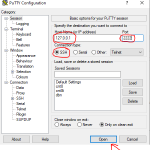
Double-click the `putty.exe` file or launch PuTTY from your Start Menu. The PuTTY Configuration window will appear.
Configuring the Session
1. Host Name (or IP address): Enter the IP address or hostname of your remote server (e.g., `203.0.113.10`).
2. Port: Ensure this is set to `22` (or your custom SSH port).
3. Connection type: Ensure `SSH` is selected.
4. Saved Sessions (Optional but Recommended): In the “Saved Sessions” box, type a descriptive name for your connection (e.g., `MyProductionServer`). Click “Save” to store these settings for future use.
Connecting and Handling Security Alerts
1. Click the “Open” button to initiate the connection.
2. PuTTY Security Alert: The first time you connect to a server, PuTTY will display a “PuTTY Security Alert” dialog box. This is similar to the host key verification in Linux/macOS. It shows the server’s host key fingerprint.
- Verify: If you can, compare this fingerprint with the one provided by your server administrator.
- Accept: Click “Accept” if the fingerprint matches or if you trust the connection (Trust on First Use). This saves the host key to PuTTY’s cache. Click “Connect Once” if you don’t want to save it.
- Reject: Click “Reject” if the fingerprint doesn’t match or you don’t trust the server.
Entering Credentials
A terminal window will open, prompting you for your username:
login as:
1. Type your username (e.g., `john`) and press Enter.
2. You will then be prompted for your password:
[email protected]’s password:
3. Type your password (characters will not be displayed) and press Enter.
If successful, you will see the remote server’s command prompt, indicating you are securely connected. To disconnect, type `exit` or `logout` and press Enter, or simply close the PuTTY window.
On Windows (Using OpenSSH Client – Windows 10/11)
Windows 10 and 11 include an OpenSSH client, allowing you to use the `ssh` command directly from PowerShell or Command Prompt, similar to Linux/macOS.
Enabling the OpenSSH Client
1. Go to “Settings” -> “Apps” -> “Optional features.”
2. Click “Add a feature.”
3. Scroll down, find “OpenSSH Client,” and click “Install.”
4. Once installed, you can open PowerShell or Command Prompt.
Using `ssh` from PowerShell/CMD
The command syntax is identical to Linux/macOS:
powershell
ssh username@remote_host
Example:
powershell
ssh [email protected]
Follow the same steps for host key verification and password entry as described for Linux/macOS. The experience will be virtually identical.
Advanced Security: Leveraging SSH Key-Pair Authentication
While password authentication is straightforward, it carries inherent risks, primarily being susceptible to brute-force attacks and requiring users to remember strong, complex passwords. SSH key-pair authentication offers a dramatically more secure and convenient alternative.
Why SSH Keys are Superior to Passwords
- Stronger Security: SSH keys are typically 2048-bit or 4096-bit long, making them virtually impossible to guess or crack through brute force, unlike passwords.
- No Password Transmission: Your private key never leaves your local machine. The authentication process involves a cryptographic challenge-response mechanism, proving you possess the private key without ever sending it over the network.
- Convenience: Once set up, you no longer need to type a password for each connection, streamlining your workflow.
- Automated Processes: SSH keys are essential for scripting and automating tasks on remote servers without human intervention.
Understanding Public and Private Keys
An SSH key pair consists of two cryptographically linked files:
- Public Key: This key (`id_rsa.pub`, `id_ed25519.pub`, etc.) is designed to be shared. You place it on the remote server(s) you wish to access, typically in the `~/.ssh/authorized_keys` file of the user account.
- Private Key: This key (`id_rsa`, `id_ed25519`, etc.) must be kept absolutely secret and secure on your local machine. It should never be shared or exposed. It’s often protected by a passphrase, adding another layer of security.
When you attempt to connect, the server challenges you with a random piece of data. Your client uses your private key to “sign” this data. The server then uses your public key to verify the signature. If the signature is valid, authentication is successful.
Generating SSH Key Pairs (Local Machine)
The process for generating SSH keys is largely similar across Linux, macOS, and Windows with OpenSSH. PuTTY users will use PuTTYgen.
Using `ssh-keygen` (Linux/macOS/Windows OpenSSH)
1. Open your terminal (Linux/macOS) or PowerShell (Windows).
2. Run the command:
bash
ssh-keygen -t ed25519 -C “[email protected]”
- `-t ed25519`: Specifies the key type. `ed25519` is a modern, highly secure, and efficient algorithm. You can also use `rsa` with `-b 4096` for 4096-bit RSA keys.
- `-C “[email protected]”`: Adds a comment to the public key, useful for identification, especially when managing multiple keys.
3. The command will prompt you for a location to save the key pair. The default (`~/.ssh/id_ed25519` or `C:UsersYOUR_USERNAME.sshid_ed25519`) is usually fine. Just press Enter.
Enter file in which to save the key (/home/user/.ssh/id_ed25519):
4. Next, you’ll be prompted to enter a passphrase. It is highly recommended to use a strong passphrase to protect your private key. This passphrase encrypts your private key file, meaning an attacker who gains access to your local machine would still need the passphrase to use your key.
Enter passphrase (empty for no passphrase):
Enter same passphrase again:
You can press Enter twice to create a key without a passphrase, but this is less secure.
5. The key pair will be generated. You’ll see output indicating the location of your public and private keys and their fingerprints. For example:
Your public key has been saved in /home/user/.ssh/id_ed25519.pub.
Your private key is `id_ed25519` and your public key is `id_ed25519.pub`.
Using PuTTYgen (Windows PuTTY)
1. Launch PuTTYgen (usually found in the PuTTY installation directory).
2. Select the key type (e.g., `EdDSA` for Ed25519 or `RSA` with 4096 bits) and click “Generate.”
3. Move your mouse randomly over the blank area to generate randomness for the key.
4. Once generated, you’ll see the public key in the top text box. Important: Copy this entire public key string.
5. Enter a strong “Key passphrase” and “Confirm passphrase.”
6. Click “Save private key” and save it to a secure location (e.g., `Documentssshmy_server_key.ppk`). PuTTY uses its own `.ppk` format for private keys.
7. Click “Save public key” and save it as `my_server_key.pub` for easier management.
Copying Your Public Key to the Remote Server
Once you have your public key, the next step is to place it on the remote server in the `~/.ssh/authorized_keys` file.
Using `ssh-copy-id` (Recommended)
The `ssh-copy-id` utility (available on Linux/macOS and sometimes via WSL on Windows) is the easiest and safest way to copy your public key. It handles permissions correctly and appends the key to the `authorized_keys` file.
bash
ssh-copy-id username@remote_host
Example:
bash
ssh-copy-id [email protected]
You’ll be prompted for the remote user’s password (the last time you’ll need it!) to upload the key. If you used a non-standard port or a specific key file, you might need:
bash
ssh-copy-id -p 2222 -i ~/.ssh/id_ed25519.pub [email protected]
Manual Copying
If `ssh-copy-id` isn’t available, you can copy the public key manually.
1. Get your public key content:
- Linux/macOS/Windows OpenSSH:
bash
cat ~/.ssh/id_ed25519.pub
Copy the entire output.
- PuTTYgen: Copy the string from the “Public key for pasting…” box in PuTTYgen.
2. Log in to the remote server using password authentication:
bash
ssh username@remote_host
3. Create the `.ssh` directory and set permissions (if it doesn’t exist):
bash
mkdir -p ~/.ssh
chmod 700 ~/.ssh
4. Append your public key to `authorized_keys`:
bash
echo “your_public_key_string_here” >> ~/.ssh/authorized_keys
chmod 600 ~/.ssh/authorized_keys
Replace `”your_public_key_string_here”` with the actual content of your public key. Be careful to use `>>` (append) and not `>` (overwrite) if you might have other keys.
5. Exit the remote server.
Connecting with SSH Keys
Once your public key is on the server, you can attempt to connect.
- Default Behavior: If your private key is in the default location (`~/.ssh/id_ed25519` or `~/.ssh/id_rsa`), the `ssh` client will automatically try to use it.
bash
ssh [email protected]
If you set a passphrase, you’ll be prompted for it.
- Specifying Key File (`-i` option): If your private key is named differently or stored in a non-default location, use the `-i` option:
bash
ssh -i /path/to/your/private_key [email protected]
For PuTTY users, specify the `.ppk` private key file in PuTTY’s configuration under “Connection” -> “SSH” -> “Auth” -> “Private key file for authentication.”
Protecting Your Private Key with a Passphrase
A passphrase on your private key is an essential security measure. Even if an attacker gains access to your local machine and steals your private key, they cannot use it without the passphrase.
Adding a Passphrase During Generation
As shown in the `ssh-keygen` step, you’re prompted to enter a passphrase during key generation.
Using `ssh-agent`
Typing your passphrase every time can be cumbersome. The `ssh-agent` is a program that holds private keys used for public-key authentication. It stores your decrypted private key in memory after you enter the passphrase once, allowing you to connect to multiple servers without re-entering it for the duration of your session.
- Linux/macOS: `ssh-agent` is often started automatically. You can add your key with:
bash
eval “$(ssh-agent -s)”
ssh-add ~/.ssh/id_ed25519
You’ll be prompted for your passphrase once.
- Windows (OpenSSH): The `ssh-agent` service can be configured to start automatically.
powershell
Get-Service ssh-agent | Set-Service -StartupType Automatic
Start-Service ssh-agent
ssh-add $env:USERPROFILE.sshid_ed25519
- PuTTY (Pageant): PuTTY provides `Pageant`, an SSH authentication agent for Windows. You load your `.ppk` keys into Pageant once, enter the passphrases, and then PuTTY uses Pageant for authentication.
Beyond Basic Connection: Common SSH Options and Use Cases
SSH is far more powerful than just a remote terminal. Understanding its various options unlocks a suite of advanced functionalities.
Port Specification (`-p`): Connecting to Non-Standard Ports
While 22 is the default SSH port, many server administrators change it for security reasons (to deter automated scans). You can specify a different port with the `-p` option:
bash
ssh -p 2222 user@host
Verbose Output (`-v`): For Troubleshooting
When encountering connection issues, the verbose option is invaluable. It provides detailed diagnostic messages about the connection process, authentication attempts, and errors.
bash
ssh -v user@host
For even more verbosity, use `-vv` or `-vvv`.
Tunneling/Port Forwarding
SSH tunneling allows you to establish secure, encrypted connections to services that are otherwise inaccessible or insecure over a network.
Local Port Forwarding (`-L`)
Local port forwarding redirects traffic from a port on your local machine to a port on the remote server, through the SSH tunnel. This is useful for accessing internal web interfaces or databases not exposed to the public internet.
bash
ssh -L local_port:target_host:target_port user@remote_ssh_server
Example: Accessing a web server running on `internal-webserver:80` (accessible from `remote_ssh_server`) via your local machine’s port 8080:
bash
ssh -L 8080:internal-webserver:80 user@remote_ssh_server
Now, navigating to `http://localhost:8080` in your local browser will securely show you the `internal-webserver` content.
Remote Port Forwarding (`-R`)
Remote port forwarding allows the remote server to listen on a specified port, and any connections to that port are then forwarded to a specified port on the local machine (or another machine accessible from the local one). This is less common but useful for allowing an external service to access something on your local machine.
bash
ssh -R remote_port:target_host:target_port user@remote_ssh_server
Dynamic Port Forwarding (`-D`) (SOCKS Proxy)
Dynamic port forwarding creates a SOCKS proxy server on your local machine. You can then configure applications (like web browsers) to use this SOCKS proxy, routing all their traffic through the encrypted SSH tunnel to the remote server, and then out to the internet from the remote server’s perspective. This is a common way to bypass local network restrictions or anonymize browsing.
bash
ssh -D local_port user@remote_ssh_server
Example: Create a SOCKS proxy on your local machine on port 1080.
bash
ssh -D 1080 user@remote_ssh_server
Then, configure your browser (e.g., Firefox or Chrome with extensions) to use a SOCKS5 proxy at `localhost:1080`.
Executing Remote Commands (`ssh user@host ‘command’`)
You can execute a single command on a remote server without needing an interactive shell. The command runs, its output is returned to your local terminal, and the SSH session terminates.
bash
ssh user@host ‘ls -l /var/log’
This will list the contents of `/var/log` on the remote server. This is extremely useful for scripting and automation.
File Transfer with SCP and SFTP
SSH provides two secure methods for transferring files:
SCP (Secure Copy Protocol)
SCP is a command-line utility for copying files and directories between hosts over an SSH connection. It’s syntax is similar to the `cp` command.
- Copy local file to remote server:
bash
scp /path/to/local/file.txt user@remote_host:/path/to/remote/directory/
- Copy remote file to local machine:
bash
scp user@remote_host:/path/to/remote/file.txt /path/to/local/directory/
- Copy directory recursively: Use the `-r` flag.
bash
scp -r /path/to/local/directory/ user@remote_host:/path/to/remote/parent_directory/
SFTP (SSH File Transfer Protocol)
SFTP is a more interactive and feature-rich file transfer protocol built over SSH. It allows you to browse remote directories, create directories, delete files, and manage permissions, similar to FTP but with SSH’s security.
- Using the `sftp` command (CLI):
bash
sftp user@remote_host
This opens an interactive SFTP prompt where you can use commands like `ls`, `cd`, `get`, `put`, `mkdir`, etc.
- Using graphical SFTP clients: Tools like FileZilla, Cyberduck, WinSCP (Windows) provide an intuitive drag-and-drop interface for SFTP, simplifying file management. You simply provide your SSH credentials (username, password/key) and the server’s IP/hostname.
Troubleshooting Common SSH Connection Issues
Even with the best preparation, SSH connections can sometimes be temperamental. Here are common issues and their solutions.
Connection Timed Out
This usually indicates that your local machine could not reach the remote server on the specified port.
- Possible Causes:
- Server is down: The remote server might be offline.
- Incorrect IP address/hostname: Double-check the server’s address.
- Network routing issues: Your local network or ISP might have issues reaching the server.
- Firewall on server: The remote server’s firewall (e.g., `ufw`, `firewalld`, AWS Security Groups, Azure Network Security Groups) is blocking incoming connections on the SSH port. This is a very common cause.
- Firewall on client: Less common, but your local firewall might be blocking outbound SSH connections.
- Incorrect port: You might be trying to connect to the wrong port.
- Solutions:
- Verify server status (e.g., through your cloud provider console).
- Ping the server’s IP address (`ping remote_host`) to check basic connectivity (though ping can be blocked by firewalls).
- Use `telnet remote_host 22` or `nc -vz remote_host 22` (or your custom port) to check if the port is open and listening.
- Review and adjust firewall rules on the remote server to allow traffic on the SSH port from your IP address or `0.0.0.0/0` (for public access, less secure).
Permission Denied (Publickey, Password)
This means the server refused your authentication attempt.
- Possible Causes:
- Incorrect username: You’re trying to log in with a username that doesn’t exist or isn’t authorized for SSH on the server.
- Incorrect password: If using password authentication, you entered the wrong password.
- Incorrect SSH key: If using key-pair authentication:
- Your public key isn’t correctly installed in `~/.ssh/authorized_keys` on the server.
- Permissions on `~/.ssh` or `~/.ssh/authorized_keys` are too broad on the server (should be `700` for `~/.ssh` and `600` for `authorized_keys`).
- You’re using the wrong private key locally, or the private key is corrupted.
- Your private key is protected by a passphrase, and you entered it incorrectly or forgot it.
- The SSH server might be configured to *only* allow key-based authentication, and you’re trying with a password.
- Solutions:
- Double-check your username.
- Re-enter your password carefully.
- If using keys, verify your public key is copied correctly and check file permissions on the server (e.g., `ls -ld ~/.ssh` and `ls -l ~/.ssh/authorized_keys`).
- Use `ssh -v` to get verbose output, which often shows which authentication methods were tried and why they failed.
Host Key Verification Failed
This warning occurs when the host key presented by the server doesn’t match the one stored in your `~/.ssh/known_hosts` file (or PuTTY’s cache).
- Possible Causes:
- Legitimate server change: The server’s operating system was reinstalled, or the SSH server software was reconfigured, generating a new host key.
- Man-in-the-Middle (MITM) attack: A malicious actor is impersonating your server. This is a serious security concern.
- Solutions:
- Verify the new fingerprint: If you can confirm a legitimate change (e.g., with your cloud provider or server admin), you can remove the old key from your `known_hosts` file. The error message usually tells you which line to remove:
bash
ssh-keygen -R hostname_or_ip
Then, reconnect and accept the new key.
- Investigate MITM: If you cannot confirm a legitimate change, do not connect. Investigate the possibility of a security breach.
`ssh: connect to host … port 22: Connection refused`
This means your client successfully reached the remote server’s IP address, but the server actively refused the connection on that port.
- Possible Causes:
- SSH server not running: The `sshd` service might be stopped or not installed on the remote server.
- Incorrect port: You’re trying to connect to a port that `sshd` isn’t listening on.
- Server firewall: The server’s firewall is explicitly configured to `REJECT` traffic on the SSH port, rather than silently dropping it.
- Solutions:
- Log in to the server via an alternative method (e.g., a cloud provider’s web console, physical access) and verify the SSH server is running: `sudo systemctl status sshd` (Linux). If not, start it: `sudo systemctl start sshd`.
- Ensure you’re connecting to the correct port.
- Check server firewall rules.
Incorrect Firewall Rules
Firewalls are a frequent source of SSH connection problems.
- Local Firewall: Your computer’s firewall might be blocking outbound SSH connections. (Rare for client, but possible).
- Intermediate Firewalls: Network firewalls between your local machine and the remote server.
- Remote Server Firewall: The most common culprit. Tools like `ufw` (Uncomplicated Firewall) on Ubuntu, `firewalld` on CentOS/RHEL, or cloud security groups (AWS Security Groups, Azure Network Security Groups, Google Cloud Firewall Rules) can block port 22.
- Solutions:
- Local: Temporarily disable your local firewall to test.
- Remote: Access the server through an alternative method and check/modify firewall rules.
- `sudo ufw status` then `sudo ufw allow ssh` or `sudo ufw allow 22/tcp`.
- `sudo firewall-cmd –list-all` then `sudo firewall-cmd –add-service=ssh –permanent` and `sudo firewall-cmd –reload`.
- For cloud providers, modify the security group or firewall rule to allow inbound TCP traffic on port 22 (or your custom port) from your IP address or `0.0.0.0/0`.
Best Practices for SSH Security
Establishing an SSH connection is just the first step. Maintaining robust security is crucial to protect your remote infrastructure.
- Disable Password Authentication (Once Keys are Set Up): After successfully setting up SSH key-pair authentication, disable password authentication on your server. This completely removes the risk of brute-force password attacks. Edit `/etc/ssh/sshd_config` and set `PasswordAuthentication no`. Restart `sshd` service (`sudo systemctl restart sshd`). Crucially, ensure your key-based login works perfectly before doing this, as you’ll be locked out otherwise.
- Use Strong Passphrases for Private Keys: Always protect your private key with a strong, unique passphrase. This adds a critical layer of security if your private key file is ever compromised.
- Change Default SSH Port: While not a security panacea, changing the default SSH port (22) to a non-standard, high-numbered port (e.g., 2222, 22222) reduces the noise from automated bots constantly scanning for port 22. Edit `/etc/ssh/sshd_config` and change `Port 22` to your desired port. Remember to update firewall rules and client connection commands.
- Limit Root Login: Do not allow direct SSH login as the `root` user. Instead, log in as a regular user and then use `sudo` to gain administrative privileges. Edit `/etc/ssh/sshd_config` and set `PermitRootLogin no`.
- Implement Fail2Ban: Fail2Ban is an intrusion prevention framework that scans log files (e.g., `/var/log/auth.log`) for suspicious activity like repeated failed login attempts. It then automatically bans the offending IP addresses using firewall rules for a configurable amount of time.
- Keep SSH Software Updated: Regularly update your operating system and all installed software, including the SSH client and server. Updates often contain security patches that address newly discovered vulnerabilities.
- Restrict Access by IP Address: If possible, configure your server’s firewall (or cloud security group) to only allow SSH connections from a specific set of trusted IP addresses. This significantly reduces the attack surface.
- Monitor SSH Logs: Regularly review SSH server logs (`/var/log/auth.log` on Debian/Ubuntu, `/var/log/secure` on CentOS/RHEL) for unauthorized login attempts or unusual activity.
Conclusion
Establishing an SSH connection is a fundamental skill for anyone working with remote servers. As we have thoroughly explored, SSH offers a robust and secure conduit for remote administration, file transfer, and a multitude of advanced networking functionalities. From understanding its foundational principles of encryption and authentication to navigating step-by-step connection guides across various platforms, and finally, diving into powerful options like port forwarding and crucial troubleshooting, this article has aimed to provide a deeply comprehensive resource.
By embracing SSH key-pair authentication and adhering to the outlined security best practices, you can ensure your remote operations are not only efficient but also fortified against the myriad threats of the digital world. The journey into secure remote access begins with a single, well-established SSH connection—a gateway to unprecedented control and peace of mind in managing your digital assets. Master SSH, and you master the remote frontier.