The Imperative of Control: Mastering SSH Service Management in Ubuntu Environments
In the intricate architecture of modern computing, secure remote access stands as a cornerstone for system administrators, developers, and IT professionals worldwide. At the heart of this capability lies the Secure Shell (SSH) protocol, a cryptographic network protocol that enables secure data communication, remote command-line execution, and other network services between two networked computers. For those operating within the robust and versatile Ubuntu ecosystem, understanding how to manage the SSH server service – particularly how to restart it – is not merely a technicality but a fundamental skill for maintaining system integrity, applying critical updates, and ensuring continuous, secure connectivity.
This deeply comprehensive exploration delves into the nuances of restarting the SSH server on Ubuntu, moving beyond a simple command to unveil the underlying mechanisms, critical best practices, security implications, and advanced troubleshooting techniques. Our journey will illuminate why this seemingly straightforward action holds such significance, empowering you with the knowledge to wield administrative control with confidence and precision.
The Unseen Gateway: Understanding SSH in Ubuntu
Before delving into the mechanics of service control, it’s crucial to grasp the role and operational philosophy of SSH within an Ubuntu server environment. SSH provides a secure channel over an unsecured network by using strong cryptography to encrypt the connection between a client and a server. This encryption protects against various attacks, including eavesdropping, connection hijacking, and unauthorized access.
On an Ubuntu system, the SSH server is typically provided by the OpenSSH server package, `openssh-server`. Once installed, it runs as a background service, listening for incoming connection requests on a designated port (defaulting to TCP port 22). When a client attempts to connect, the server authenticates the client and, upon successful verification, establishes a secure shell session.
Why Managing SSH Service is Crucial
The ability to manage the SSH service – including starting, stopping, reloading, and restarting it – is indispensable for several reasons:
- Configuration Changes: Almost any modification to the SSH server’s behavior, from changing the listening port to adjusting authentication methods, requires the service to be reloaded or restarted to apply those changes.
- Troubleshooting: When remote access becomes problematic, restarting the SSH service is often a primary diagnostic step to resolve temporary glitches or hung processes.
- Security Updates: Applying security patches to the OpenSSH server package typically necessitates a service restart to fully implement the updated binaries and ensure protection against newly discovered vulnerabilities.
- Resource Management: Although less common for SSH, any long-running service can occasionally benefit from a restart to free up resources or clear transient states.
Ubuntu’s Embrace of `systemd`
Modern Ubuntu versions (since 15.04) have adopted `systemd` as their default init system and service manager, replacing the older `Upstart` and traditional `SysVinit` systems. `systemd` offers a more efficient, robust, and feature-rich way to manage services, handle dependencies, and log system events. Understanding `systemd` is paramount for anyone managing services, including SSH, on contemporary Ubuntu installations. It standardizes service management commands under the `systemctl` utility, which we will explore in depth.
The Essential Directives: How to Restart the SSH Server
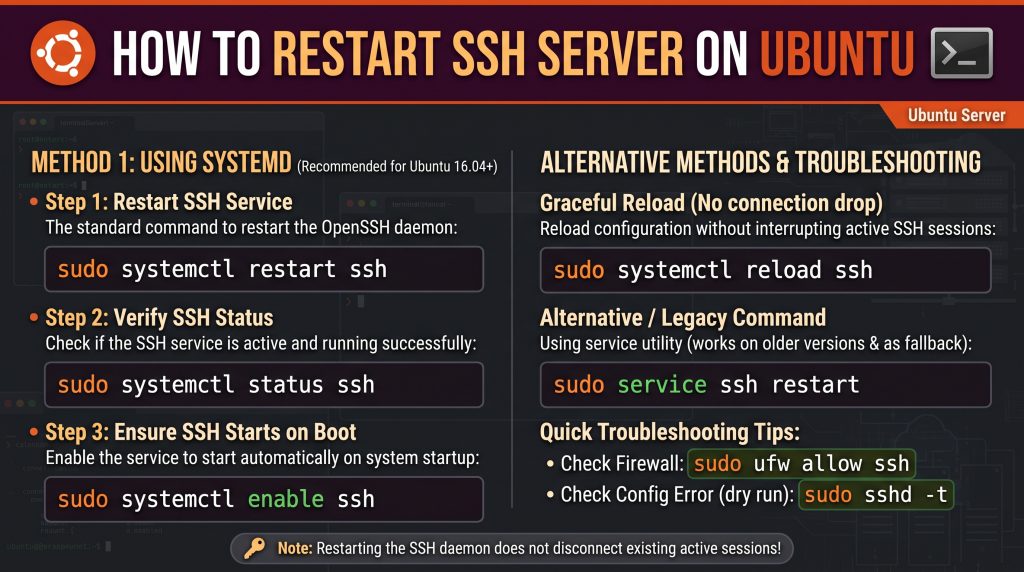
At the core of SSH service management on Ubuntu lies a set of commands executed via the `systemctl` utility. The most direct and frequently used command to restart the SSH server is both simple and powerful:
bash
sudo systemctl restart ssh
Let’s meticulously deconstruct this command to understand each component’s role and significance.
The Primary Command: `sudo systemctl restart ssh`
This command instructs the `systemd` service manager to stop the running `ssh` service and then immediately start it again. This process ensures that any changes to its configuration or underlying binaries are fully reloaded and applied.
Deconstructing `systemctl`: A Modern Daemon Management Tool
`systemctl` is the central command-line utility for controlling the `systemd` init system. It allows administrators to inspect and control the state of the `systemd` system and service manager. For services like SSH, `systemctl` provides a unified interface to perform various actions:
- `restart`: This action halts the specified service (if it’s running) and then initiates it again. It’s a clean slate operation, often necessary for comprehensive configuration changes or to clear any lingering process states.
- `ssh`: This is the service name. On Ubuntu, the OpenSSH server package registers itself as the `ssh` service (or sometimes `sshd`, though `ssh` is commonly symlinked to it and often preferred for `systemctl` commands).
The Power of `sudo`: Understanding Administrative Privileges
The `sudo` prefix is not optional here. `sudo` (short for “superuser do”) allows a permitted user to execute a command as the superuser or another user, as specified by the security policy. Managing system services like SSH requires root privileges because these actions affect the operating system’s core functionality and security posture. Without `sudo`, the `systemctl restart ssh` command would fail due to insufficient permissions.
Differentiating Restart, Stop, Start, and Reload
While `restart` is a powerful and frequently used command, `systemctl` offers more granular control over services. Understanding the distinctions between these actions is critical for efficient and safe system administration:
- `restart`: As discussed, this completely stops and then starts the service. It ensures all processes are terminated and then re-initialized, loading fresh configuration files and binaries. Use `restart` when significant changes have been made to `/etc/ssh/sshd_config`, or after major package updates.
bash
sudo systemctl restart ssh
- `stop`: This command simply terminates the running service. The SSH server will cease to accept new connections, and any existing connections will be severed (though this can sometimes take a moment for client-side timeouts).
bash
sudo systemctl stop ssh
- `start`: This command initiates a stopped service. It will only start the service if it’s not already running.
bash
sudo systemctl start ssh
- `reload`: This is a more graceful and often preferred option than `restart` when only configuration files have been changed and the service is designed to handle a reload gracefully. Instead of stopping and starting, `reload` instructs the service to re-read its configuration files without interrupting ongoing operations or dropping existing connections. Not all services support `reload`, but OpenSSH server does.
bash
sudo systemctl reload ssh
The `reload` command is invaluable for making changes to `sshd_config` (e.g., changing `PermitRootLogin` or `PasswordAuthentication`) without disconnecting active SSH sessions. This minimizes disruption, a critical consideration in production environments.
Beyond Restart: Comprehensive Service Management with `systemctl`
`systemctl` provides a suite of commands that go beyond just restarting, offering a holistic approach to service management. Familiarity with these commands empowers administrators to monitor, debug, and configure services effectively.
Checking Service Status: `systemctl status ssh`
Before and after performing any service management action, checking the service’s status is paramount. This command provides a snapshot of the service’s current state, including whether it’s active, inactive, loading, or failed, along with recent log entries.
bash
systemctl status ssh
The output will typically show if the service is `active (running)`, its process ID (PID), memory usage, and the latest log lines. This is your first line of defense for verifying that an action was successful or diagnosing why it failed.
Stopping the Service: `systemctl stop ssh`
There are scenarios where you might need to temporarily disable SSH access entirely, perhaps for maintenance, to prevent unauthorized access during a security incident, or while performing network configuration that might interfere with SSH.
bash
sudo systemctl stop ssh
Executing this command will immediately terminate the SSH daemon, making the server inaccessible via SSH until it is started again.
Starting the Service: `systemctl start ssh`
Conversely, if the SSH service has been stopped (either intentionally or due to an error), you can manually bring it back online using the `start` command.
bash
sudo systemctl start ssh
It’s wise to follow this with `systemctl status ssh` to confirm that the service started successfully.
The Nuance of Reloading: `systemctl reload ssh`
As highlighted, `reload` is a superior option to `restart` when applicable. It gracefully applies configuration changes by instructing the SSH daemon to re-read `/etc/ssh/sshd_config` without dropping active client connections. This “hot reload” capability is a hallmark of well-designed services and minimizes operational downtime.
bash
sudo systemctl reload ssh
Always prefer `reload` over `restart` if the changes you’ve made are known to be compatible with a graceful reload. If you’re unsure, or if the changes are structural (e.g., changing the SSH port), `restart` is the safer, albeit more disruptive, option.
Enabling and Disabling on Boot: `systemctl enable/disable ssh`
Services managed by `systemd` can be configured to start automatically when the system boots.
- `enable`: This command creates symlinks that ensure the service starts automatically at boot time. OpenSSH is typically enabled by default upon installation.
bash
sudo systemctl enable ssh
- `disable`: This command removes those symlinks, preventing the service from starting automatically on subsequent boots. The service will remain running if it was active when disabled.
bash
sudo systemctl disable ssh
This is useful for securing systems where SSH access is only needed temporarily or manually controlled.
Delving into Logs: `journalctl -u ssh`
When troubleshooting, logs are an invaluable resource. `systemd` directs service logs to the `journald` logging system. To view logs specifically for the SSH service, use `journalctl` with the `-u` (unit) flag:
bash
journalctl -u ssh
This command will display all log entries related to the SSH service, including start-up messages, errors, warnings, and connection attempts. You can add flags like `-f` to follow new log entries in real-time, or `-n` to limit the output to a specific number of recent entries.
The Imperative for Action: When and Why to Restart Your SSH Server
Understanding the mechanics is only half the battle; knowing *when* to apply them is equally vital. The decision to restart, reload, or simply check the status of your SSH server on Ubuntu is driven by specific administrative needs and situational contexts.
Implementing Configuration Changes (`/etc/ssh/sshd_config`)
This is the most common reason to restart or reload the SSH service. The primary configuration file for the OpenSSH server is `/etc/ssh/sshd_config`. Any modifications made to this file – whether to enhance security, change listening ports, or alter authentication methods – will not take effect until the SSH daemon re-reads its configuration.
Examples of changes necessitating a restart or reload:
- Changing the `Port` number.
- Modifying `PermitRootLogin` (e.g., from `yes` to `no`).
- Adjusting `PasswordAuthentication` or `PubkeyAuthentication` directives.
- Adding or removing `AllowUsers`, `DenyUsers`, `AllowGroups`, or `DenyGroups` directives.
- Enabling or disabling features like `X11Forwarding` or `GatewayPorts`.
Addressing Connectivity Anomalies
Occasionally, an SSH server might become unresponsive, refuse connections, or behave erratically. While deeper network or firewall issues could be at play, a simple restart can often resolve transient software glitches. If SSH connections are timing out or being refused when they shouldn’t be, restarting the service is a quick first step in troubleshooting.
Applying Security Patches and Updates
Software updates are crucial for security and stability. When the `openssh-server` package (or any of its dependencies) receives an update, especially one addressing security vulnerabilities, the new binaries need to be loaded into memory. While some updates might initiate an automatic restart via a post-installation script, it’s always prudent to manually `sudo systemctl restart ssh` after a significant `apt upgrade` involving SSH components to ensure the latest security fixes are fully active.
Resolving Service Instability or Resource Contention
Though rare for SSH due to its lean nature, any software service can theoretically encounter issues such as memory leaks, process hangs, or resource exhaustion. If you observe the `sshd` process consuming excessive CPU or memory, or if it appears to be unresponsive, a restart can often clear the slate and restore normal operation. However, this should be seen as a temporary fix; persistent issues warrant deeper investigation into logs (`journalctl -u ssh`) and system diagnostics.
Mastering SSH Configuration: Navigating `/etc/ssh/sshd_config`
The configuration file `/etc/ssh/sshd_config` is the nerve center of your SSH server. Understanding its structure and key directives is vital for secure and efficient SSH management.
Locating and Understanding the Configuration File
The primary server configuration file is located at `/etc/ssh/sshd_config`. It’s a plain text file, typically well-commented, with each line representing a directive (configuration option) or a comment (starting with `#`).
Always make a backup before editing:
bash
sudo cp /etc/ssh/sshd_config /etc/ssh/sshd_config.bak_$(date +%F)
This simple command creates a timestamped backup, providing a safety net if your changes inadvertently break SSH access.
Critical Configuration Directives: A Deep Dive
Let’s explore some of the most crucial directives you’ll likely interact with:
- `Port 22`: This defines the port the SSH server listens on. Changing the default port (22) to a non-standard, higher-numbered port is a common security practice (often called “port knocking” or “port obfuscation”) to reduce automated scanning attempts.
- *Example:* `Port 2222`
- `PermitRootLogin no`: By default, OpenSSH often allows root login with a password. This is a significant security risk. Disabling direct root login (and instead using `sudo` from a regular user account) is a strong recommendation.
- *Options:* `yes`, `no`, `without-password`, `prohibit-password`. `no` is generally preferred.
- `PasswordAuthentication no`: While convenient, password-based authentication is susceptible to brute-force attacks. Disabling passwords entirely and relying on more secure SSH key-based authentication (covered next) is a best practice.
- *Options:* `yes`, `no`.
- `PubkeyAuthentication yes`: This directive enables authentication using SSH key pairs, which are vastly more secure than passwords. When `PubkeyAuthentication` is enabled and `PasswordAuthentication` is disabled, only users with a valid private key corresponding to a public key on the server (in `~/.ssh/authorized_keys`) can log in.
- *Options:* `yes`, `no`.
- `AllowUsers user1 user2`, `DenyUsers user3`, `AllowGroups group1`, `DenyGroups group2`: These directives provide fine-grained control over which users or groups are permitted or denied SSH access. `AllowUsers` and `AllowGroups` are generally safer as they operate on a whitelist principle.
- *Example:* `AllowUsers jdoe adminuser`
The Golden Rule: Validating Configuration Before Restart (`sshd -t`)
This is arguably the most critical best practice when modifying `/etc/ssh/sshd_config`. A syntax error or misconfigured directive can prevent the SSH service from starting, potentially locking you out of your server. Fortunately, OpenSSH provides a built-in test utility:
bash
sudo sshd -t
This command parses the `sshd_config` file and checks for syntax errors without actually starting or stopping the service. If the command returns silently (i.e., no output), your configuration file is syntactically correct. If there’s an error, it will typically print a message indicating the line number and nature of the problem.
Always run `sudo sshd -t` after editing `sshd_config` and before `sudo systemctl restart ssh` or `sudo systemctl reload ssh`. This simple step can save you hours of recovery time and prevent accidental server lockouts.
Fortifying the Bastion: Advanced Security Best Practices for SSH
Beyond just managing the service, securing your SSH server is paramount. A misconfigured or insecure SSH daemon is an open invitation for malicious actors.
Shifting from Password to Key-Based Authentication
This is arguably the most impactful security enhancement you can implement. SSH keys consist of a public-private key pair. The public key resides on the server (in `~/.ssh/authorized_keys`), and the private key remains securely on the client machine. Authentication occurs cryptographically without ever sending a password over the network, making it impervious to brute-force password guessing.
- Generate keys: `ssh-keygen` on your client.
- Copy public key to server: `ssh-copy-id user@your_server_ip`.
- Disable password authentication: Set `PasswordAuthentication no` in `sshd_config` and reload/restart.
Changing the Default SSH Port
While not a security panacea, moving SSH from its default TCP port 22 to a non-standard, higher-numbered port (e.g., 2222, 50022) significantly reduces the noise from automated bots and scripts that indiscriminately scan port 22 for vulnerabilities. Remember to update your firewall rules to allow access on the new port.
Implementing Firewall Rules with UFW
Ubuntu’s Uncomplicated Firewall (UFW) is an essential tool for restricting network access. Ensure UFW is enabled and configured to *only* allow SSH traffic from trusted IP addresses or networks, or at minimum, on your chosen SSH port.
bash
sudo ufw allow ssh # Allows on default port 22
sudo ufw allow 2222/tcp # If you changed the port
sudo ufw enable
If you specify an IP address or range, it’s even more secure:
bash
sudo ufw allow from 192.168.1.0/24 to any port 22
Leveraging Fail2ban for Brute-Force Protection
Fail2ban is a powerful intrusion prevention framework that scans log files (e.g., `sshd` logs) for malicious activity, such as repeated failed login attempts. Upon detecting suspicious behavior, it automatically updates firewall rules to temporarily or permanently ban the offending IP address. This effectively mitigates brute-force attacks.
bash
sudo apt update
sudo apt install fail2ban
sudo systemctl enable fail2ban
sudo systemctl start fail2ban
Configure `fail2ban` in `/etc/fail2ban/jail.local` to customize its behavior.
Regular Updates and Patching
Keeping your Ubuntu system and all its packages, including `openssh-server`, up-to-date is fundamental. Software developers continuously release patches to fix bugs and security vulnerabilities. Regular updates (`sudo apt update && sudo apt upgrade`) ensure you benefit from these improvements.
Disabling Unused Features
Review `sshd_config` and disable any features you don’t use, such as `X11Forwarding`, `PermitUserEnvironment`, or `GatewayPorts`, if they are not explicitly required. Reducing the attack surface by turning off unnecessary functionalities is always a good security practice.
Navigating the Labyrinth: Common Troubleshooting Scenarios
Even with best practices, issues can arise. Knowing how to diagnose and resolve common SSH problems is crucial.
“Connection Refused” or “Connection Timed Out”
These are among the most frequent error messages.
- Connection Refused:
- SSH service not running: `sudo systemctl status ssh`. If inactive, `sudo systemctl start ssh`.
- Firewall blocking: Check `sudo ufw status` or other firewall rules. Ensure the SSH port is open.
- Incorrect SSH port: Ensure your client is trying to connect on the correct port (use `ssh -p user@host`).
- `sshd_config` error: If `sshd -t` passed, but the service won’t start, check `journalctl -u ssh`.
- Connection Timed Out:
- Network reachability: The client cannot reach the server’s IP address. Check network connectivity, router configurations, and cloud provider security groups (if applicable).
- Firewall blocking (outbound): Less common for SSH, but possible if the server has an outbound firewall.
- Server is down: Verify the server itself is running.
SSH Service Fails to Start
If `sudo systemctl start ssh` results in an error or `systemctl status ssh` shows `failed`, the most likely culprit is a malformed `sshd_config` file.
1. Check `sshd -t`: Rerun `sudo sshd -t`. If it reports errors, fix them in `/etc/ssh/sshd_config`.
2. Review Logs: Immediately check `journalctl -u ssh` for detailed error messages. These logs often pinpoint the exact line or issue preventing the service from starting.
3. Permissions: Ensure `/etc/ssh/sshd_config` and other SSH-related files have correct permissions (e.g., `sudo chmod 600 /etc/ssh/sshd_config`). Incorrect permissions can also prevent the service from starting.
Incorrect Configuration Syntax
As mentioned, `sshd -t` is your primary tool here. If it reports an error, carefully review the indicated line and its context in `/etc/ssh/sshd_config`. Pay attention to:
- Typographical errors.
- Missing or misplaced arguments.
- Unrecognized directives.
- Conflicting directives (though `sshd -t` won’t catch all logical conflicts).
Permissions Issues
SSH is extremely particular about file permissions, especially for key files and configuration files.
- `~/.ssh` directory: Should be `700` (`drwx——`).
- `~/.ssh/authorized_keys`: Should be `600` (`-rw——-`).
- `/etc/ssh/sshd_config`: Should be `600` (`-rw——-`) and owned by `root:root`.
- Private keys on the client: Must be `600` (`-rw——-`).
Incorrect permissions will often lead to authentication failures or prevent the SSH daemon from starting.
Debugging with Verbose Client Output (`ssh -v`)
When troubleshooting client-side connection issues, using the verbose flag (`-v`) with your `ssh` client command is immensely helpful.
bash
ssh -v user@your_server_ip
This will print detailed debugging messages to your terminal, showing the entire connection handshake process, authentication attempts, and any errors encountered during the connection negotiation. Multiple `-v` flags (`-vv` or `-vvv`) increase verbosity.
Reviewing Server Logs (`journalctl -u ssh`)
For server-side issues, `journalctl -u ssh` is your best friend. It provides insights into why the service might have failed to start, why an authentication attempt was rejected, or if there are any ongoing issues with the SSH daemon. Look for keywords like “error,” “failed,” “denied,” or “refused.”
The Administrator’s Manifesto: Essential Best Practices
To conclude our comprehensive guide, let’s consolidate the key best practices that underpin robust and secure SSH service management on Ubuntu. Adhering to these principles will streamline your administrative tasks, enhance security, and minimize potential disruptions.
1. Always Test Configuration Syntax with `sshd -t`: Make this an immutable rule. Before `restart` or `reload`, always validate `/etc/ssh/sshd_config`. This is the single most effective safeguard against self-inflicted lockouts.
2. Maintain Alternative Access Channels: In a production environment, never rely solely on SSH for remote access. Ensure you have a secondary, out-of-band access method, such as a cloud provider’s console access, a KVM/IP, or a local physical console. This provides a lifeline if you inadvertently misconfigure SSH and lock yourself out.
3. Backup Configuration Files Religiously: Before making significant changes, always back up `/etc/ssh/sshd_config`. A simple `sudo cp /etc/ssh/sshd_config /etc/ssh/sshd_config.bak` can be a lifesaver.
4. Prioritize `reload` over `restart` when possible: For non-critical configuration changes that the SSH daemon can handle gracefully, `sudo systemctl reload ssh` is the less disruptive option, preserving active connections. Reserve `restart` for major changes or troubleshooting.
5. Educate and Document: If you’re part of a team, ensure everyone understands these best practices. Document your SSH configurations, security policies, and troubleshooting steps. Knowledge sharing is key to consistent and secure operations.
6. Implement Robust Security Measures: Beyond just managing the service, actively implement the discussed security best practices:
- Use SSH key-based authentication exclusively.
- Disable password authentication and root login.
- Configure UFW firewall rules.
- Install and configure Fail2ban.
- Keep your system updated.
7. Monitor Your Logs: Regularly review SSH server logs via `journalctl -u ssh` or integrate them into a centralized logging system. Anomalies in log patterns can be early indicators of security incidents or service issues.
Secure, Stable, and Seamless Connectivity
Managing the SSH server on Ubuntu is a foundational skill for anyone responsible for remote server administration. While the command `sudo systemctl restart ssh` appears deceptively simple, the context surrounding its usage, the available alternatives, and the associated best practices reveal a profound layer of administrative responsibility.
By understanding `systemd`, mastering the art of configuration validation, diligently applying security enhancements, and knowing how to effectively troubleshoot, you transcend the realm of mere command execution. You become a steward of secure and stable connectivity, ensuring that your Ubuntu servers remain accessible, protected, and performant. The control you exert over the SSH service is not just about restarting a daemon; it’s about safeguarding your digital infrastructure against an ever-evolving landscape of threats and operational challenges. With this comprehensive knowledge, you are well-equipped to manage your Ubuntu environments with unparalleled expertise and confidence.