In the dynamic landscape of modern IT infrastructure, secure remote access is not merely a convenience but an absolute imperative. As Windows ecosystems increasingly integrate into diverse, multi-platform environments, the need for robust, native secure shell (SSH) capabilities has become paramount. OpenSSH, the de facto standard for secure remote login and file transfer protocols, offers the cryptographic strength and versatility demanded by today’s interconnected world. For Windows users, the journey from relying on third-party clients to embracing a natively integrated OpenSSH client marks a significant leap in operational efficiency and security posture.
This deeply comprehensive guide delves into the intricate process of installing, configuring, and leveraging the OpenSSH client on Windows. It transcends mere instructions, providing contextual understanding, advanced configurations, and best practices essential for IT professionals, developers, and system administrators navigating the complexities of secure connectivity.
Introduction to OpenSSH and Its Significance
The Secure Shell (SSH) protocol is the bedrock of secure remote administration and data exchange over unsecured networks. Developed as a successor to unencrypted protocols like Telnet and rsh, SSH provides strong authentication and encrypted communications, protecting data integrity and confidentiality.
What is OpenSSH?
OpenSSH is a free, open-source suite of secure connectivity tools built upon the SSH protocol. It is developed and maintained by the OpenBSD project and includes key components such as `ssh` (the client program for remote login), `sshd` (the server daemon for remote login), `scp` (secure copy program), `sftp` (secure file transfer program), `ssh-keygen` (key generation utility), `ssh-agent` (authentication agent), and `ssh-add` (utility for adding keys to the agent). Its ubiquity across Linux, macOS, and now increasingly Windows, underscores its reliability and critical role in secure networked operations.
Why OpenSSH Client on Windows is Crucial
For decades, Windows users relied heavily on third-party SSH clients like PuTTY for remote connections to Unix-like systems. While effective, these solutions often required separate installations, maintained their own configuration paradigms, and sometimes lacked the seamless integration expected in modern workflows. The native inclusion of OpenSSH client capabilities in Windows has fundamentally altered this landscape, offering several compelling advantages:
- Native Integration: OpenSSH on Windows behaves like any other built-in command-line tool, simplifying scripting, automation, and integration with other Windows features.
- Reduced Software Overhead: Eliminates the need for separate third-party client installations, streamlining system management and reducing potential attack surfaces.
- Consistency Across Platforms: Provides a consistent SSH experience for users and administrators working across Windows, Linux, and macOS environments, minimizing learning curves and configuration discrepancies.
- Enhanced Scriptability: Facilitates powerful scripting with PowerShell or Command Prompt, enabling complex automation tasks for system administration, CI/CD pipelines, and DevOps workflows.
- Improved Security Posture: Leveraging a widely vetted, open-source security tool that receives regular updates from a dedicated security-focused project.
The Evolution of SSH on Windows
The journey of SSH on Windows has been transformative. Initially, users would resort to tools like Cygwin to emulate a Unix-like environment and run SSH. PuTTY then emerged as a standalone, lightweight, and user-friendly graphical SSH client, becoming the unofficial standard for Windows users. However, with the advent of Windows Server 2019 and Windows 10 (starting from the Fall Creators Update, version 1709), Microsoft began integrating OpenSSH as an optional feature. This strategic move signaled Microsoft’s commitment to hybrid cloud environments and cross-platform compatibility, making OpenSSH a first-class citizen within the Windows operating system. This native integration has not only simplified deployments but also paved the way for more robust and secure inter-operating system communication.
Prerequisites and System Requirements
Before embarking on the installation of the OpenSSH client, it’s essential to ensure your Windows environment meets the necessary prerequisites. Adhering to these requirements will guarantee a smooth installation and optimal functionality.
Operating System Compatibility
The native OpenSSH client is officially supported and readily available as an optional feature on:
- Windows 10: Version 1709 (Fall Creators Update) and later.
- Windows 11: All versions.
- Windows Server: Version 2019 and later.
For older versions of Windows (e.g., Windows 7, 8.1, or Server 2016/2012 R2), manual installation methods involving downloading binaries or using alternative SSH clients like PuTTY or Cygwin SSH remain the primary options. This guide will focus predominantly on modern Windows installations where native integration is possible.
Administrative Privileges
Installing and managing optional Windows features, or manually placing system files, requires administrative privileges. Ensure you are logged in with an account that has administrator rights, or be prepared to provide administrator credentials when prompted by User Account Control (UAC).
Network Considerations
While OpenSSH client installation itself does not directly rely on network connectivity, its primary function—connecting to remote servers—does. Ensure:
- Internet Access: For downloading optional features or Winget packages.
- Firewall Rules: Your local Windows Firewall (or any third-party firewall) is not blocking outgoing connections on port 22 (the default SSH port) or any custom SSH ports you intend to use. While less common for client-side firewalls, it’s a potential troubleshooting point.
- Remote Server Accessibility: The target SSH server is running, reachable over the network, and listening on the expected port.
Method 1: Installing OpenSSH Client via Windows Optional Features (Recommended)
This is the most straightforward and officially supported method for installing the OpenSSH client on modern Windows versions. It leverages Windows’ built-in “Optional features” management, ensuring seamless integration and updates.
Step-by-Step Installation Guide (GUI)
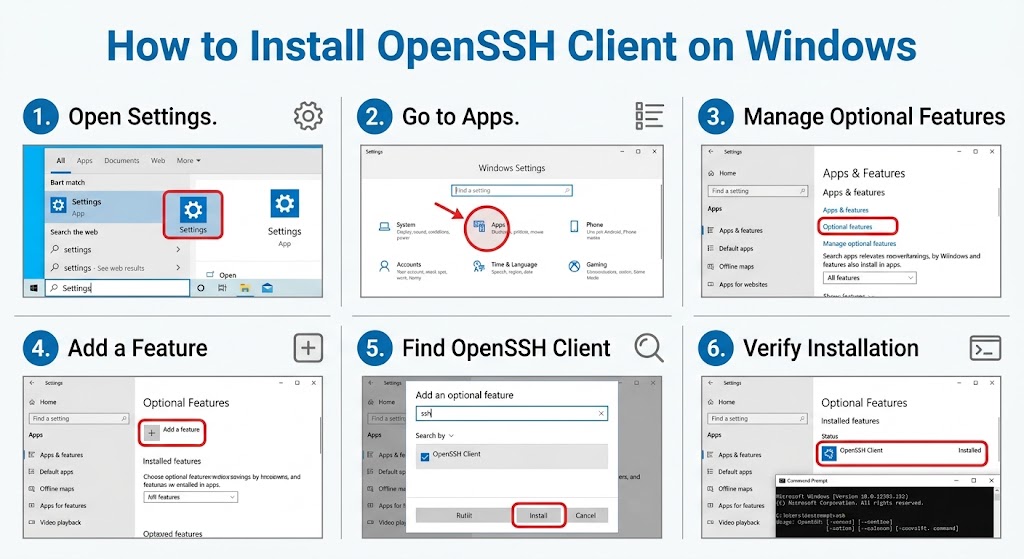
1. Open Settings: Click the Start button, then click the gear icon to open Settings, or press `Win + I`.
2. Navigate to Apps: In the Settings window, click on Apps.
3. Access Optional Features: On the left-hand pane, click on Optional features.
4. Add a Feature: Click the “Add an optional feature” button (or “View features” on Windows 11).
5. Search for OpenSSH Client: In the “Add an optional feature” window, scroll down or use the search bar to find “OpenSSH Client.”
6. Install OpenSSH Client: Check the box next to “OpenSSH Client” and click Install.
7. Verify Installation: Once the installation is complete, you will see “OpenSSH Client” listed under “Optional features” with an “Installed” date. You can also verify by opening Command Prompt or PowerShell and typing `ssh`. If the command output shows usage information, the client is successfully installed.
cmd
ssh
Expected output should display usage instructions, indicating the client is recognized.
Using PowerShell for Installation and Verification
For those who prefer command-line interfaces or need to automate installations, PowerShell offers an efficient way to manage Windows optional features.
Checking Current Status
First, you can check if the OpenSSH client is already installed using PowerShell:
powershell
Get-WindowsCapability -Online | Where-Object Name -like ‘OpenSSH.Client*’
Output will show `State : Installed` or `State : NotPresent`.
Installing
If the client is not present, you can install it with a single command:
powershell
Add-WindowsCapability -Online -Name OpenSSH.Client~~~~0.0.1.0
- `-Online`: Specifies that the command applies to the running operating system.
- `-Name OpenSSH.Client~~~~0.0.1.0`: This is the exact name of the OpenSSH Client package capability.
You can verify the installation again using `Get-WindowsCapability` or by simply running `ssh` in PowerShell.
Uninstalling (if necessary)
If for any reason you need to uninstall the OpenSSH client, you can do so via Settings (following similar steps as installation but choosing “Uninstall”) or using PowerShell:
powershell
Remove-WindowsCapability -Online -Name OpenSSH.Client~~~~0.0.1.0
Method 2: Installing OpenSSH Client via Winget (Windows Package Manager)
Winget, Microsoft’s official package manager for Windows, provides a convenient and increasingly popular way to install and manage applications. While OpenSSH client is typically an optional feature, Winget can also manage its presence, especially if you’re managing other software via Winget.
Ensuring Winget is Installed
Winget is included by default with modern versions of Windows 10 (version 1809 and later) and Windows 11 as part of the App Installer package. To check if Winget is available, open Command Prompt or PowerShell and type:
cmd
winget –version
If Winget is not found or is outdated, you can update or install the “App Installer” from the Microsoft Store. Alternatively, you can download the latest `.msixbundle` from the official Winget GitHub releases page and install it manually.
Installation Steps with Winget
Once Winget is confirmed to be working, installing the OpenSSH client is straightforward:
1. Search for OpenSSH Client: You can search for the package to ensure its availability and exact ID:
cmd
winget search OpenSSH Client
Look for an entry like “Microsoft.OpenSSH.Client”.
2. Install OpenSSH Client: Use the `install` command with the package ID:
cmd
winget install Microsoft.OpenSSH.Client
Winget will download and install the OpenSSH client, often by enabling the Windows optional feature behind the scenes.
3. Verify Installation: As with other methods, open a new Command Prompt or PowerShell window and type `ssh` to confirm the client is recognized.
Benefits of Using Winget
- Centralized Package Management: Manage OpenSSH client alongside other applications from a single command-line interface.
- Automation-Friendly: Ideal for scripting and automated deployment scenarios, particularly in enterprise environments or developer setup scripts.
- Consistency: Helps maintain consistency in software versions and installations across multiple machines.
Method 3: Manual Installation (for older Windows versions or specific scenarios)
For Windows versions that do not natively support OpenSSH as an optional feature (e.g., Windows 7, 8.1, Server 2016/2012 R2) or for specific use cases requiring a standalone, portable version, manual installation remains a viable option. This method involves downloading the OpenSSH binaries and configuring them manually.
Warning: This method is more complex and less recommended for modern Windows versions due to the lack of automatic updates and deeper system integration compared to the optional features method.
Downloading OpenSSH Binaries
1. Visit the GitHub Release Page: Navigate to the official OpenSSH for Windows GitHub releases page: `https://github.com/PowerShell/Win32-OpenSSH/releases`
2. Select the Latest Release: Choose the latest stable release. Look for releases tagged with “OpenSSH for Windows.”
3. Download the Correct Architecture: Download the `.zip` file corresponding to your system architecture (e.g., `OpenSSH-Win64.zip` for 64-bit Windows or `OpenSSH-Win32.zip` for 32-bit Windows).
Extracting and Placing Files
1. Create a Directory: Create a dedicated directory for OpenSSH, for example, `C:Program FilesOpenSSH`. Avoid placing it directly in `C:WindowsSystem32` to prevent conflicts.
2. Extract Files: Extract the contents of the downloaded `.zip` file into the newly created directory (`C:Program FilesOpenSSH`). This directory should now contain executables like `ssh.exe`, `scp.exe`, `sftp.exe`, `ssh-keygen.exe`, etc.
Setting Environment Variables
For the `ssh` command to be recognized from any command prompt, you need to add the OpenSSH directory to your system’s PATH environment variable.
1. Open System Properties: Search for “Environment Variables” in the Start menu and select “Edit the system environment variables” (or navigate via `Control Panel > System and Security > System > Advanced system settings`).
2. Environment Variables Dialog: Click the “Environment Variables…” button.
3. Edit Path Variable: Under “System variables,” find and select the `Path` variable, then click “Edit…”.
4. Add New Path: Click “New” and add the path to your OpenSSH installation directory (e.g., `C:Program FilesOpenSSH`).
5. Confirm Changes: Click “OK” on all open windows to save the changes.
6. Verify: Open a *new* Command Prompt or PowerShell window and type `ssh`. The command should now be recognized. If not, you might need to restart your computer.
Registering SSH Agent Service (Optional but Recommended)
For advanced key management and convenience, particularly with passphrases, you might want to enable the `ssh-agent` service.
1. Open PowerShell as Administrator: Right-click the Start button and select “Windows PowerShell (Admin)” or “Windows Terminal (Admin)”.
2. Install and Start `ssh-agent` Service:
powershell
# Install the service
Set-Service -Name ssh-agent -StartupType Automatic
# Start the service
Start-Service ssh-agent
This ensures `ssh-agent` starts automatically with Windows and is ready to manage your SSH keys.
Essential Post-Installation Configuration
Installing the OpenSSH client is just the first step. To maximize its utility, security, and convenience, understanding and configuring the `ssh_config` file and managing SSH keys is paramount.
Understanding the `ssh_config` File
The `ssh_config` file is the client-side configuration file for OpenSSH. It allows you to define custom settings for individual hosts or groups of hosts, saving you from typing complex command-line options repeatedly.
Location of `ssh_config`
On Windows, the primary `ssh_config` file is typically located in your user profile’s `.ssh` directory:
C:Users.sshconfig
If the `.ssh` directory or the `config` file doesn’t exist, you can create them. Ensure the `.ssh` directory has appropriate permissions (typically only read/write for the owner).
Key Configuration Directives (Host, HostName, User, Port, IdentityFile)
Here’s an example of a `config` file with common directives:
ini
# General global settings (optional)
Host *
ForwardAgent yes
TCPKeepAlive yes
# Configuration for a specific server
Host myappserver
HostName 192.168.1.100
User adminuser
Port 2222
IdentityFile C:UsersYourUsername.sshid_rsa_myapp
IdentitiesOnly yes
ServerAliveInterval 60
ServerAliveCountMax 3
# Configuration for another server
Host github
HostName github.com
User git
IdentityFile C:UsersYourUsername.sshid_rsa_github
- `Host`: Defines an alias for a remote host. When you `ssh myappserver`, these settings will be applied. The `*` wildcard applies to all hosts not specifically matched.
- `HostName`: The actual hostname or IP address of the remote server.
- `User`: The username to log in as on the remote server.
- `Port`: The SSH port on the remote server (default is 22).
- `IdentityFile`: Specifies the path to the private key file to use for authentication.
- `IdentitiesOnly`: If set to `yes`, `ssh` will only use the keys specified by `IdentityFile`, ignoring other default keys or keys added to `ssh-agent`. This enhances security and can speed up connection attempts.
- `ForwardAgent`: If `yes`, allows forwarding of the authentication agent connection. Useful for “hopping” between servers without re-authenticating.
- `TCPKeepAlive`: Sends a TCP KEEPALIVE message to the other side.
- `ServerAliveInterval`: Sets a timeout interval in seconds after which if no data has been received from the server, `ssh` will send a message through the encrypted channel to request a response from the server.
- `ServerAliveCountMax`: If the server does not respond to `ServerAliveInterval` messages for this many times, `ssh` will disconnect.
Generating and Managing SSH Keys (Authentication Best Practice)
Password-based authentication is vulnerable to brute-force attacks. SSH key-based authentication provides a significantly more secure alternative.
`ssh-keygen` command
To generate a new pair of SSH keys (public and private), use the `ssh-keygen` command in PowerShell or Command Prompt:
cmd
ssh-keygen -t rsa -b 4096 -C “[email protected]”
- `-t rsa`: Specifies the type of key to create (RSA is a common choice; `ed25519` is also highly recommended).
- `-b 4096`: Specifies the number of bits in the key (4096 is strong for RSA).
- `-C “[email protected]”`: Adds a comment to the public key, useful for identification.
You will be prompted to:
1. Enter a file in which to save the key: (e.g., `C:UsersYourUsername.sshid_rsa`). Press Enter to accept the default, or specify a custom path (e.g., `C:UsersYourUsername.sshid_rsa_github`).
2. Enter passphrase (empty for no passphrase): Strongly recommended to use a passphrase to protect your private key. This passphrase encrypts the private key on disk.
This process will create two files:
- `id_rsa` (private key): Keep this file absolutely private and secure.
- `id_rsa.pub` (public key): This file can be safely shared and uploaded to remote servers.
Understanding Public and Private Keys
- Private Key: Your secret credential. It should never leave your local machine or be shared. It’s used to cryptographically prove your identity.
- Public Key: Derived from your private key. It’s stored on the remote server you wish to connect to (typically in `~/.ssh/authorized_keys`). When you attempt to connect, the server uses your public key to challenge your private key.
Securing Your Private Key
On Windows, `ssh-keygen` typically sets appropriate permissions for your private key file (`id_rsa` or similar). However, it’s good practice to ensure they are correct:
- The private key file should only be accessible by your user account.
- Windows Explorer: Right-click the private key file (`id_rsa`), go to `Properties > Security > Advanced`. Disable inheritance, remove all users except your account, and ensure your account has full control.
Using `ssh-agent` for Key Management
`ssh-agent` is a background program that holds your private keys in memory after you’ve unlocked them with their passphrase. This means you only need to enter your passphrase once per session, even if you make multiple SSH connections.
Starting `ssh-agent`
If you performed the manual installation, you would have already set the `ssh-agent` service to `Automatic` startup. If you installed via optional features, the `ssh-agent` service should be available.
To ensure it’s running:
powershell
Get-Service ssh-agent | Select-Object Name, Status
If it’s not running, start it:
powershell
Start-Service ssh-agent
Adding Keys with `ssh-add`
Once `ssh-agent` is running, you can add your private keys to it:
cmd
ssh-add C:UsersYourUsername.sshid_rsa
ssh-add C:UsersYourUsername.sshid_rsa_github
You will be prompted for your passphrase for each key. After adding, you can list the keys currently held by `ssh-agent`:
cmd
ssh-add -L
Now, any subsequent `ssh` connections using these keys will not require you to re-enter your passphrase, significantly improving workflow.
Practical Applications of OpenSSH Client on Windows
With the OpenSSH client installed and configured, a world of secure connectivity opens up. Here are its primary practical applications:
Secure Remote Shell Access (`ssh`)
The most common use of OpenSSH is establishing a secure, encrypted terminal session to a remote server.
cmd
ssh username@remote_host
# Or using a configured host alias
ssh myappserver
This command connects to `remote_host` (or `myappserver` as defined in `ssh_config`) using `username` and drops you into a shell on the remote machine, allowing you to execute commands as if you were physically present.
Secure File Transfer (`scp` and `sftp`)
OpenSSH provides two robust tools for transferring files securely: `scp` (secure copy) and `sftp` (secure file transfer protocol).
`scp`
`scp` is ideal for simple, quick file transfers, similar to the `cp` command but over SSH.
Copy a file from local to remote:
cmd
scp C:pathtolocalfile.txt username@remote_host:/path/to/remote/directory/
Copy a file from remote to local:
cmd
scp username@remote_host:/path/to/remote/file.txt C:pathtolocaldirectory
Copy a directory recursively:
cmd
scp -r C:pathtolocaldirectory username@remote_host:/path/to/remote/parent/
`sftp`
`sftp` provides a more interactive file transfer experience, akin to an FTP client but with SSH’s security.
cmd
sftp username@remote_host
Once connected, you can use `ls`, `cd`, `get`, `put`, `mget`, `mput` and other commands to navigate and transfer files.
Port Forwarding (Local, Remote, Dynamic)
Port forwarding is a powerful feature that allows you to tunnel network connections over an SSH channel, effectively bypassing firewalls or accessing internal services securely.
- Local Port Forwarding (`-L`): Forwards a port on your local machine to a port on the remote SSH server, which then connects to another destination. Ideal for accessing internal web interfaces or databases securely.
cmd
ssh -L 8888:internal_database.local:5432 username@remote_host
Now, connecting to `localhost:8888` on your Windows machine will securely tunnel to `internal_database.local:5432` via `remote_host`.
- Remote Port Forwarding (`-R`): Forwards a port on the remote SSH server to a port on your local machine, which then connects to another destination. Useful for allowing external users to access a service running on your local machine through the SSH server.
cmd
ssh -R 8080:localhost:80 username@remote_host
Now, anyone connecting to `remote_host:8080` can access your local machine’s web server on port 80.
- Dynamic Port Forwarding (`-D`): Creates a SOCKS proxy on your local machine. All traffic directed to this proxy will be forwarded over the SSH connection to the remote server, and then from the remote server to its final destination. Ideal for secure browsing or accessing internal networks.
cmd
ssh -D 8080 username@remote_host
Configure your browser or application to use `localhost:8080` as a SOCKS5 proxy.
Tunneling and VPN-like Functionality
Dynamic port forwarding can essentially create a secure tunnel that acts somewhat like a lightweight VPN for certain applications. By routing traffic through the SSH server, you can encrypt your traffic and appear to originate from the server’s network location, which is beneficial for privacy and accessing geo-restricted content or internal network resources. While not a full-fledged VPN, it offers a secure point-to-point tunnel for specific applications.
Troubleshooting Common OpenSSH Client Issues
Despite its robustness, users may encounter issues during or after OpenSSH client installation. Here are some common problems and their solutions.
“ssh: connect to host … Port 22: Connection refused”
This indicates the SSH server is actively refusing the connection.
- Check Server Status: Ensure the SSH server (e.g., `sshd` on Linux) is running on the remote machine.
- Firewall on Server: The remote server’s firewall might be blocking incoming connections on port 22 (or your custom SSH port).
- Incorrect Port: You might be trying to connect to the wrong port. Verify the server’s SSH port and use `-p ` with `ssh` or configure it in `ssh_config`.
- Network Reachability: Ensure your client machine can reach the remote host (e.g., ping the IP address).
“Permission denied (publickey, password).”
This means the server rejected your authentication attempt.
- Incorrect Password: If using password authentication, ensure the password is correct.
- Incorrect Username: Verify the username on the remote server.
- Public Key Not Installed: If using key-based authentication, ensure your public key (`id_rsa.pub`) is correctly added to `~/.ssh/authorized_keys` on the remote server.
- Permissions on `authorized_keys`: On the remote server, `~/.ssh` should be `drwx——` (700) and `~/.ssh/authorized_keys` should be `-rw——-` (600).
- `IdentityFile` Mismatch: Ensure your `ssh_config` or `ssh -i` command specifies the correct private key file.
- `ssh-agent` Issues: If using `ssh-agent`, ensure your key is added (`ssh-add -L`) and the agent is running.
Key Permissions Issues (e.g., “UNPROTECTED PRIVATE KEY FILE!”)
OpenSSH is very strict about private key file permissions. If the private key file (`id_rsa` or similar) has too broad permissions, SSH will refuse to use it for security reasons.
- On Windows: Right-click the private key file, select `Properties > Security > Advanced`.
1. Click `Disable inheritance`.
2. If prompted, choose `Convert inherited permissions into explicit permissions on this object`.
3. Remove all users/groups except your own user account.
4. Ensure your user account has `Full control`.
5. Click `OK` twice.
`ssh-agent` Not Running or Not Adding Keys
- Check `ssh-agent` Status: Run `Get-Service ssh-agent` in PowerShell. If it’s not running, `Start-Service ssh-agent`.
- Add Key to Agent: Use `ssh-add C:Users.sshid_rsa`. If prompted for a passphrase and you don’t enter it, the key won’t be added.
- Corrupt Key: Rarely, a key file might be corrupt. Try regenerating it.
Firewall Blockages
Your local Windows Firewall might be blocking outgoing SSH connections.
- Check Windows Firewall: Go to `Windows Security > Firewall & network protection > Allow an app through firewall`. Ensure `ssh.exe` or `OpenSSH Client` is allowed for relevant network types (e.g., Public, Private). While outgoing connections are usually permitted by default, a strict policy could block it.
Verbose Output for Debugging
For more detailed diagnostic information, you can run the `ssh` client with the verbose flag:
cmd
ssh -vvv username@remote_host
This will print extensive debugging messages to the console, often revealing the exact point of failure during the connection process.
Best Practices for OpenSSH Client Security and Management
Implementing OpenSSH client securely and managing it effectively is crucial for maintaining a robust security posture.
Always Use Key-Based Authentication
Password authentication is inherently weaker and more susceptible to brute-force attacks. Key-based authentication, especially with strong passphrases protecting the private keys, offers a significantly higher level of security. Disable password authentication on your SSH servers where possible.
Protect Private Keys Rigorously
Your private key is your digital identity for SSH connections. Treat it with the same care as you would a physical house key or sensitive password.
- Use Strong Passphrases: Encrypt your private key with a strong, unique passphrase.
- Restrict File Permissions: Ensure only your user account has read/write access to your private key file.
- Never Share Private Keys: Your private key should never leave your local machine.
- Avoid Storing on Cloud Drives: Do not store unencrypted private keys on cloud synchronization services unless the service explicitly offers secure, client-side encryption.
Keep OpenSSH Client Updated
Whether installed via Windows Optional Features or Winget, ensure your OpenSSH client is kept up-to-date. Microsoft regularly releases security patches and feature enhancements for the bundled OpenSSH. Regular Windows updates usually cover this. For manual installations, periodically check the GitHub releases page for new versions.
Implement Strong Passphrases
When generating keys, choose a long, complex passphrase that is difficult to guess. `ssh-agent` helps mitigate the inconvenience of entering it repeatedly.
Leverage `ssh_config` for Enhanced Security and Convenience
The `ssh_config` file is a powerful tool for enforcing security policies and streamlining your workflow.
- Specify `IdentityFile`: Explicitly define which private key to use for each host.
- `IdentitiesOnly yes`: Prevents `ssh` from trying all keys in `ssh-agent`, which can be slower and less secure if you have many keys.
- `ServerAliveInterval` and `ServerAliveCountMax`: Maintain persistent connections and gracefully handle network interruptions.
- Disable Agent Forwarding When Not Needed: While useful, `ForwardAgent` can pose a security risk if the remote server is compromised. Only enable it for trusted hosts and when genuinely required.
Regularly Audit SSH Connections
While the client itself doesn’t offer extensive logging, you can enable verbose output for specific connections (`ssh -vvv`) to understand connection parameters and authentication attempts. On the server side, monitor SSH logs (e.g., `/var/log/auth.log` on Linux) for unauthorized access attempts.
Conclusion: Embracing Secure Connectivity on Windows
The native integration of the OpenSSH client into Windows is a testament to the evolving needs of modern computing and Microsoft’s commitment to interoperability and security. By understanding the installation methods—from the convenient optional features and Winget to the more involved manual approach—and diligently applying post-installation configurations and best practices, Windows users can unlock a robust and secure gateway to remote systems.
From secure shell access and encrypted file transfers to advanced port forwarding and basic tunneling, OpenSSH on Windows empowers IT professionals, developers, and power users with the tools necessary to operate efficiently and securely across diverse network environments. Embracing this powerful suite of tools not only streamlines workflows but fundamentally elevates the security posture of any Windows-centric operation within the global digital landscape. The era of secure, native SSH on Windows is here, and mastering its deployment and usage is an essential skill for navigating the future of interconnected computing.