Navigating the Labyrinth of “SSH Connection Reset by Peer”: A Comprehensive Guide to Diagnosis and Resolution
The phrase “ssh: connect to host example.com port 22: Connection reset by peer” is a familiar and often frustrating sight for system administrators, developers, and anyone relying on SSH for remote access. This seemingly cryptic error message, while terse, signals an abrupt and ungraceful termination of a TCP connection, often leaving users bewildered about its root cause. Unlike a “Connection refused” error, which clearly indicates a port isn’t open or a service isn’t running, “Connection reset by peer” suggests the connection *was* established, but then unexpectedly severed by the remote end.
This article delves deep into the multifaceted nature of the “Connection reset by peer” error, offering a comprehensive, journalistic exploration of its underlying mechanisms, diverse causes, and a systematic approach to diagnosis and resolution. Our aim is to equip you with the knowledge and tools necessary to not only fix this vexing issue but also to proactively prevent its recurrence, ensuring robust and reliable SSH connectivity.
Understanding the “Connection Reset by Peer” Phenomenon
To effectively troubleshoot this error, it’s crucial to grasp what “Connection reset by peer” truly signifies within the context of TCP/IP networking. When a TCP connection is established, data flows bi-directionally between two endpoints. A “reset” occurs when one end (the “peer”) sends a TCP segment with the RST (Reset) flag set. This flag is typically used to abort a connection immediately, without the graceful teardown process (FIN-ACK, FIN-ACK) usually employed for normal termination.
What Triggers a TCP RST?
A peer sends an RST packet for several key reasons:
1. Unexpected Packet: The peer receives a packet that is not expected for an existing connection. This might happen if the peer has already closed its end of the connection, or if sequence numbers are out of sync.
2. Connection Termination: The peer wishes to forcibly terminate a connection due to an error, resource exhaustion, or a policy violation. This is often the case with “Connection reset by peer” in SSH.
3. No Listener: A connection attempt is made to a port where no application is listening. While this usually results in “Connection refused,” some older or misconfigured systems might send an RST.
In the context of SSH, “Connection reset by peer” almost universally points to an issue on the remote server, an intermediary network device, or occasionally, the local client’s configuration causing the server to deem the connection invalid. It’s an active rejection of the ongoing (or attempted) communication, not merely a failure to respond.
Deconstructing the Diverse Causes and Implementing Fixes
The complexity of “Connection reset by peer” stems from its myriad potential origins. A systematic approach, ruling out the most common culprits first, is key. We’ll categorize the causes and provide detailed, actionable solutions.
Network and Firewall Interventions
The most frequent antagonists behind “Connection reset by peer” often reside within the network infrastructure and firewall configurations. These components regulate traffic flow and can summarily terminate connections deemed non-compliant or suspicious.
Server-Side Firewall Restrictions
A misconfigured firewall on the remote server is a prime suspect. If the firewall (e.g., `iptables`, `firewalld`, `ufw`) is configured to block SSH traffic (typically on port 22), it won’t just refuse the connection; it might accept the initial SYN packet and then send an RST in response to subsequent packets, or block subsequent traffic after authentication.
Diagnosis:
- Attempt `ssh -v user@host` (verbose mode) to see the exact point of failure.
- Check server logs (`/var/log/auth.log`, `/var/log/syslog`, `journalctl -u sshd`) for entries related to connection attempts and rejections.
- If you have alternative access (e.g., console, another SSH port), check the firewall status (`sudo iptables -L`, `sudo ufw status`, `sudo firewall-cmd –list-all`).
Fixes:
1. Allow SSH Traffic: Ensure port 22 (or your custom SSH port) is explicitly allowed.
- UFW: `sudo ufw allow ssh` or `sudo ufw allow 22/tcp`.
- Firewalld: `sudo firewall-cmd –zone=public –add-service=ssh –permanent`, then `sudo firewall-cmd –reload`.
- Iptables: `sudo iptables -A INPUT -p tcp –dport 22 -m state –state NEW,ESTABLISHED -j ACCEPT` (and ensure an `ESTABLISHED,RELATED` rule exists).
2. Temporarily Disable Firewall (for testing): `sudo ufw disable` or `sudo systemctl stop firewalld` or `sudo iptables -F`. Re-enable immediately after testing.
3. Check Fail2ban/Similar Services: These tools block IPs after repeated failed login attempts. Check `fail2ban-client status sshd`. Your IP might be blacklisted. Unban if necessary: `fail2ban-client unban `.
Client-Side Firewall or Proxy Issues
While less common for a “reset by peer,” an overly aggressive client-side firewall or proxy could interfere with the SSH handshake or subsequent session, leading the server to reset the connection due to malformed packets or unexpected behavior from the client’s perspective.
Diagnosis:
- Test SSH from a different client machine or network.
- Temporarily disable your local firewall.
Fixes:
1. Review Local Firewall Rules: Ensure your local firewall (e.g., Windows Defender Firewall, macOS Gatekeeper, Linux `ufw`) isn’t blocking outbound connections on port 22.
2. Bypass Proxy: If you’re using an HTTP/SOCKS proxy, try connecting directly or configuring your SSH client to use the proxy correctly.
Intermediate Network Devices and Cloud Security Groups
The internet backbone, corporate networks, and cloud providers often employ various security and traffic management devices that can terminate connections.
Cloud Security Groups (AWS, Azure, GCP):
- These act as virtual firewalls for your cloud instances. If the inbound rule for SSH (port 22) is not correctly configured to allow traffic from your IP address or the necessary IP range, the connection will be reset.
Fixes:
1. Verify Security Group/Network ACL Rules: Log into your cloud provider’s console and ensure the security group or network access control list (NACL) associated with your instance explicitly permits inbound TCP traffic on port 22 (or your custom port) from your source IP address (or `0.0.0.0/0` for broad access, though less secure).
Corporate/ISP Firewalls and NAT Gateways:
- Many corporate networks have deep packet inspection (DPI) firewalls or aggressive session timeouts. ISPs might also have restrictive policies. NAT gateways can sometimes lose track of connections.
Diagnosis:
- Use `mtr` or `traceroute` to trace the network path. Look for points where packets stop or latency spikes significantly.
- Test from a different network (e.g., mobile hotspot).
Fixes:
1. Consult Network Administrator: If you suspect a corporate firewall, contact your network team.
2. Use a VPN: A VPN can often encapsulate your SSH traffic, bypassing intermediary network restrictions, but this assumes the VPN itself is stable.
3. SSH Keep-Alives: Configure client and server keep-alives to prevent idle connections from being terminated by intermediary devices.
Network Instability and MTU Issues
Unreliable network connections, characterized by significant packet loss, high latency, or sudden disconnections, can cause the SSH server to drop the connection and send an RST. Similarly, Maximum Transmission Unit (MTU) mismatches can lead to packet fragmentation issues, which some network devices handle poorly, resulting in dropped or reset connections.
Diagnosis:
- Packet Loss/Latency: Use `ping -c 100 ` or `mtr ` to check for packet loss and latency spikes.
- MTU: Use `ping -s -D ` (macOS/Linux) or `ping -l -f ` (Windows) to test different MTU sizes. Start with 1500 and reduce until packets stop fragmenting.
Fixes:
1. Improve Network Stability: Address underlying network issues (e.g., Wi-Fi interference, faulty cables, overloaded network segments).
2. Adjust MTU:
- Client-side: Configure the MTU on your local network interface if necessary.
- Server-side: Adjust the MTU on the server’s network interface.
- SSH `IPQoS`: Experiment with the `IPQoS` option in your client configuration (`~/.ssh/config`) or as a command-line flag (`ssh -o IPQoS=lowdelay`) to prioritize SSH traffic.
Server-Side SSH Configuration Problems
Beyond network firewalls, the SSH daemon’s own configuration (`sshd_config`) on the remote server can directly lead to “Connection reset by peer.”
Session Timeouts and Keep-Alives
SSH servers are often configured to terminate idle connections to conserve resources or for security reasons.
`sshd_config` Parameters (Server-Side):
- `ClientAliveInterval`: Specifies the interval in seconds after which if no data has been received from the client, `sshd` will send a null packet to the client.
- `ClientAliveCountMax`: Specifies the number of client alive messages (see above) which may be sent without `sshd` receiving any messages back from the client. If this threshold is reached, `sshd` will disconnect the client, sending an RST.
Diagnosis:
- Observe if the connection resets after a consistent period of inactivity.
- Check `/etc/ssh/sshd_config` for `ClientAliveInterval` and `ClientAliveCountMax` values.
Fixes:
1. Adjust `ClientAliveInterval` and `ClientAliveCountMax`:
- Edit `/etc/ssh/sshd_config`.
- Set `ClientAliveInterval 60` (send a keep-alive every 60 seconds).
- Set `ClientAliveCountMax 3` (allow 3 missed keep-alives before disconnecting).
- Restart SSH service: `sudo systemctl restart sshd` or `sudo service sshd restart`.
- *Caution*: Setting these too high can leave stale connections open, consuming resources.
Authentication Overloads and Rate Limiting
If your SSH server is under attack or experiencing a high volume of failed login attempts, it might be configured to reset connections attempting authentication to prevent resource exhaustion or brute-force attacks.
`sshd_config` Parameters:
- `MaxStartups`: Specifies the maximum number of concurrent unauthenticated connections to the SSH daemon. Additional connection attempts will be dropped or rejected until authentication succeeds or the `LoginGraceTime` expires.
- `LoginGraceTime`: The time (in seconds) that the server waits for a client to successfully authenticate. If the client fails to authenticate within this time, the server disconnects.
Diagnosis:
- Check server logs for `sshd` messages indicating many failed login attempts or connection drops.
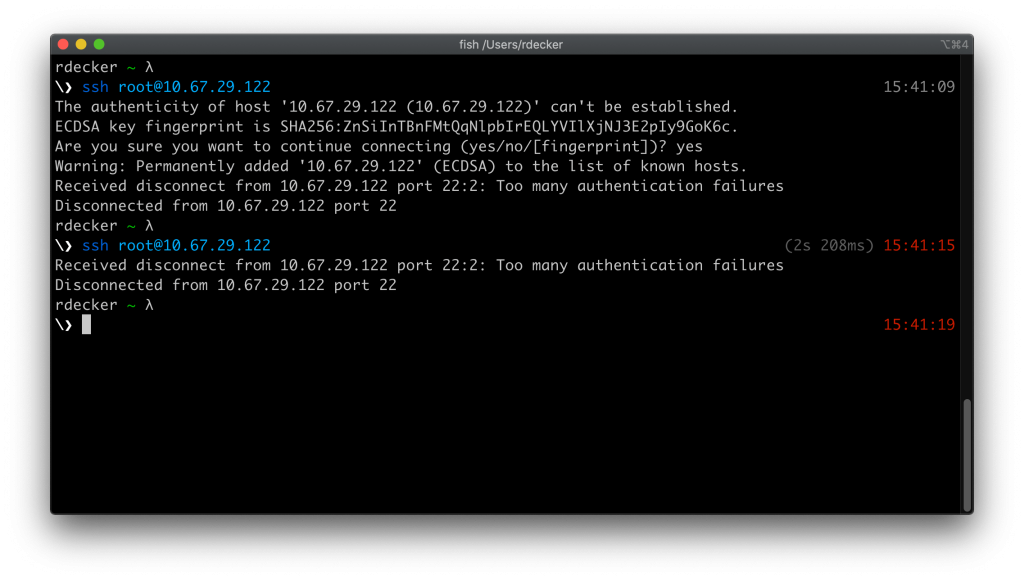
- If `MaxStartups` is exceeded, you might see “Too many authentication failures” or similar.
Fixes:
1. Increase `MaxStartups` (Temporarily/Cautiously): Increase the value in `sshd_config` (e.g., `MaxStartups 10:30:100`). This allows more concurrent unauthenticated connections. The format is `start:rate:full`, where `start` is the number of connections allowed, `rate` is the percentage of subsequent connections allowed to pass through, and `full` is the maximum number of connections allowed.
2. Increase `LoginGraceTime`: Give clients more time to authenticate (e.g., `LoginGraceTime 120`).
3. Implement Robust Security: Use SSH keys instead of passwords, set up Fail2ban, and ensure strong password policies. This addresses the root cause of authentication overloads.
Server Resource Exhaustion
An SSH server struggling with resource scarcity can drop connections to free up CPU, memory, or file descriptors.
Diagnosis:
- CPU/Memory: Use `top`, `htop`, `free -h` to check server resource usage *before* the connection reset.
- Disk I/O: `iostat -x 1` can show disk activity. A disk full (`df -h`) can also prevent new sessions.
- File Descriptors: Check `ulimit -n` and `sysctl fs.file-max` for limits on open files. Each SSH session consumes file descriptors.
Fixes:
1. Free Up Resources:
- Terminate unnecessary processes.
- Increase server resources (CPU, RAM).
- Clear disk space.
2. Adjust `MaxSessions`: In `sshd_config`, `MaxSessions` limits the total number of open sessions per network connection. If many users are connected, this could be hit.
3. Check `MaxAuthTries`: While primarily an authentication setting, hitting `MaxAuthTries` can lead to disconnects.
DNS Lookups and GSSAPI Authentication
Slow or failing DNS lookups, particularly when `UseDNS yes` is enabled in `sshd_config`, can cause significant delays during the SSH connection handshake. Similarly, GSSAPI authentication (often used in Kerberos environments) can introduce delays if not correctly configured. The client might time out, or the server might hit its `LoginGraceTime` limit and reset the connection.
Diagnosis:
- Examine `ssh -v` output for lines indicating delays related to DNS or GSSAPI.
- Check `/etc/ssh/sshd_config` for `UseDNS yes` and `GSSAPIAuthentication yes`.
Fixes:
1. Disable `UseDNS`: Set `UseDNS no` in `/etc/ssh/sshd_config`. This prevents `sshd` from performing reverse DNS lookups on client IP addresses. Restart `sshd`.
2. Disable `GSSAPIAuthentication`: Set `GSSAPIAuthentication no` in `/etc/ssh/sshd_config` if you’re not using Kerberos. Restart `sshd`.
3. Ensure Robust DNS: If `UseDNS` is required, ensure your server’s DNS resolution is fast and reliable (check `/etc/resolv.conf`).
Client-Side SSH Configuration Problems
While the peer (server) sends the RST, your local SSH client’s configuration can sometimes provoke this action by sending malformed packets or timing out prematurely.
Client-Side Keep-Alives
Just as the server has keep-alives, your SSH client can also be configured to send them, preventing idle timeouts.
`~/.ssh/config` Parameters (Client-Side):
- `ServerAliveInterval`: Sends a null packet to the server every N seconds. This is helpful for keeping NAT mappings alive and preventing server-side idle timeouts.
- `ServerAliveCountMax`: The number of server alive messages (see above) which may be sent without any response from the server. If this threshold is reached while server alive messages are being sent, SSH will disconnect from the server.
Diagnosis:
- Does the connection drop after inactivity, even if server-side keep-alives are configured?
Fixes:
1. Configure Client Keep-Alives:
- Edit (or create) `~/.ssh/config`.
- Add:
Host *
ServerAliveInterval 60
ServerAliveCountMax 3
- This sends a keep-alive every 60 seconds and allows 3 consecutive missed responses.
- You can also specify this for specific hosts:
Host example.com
ServerAliveInterval 30
ServerAliveCountMax 5
2. `TCPKeepAlive`: This option (defaulting to `yes`) uses the system’s TCP keep-alive mechanism. While usually sufficient, `ServerAliveInterval` is an SSH-specific alternative that can be more effective for bypassing some firewalls.
Outdated SSH Client or Protocol Mismatches
An extremely old SSH client might attempt to use deprecated cryptographic algorithms or protocols that the modern SSH server has disabled for security reasons. The server, encountering an unsupported protocol negotiation, might reset the connection.
Diagnosis:
- Check your SSH client version (`ssh -V`).
- Check the server’s `sshd_config` for `Ciphers`, `MACs`, `KexAlgorithms` settings.
Fixes:
1. Update SSH Client: Ensure your local SSH client is up-to-date. On Linux, this usually involves a system update (`sudo apt update && sudo apt upgrade`). On Windows, consider PuTTY or WSL.
2. Relax Server Crypto (Last Resort): If updating isn’t an option, you *could* temporarily re-enable older, less secure ciphers/MACs on the server, but this is highly discouraged for production environments.
Authentication and Session Management
While often leading to “Permission denied,” specific authentication scenarios or session management issues can escalate to a “Connection reset by peer.”
Repeated Failed Authentication Attempts
If a client repeatedly attempts to authenticate with incorrect credentials, particularly when security measures like Fail2ban are active, the client’s IP might be blocked, or the connection might be summarily reset by the server’s security mechanisms.
Diagnosis:
- Check `auth.log` or `secure.log` on the server for `Failed password for…` entries from your IP.
- Check `fail2ban-client status sshd` to see if your IP is jailed.
Fixes:
1. Correct Credentials: Ensure you’re using the correct username, password, or SSH key.
2. Check Key Permissions: For SSH keys, ensure `~/.ssh/id_rsa` has `600` permissions and `~/.ssh` has `700` permissions locally. On the server, `~/.ssh/authorized_keys` should be `600` and `~/.ssh` should be `700`.
3. Unban IP: If Fail2ban is the culprit, unban your IP: `sudo fail2ban-client unban `.
Malicious Activity and Intrusion Detection Systems
In highly secured environments, Intrusion Detection Systems (IDS) or Intrusion Prevention Systems (IPS) may actively monitor SSH traffic. If certain patterns indicative of an attack (e.g., too many rapid connection attempts, unusual packet sizes, known exploit signatures) are detected, these systems can inject an RST packet to terminate the connection.
Diagnosis:
- Check logs of any IDS/IPS appliances or software running on the network path or server.
- Consult with security teams if you suspect an active security measure.
Fixes:
1. Review IDS/IPS Policies: If you control these systems, review their SSH-related rules.
2. Notify Security Team: If you don’t control them, inform the security team to investigate false positives or whitelist your IP if appropriate.
A Systematic Troubleshooting Methodology
When confronted with “Connection reset by peer,” a structured approach is paramount. Avoid randomly trying fixes; instead, systematically eliminate potential causes.
1. Verify Basic Network Connectivity:
- Can you `ping` the server’s IP address? (`ping `)
- Can you `telnet` to the SSH port? (`telnet 22`). If it connects briefly then disconnects, the port is open, but something is actively resetting it. If it says “Connection refused,” SSH isn’t listening or a hard firewall is blocking.
- Use `traceroute` or `mtr` to see the network path and identify potential packet loss or high latency.
2. Isolate the Problem Location:
- Client-Side? Try connecting from a different machine or a different network (e.g., your phone’s hotspot). If it works, the issue is likely on your local machine or local network.
- Server-Side? If multiple clients on different networks cannot connect, the problem is almost certainly on the server or an immediate network device (firewall, cloud security group).
- Network Path? If some clients work and others don’t, or if connectivity is intermittent, an intermediary network device (ISP, corporate firewall) might be the cause.
3. Leverage Verbose Output and Logs:
- Client Verbose Mode: Always start with `ssh -vvv user@host`. This provides detailed debugging output, often pinpointing where the connection failed. Look for specific lines *before* the “Connection reset by peer” message.
- Server Logs: Access the server’s logs (via console, cloud provider’s serial console, or alternative SSH access):
- `sudo journalctl -u sshd` (systemd systems)
- `sudo tail -f /var/log/auth.log`
- `sudo tail -f /var/log/syslog`
- Firewall logs (e.g., `sudo journalctl -u ufw` or `sudo firewall-cmd –get-log-denies`).
4. Simplify the Connection:
- Direct IP: Connect using the server’s direct IP address, bypassing any DNS resolution issues.
- Basic User: Try connecting as `root` (if allowed and only for testing, not production) or a known simple user account to rule out user-specific configurations.
- Minimal Configuration: Use `ssh -F /dev/null -o StrictHostKeyChecking=no -o UserKnownHostsFile=/dev/null user@host` (use with extreme caution, for debugging only, and never in production) to bypass your local SSH config and `known_hosts` file.
5. Network Packet Analysis (Advanced):
- Use `tcpdump` on the server (`sudo tcpdump -i eth0 port 22`) or Wireshark on your client to capture network traffic. Look for the exact TCP RST packet and its origin. This can definitively tell you *which* device sent the reset.
Preventative Measures and Best Practices
Avoiding the “Connection reset by peer” error often comes down to proactive maintenance and sensible configuration.
1. Regularly Update SSH Client and Server: Keep both ends of your SSH connection updated to benefit from security patches, bug fixes, and protocol improvements, minimizing compatibility issues.
2. Configure SSH Keep-Alives: Implement both client-side (`ServerAliveInterval`, `ServerAliveCountMax` in `~/.ssh/config`) and server-side (`ClientAliveInterval`, `ClientAliveCountMax` in `/etc/ssh/sshd_config`) keep-alives to prevent idle connections from being dropped by intermediate network devices or the SSH daemon.
3. Monitor Server Resources: Regularly monitor your SSH server’s CPU, memory, disk I/O, and disk space. Set up alerts for resource exhaustion.
4. Review Firewall Rules Regularly: Periodically audit your server’s firewall rules (iptables, ufw, firewalld, security groups) to ensure they are correctly configured and only allow necessary traffic.
5. Use Robust Authentication: Prioritize SSH key-based authentication over passwords. Implement tools like Fail2ban to mitigate brute-force attacks and prevent IP blacklisting.
6. Understand Your Network Environment: Be aware of any corporate firewalls, proxies, or VPNs that might be inspecting or modifying SSH traffic.
7. Utilize Session Multiplexers: For critical or long-running tasks, use `tmux` or `screen` on the remote server. If your SSH connection drops, your session on the server remains active, and you can reattach to it once connectivity is restored.
Conclusion
The “Connection reset by peer” error, while initially daunting, is a solvable problem that yields to a systematic and informed troubleshooting approach. By understanding the underlying TCP mechanisms, meticulously examining network paths, server configurations, and client behaviors, and leveraging the verbose output of SSH and server logs, you can effectively pinpoint and rectify the root cause. Implementing proactive measures like keep-alives, regular updates, and robust security configurations will significantly enhance the reliability and resilience of your SSH connections, transforming a frustrating interruption into a manageable challenge.