The Unassailable Fortress: A Deep Dive into OpenSSH Server Hardening
In the intricate landscape of modern computing, where digital assets are the lifeblood of organizations and individuals alike, the integrity and security of remote access mechanisms stand paramount. Among these, OpenSSH, the ubiquitous connectivity tool, acts as a crucial gateway to servers, cloud instances, and network devices worldwide. Its pervasive adoption, however, also renders it a prime target for malicious actors seeking unauthorized entry, data exfiltration, or system compromise. Consequently, merely installing OpenSSH is insufficient; a robust and meticulously hardened configuration is not just recommended, but essential for maintaining a secure operational posture.
This comprehensive guide delves into the advanced methodologies and best practices for transforming your OpenSSH server from a potential vulnerability into an unassailable fortress. We will move beyond rudimentary settings, exploring a multi-layered defense strategy designed to thwart sophisticated attacks, enhance privacy, and ensure the resilience of your critical infrastructure. Employing an advanced journalistic tone, we dissect each hardening measure, elucidating its rationale, practical implementation, and broader security implications, empowering system administrators and security professionals to elevate their SSH security to an expert level.
The Imperative of OpenSSH Hardening: Understanding the Threat Landscape
OpenSSH is more than just a remote shell; it’s a versatile suite enabling secure remote login, file transfer (SFTP), and tunnel creation. This versatility, while powerful, also presents a substantial attack surface. Threat actors relentlessly target SSH services through various means:
- Brute-Force Attacks: Automated attempts to guess usernames and passwords, often targeting default credentials or common weak passwords.
- Credential Stuffing: Using leaked username/password combinations from other breaches to gain access to SSH accounts.
- Exploitation of Vulnerabilities: Leveraging known or zero-day flaws in the OpenSSH daemon itself or underlying libraries.
- Man-in-the-Middle (MitM) Attacks: Intercepting SSH traffic to steal credentials or manipulate data, particularly if host key verification is weak or ignored.
- Privilege Escalation: Once inside, attackers might use misconfigurations or local vulnerabilities to gain root access.
A proactive and layered approach to OpenSSH hardening is the only viable defense against these persistent threats, ensuring that even if one layer is breached, subsequent defenses remain intact.
Laying the Foundation: Initial Setup and Configuration Hygiene
Before delving into specific `sshd_config` directives, a few foundational principles must be established. These initial steps are crucial for creating a secure baseline.
Minimal Installation and System Updates
The principle of “least privilege” extends to software installation. Install only necessary components of OpenSSH. Regularly update your operating system and OpenSSH package to patch known vulnerabilities. Many critical security updates are released, and neglecting them leaves gaping holes in your defense. Automate updates where feasible, or establish a strict patch management schedule.
Understanding `sshd_config` and Backups
The heart of OpenSSH server configuration lies within the `sshd_config` file, typically located at `/etc/ssh/sshd_config` on most Linux distributions. Every change detailed in this guide will involve modifying this file.
- Backup Strategy: Always create a backup of the original `sshd_config` file before making any modifications. A simple `sudo cp /etc/ssh/sshd_config /etc/ssh/sshd_config.bak_$(date +%F)` can save significant troubleshooting time if a misconfiguration locks you out.
- Testing Changes: After modifying `sshd_config`, run `sudo sshd -t` to test the configuration for syntax errors *before* restarting the SSH service. This command will report any issues without actually applying the changes.
- Service Restart: Apply changes by restarting the SSH service: `sudo systemctl restart sshd` (for systemd-based systems) or `sudo service sshd restart`. It is highly recommended to keep a separate, active SSH session open while restarting, in case the new configuration inadvertently locks you out.
Authentication Hardening: The Bedrock of Secure Access
The method by which users authenticate to your OpenSSH server is perhaps the most critical area for hardening. Weak authentication mechanisms are the primary entry point for attackers.
The Golden Rule: Disable Password Authentication
Password-based authentication is inherently vulnerable to brute-force and dictionary attacks, especially when users choose weak, common, or reused passwords. The absolute cornerstone of OpenSSH hardening is to disable it entirely.
PasswordAuthentication no
- Rationale: Eliminates the possibility of remote attackers guessing or cracking passwords.
- Prerequisite: Before implementing this, ensure *all* legitimate users have robust SSH key pairs configured and correctly placed on the server. Failure to do so will result in legitimate users being locked out.
- Implementation: Add or modify the `PasswordAuthentication` directive in `sshd_config`.
Embrace SSH Key Authentication
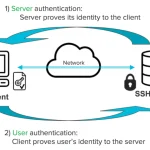
SSH keys provide a cryptographic method of authentication that is vastly superior to passwords. A key pair consists of a private key (kept secret by the user) and a public key (placed on the server).
- Generating Keys: Users should generate robust RSA or Ed25519 key pairs with strong passphrases:
bash
ssh-keygen -t ed25519 -a 100
(The `-a 100` flag specifies 100 key derivation function rounds, increasing resistance to brute-force attacks on the passphrase).
- Deploying Public Keys: The public key (e.g., `id_ed25519.pub`) is then copied to the server into the `~/.ssh/authorized_keys` file for the respective user. The `ssh-copy-id` utility simplifies this process:
bash
ssh-copy-id -i ~/.ssh/id_ed25519.pub user@your_server_ip
- Key Security:
- Passphrases: Insist on strong, unique passphrases for private keys.
- File Permissions: The `~/.ssh` directory should have `700` permissions, and `~/.ssh/authorized_keys` should have `600` permissions. The private key on the client machine should have `600` permissions. Incorrect permissions often prevent keys from working and can be a security risk.
- SSH Agent: Encourage users to use `ssh-agent` to avoid repeatedly entering their passphrase for a given session.
Multi-Factor Authentication (MFA/2FA)
For an even higher level of assurance, integrate MFA with OpenSSH. This typically involves using a Time-based One-Time Password (TOTP) solution like Google Authenticator or an equivalent hardware token.
- PAM Integration: OpenSSH can leverage Pluggable Authentication Modules (PAM) to integrate with various authentication methods.
- Configuration Example (Google Authenticator):
1. Install `libpam-google-authenticator` (or equivalent for your distribution).
2. Edit `/etc/pam.d/sshd` and add a line like: `auth required pam_google_authenticator.so`.
3. Modify `sshd_config`:
ChallengeResponseAuthentication yes
UsePAM yes
4. Each user then runs `google-authenticator` once to set up their TOTP secret.
- Rationale: Even if an attacker compromises a private key (highly unlikely with a strong passphrase), they would still need the secondary factor (e.g., the TOTP code from the user’s phone) to gain access.
Access Control and User Management: Restricting Permitted Access
Beyond authentication methods, controlling *who* can access the server and *what* they can do is critical.
Disabling Root Login
Direct root login, even with SSH keys, is a dangerous practice. If the root key is compromised, the attacker has immediate unfettered access to the entire system.
PermitRootLogin no
- Rationale: Forces administrators to log in as a standard user and then elevate privileges using `sudo`. This creates an audit trail and an extra layer of protection, as an attacker would need to compromise two separate accounts (the user account and then either the sudo password or another vulnerability to escalate).
- Alternatives: If absolutely necessary for specific automated tasks, consider `PermitRootLogin prohibit-password` (disables password-based root login but allows key-based) in conjunction with highly restricted `command=` options in `authorized_keys`. However, `PermitRootLogin no` is the strongest recommendation for interactive logins.
Restricting Login Users and Groups
Implement a “whitelist” approach, explicitly allowing only specific users or groups to connect via SSH. This is far more secure than trying to blacklist.
AllowUsers user1 user2
AllowGroups admin_group dev_group
- `AllowUsers`: Specifies users who are permitted to log in. Other users are denied.
- `AllowGroups`: Specifies groups whose members are permitted to log in. Other groups are denied.
- Priority: If both `AllowUsers` and `AllowGroups` are specified, a user must match one of the specified users OR be a member of one of the specified groups. `DenyUsers` and `DenyGroups` can also be used, but `Allow*` directives are generally safer as they default to denial.
- Best Practice: Use `AllowGroups` with dedicated administrative groups to simplify management and maintain clarity.
Chroot Jails for SFTP Users
For users who only need to transfer files via SFTP and do not require shell access, `ChrootDirectory` provides a powerful security mechanism by confining them to a specific directory and its subdirectories.
Subsystem sftp internal-sftp
Match Group sftpusers
ChrootDirectory %h
ForceCommand internal-sftp
AllowTcpForwarding no
X11Forwarding no
PermitTunnel no
PermitAgentForwarding no
- Rationale: Prevents SFTP users from accessing other parts of the filesystem, significantly limiting the scope of potential damage if their account is compromised.
- Implementation:
1. Create a dedicated group (e.g., `sftpusers`).
2. Add users to this group.
3. Configure the `Match Group` block as shown above.
4. Ensure the `ChrootDirectory` and its parent directories (up to the root directory) are owned by root and are not writable by any other user or group. For example, if `ChrootDirectory` is `/var/sftp/userX`, then `/var/sftp` must be owned by `root:root` and have `755` permissions. The user’s home directory (`/var/sftp/userX`) can be owned by the user.
Protocol, Ciphers, and Algorithm Hardening: Speaking a Secure Language
OpenSSH relies on various cryptographic algorithms for encryption, integrity checking, and key exchange. It is crucial to configure OpenSSH to use only the strongest, most modern, and least vulnerable algorithms.
Disable Outdated Protocols
Ensure only Protocol 2 is used, which is the default for modern OpenSSH versions. Protocol 1 is severely insecure and should never be enabled.
Protocol 2
- Rationale: Protocol 1 has known cryptographic weaknesses and should be explicitly disabled if it appears to be enabled for legacy reasons (though most modern `sshd_config` files will not even mention it).
Strong Ciphers, MACs, and KexAlgorithms
Specify a curated list of robust ciphers (encryption algorithms), MACs (Message Authentication Codes for integrity), and KexAlgorithms (Key Exchange algorithms). Avoid deprecated or weak ones like `3DES`, `RC4`, `MD5`, `SHA1` (for MACs), or `diffie-hellman-group1-sha1`.
Ciphers [email protected],[email protected],[email protected],aes256-ctr,aes192-ctr,aes128-ctr
MACs [email protected],[email protected],[email protected]
KexAlgorithms curve25519-sha256,[email protected],diffie-hellman-group16-sha512,diffie-hellman-group18-sha512,diffie-hellman-group14-sha256
- Rationale: Using only strong, modern algorithms mitigates cryptographic attacks and ensures forward secrecy.
- Ciphers: `chacha20-poly1305` and `AES-GCM` are preferred for their speed and authenticated encryption properties. `AES-CTR` is also strong.
- MACs: `etm` (encrypt-then-mac) variants are preferred over `mtm` (mac-then-encrypt) as they offer better security properties. SHA2-based MACs are robust.
- KexAlgorithms: Elliptic Curve Diffie-Hellman (ECDH, like `curve25519-sha256`) and higher-group Diffie-Hellman (`group16`, `group18`) offer strong key exchange.
- Caveat: When tightening these settings, ensure your client systems also support these modern algorithms to avoid connectivity issues.
Forwarding and Tunneling Restrictions
SSH’s forwarding capabilities (port, X11, agent, tunnel) are powerful but can be abused by attackers or misconfigured users to pivot within a network or bypass firewall rules. Disable them unless explicitly required.
AllowTcpForwarding no
X11Forwarding no
PermitTunnel no
PermitAgentForwarding no
GatewayPorts no
- `AllowTcpForwarding no`: Prevents users from forwarding arbitrary TCP connections through the SSH server, which could be used to bypass internal firewalls.
- `X11Forwarding no`: Disables forwarding of X Window System sessions. If enabled, it could expose X11 vulnerabilities or allow an attacker to view graphical applications.
- `PermitTunnel no`: Disables TUN/TAP device forwarding, which could be used to create VPN-like tunnels, potentially allowing network segmentation bypasses.
- `PermitAgentForwarding no`: Prevents the SSH agent (which holds private keys) from being forwarded. If forwarded and an attacker gains root on the remote server, they could potentially use the forwarded agent to authenticate to other servers using the user’s keys.
- `GatewayPorts no`: When `AllowTcpForwarding` is enabled, `GatewayPorts yes` allows remote hosts to connect to forwarded ports. Setting it to `no` restricts forwarded ports to only be accessible from the loopback interface on the server side, making them less dangerous. If `AllowTcpForwarding` is `no`, then `GatewayPorts` is largely irrelevant.
Advanced Security Measures: Fine-Tuning Defenses
Beyond the core authentication and cryptographic settings, several other directives can significantly enhance your SSH server’s resilience.
Change the Default SSH Port
While not a security measure in itself (security through obscurity is not true security), changing the default SSH port (22) to a non-standard, high-numbered port can significantly reduce the “noise” in your logs from automated scanning and brute-force bots.
Port 2222
- Rationale: Reduces the volume of malicious connection attempts, making it easier to identify legitimate threats in logs. It also reduces the attack surface for unsophisticated, automated scanning tools.
- Implementation: Choose a port above 1024 that is not commonly used by other services. Remember to update your firewall rules to allow traffic on the new port and inform users.
Rate Limiting and Intrusion Detection with Fail2Ban
Tools like Fail2Ban actively monitor SSH logs for repeated failed login attempts and dynamically update firewall rules to temporarily or permanently block the offending IP addresses.
- Mechanism: Fail2Ban works by parsing `auth.log` (or `journalctl` output) for SSH authentication failures. Upon detecting a predefined number of failures from a single IP within a set timeframe, it instructs the firewall (e.g., `iptables`, `firewalld`, `ufw`) to block that IP.
- Configuration (`/etc/fail2ban/jail.local`):
ini
[sshd]
enabled = true
port = ssh,sftp
logpath = %(sshd_log)s
maxretry = 3
bantime = 1h
findtime = 10m
This configuration bans an IP for 1 hour after 3 failed attempts within 10 minutes.
- Rationale: Automates the defense against brute-force attacks, freeing administrators from manual intervention.
TCP Wrappers
For systems still using `tcpd` or for an additional layer of IP-based access control, TCP wrappers can restrict SSH access to specific IP addresses or networks.
- Configuration (`/etc/hosts.allow` and `/etc/hosts.deny`):
# /etc/hosts.allow
sshd: 192.168.1.0/24, 10.0.0.5, LOCAL
# /etc/hosts.deny
sshd: ALL
- Rationale: Provides host-based access control. The `hosts.allow` file is processed first. If a match is found, access is granted. If not, `hosts.deny` is checked. If no match in `hosts.allow` and a match in `hosts.deny`, access is denied. A `sshd: ALL` in `hosts.deny` effectively denies all connections not explicitly allowed in `hosts.allow`.
Reduce Login Grace Time
`LoginGraceTime` defines how long the server will wait for a user to successfully authenticate after a connection is established. Reducing this time minimizes the window for attackers to attempt numerous password guesses within a single TCP connection.
LoginGraceTime 30s
- Rationale: Limits the resources consumed by idle or malicious connections. A shorter grace time (e.g., 30 seconds) is generally sufficient for legitimate users.
Limit MaxAuthTries and MaxSessions
`MaxAuthTries` restricts the maximum number of authentication attempts permitted per connection. `MaxSessions` limits the number of concurrent open sessions per network connection.
MaxAuthTries 3
MaxSessions 5
- `MaxAuthTries`: Setting this to a low number (e.g., 3-6) makes brute-force attacks more time-consuming by forcing attackers to establish new connections frequently, thereby making them more susceptible to detection by Fail2Ban.
- `MaxSessions`: Prevents resource exhaustion attacks by limiting the number of simultaneous sessions an attacker might try to open.
Banner Configuration
Presenting a legal banner before authentication can serve as a deterrent and fulfill legal requirements regarding unauthorized access.
Banner /etc/issue.net
- Rationale: Clearly informs potential attackers that unauthorized access is prohibited and that their activities may be monitored. It is crucial *not* to include any system-specific information (OS version, patch level, etc.) in the banner, as this could aid attackers.
- Implementation: Create a file (e.g., `/etc/issue.net`) containing your desired warning message.
System-Level Security Interplay: A Holistic Approach
OpenSSH security is not isolated; it interacts with the broader operating system and network security posture.
Robust Firewall Configuration
Ensure your server’s firewall (e.g., `ufw`, `firewalld`, `iptables`) is configured to allow SSH access *only* from trusted IP addresses or networks, and *only* on the configured SSH port.
bash
# Example with ufw (assuming port 2222 and allowing from a specific IP)
sudo ufw allow from 192.168.1.100 to any port 2222
sudo ufw enable
- Rationale: A firewall acts as the first line of defense, preventing unauthorized network traffic from even reaching the OpenSSH daemon. Deny by default, permit by exception.
Auditing and Logging
Configure SSH to log verbose information, and regularly review these logs for suspicious activity.
LogLevel VERBOSE
- `LogLevel VERBOSE`: Provides more detailed information in your system’s authentication logs (e.g., `/var/log/auth.log` or `journalctl`), including information about authentication attempts, key exchanges, and disconnections. This level of detail is invaluable for forensic analysis during a security incident.
- Log Monitoring: Implement centralized log management (e.g., ELK stack, Splunk) and real-time alerting for unusual SSH activity (e.g., excessive failed logins, logins from unusual geographical locations, unexpected user logins).
SELinux/AppArmor Integration
For Linux distributions that support them, Security-Enhanced Linux (SELinux) or AppArmor provide mandatory access control (MAC) mechanisms that can further confine the OpenSSH daemon and prevent it from performing unauthorized actions, even if a vulnerability within `sshd` itself were exploited.
- Rationale: These frameworks enforce security policies at a granular level, adding another critical layer of defense beyond traditional discretionary access control (DAC). Ensure they are in enforcing mode and that policies are correctly configured for SSH.
Maintenance, Monitoring, and Vigilance
Server hardening is not a one-time task; it’s an ongoing process requiring continuous attention.
Regular Configuration Review
Periodically review your `sshd_config` file to ensure settings remain optimal and align with current security best practices. As OpenSSH evolves, new recommendations for ciphers, MACs, and algorithms emerge.
Proactive Monitoring
Beyond `Fail2Ban`, actively monitor your server’s `auth.log` or equivalent for signs of intrusion, such as:
- Unusually high numbers of failed login attempts.
- Login attempts from unexpected IP addresses or geographical regions.
- Successful logins by unusual users or at unusual times.
- Suspicious commands executed post-login (if auditing is enabled for shells).
Security Scanning
Utilize tools like `ssh-audit` or `nmap –script ssh-hostkey` to regularly scan your SSH server configuration from an external perspective. These tools can identify weak ciphers, deprecated algorithms, and other misconfigurations that might expose your server.
Incident Response Plan
Despite all hardening efforts, compromise remains a possibility. Have a clearly defined incident response plan for detecting, containing, eradicating, and recovering from an SSH-related security incident. This includes steps for isolating the compromised system, rotating SSH keys, revoking access, and conducting a thorough forensic analysis.
Conclusion: The Continuous Pursuit of Digital Fortitude
The OpenSSH server, by virtue of its fundamental role in remote access, represents a critical nexus in cybersecurity. Its hardening is not merely a technical checklist but a philosophical commitment to securing the digital perimeter. By adopting the comprehensive strategies outlined in this guide—from embracing robust key-based authentication and multi-factor verification to meticulously configuring cryptographic algorithms and implementing stringent access controls—administrators can transform their OpenSSH instances into highly resilient bastions against an ever-evolving threat landscape.
This endeavor demands constant vigilance, regular review, and an unwavering adherence to the principle of least privilege. The path to an unassailable fortress is paved with continuous learning, adaptation, and proactive defense. By integrating these advanced hardening measures, organizations and individuals alike can significantly elevate their security posture, safeguarding their valuable digital assets from the persistent incursions that characterize the modern cyber domain.