Bridging Worlds: A Comprehensive Guide to SSH from Windows to Linux
In the intricate landscape of modern computing, the ability to seamlessly manage remote systems is not merely a convenience, but a fundamental necessity. For administrators, developers, and power users alike, the Secure Shell (SSH) protocol stands as the unyielding bridge connecting disparate operating systems. While the command line might seem an archaic relic to some, SSH transforms it into a potent conduit for secure remote control, file transfer, and network tunneling. This article delves deep into the crucial process of establishing an SSH connection from a Windows workstation to a Linux server, providing an exhaustive, step-by-step methodology designed for clarity, security, and unparalleled efficacy.
The journey from a familiar Windows environment to the robust, often headless, world of Linux servers can appear daunting. However, with the right tools and understanding, this vital skill becomes accessible and empowering. We will explore various client options available on Windows, from the integrated OpenSSH client to the venerable PuTTY, and even the versatile Windows Subsystem for Linux (WSL), ensuring you are equipped with the knowledge to choose the best method for your specific needs. Beyond mere connection, we will emphasize the paramount importance of secure practices, particularly key-based authentication, and troubleshoot common pitfalls that can arise.
This guide aims to demystify the process, transforming a potentially complex task into an intuitive and reliable operation. Prepare to unlock the full potential of your Linux servers, directly from the comfort and familiarity of your Windows desktop.
Understanding SSH: The Foundation of Secure Remote Access
Before we delve into the practical steps, a firm grasp of what SSH entails is essential. It’s not just a command; it’s a protocol, a robust framework designed for secure network services over an unsecured network.
What is SSH and How Does it Work?
SSH, or Secure Shell, is a cryptographic network protocol that enables secure remote command-line access to another computer over an unsecured network. It operates on a client-server model, where an SSH client initiates a connection to an SSH server (daemon) running on the remote machine.
The core strength of SSH lies in its use of strong encryption to protect the confidentiality and integrity of the communication. When you connect via SSH, a secure, encrypted tunnel is established. All data—commands, outputs, and even file transfers—travel through this encrypted channel, safeguarding against eavesdropping, interception, and tampering.
At its heart, SSH employs a combination of cryptographic techniques:
- Public-key Cryptography: Used during the initial connection handshake to establish a shared secret key securely, even when communicating over an insecure channel. This is also crucial for key-based authentication, where the server verifies the client’s identity using a pair of mathematically linked public and private keys.
- Symmetric Encryption: Once the shared secret is established, faster symmetric encryption algorithms (like AES) are used to encrypt all subsequent data transmitted during the session.
- Hashing: Ensures the integrity of the data, verifying that no data has been altered during transmission.
By default, SSH connections typically occur over TCP port 22, though this can be configured to any other port for enhanced security through obscurity.
Key Benefits of SSH
The pervasive adoption of SSH across various industries is a testament to its multifaceted benefits:
- Unrivaled Security: The primary advantage of SSH is its inherent security. All data exchanged is encrypted, preventing unauthorized access and protecting sensitive information. This makes it suitable for managing critical systems and transferring confidential data.
- Versatility: SSH is not just for running commands. It supports a wide array of functionalities:
- Remote Command Execution: Run commands, scripts, and manage processes on the remote server as if you were sitting in front of it.
- Secure File Transfer: Protocols like SCP (Secure Copy Protocol) and SFTP (SSH File Transfer Protocol) leverage SSH to securely copy files between local and remote machines.
- Port Forwarding (Tunneling): Create secure tunnels for other network services, allowing you to access internal network resources securely or bypass firewalls.
- X11 Forwarding: Securely run graphical applications from the Linux server and display them on your Windows desktop.
- Efficiency and Automation: SSH facilitates powerful automation. Scripts can be written to perform routine tasks on remote servers, making system administration more efficient and less prone to human error.
- Global Reach: Manage servers located anywhere in the world, as long as they have an internet connection and the necessary SSH server software running.
Prerequisites for a Successful SSH Connection
Before initiating your first SSH connection, ensure both your Windows client machine and your Linux server are properly configured. Skipping these crucial preliminary steps can lead to frustrating connection errors.
On Your Windows Machine (Client)
Your Windows machine, acting as the SSH client, needs the following:
- An SSH Client: Windows does not inherently ship with an SSH client that works out-of-the-box for all versions. While Windows 10/11 now includes a built-in OpenSSH client, older versions or users preferring a GUI might opt for third-party tools like PuTTY. We’ll cover both.
- Network Connectivity: Your Windows machine must have network access (LAN or Internet) to reach the Linux server’s IP address or hostname.
On Your Linux Server (Host)
The remote Linux machine, serving as the SSH host, requires several components:
- SSH Server (OpenSSH Server): The OpenSSH server package (usually named `openssh-server`) must be installed and running. Many Linux distributions, especially server versions, include it by default. If not, you can typically install it using your distribution’s package manager:
- Debian/Ubuntu: `sudo apt update && sudo apt install openssh-server`
- CentOS/RHEL/Fedora: `sudo yum install openssh-server` (or `sudo dnf install openssh-server` for newer Fedora/RHEL)
- After installation, ensure the service is running: `sudo systemctl enable ssh && sudo systemctl start ssh`
- Network Connectivity & IP Address/Hostname: The Linux server needs a network connection and a reachable IP address (e.g., `192.168.1.100`) or a fully qualified domain name (FQDN, e.g., `my-linux-server.example.com`). You can find the IP address on most Linux systems using `ip a` or `ifconfig`.
- Firewall Configuration: The Linux server’s firewall must be configured to allow incoming connections on the SSH port, which is TCP port 22 by default.
- UFW (Ubuntu/Debian): `sudo ufw allow ssh` or `sudo ufw allow 22/tcp`
- firewalld (CentOS/RHEL/Fedora): `sudo firewall-cmd –add-service=ssh –permanent && sudo firewall-cmd –reload`
- User Account with Appropriate Permissions: You need a valid username and password (or SSH key) for an account on the Linux server that has the necessary permissions for remote login.
Method 1: Using the Built-in OpenSSH Client in Windows 10/11
Modern versions of Windows (Windows 10, version 1803 and later, and Windows 11) come with a native OpenSSH client pre-installed or readily available as an optional feature. This offers a seamless, command-line driven experience directly from PowerShell or Command Prompt, mirroring the SSH client experience on Linux and macOS.
Verifying and Installing OpenSSH Client
First, let’s check if the OpenSSH client is already enabled on your system.
1. Open PowerShell (as Administrator): Search for “PowerShell” in the Start Menu, right-click, and select “Run as administrator.”
2. Check for OpenSSH Client: Type `ssh` and press Enter. If you see a usage message (a list of available `ssh` command options), the client is installed and ready. If you get an error like “The term ‘ssh’ is not recognized,” you’ll need to install it.
3. Install OpenSSH Client (if needed):
- Go to `Settings` > `Apps` > `Optional features`.
- Click `Add an optional feature`.
- Scroll down and look for “OpenSSH Client.” Select it and click `Install`.
- Once installed, restart your PowerShell or Command Prompt window.
Connecting via Command Prompt or PowerShell
With the OpenSSH client installed, connecting is straightforward.
1. Open Command Prompt or PowerShell: You don’t need administrator privileges for connecting.
2. Use the `ssh` command: The basic syntax is `ssh [username]@[hostname_or_ip_address]`.
- Replace `[username]` with your username on the Linux server.
- Replace `[hostname_or_ip_address]` with the server’s IP address (e.g., `192.168.1.100`) or its domain name (e.g., `my-linux-server.example.com`).
Example: `ssh [email protected]`
3. First Connection Handshake: The very first time you connect to a new server, SSH will ask you to verify the server’s host key fingerprint. This is a security measure to prevent Man-in-the-Middle (MITM) attacks.
- You will see a message similar to:
The authenticity of host ‘192.168.1.100 (192.168.1.100)’ can’t be established.
ECDSA key fingerprint is SHA256:xxxxxxxxxxxxxxxxxxxxxxxxxxxxxxxxxxxxxxxxxxx.
Are you sure you want to continue connecting (yes/no/[fingerprint])?
- Type `yes` and press Enter. The server’s public key will be added to your `~/.ssh/known_hosts` file (located in `C:UsersYourUser.sshknown_hosts` on Windows). Subsequent connections to the same server will skip this prompt unless the server’s key changes.
4. Password Authentication: After accepting the host key, you’ll be prompted for the password of the `user` account on the Linux server.
- Enter your password and press Enter. Note that characters will typically not appear on the screen as you type for security reasons.
5. Success! If the password is correct, you’ll be logged in and presented with the Linux server’s command prompt. You can now execute commands as if you were directly on the server.
To exit the SSH session, simply type `exit` and press Enter.
Configuring SSH with `config` File (Optional but Recommended)
For advanced users or those managing multiple SSH connections, the SSH configuration file (`~/.ssh/config`) offers significant benefits. It allows you to define aliases, specific ports, usernames, and even key file paths for different hosts, simplifying your connection commands.
1. Create the `.ssh` directory: If it doesn’t exist, create a folder named `.ssh` inside your user profile directory (`C:UsersYourUser`).
2. Create the `config` file: Inside the `.ssh` directory, create a new text file named `config` (without any file extension).
3. Edit the `config` file: Open `config` with a text editor (like Notepad). Add entries for your servers using the following format:
Host my_server_alias
HostName 192.168.1.100
User myusername
Port 22
IdentityFile C:UsersYourUser.sshid_rsa
Host another_server
HostName myserver.example.com
User admin
Port 2222
- `Host`: A friendly name or alias for your server.
- `HostName`: The actual IP address or domain name of the Linux server.
- `User`: The username to log in with.
- `Port`: The SSH port if it’s not the default 22.
- `IdentityFile`: (Covered later) Path to your private SSH key file.
4. Connect using the alias: Once configured, you can simply connect using `ssh my_server_alias`.
Method 2: Using PuTTY (A Popular Third-Party Client)
PuTTY has long been the de facto standard SSH client for Windows users before the native OpenSSH client became widely adopted. It’s a free, open-source terminal emulator that offers a graphical user interface (GUI) for configuring connections, making it a favorite for many.
Why PuTTY?
PuTTY’s enduring popularity stems from several factors:
- GUI-driven: Its graphical interface simplifies connection setup, session management, and configuration of various advanced options.
- Feature-rich: Beyond basic SSH, PuTTY supports telnet, Rlogin, and raw socket connections. It also offers extensive customization for terminal appearance, logging, and proxy settings.
- Portability: It’s a single executable file, making it portable (though you can also install it).
- Key generation tool: Includes `PuTTYgen` for generating SSH key pairs in its specific format (`.ppk`).
Downloading and Installing PuTTY
Always download PuTTY from its official website to ensure you get a legitimate and untampered version.
1. Go to the official PuTTY Download Page: `https://www.putty.org/`
2. Download: Look for the “Download PuTTY” link and choose the appropriate installer or standalone executable (`.exe`) for your Windows architecture (32-bit or 64-bit). The installer is generally recommended as it includes PuTTYgen and Pageant (an SSH authentication agent).
3. Installation: Run the downloaded installer and follow the on-screen prompts. The installation is typically straightforward, requiring minimal user input.
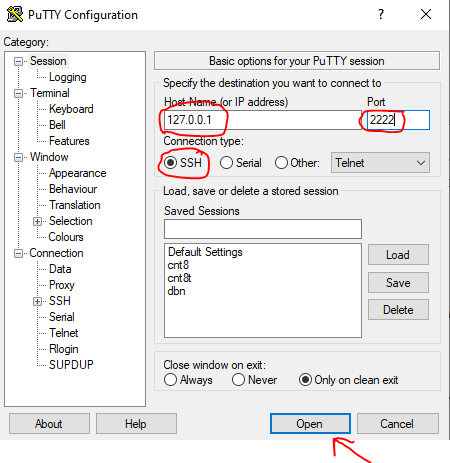
Configuring a Basic Connection in PuTTY
1. Launch PuTTY: After installation, you can find PuTTY in your Start Menu or by searching for it.
2. Enter Connection Details:
- In the “Session” category, locate the “Host Name (or IP address)” field. Enter the IP address or domain name of your Linux server (e.g., `192.168.1.100`).
- Ensure “Port” is set to `22` (or your custom SSH port).
- Ensure “Connection type” is set to `SSH`.
3. Save Your Session (Optional but Recommended):
- In the “Saved Sessions” field, type a descriptive name for this connection (e.g., “My Linux Server”).
- Click the `Save` button. This allows you to quickly load and connect to this server in the future by selecting it from the list and clicking `Load`.
4. Open the Connection: Click the `Open` button at the bottom of the PuTTY window.
5. First Connection Handshake: Similar to the OpenSSH client, PuTTY will prompt you about the server’s host key on the first connection.
- A “PuTTY Security Alert” dialog box will appear, asking if you trust the host. Click `Accept` to cache the key and proceed.
6. Login and Password:
- A terminal window will open, prompting `login as:`. Enter your Linux username and press Enter.
- Then, it will prompt for `password:`. Enter your password and press Enter.
7. Success! If credentials are correct, you’ll be logged in to your Linux server’s command line.
Enhancing Your PuTTY Experience
PuTTY offers numerous customization options:
- Terminal Appearance: Under `Window` > `Colours` or `Window` > `Appearance`, you can change fonts, foreground/background colors, cursor style, etc.
- Logging: Under `Session` > `Logging`, you can configure PuTTY to save your session output to a log file, which can be invaluable for troubleshooting or record-keeping.
- Private Key Authentication: (Discussed in detail later) PuTTY has a dedicated section under `Connection` > `SSH` > `Auth` where you can specify a private key file (`.ppk`) for key-based authentication.
Method 3: Using Windows Subsystem for Linux (WSL)
Windows Subsystem for Linux (WSL) provides a powerful and convenient way to run a genuine Linux environment directly on Windows, without the overhead of a traditional virtual machine. This allows you to leverage the full, native OpenSSH client capabilities within a Linux distribution installed on your Windows machine.
What is WSL and Why Use it for SSH?
WSL is a compatibility layer for running Linux binary executables natively on Windows 10/11. It’s not a VM; it’s more akin to a lightweight virtualization technology that allows Linux binaries to interact directly with the Windows kernel.
Why use WSL for SSH?
- Native Linux Experience: You get the full power and familiarity of the Linux command line, including its robust OpenSSH client (`ssh`, `ssh-keygen`, `ssh-copy-id`).
- Seamless Integration: Access your Windows file system directly from WSL, making it easy to manage files and configurations.
- Developer-Friendly: WSL is a boon for developers who need Linux tools and environments for their work, including Git, Docker, and various programming languages.
- Consistency: If you work with Linux servers frequently, using WSL ensures your client-side SSH experience is consistent with what you’d find on other Linux machines.
Installing and Setting Up WSL
1. Enable WSL Feature:
- Open PowerShell (as Administrator).
- Run: `wsl –install` (This command is available in Windows 10 version 2004 and later, or Windows 11. It enables WSL, installs the WSL kernel, and sets Ubuntu as the default distribution).
- If using an older Windows 10 version, you might need to enable the “Windows Subsystem for Linux” optional feature and “Virtual Machine Platform” manually via `Control Panel` > `Programs` > `Turn Windows features on or off`.
2. Install a Linux Distribution:
- If you used `wsl –install`, Ubuntu is already set up. You’ll be prompted to create a username and password for your new Linux environment.
- Alternatively, you can install other distributions from the Microsoft Store (e.g., Debian, Kali Linux, SUSE Linux Enterprise Server). Search for your preferred distribution, click “Get,” and then “Launch.”
3. Update and Upgrade: Once your Linux distribution is set up, open its terminal (e.g., search for “Ubuntu” in Start Menu). It’s good practice to update the package lists and upgrade any installed packages:
- `sudo apt update && sudo apt upgrade`
Connecting via SSH within WSL
Once your WSL distribution is up and running, the process for connecting to a remote Linux server via SSH is identical to how you would do it from any native Linux machine. The OpenSSH client is typically pre-installed in most distributions.
1. Open your WSL terminal: (e.g., “Ubuntu” from the Start Menu).
2. Use the `ssh` command:
- `ssh [username]@[hostname_or_ip_address]`
- Example: `ssh [email protected]`
3. First Connection Handshake & Password: Just like with the native Windows OpenSSH client, you’ll be prompted to verify the host key fingerprint on the first connection. Type `yes`, then enter your password for the remote Linux server.
4. Success! You are now connected to your remote Linux server through the WSL environment.
Within WSL, you can also manage your SSH configuration file (`~/.ssh/config`) and SSH keys (`~/.ssh/id_rsa`, `authorized_keys`) in the exact same way you would on a standard Linux system. This consistency is a major advantage of using WSL for SSH.
Enhancing Security: Key-Based Authentication (Recommended)
While password authentication is simple, it is inherently less secure and more vulnerable to brute-force attacks. Key-based authentication, using SSH key pairs, offers a significantly stronger and more convenient alternative. It is the industry-standard best practice for securing SSH connections.
Why Key-Based Authentication is Superior to Passwords
- Stronger Security: SSH keys are mathematically generated, very long, and complex strings of characters, making them virtually impossible to guess or brute-force. A typical SSH key is equivalent to a password hundreds of characters long.
- Immunity to Brute-Force Attacks: Even if an attacker obtains your private key, it’s useless without its passphrase (if you set one). The SSH server won’t accept password attempts if key authentication is enabled, thwarting automated attacks.
- Convenience: Once set up, you don’t need to type a password every time you connect (especially with an SSH agent like `ssh-agent` or PuTTY’s Pageant). This speeds up workflow and facilitates scripting.
Generating SSH Key Pairs (Public and Private)
An SSH key pair consists of two parts:
- Public Key: Stored on the Linux server. It’s safe to share.
- Private Key: Stored securely on your Windows client machine. Never share this key.
The process differs slightly based on whether you’re using OpenSSH (Windows/WSL) or PuTTY.
Generating Keys with OpenSSH Client (Windows 10/11 or WSL)
1. Open PowerShell (Windows) or WSL terminal.
2. Run `ssh-keygen`:
bash
ssh-keygen -t rsa -b 4096 -C “[email protected]”
- `-t rsa`: Specifies the RSA algorithm. While newer algorithms like Ed25519 are available and recommended, RSA is still widely compatible.
- `-b 4096`: Sets the key length to 4096 bits for strong encryption (2048 is also common, but 4096 is more secure).
- `-C “[email protected]”`: Adds a comment to the public key, often used to identify the key’s owner or purpose.
3. Save Location: The command will prompt you to “Enter file in which to save the key”. Press Enter to accept the default location (`C:UsersYourUser.sshid_rsa` on Windows, or `~/.ssh/id_rsa` in WSL).
4. Passphrase: You’ll then be prompted to “Enter passphrase (empty for no passphrase)”.
- Strongly Recommended: Enter a strong, memorable passphrase. This encrypts your private key, adding another layer of security. Even if your private key is stolen, it’s useless without the passphrase.
- If you choose to leave it empty, you won’t be prompted for a passphrase when using the key.
5. Output: Two files will be generated:
- `id_rsa` (your private key)
- `id_rsa.pub` (your public key)
Generating Keys with PuTTYgen
1. Launch PuTTYgen: Found in the PuTTY installation directory or via the Start Menu.
2. Choose Key Type: Select “RSA” (or EdDSA for newer, more secure keys if supported by your server).
3. Key Length: Set “Number of bits in a generated key” to `4096`.
4. Generate: Click the `Generate` button. Move your mouse randomly over the blank area to provide entropy for the key generation.
5. Key Passphrase: Enter a strong passphrase in “Key passphrase” and confirm it. This passphrase protects your private key.
6. Save Keys:
- Click `Save public key` to save it as `mykey.pub` (any filename, but usually `.pub`).
- Click `Save private key` to save it as `mykey.ppk` (PuTTY’s proprietary format). Never share this `.ppk` file.
- The public key displayed in the PuTTYgen window (starting with `ssh-rsa AAAA…`) is what you’ll typically copy to your Linux server.
Copying Your Public Key to the Linux Server
Once you have your public key (`id_rsa.pub` for OpenSSH, or the string from PuTTYgen), you need to place it on your Linux server in the `~/.ssh/authorized_keys` file.
Method A: Using `ssh-copy-id` (Recommended for OpenSSH/WSL)
If you’re using the OpenSSH client (either native Windows or WSL), `ssh-copy-id` is the simplest and most secure method.
1. From PowerShell or WSL terminal:
bash
ssh-copy-id -i ~/.ssh/id_rsa.pub user@hostname_or_ip_address
- Replace `~/.ssh/id_rsa.pub` with the actual path to your public key if it’s different.
- Replace `user@hostname_or_ip_address` with your Linux username and server details.
2. Password Prompt: You’ll be prompted for the password of `user` on the remote Linux server.
3. Success: `ssh-copy-id` will connect, create the `~/.ssh` directory if it doesn’t exist, set correct permissions, and append your public key to `~/.ssh/authorized_keys`.
Method B: Manual Copy (for all clients, but less automated)
If `ssh-copy-id` isn’t available or you’re using PuTTY, you can copy the public key manually.
1. Get Public Key Content:
- OpenSSH/WSL: Open `id_rsa.pub` with a text editor and copy its entire content.
- PuTTYgen: Copy the public key string displayed in the PuTTYgen window (it begins with `ssh-rsa AAAA…`).
2. Log in to Linux Server (via password authentication initially):
- `ssh user@hostname_or_ip_address` (if using OpenSSH)
- Open a PuTTY session (if using PuTTY).
3. Create `.ssh` directory and `authorized_keys` file:
bash
mkdir -p ~/.ssh
chmod 700 ~/.ssh
touch ~/.ssh/authorized_keys
chmod 600 ~/.ssh/authorized_keys
- These commands create the directory, ensure it has restrictive permissions (only owner can read/write/execute), create the `authorized_keys` file, and set its permissions (only owner can read/write). Incorrect permissions are a common cause of key authentication failures.
4. Append Public Key:
- Open `authorized_keys` with a text editor (e.g., `nano ~/.ssh/authorized_keys`).
- Paste the copied public key string on a new line.
- Save and exit the editor (e.g., Ctrl+X, Y, Enter for Nano).
Connecting with Your Private Key
Once your public key is on the server, you can connect using your private key.
With OpenSSH Client (Windows 10/11 or WSL)
1. Basic connection (if private key is default `~/.ssh/id_rsa`):
bash
ssh user@hostname_or_ip_address
If you set a passphrase, you’ll be prompted for it.
2. Specify private key (if it’s not the default or you have multiple keys):
bash
ssh -i C:UsersYourUser.sshmykey_rsa user@hostname_or_ip_address
(Adjust path for WSL: `ssh -i ~/.ssh/mykey_rsa user@hostname_or_ip_address`)
With PuTTY
1. Load your saved session in PuTTY.
2. Navigate to `Connection` > `SSH` > `Auth` in the left-hand category tree.
3. Browse for your private key file: Click `Browse…` and select your `.ppk` private key file.
4. Save the session: Go back to the `Session` category, select your session name, and click `Save` to store this key configuration.
5. Open the connection: Click `Open`.
6. Passphrase Prompt: If your private key has a passphrase, PuTTY will prompt you for it in the terminal window. Enter it and press Enter.
7. Success! You should now be logged in without needing your server’s password.
Advanced SSH Techniques and Best Practices
Mastering basic SSH connections is just the beginning. The protocol offers a wealth of advanced features and adopting certain best practices can significantly enhance your workflow and security posture.
SSH Port Forwarding (Tunneling)
SSH port forwarding, also known as SSH tunneling, allows you to create secure connections between local and remote ports, effectively tunneling insecure traffic through an encrypted SSH channel. There are three main types:
- Local Port Forwarding (`-L`): Forwards a local port on your client machine to a port on the remote SSH server, and from there to another port on a destination machine. Useful for accessing services on a remote internal network from your local machine.
- `ssh -L 8080:localhost:80 user@ssh_server_ip`
- This tunnels traffic from your local machine’s port 8080 to the `ssh_server_ip`’s localhost port 80. You could then open `http://localhost:8080` in your browser on Windows to access a web server running on the Linux server at port 80.
- Remote Port Forwarding (`-R`): Forwards a port on the remote SSH server to a port on your local client machine (or another machine reachable by the client). Useful for allowing remote users to access a service on your local machine.
- `ssh -R 8080:localhost:80 user@ssh_server_ip`
- This makes your local machine’s port 80 accessible on the `ssh_server_ip` at port 8080.
- Dynamic Port Forwarding (`-D`): Turns your SSH client into a SOCKS proxy server. All traffic configured to use this SOCKS proxy will be forwarded through the SSH tunnel. This is excellent for securely browsing the web from a remote location or bypassing content filters.
- `ssh -D 8080 user@ssh_server_ip`
- Then, configure your browser or applications to use a SOCKS proxy at `localhost:8080`.
SCP and SFTP: Secure File Transfer
SSH isn’t just for commands; it’s also the backbone for secure file transfers.
- SCP (Secure Copy Protocol): A command-line utility for copying files and directories between hosts over an SSH connection. It’s fast and simple.
- Copy local file to remote: `scp C:pathtolocalfile.txt user@server_ip:/remote/path/` (OpenSSH client/WSL)
- Copy remote file to local: `scp user@server_ip:/remote/path/remote_file.txt C:pathtolocal/`
- Copy directory (recursive): `scp -r C:pathtolocal_dir user@server_ip:/remote/path/`
- SFTP (SSH File Transfer Protocol): A more robust file transfer protocol that provides a full interactive file system interface over SSH, similar to FTP but secure.
- Command Line (OpenSSH client/WSL): `sftp user@server_ip` (opens an SFTP prompt where you can use commands like `ls`, `cd`, `get`, `put`).
- GUI Client (WinSCP): For Windows users, `WinSCP` is an excellent free, open-source SFTP client. It provides a familiar dual-pane GUI for dragging and dropping files between your Windows machine and the Linux server. Download it from `https://winscp.net/`.
SSH Configuration File (`~/.ssh/config`)
As discussed briefly, the SSH config file is incredibly powerful for streamlining your connections. Beyond simple aliases, you can specify:
- `Port`: Custom SSH port for a host.
- `User`: Default username for a host.
- `IdentityFile`: Path to the private key for a host.
- `ForwardAgent yes`: Automatically forward your SSH agent (e.g., Pageant in PuTTY or `ssh-agent` in WSL) to the remote server, allowing you to connect from the server to another without re-entering passphrases.
- `Host *`: Apply settings to all hosts.
- `ProxyJump`: Chain SSH connections through a bastion host.
Leveraging this file makes managing complex SSH environments much simpler and more consistent.
Security Best Practices for SSH
Implementing robust security measures is paramount when dealing with remote access.
- Disable Password Authentication (After Setting Up Keys): Once key-based authentication is working reliably, edit `/etc/ssh/sshd_config` on your Linux server and set `PasswordAuthentication no`. Restart the SSH service (`sudo systemctl restart ssh`). This significantly hardens your server against brute-force attacks.
- Change Default SSH Port: While “security through obscurity” isn’t foolproof, changing the default SSH port (22) to a non-standard high-numbered port can reduce automated scan attempts against your server. Edit `/etc/ssh/sshd_config` and change `Port 22` to something like `Port 2222`. Remember to update your firewall rules and client configurations.
- Restrict Root Login: Disallow direct SSH login for the `root` user. Instead, log in as a regular user and use `sudo` for administrative tasks. In `/etc/ssh/sshd_config`, set `PermitRootLogin no`.
- Use Strong Passphrases for Private Keys: A passphrase adds a critical layer of security to your private key. Even if an attacker obtains your private key, they still need the passphrase to use it.
- Keep Software Updated: Regularly update your SSH client (Windows updates, PuTTY updates) and the OpenSSH server on your Linux machine to patch known vulnerabilities.
- Monitor Logs: Periodically review SSH logs on your Linux server (`/var/log/auth.log` or `journalctl -u sshd`) for suspicious login attempts.
- Implement Fail2ban: This tool automatically blocks IP addresses that show malicious signs (e.g., too many failed password attempts), adding an automated layer of defense.
Common SSH Connection Issues and Troubleshooting
Despite careful configuration, you might encounter issues. Here’s how to diagnose and resolve some common SSH connection problems.
Connection Timed Out
This indicates the client couldn’t establish a network connection to the server on the specified port.
- Check IP Address/Hostname: Double-check that the IP address or hostname is correct.
- Network Connectivity:
- Can your Windows machine ping the Linux server’s IP address? (`ping server_ip`)
- Is the Linux server actually online and running?
- Firewall on Linux Server: Is the Linux server’s firewall (e.g., UFW, firewalld) blocking port 22 (or your custom SSH port)? Temporarily disable it for testing (`sudo ufw disable` or `sudo systemctl stop firewalld`) and try connecting. If it works, re-enable and properly configure the firewall.
- Firewall on Windows Client: Less common, but your Windows firewall or antivirus might be blocking outbound SSH connections.
- SSH Server Status: Is the `sshd` service running on the Linux server? (`sudo systemctl status sshd`). If not, start it (`sudo systemctl start sshd`).
- Incorrect Port: Are you using the correct port? If the server’s SSH port has been changed from 22, ensure your client specifies the new port (e.g., `ssh -p 2222 user@server_ip` or configure in PuTTY/config file).
Permission Denied (Publickey, Password)
This means the client successfully connected to the server, but authentication failed.
- Incorrect Username/Password: The most common cause. Double-check your username and password for the Linux account.
- Private Key Issues:
- OpenSSH/WSL: Is your private key (`id_rsa`) in the correct location (`~/.ssh/`)? Is it protected with proper permissions (`chmod 600 id_rsa`)?
- PuTTY: Have you loaded the correct `.ppk` private key file in PuTTY’s authentication settings?
- Passphrase: Are you entering the correct passphrase for your private key?
- Server-Side Permissions (for Key-Based Auth):
- The `~/.ssh` directory on the Linux server must have permissions `700` (`drwx——`).
- The `~/.ssh/authorized_keys` file must have permissions `600` (`-rw——-`).
- The user’s home directory (`~`) on the Linux server should also not be world-writable (`chmod 755 ~`).
- Check these with `ls -ld ~/.ssh` and `ls -l ~/.ssh/authorized_keys` on the server.
- Public Key Not in `authorized_keys`: Is your public key correctly copied and appended to `~/.ssh/authorized_keys` on the server? Make sure there are no extra spaces or line breaks.
- `PermitRootLogin` / `PasswordAuthentication`: If you disabled `PermitRootLogin yes` or `PasswordAuthentication yes` on the server, ensure you’re trying to log in as a non-root user or with key authentication respectively.
Host Key Verification Failed
This usually happens if the server’s public key (fingerprint) stored on your client machine doesn’t match the one presented by the server.
- MITM Attack Potential: While rare, this could indicate a Man-in-the-Middle attack. If you’re unsure, do not connect.
- Server Reinstallation/IP Change: More commonly, the server might have been reinstalled, its SSH configuration reset, or its IP address has changed but another machine is now using the old IP.
- Remove Stale Entry: To fix this, you need to remove the old host key entry from your client’s `known_hosts` file.
- OpenSSH/WSL: The error message will usually tell you which line number in `~/.ssh/known_hosts` to remove. Open the file in a text editor and delete that specific line. Alternatively, use `ssh-keygen -R hostname_or_ip_address`.
- PuTTY: Go to `HKEY_CURRENT_USERSoftwareSimonTathamPuTTYSshHostKeys` in the Windows Registry (use `regedit.exe`) and delete the entry corresponding to the problematic server.
Server Refused Our Key
This is a specific type of `Permission Denied` error for key-based authentication.
- Incorrect Key Selected: Ensure you are explicitly telling your SSH client which private key to use if it’s not the default or you have multiple keys.
- Key Not Authorized: Your public key might not be correctly listed in the `~/.ssh/authorized_keys` file on the server.
- Server-Side Permissions: Re-verify the permissions for `~/.ssh` (700) and `~/.ssh/authorized_keys` (600) on the Linux server. The entire path from the home directory down to `authorized_keys` must have strict permissions.
- SELinux/AppArmor: On some distributions, security enhancements like SELinux or AppArmor might interfere. Check `/var/log/audit/audit.log` or `dmesg` for related messages if you suspect this.
Debugging SSH
When encountering persistent issues, increase the verbosity of your SSH client to get more diagnostic information.
- OpenSSH/WSL: Use the `-v`, `-vv`, or `-vvv` flags for increasing verbosity.
- `ssh -v user@server_ip` (verbose)
- `ssh -vv user@server_ip` (very verbose)
- `ssh -vvv user@server_ip` (debug level)
- PuTTY: In the PuTTY configuration, go to `Session` > `Logging` and set “Event log entries” to “All events.” You can also enable verbose debugging for SSH packets.
- Server Logs: Check the SSH daemon logs on the Linux server for clues:
- Debian/Ubuntu: `sudo tail -f /var/log/auth.log`
- CentOS/RHEL/Fedora: `sudo journalctl -u sshd -f` (for systemd-based systems)
Analyzing these logs from both the client and server side simultaneously is often the most effective way to pinpoint the exact cause of a connection failure.
Conclusion
The ability to SSH from Windows to Linux is a foundational skill in modern IT, empowering users with secure, efficient, and versatile remote access capabilities. From the convenience of the built-in OpenSSH client in Windows 10/11 and the familiar GUI of PuTTY, to the robust Linux environment provided by WSL, Windows users now have multiple powerful avenues to connect with their Linux servers.
We’ve traversed the essential setup, walked through various connection methods, and most importantly, highlighted the critical importance of key-based authentication for securing your remote interactions. By adopting these best practices and understanding the common troubleshooting steps, you transform a potentially complex task into a routine, reliable operation.
Embrace the power of the command line, secure your connections, and unlock the boundless potential of your Linux infrastructure directly from your Windows workstation. The bridge has been built; it’s time to cross over.